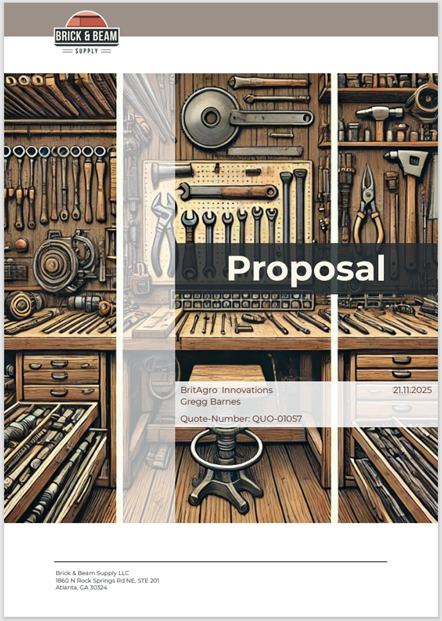
One-Click-Actions (OCAs) are predefined configurations in the DocumentsCorePack (DCP) Dialog that enable users to generate and process documents with a single click. Sometimes documents made of multiple parts need to be created. This guide provides a step-by-step explanation of how to create a custom One-Click-Action using MultiPart to generate such documents.
In the example provided, the goal is to create a proposal OCA consisting of several elements: a proposal cover, a proposal quote, a quote detail document, and multiple flyers.
Step 1: Opening the One-Click-Action Configuration
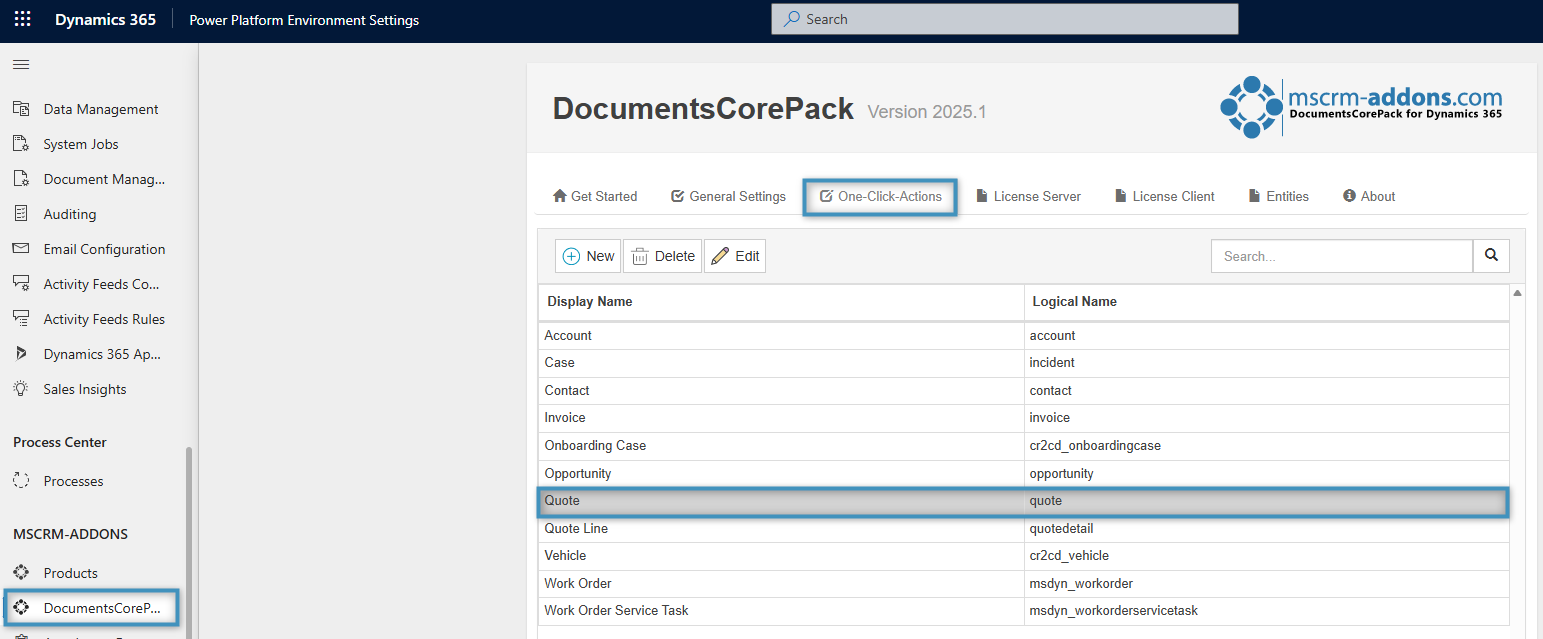
To begin the configuration, access the Power Platform Environment Settings. Then, navigate to the MSCRM-ADDONS section and select DocumentsCorePack and then the One-Click-Actions tab. Navigate to the entity you would like to create. In the example below, we will be using the Quote entity.
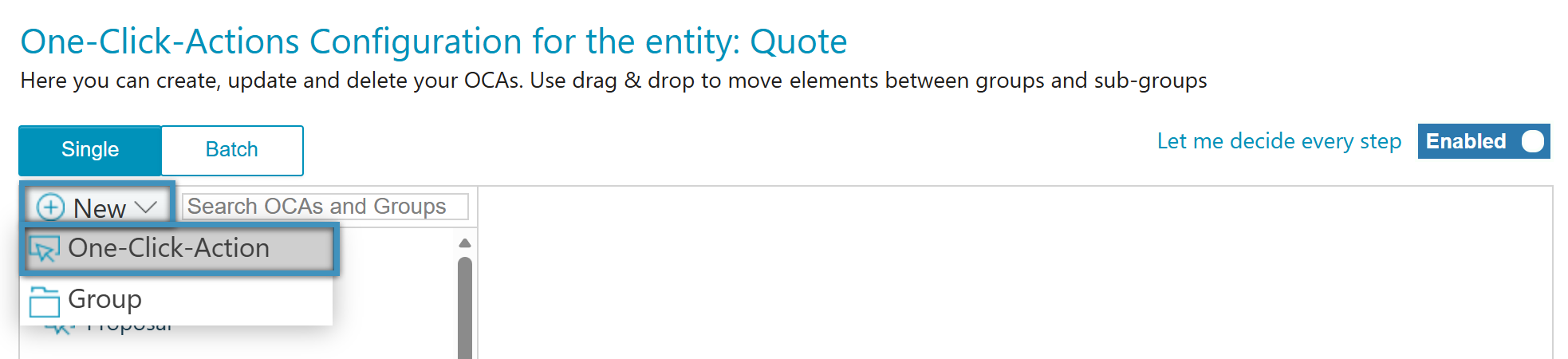
Once you have selected the Quote entity, the One-Click-Actions Configuration window will open (Figure 2). Under Single, select New and then One-Click-Action. Proceed with the following steps to configure your action in detail.
Step 2: General Settings
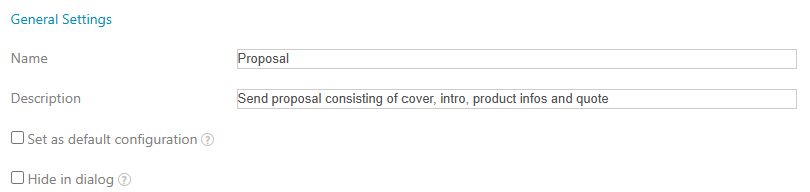
The General Settings window for Single Record Actions will now be displayed. Here you have the option to:
- Name your OCA to identify it easily.
- Add a Description
- Set this action as the default configuration for future use.
- Hide in dialog – if enabled, this OCA will not appear in the Create Document dialog.
Step 3: Template Settings
Once you proceed to the next step, the Template Settings window will appear. Here, you can configure your MultiPart document.
- Select the ❶ Use Multipart from the drop-down list.
- Add your DocParts by clicking the + button.
Next, configure your DocParts as shown in Figure 4 under the Type field.
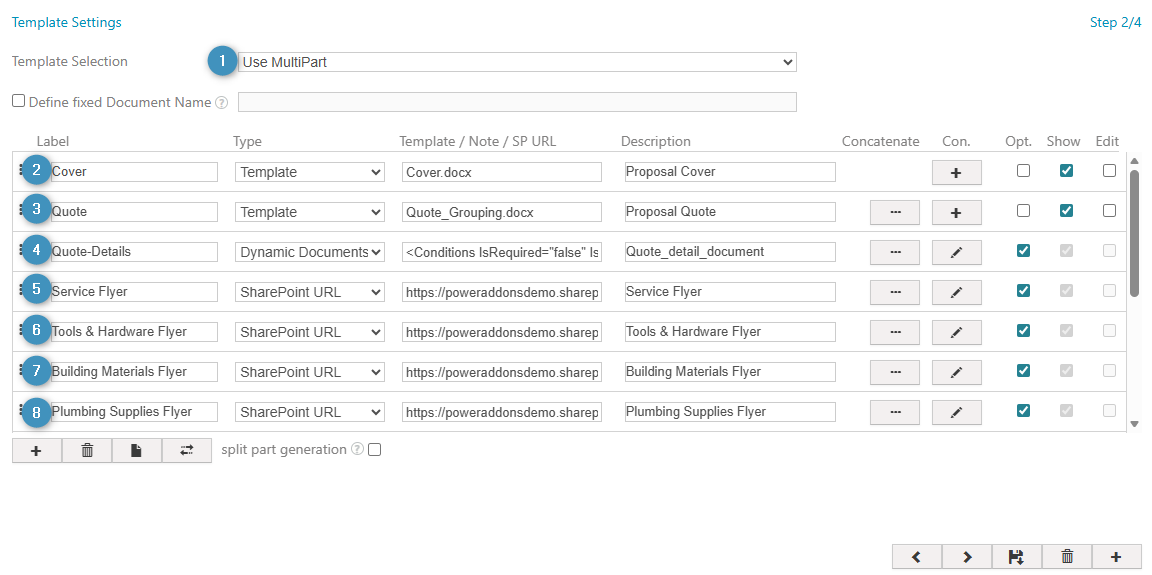
❷ Cover Letter
When you select Template under Type, the Look-Up Record window opens. From here, choose your template (in this example, Cover.docx). Optionally, you can add a description for your DocPart to easily indentify it in the DCP Dialog. Since we want this DocPart to be visible, make sure to mark the Show box.
❸ Quote
Repeat the same steps for the Quote as you did for the cover letter.
❹ Quote Detail Document
Next, in our example we want to add a Dynamic Documents type and set it as optional.
❺ ❻ ❼ ❽ Flyers
The four flyers should each be configured as a SharePoint URL type and set to optional.
Note: Labels can be formatted using basic HTML tags. For more information, refer to the documentation here.
Step 4: Processing Settings
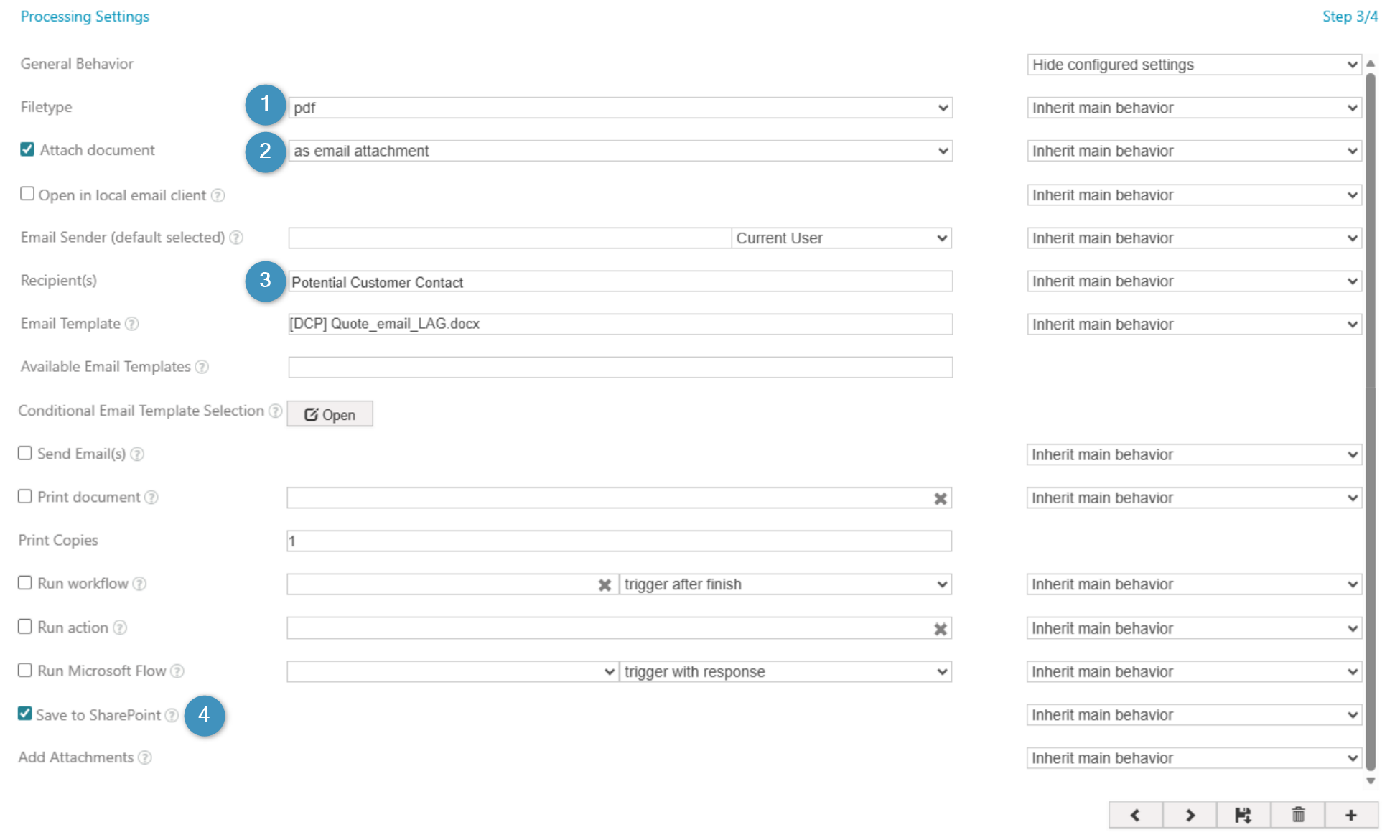
In this step, you can define the actions to be performed. In the example below, we have selected the following options for sending our document:
❶ Save as PDF
❷ Send as an e-mail attachment
❸ Send to potential customers
❹ Save it to SharePoint
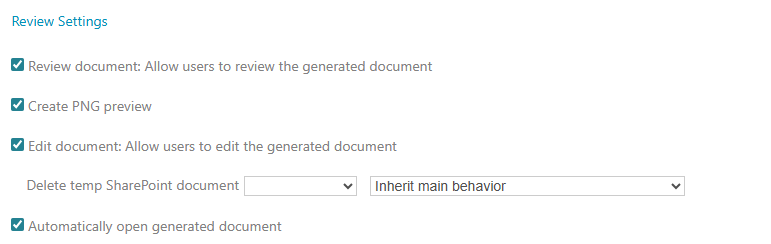
Step 5: Review Settings
In this step you can review your document, generate a PNG preview, edit it, and/or automatically open it upon completion, as shown in the figure below.
After completing all steps, make sure to Save your OCA.
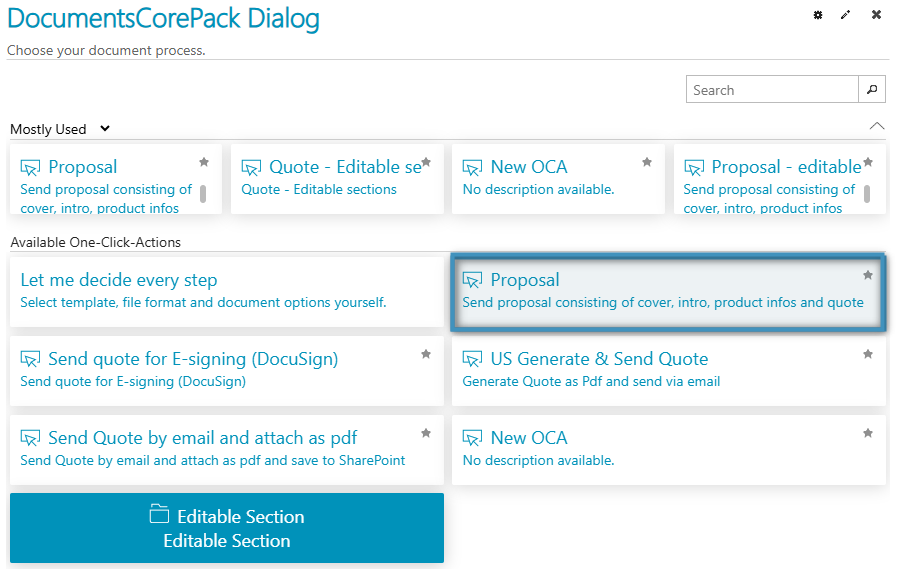
Now, when a Dynamics 365 user clicks the Create Document button, they will automatically see the new OCAs. In the example below, the available OCA is named Proposal.
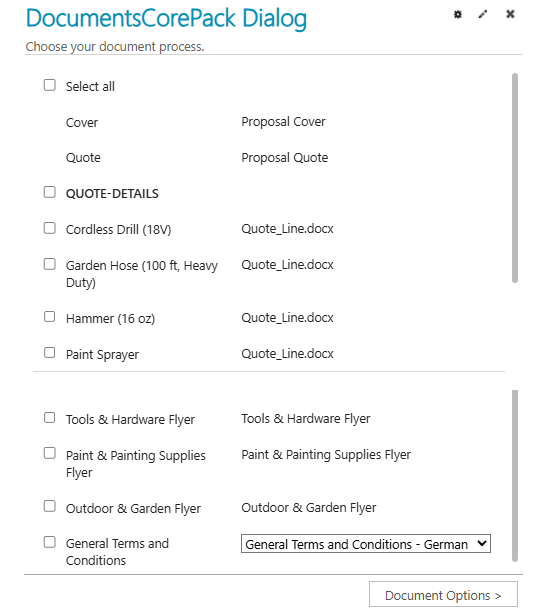
After clicking on our OCA, our previously defined elements will appear. As configured, some DocParts are optional, allowing the user to decide whether to include them by selecting the corresponding checkboxes.
Combined DocParts—such as Terms and Conditions shown below—enable users to choose between different options using the drop-down menu.
This is what our result looks like: