E-Signing allows users to send documents for electronic signature directly from Dynamics 365 using DocumentsCorePack. Supported providers include DocuSign and AdobeSign.
This article explains how to insert and configure e-Signing fields in your Word templates within the DCP Add-in.
Adding an E-Signing Field
- Open your Word template and launch the DocumentsCorePack Add-In.
- Place your cursor in the template where the signature should appear.
- Navigate to the Insert Field menu.
- Insert your desired field and choose your preferred Signing Provider (DocuSign, AdobeSign).
- Adjust the field options as needed and save your template.
Signing Providers
DocumentsCorePack offers support for the following signing providers.
DocuSign
DocuSign enables secure and legally binding e-signatures through its cloud-based signing platform.
For this example, we are drafting an NDA template. We’ll be assigning the company and adding a signature field.
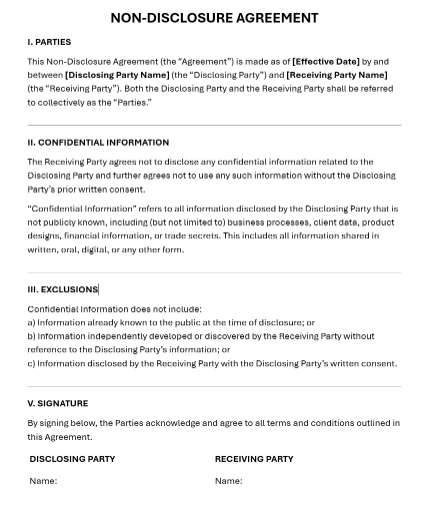
After drafting your template, open the Insert Fields dialog and set your base table. In this case, it will be “Contact”.
- Place your cursor where you would like to insert the field
- In the Insert Fields dialog, make your selection (eg. Company Name)
- Select Insert DocuSign Item
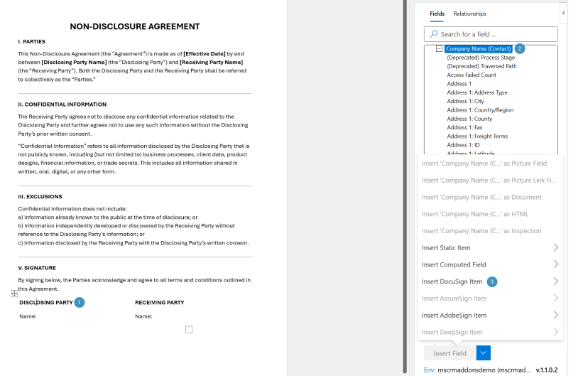
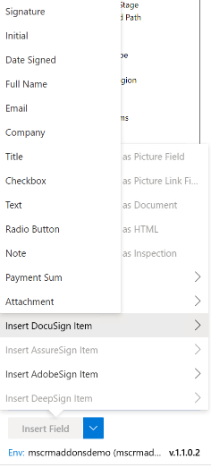
We can now select our desired DocuSign Field. In this case, it will be Company. A full list of fields avaiable can be found below.
Available fields: Signature, Initials, Date Signed, Full Name, Email, Company, Title, Checkbox, Text, Radio Button, Note, Payment Sum and Attachment.
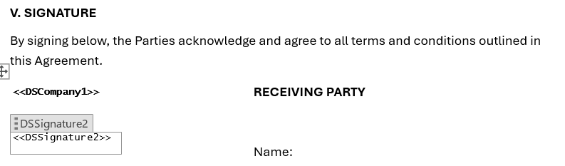
After inserting the company and signature fields in their location, you will be able to see them in your new template.
Field Properties – DocuSign
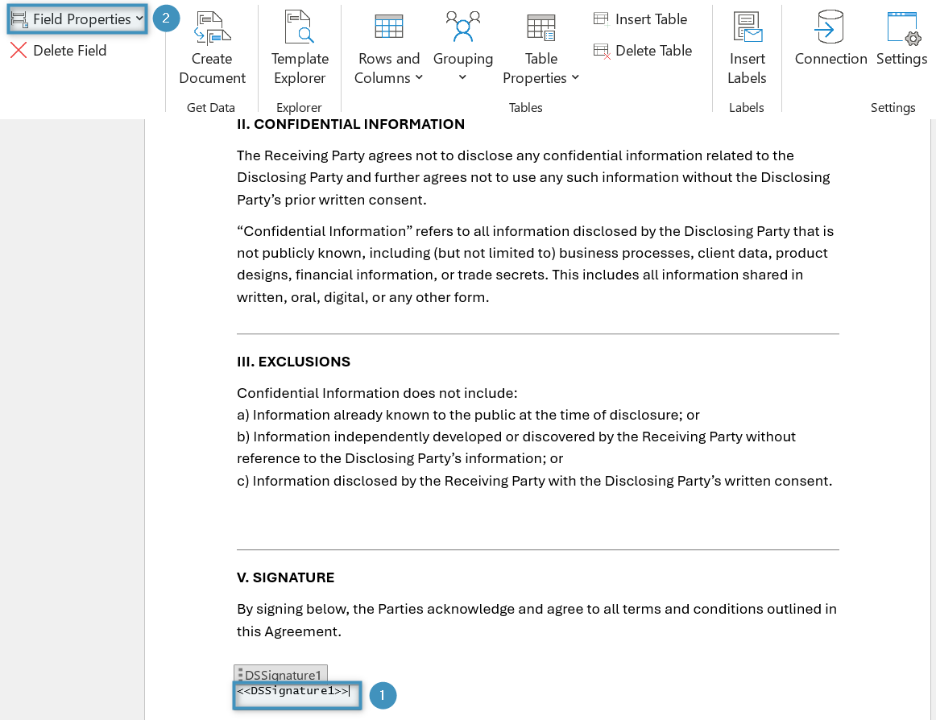
Once the field has been added into the template, users can adjust field properties by ❶ selecting the field and ❷ clicking Field Properties and then Field Properties (as dialog) in the ribbon.
In the opened dialog, you can assign the field to a specific signer (e.g., Signer 1, Signer 2) and define the signing order. Since this field is intended for the first signer, we will assign it to “Signer 1” and set the Sign Order to 1. Once you are done, click OK.
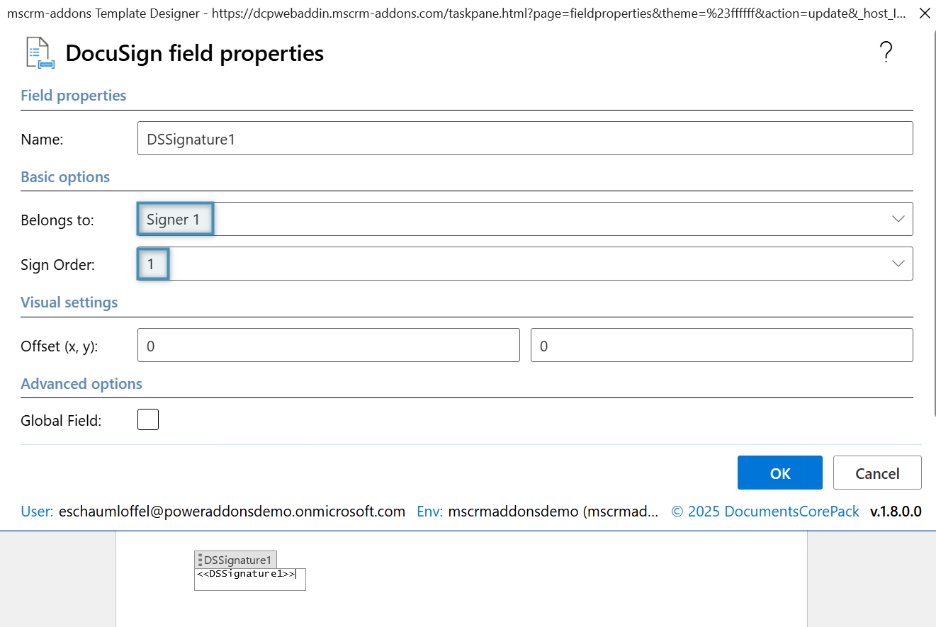
This process can be repeated for multiple signers.
AdobeSign
AdobeSign offers flexible digital signing fields for individual or multi-signer approval workflows.
Available fields: Signature, Initials, Date, Email, Full Name, Company, and Signature Block
Using the same NDA Template from above, we will insert the same fields from the template designer using AdobeSign.
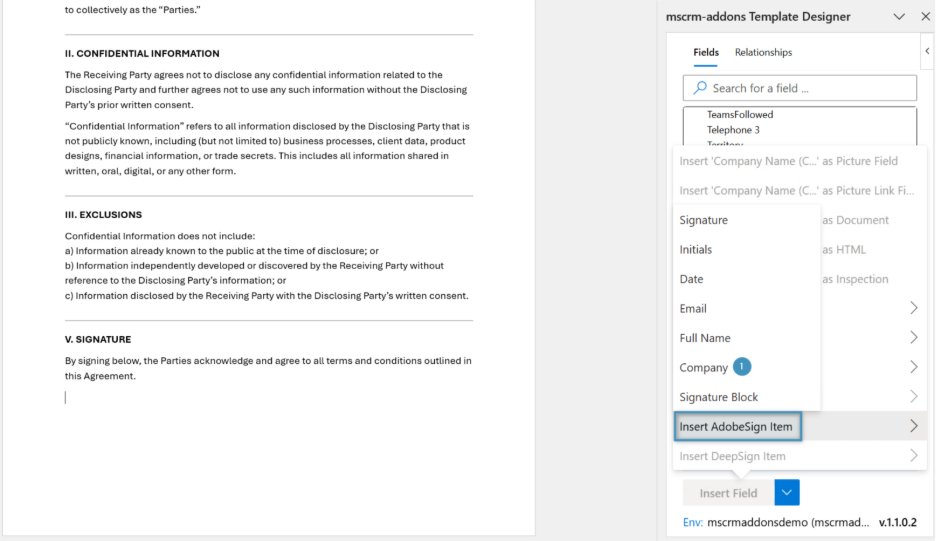
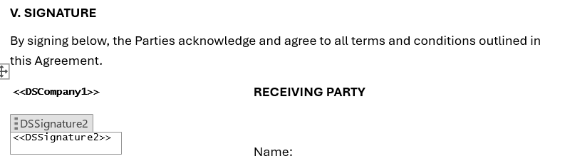
The first field to insert is the company name and then follow with a signature field. Once you have inserted both fields, you should receive the following output:
Field Properties – AdobeSign
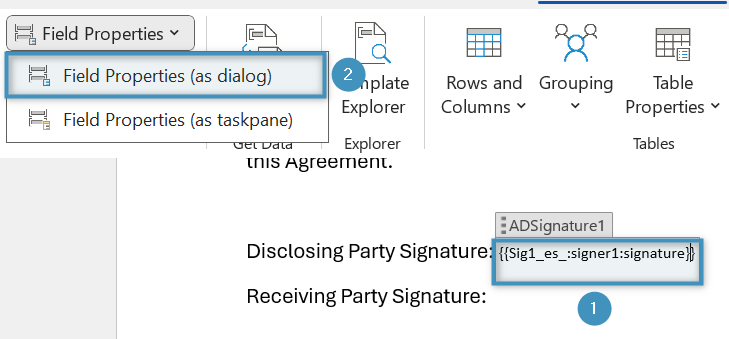
Like DocuSign, users can adjust field properties to configure the settings by ❶ selecting the field and ❷ clicking Field Properties and then Field Properties (as dialog) in the ribbon.
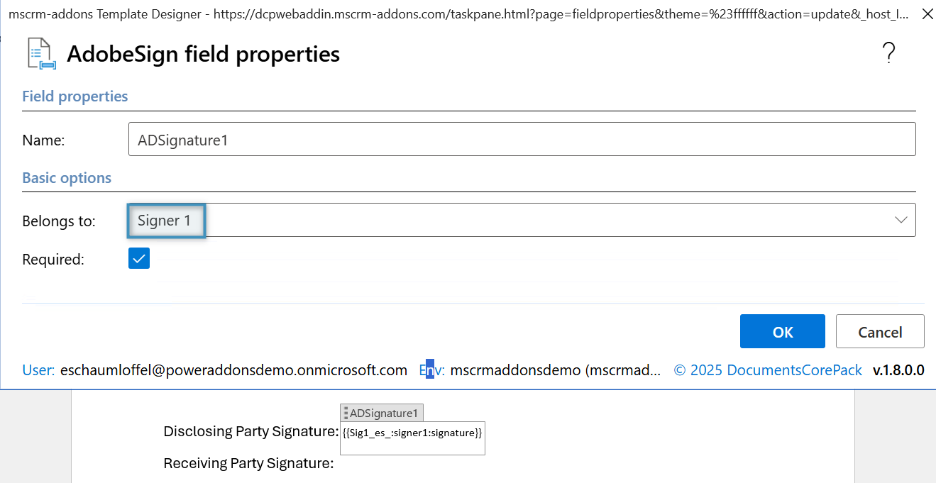
In the opened dialog, you can assign the field to a specific signer (e.g., Signer 1, Signer 2) and define the signing order. Since this field is intended for the first signer, we will assign it to “Signer 1” and set the Sign Order to 1. Once you are done, click OK.
This process can be repeated for multiple signers.