Inserting an image into a document can be useful for illustrating a particular subject or giving additional context. For example, a quote template might include images of the listed products, or an account template may have a photo of the account’s primary contact.
There are two separate ways to include images into your template: via a Picture Field or a Picture Link Field. This article covers both approaches.
Insert as a Picture Field
The Insert as Picture Field option downloads and embeds images into your generated documents. This option is most often used if your desired output is a file (e.g. pdf, docx, etc.). Do note that this field will increase the file size of the generated document.
This field may be inserted by selecting the desired field, then navigating to Insert Field -> Insert as Picture Field.
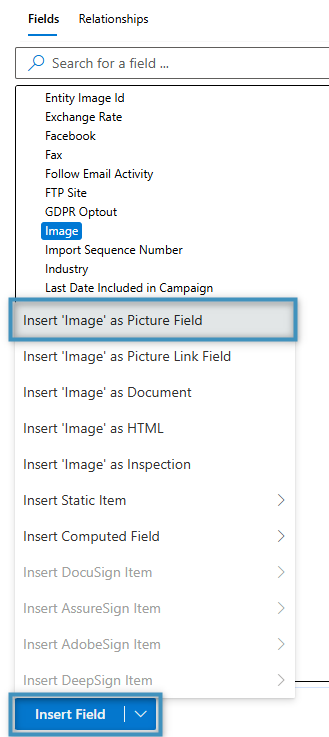
This option may be used to insert images from your records. The following sections detail various examples of using this field.
Inserting an image from a record
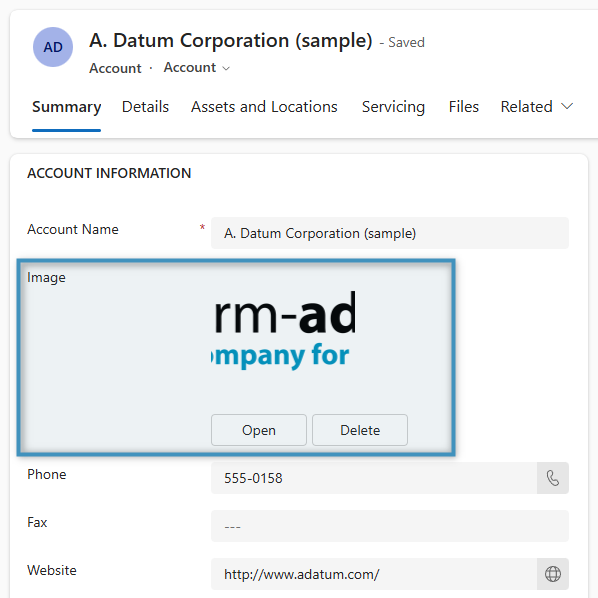
For this example, we would like to display an image from an account record in our document.
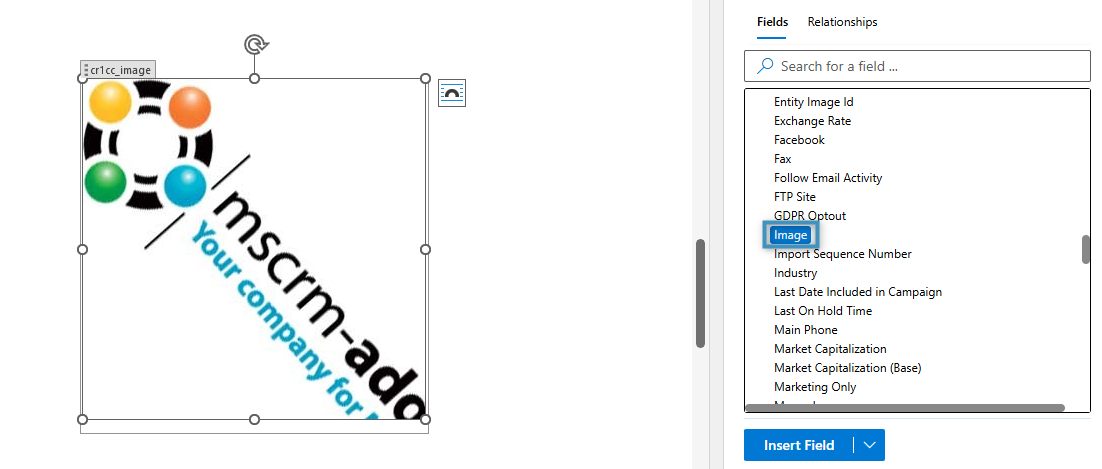
This field can be added to our document by selecting the field and inserting it as a Picture Field. This will insert the image as a placeholder in our template.
The generated result will be displayed like so:
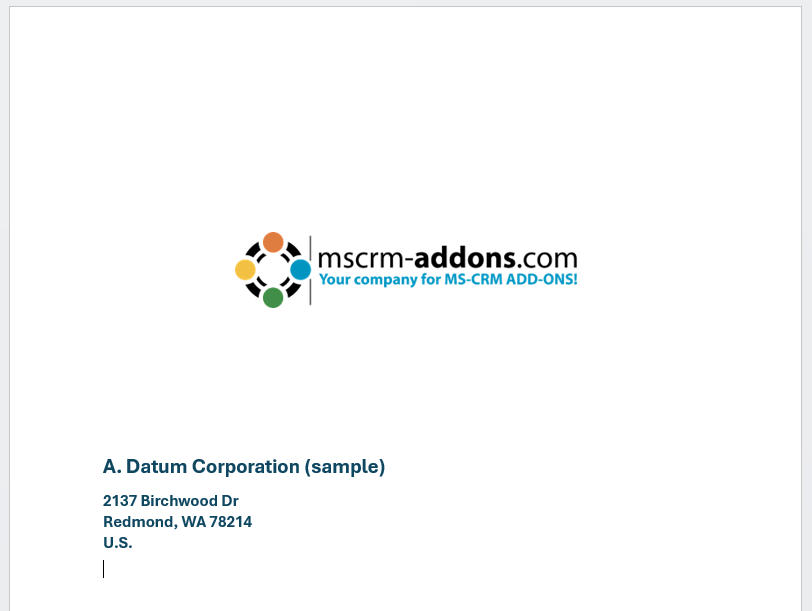
Insert an entity image
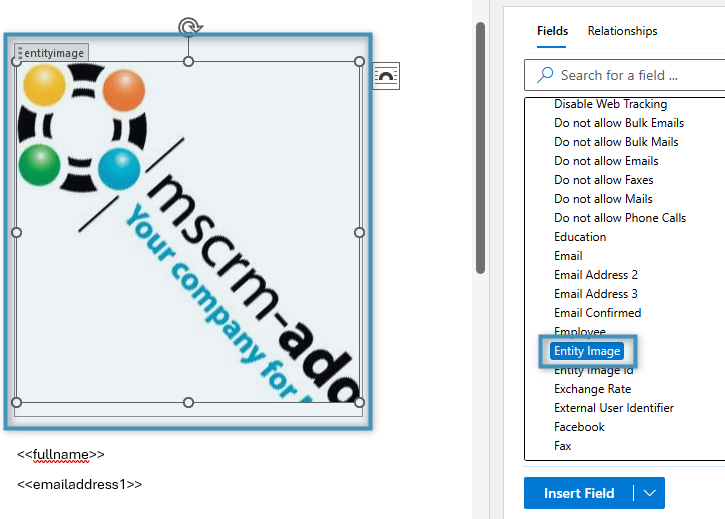
An entity image can be inserted into a template in the same way as above. If, for example, we had a contact with a table image to be displayed…
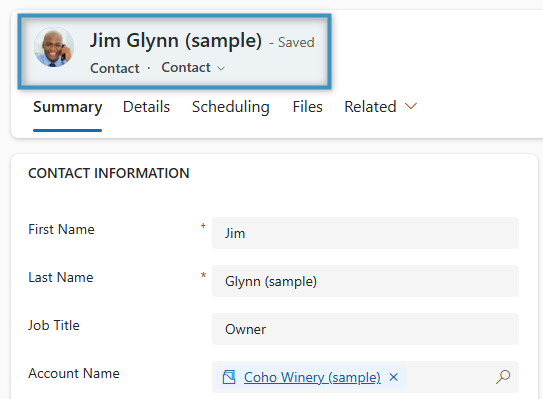
…the image can be inserted by locating the Entity Image field and inserting it as a Picture Field.
The result:

Insert an image stored as a note
An image stored as a note can be inserted into a template as well. In this example, we have the following note stored in this account record.
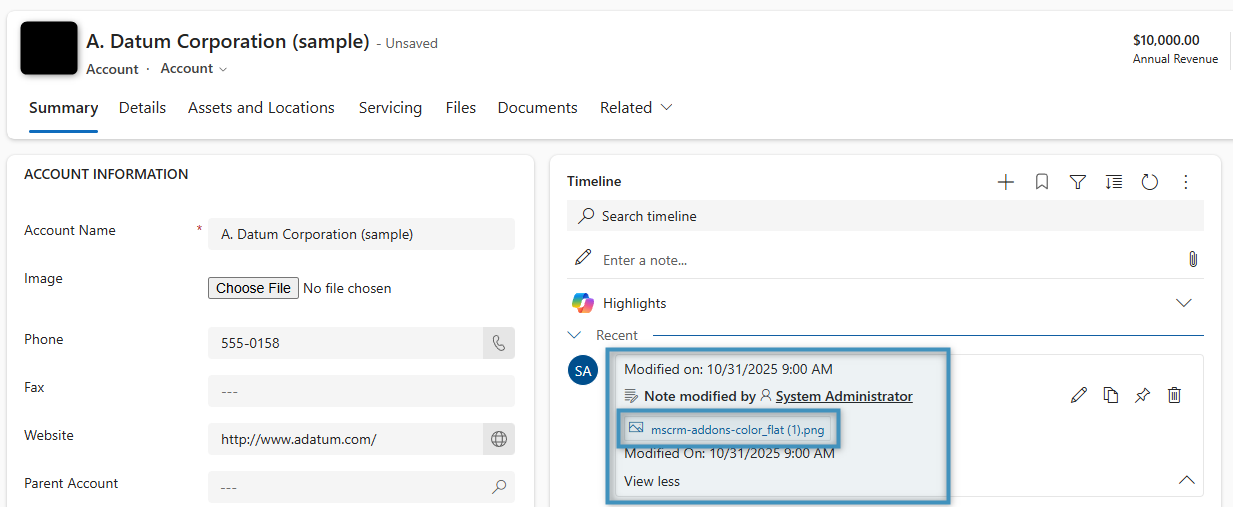
To insert an image stored as a note for an account template, we need to first establish a relationship with the Notes entity. Open the Relationship Designer and locate the relationship. In this case, it is under 1:N.
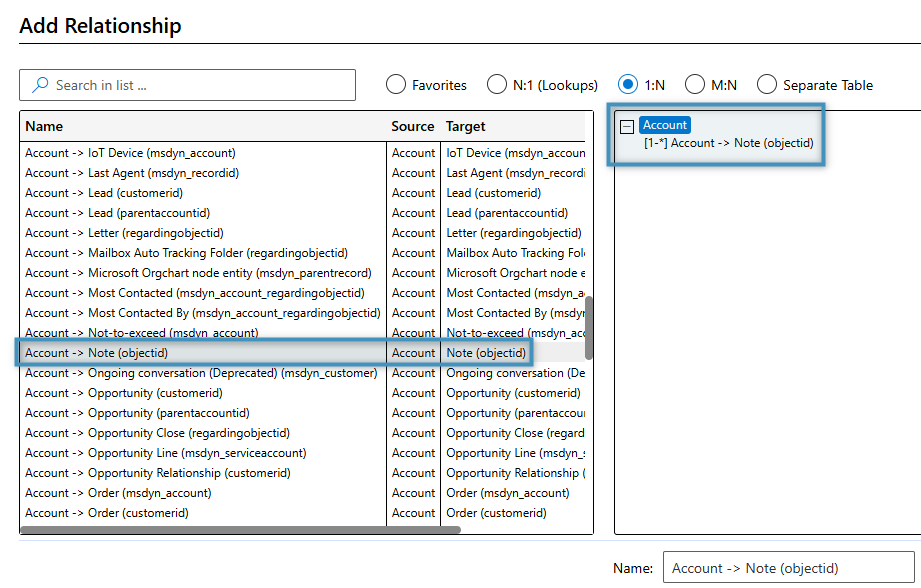
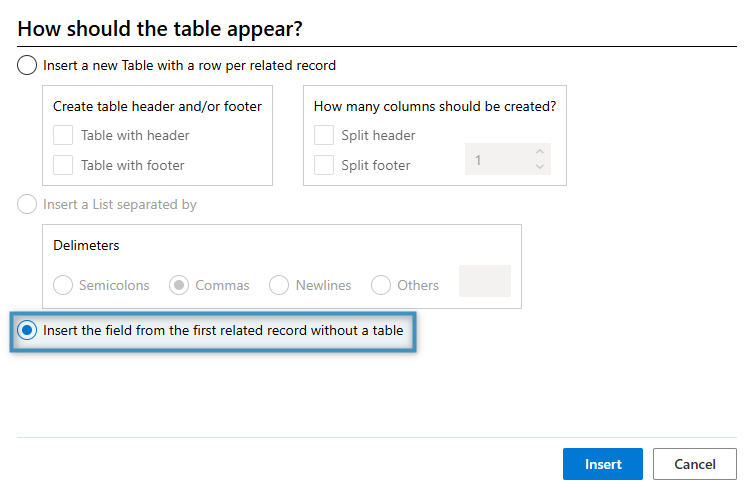
Once the relationship has been resolved, add the Note field as a Picture Field. This will open the table designer. Since we only want the single note’s image, we can select the following option.
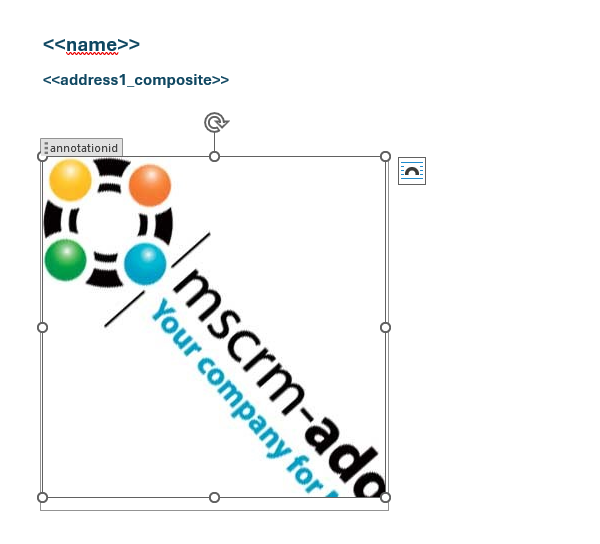
This will add the image to the template.
The result:

Insert an image stored as a file share or SharePoint link
Images stored as a file share or a SharePoint link can be added as well. In this example, we have a SharePoint URL stored in a textbox.
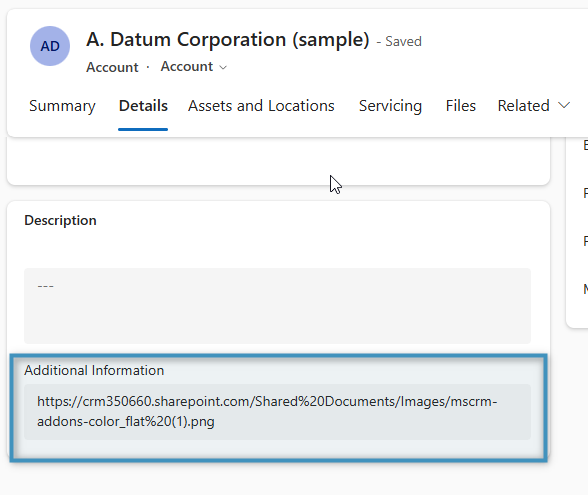
The image can be added as a Picture Field to our template.
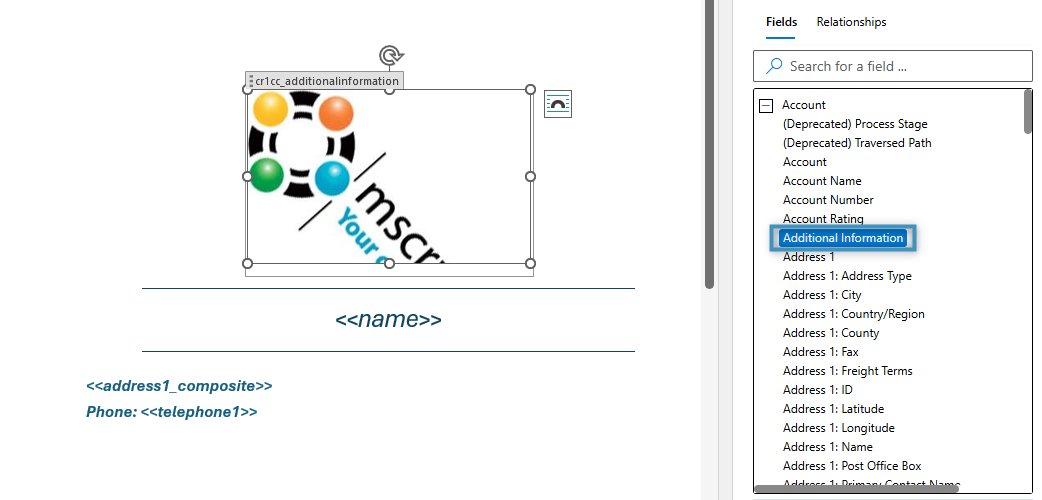
The result:

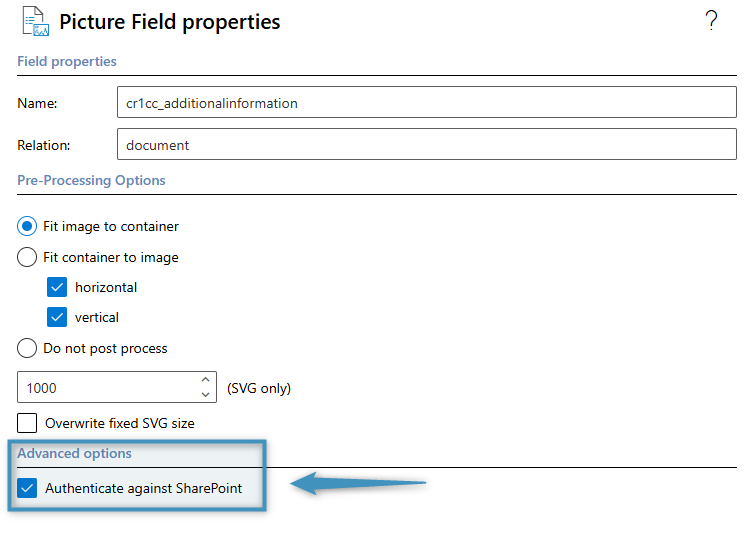
Note: When using a SharePoint URL, you will have to enable the Authenticate against SharePoint setting to display the image properly.
Insert as a Picture Link Field
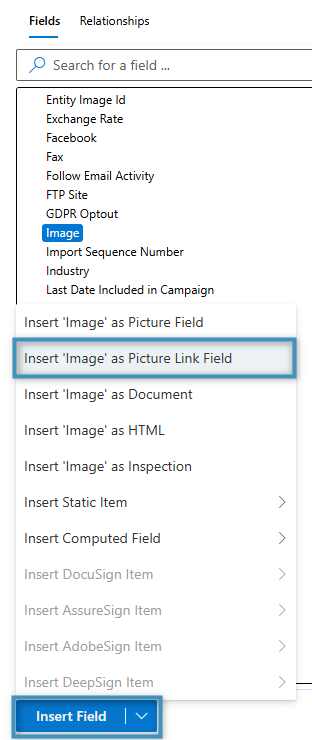
The Insert as Picture Link Field option displays images from online locations (e.g., a URL) in generated documents. This field is most commonly used if the generated content is for an email body. Inserting images in this way keeps generated file sizes small.
A Picture Link Field may be inserted by selecting the desired table field, then navigating to Insert Field -> Insert as Picture Link Field.
The following sections detail various examples of using this field.
Insert an image from a table field with a link
In this example, we have the following URL in a text field in an account record.
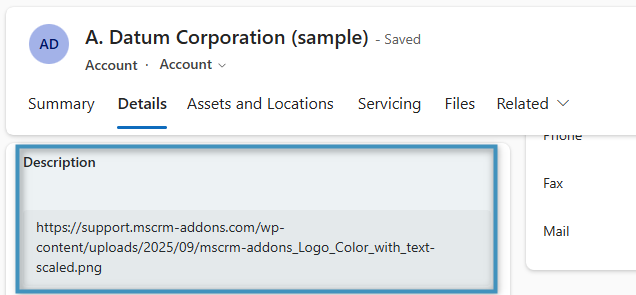
By selecting the Description field in the fields list and inserting it as a Picture Link Field, we will insert a placeholder image. This placeholder image can be resized to suit our image.
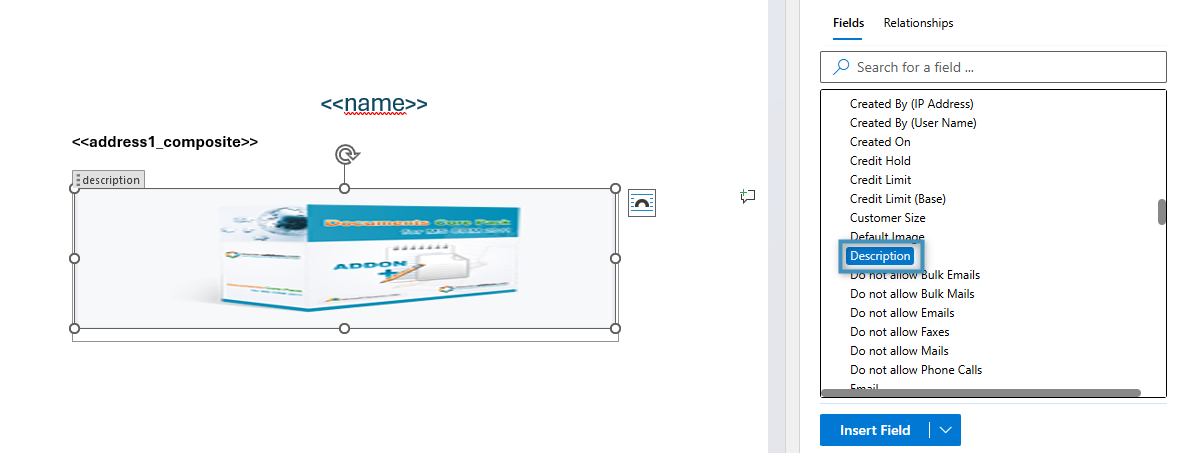
The result:

Adding a hyperlink
A hyperlink can be added to a Picture Link Field to make the image clickable. This can be done by opening the image’s field properties.
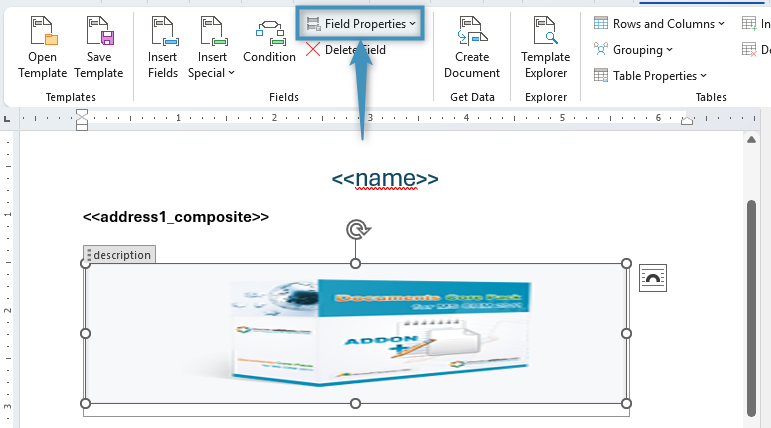
In the designer, you can add either a static URL as text (as shown below), or add a field from your record that contains a URL, such as a website field.
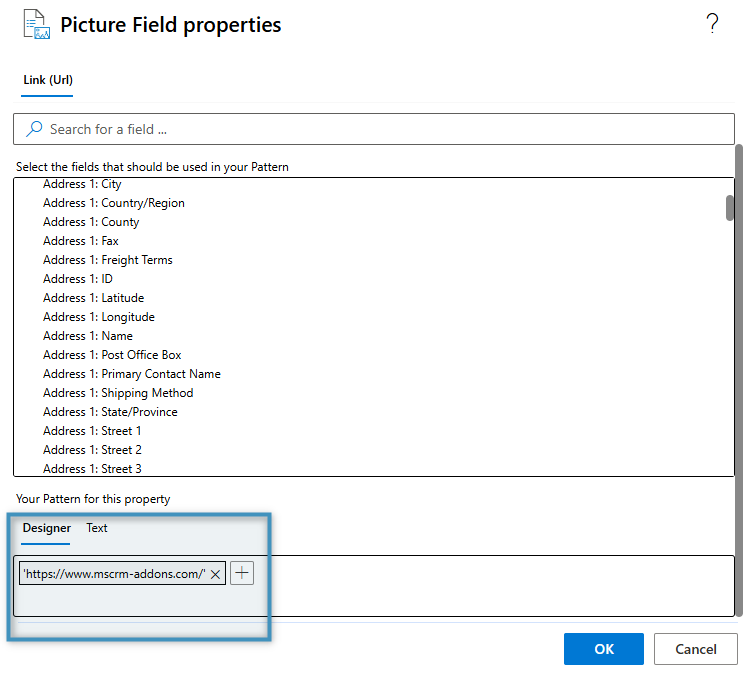
The generated document will then allow the user to open the URL when they hover over the image.

Picture Link fields in emails
As mentioned above, Picture Link Fields can be used to add images to templates while keeping file sizes small. This can be convenient for templates designed to be used as email content. Using the above example, if we were to use the same template for email content…
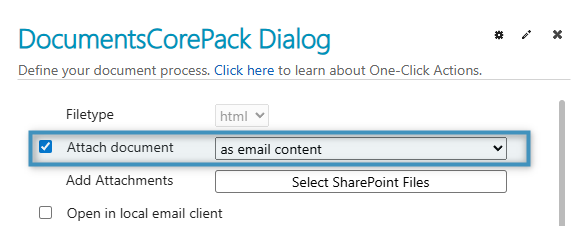
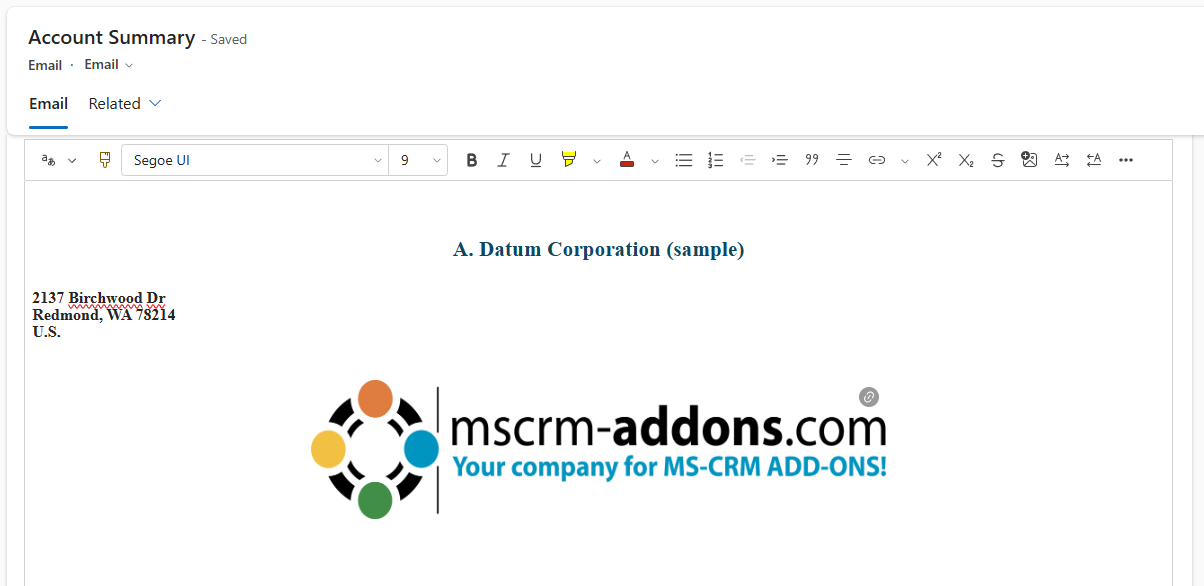
…the image and the rest of the resulting content will be displayed in the email body.
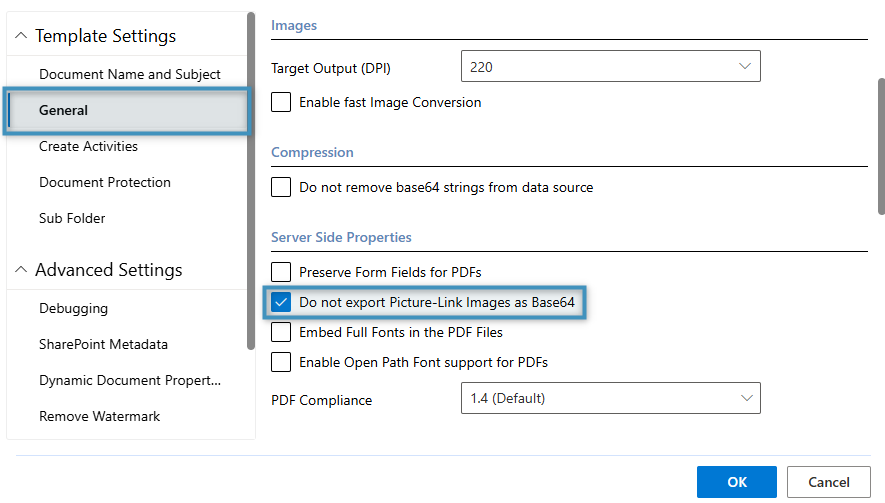
Note: Sometimes emails do not resolve Picture Link Field images correctly when sent. To prevent this, we recommend activating the Do not export Picture-Link Images as Base64 setting under Template Settings -> General.