In DocumentsCorePack (DCP), user prompts enable users to enter information that is mapped into the final document directly from the DocumentsCorePack Dialog or Power Automate. These prompts can be configured to add additional information to a document via textbox, define date/time values, or allow the user to choose from a list of predefined options. This can be handy for including personalization to a document, or for including specific legal terms.
This article covers how to create and configure user prompts in a DocumentsCorePack template and showcases how they work in the DocumentsCorePack Dialog.
Creating user prompts
User prompts can be created by navigating to the ❶ Prompts tab under Template Settings -> Advanced Settings. In the Prompt Editor, you can ❷ add, ❸ edit, or ❹ delete prompts. You can also ❺ change the order of the prompts as they appear in the DCP Dialog.
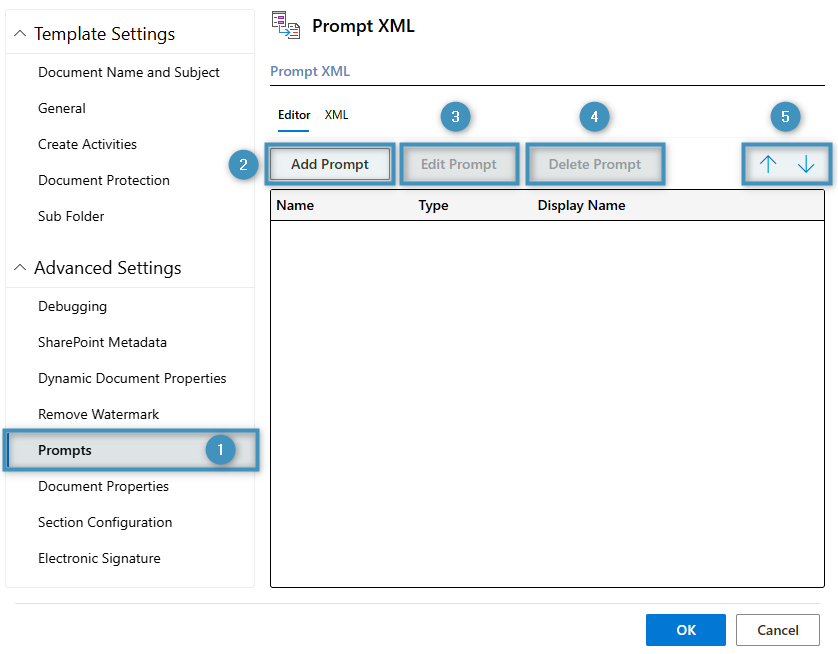
When clicking Add Prompt, a new window will appear:
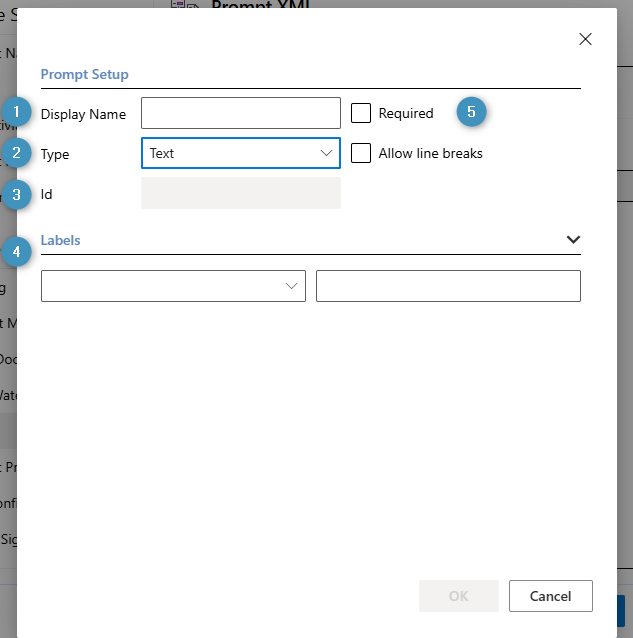
The settings highlighted above are described as follows:
❶ Display name: The text displayed within the field itself once inserted into the template. Note that this name does not allow for certain special characters.
❷ Type: The type of prompt field to be created. There are five different types of prompts that can be selected:
- Text (as single or multiline): A text prompt allows the user to enter additional text in the DocumentsCorePack Dialog that will be added to the generated document. A text prompt can be a single line of text, or a textbox (by checking the allow line breaks option).
- Checkbox: A checkbox prompt enables you to either add or remove optional predefined content in the document.
- Select: A select prompt enables you to select from a list of predefined options of text.
- DateTime: A DateTime prompt allows the user to choose a date, time, or both date and time.
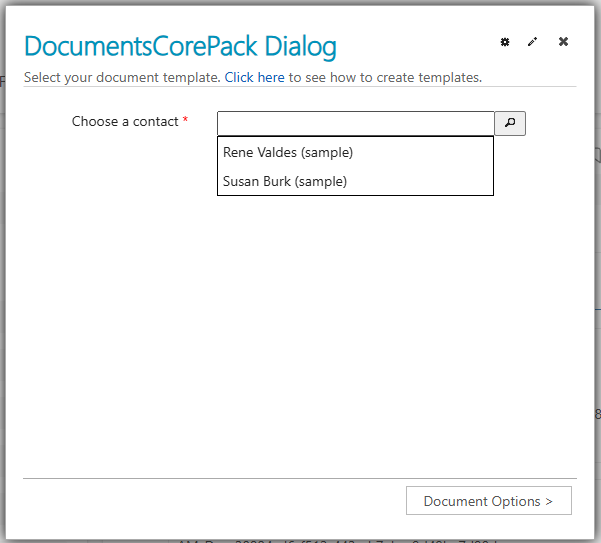
- Lookup: A lookup prompt allows you to select from your available tables. When this prompt is configured, the user can choose a record to filter the respective table by in the DCP Dialog, or multiple records if Allow multiple records is enabled.
❸ ID: The ID of the created prompt. It will be automatically created based on the display name.
❹ Labels: The text displayed in the DocumentsCorePack Dialog before the actual control. Each prompt requires at least one label. If a label for the current user language in Dynamics 365 is set, this translation will be displayed. If there is no label that matches the current user’s language, the system will display the first one in the list. Labels can be formatted using HTML tags as shown here.
❺ Required: Forces this prompt to be a mandatory field in the DocumentsCorePack Dialog.
Once you have created a prompt, click OK.
Inserting a prompt
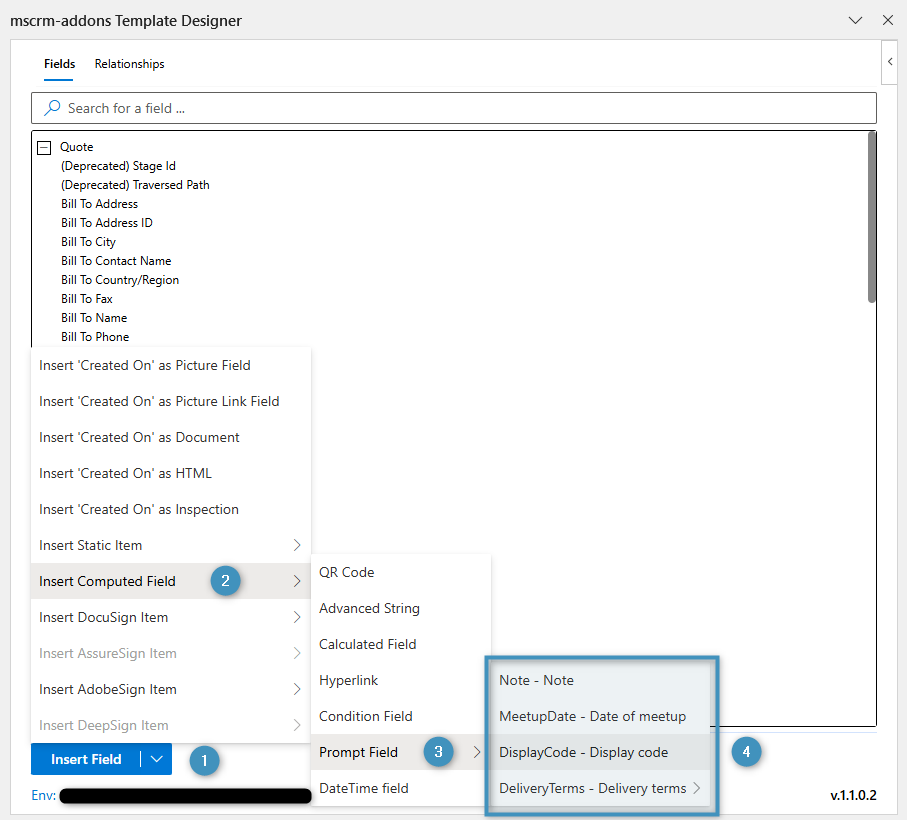
A prompt can be inserted via the ❶ Insert Field button. Under ❷ Insert Computed Field -> ❸ Prompt Field, your available ❹ prompts will be listed.
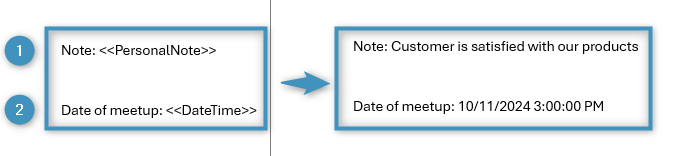
❶ Text and ❷ DateTime prompts do not require any further steps after they are inserted into the template, as they will later be replaced by the user’s input.
❸ Checkbox and ❹ Select prompts must have the content of their fields replaced in the template. The placeholder text can be replaced by clicking into the field and modifying the text.
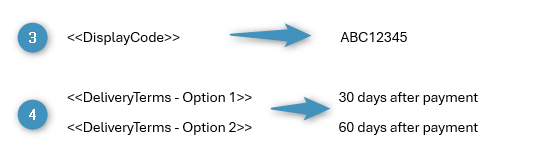
For Checkbox prompts, enabling or disabling them in the DCP Dialog will cause the field to appear or disappear in the result document. For Select prompts, only one field will appear, depending on which field is selected in the dropdown in the Dialog.

Lookup prompts cannot be inserted into a template. They are designed to appear exclusively in the DCP Dialog once configured (see the following section)
Prompts in the Dialog
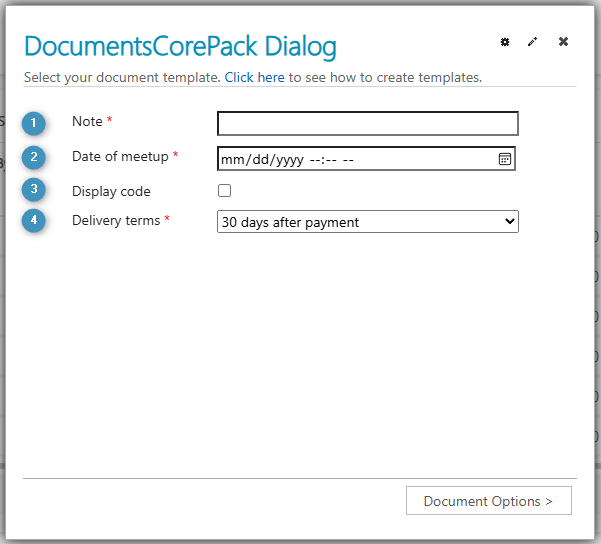
Your configured prompts will be displayed in the DocumentsCorePack Dialog during the document generation process. They will be displayed in the order they were created in. The image below shows our ❶ text, ❷ DateTime, ❸ checkbox, and ❹ select prompts in the Dialog. Filling out each prompt will cause each corresponding prompt field to be modified in the result document.
Lookup prompts will appear here as well. Choosing a record or records will cause any corresponding table within the template to be filtered by the chosen record(s).
Prompts in the DocumentsCorePack Connector
Prompts can also be used within Power Automate via the DocumentsCorePack Connector. Users can add their prompts in the Create Document action under Advanced parameters.
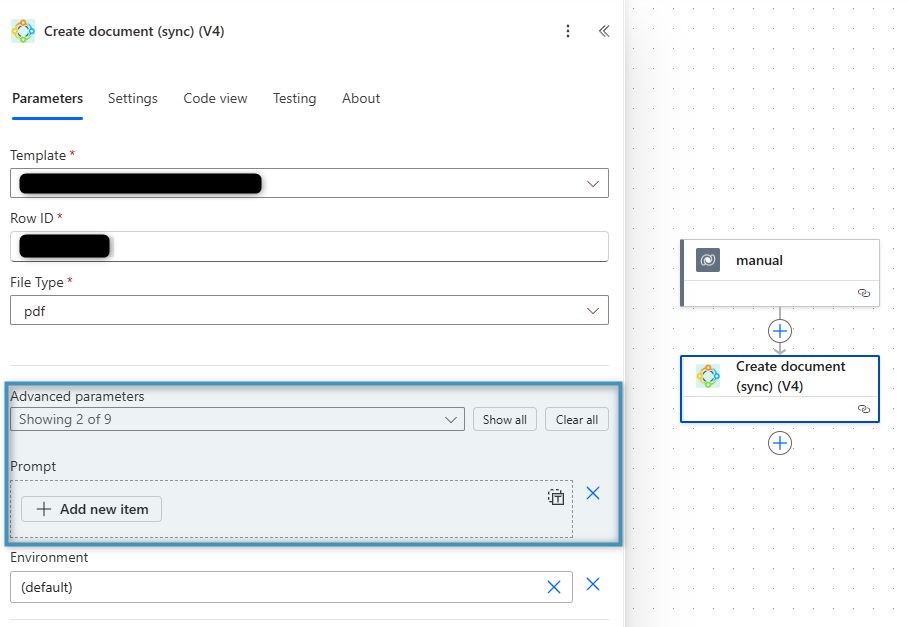
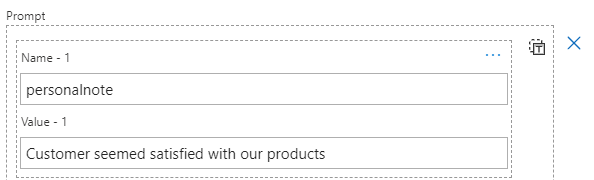
To add a text prompt, enter the name of the prompt field and its value in the respective Name and Value fields.
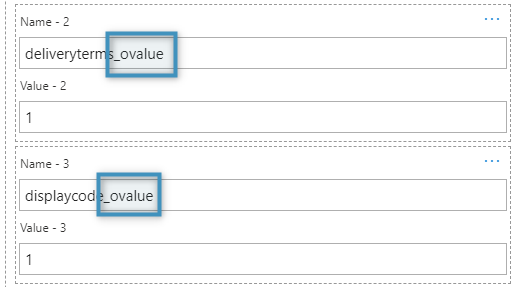
To add a checkbox or select prompt, enter the name of the prompt field follow it with “_ovalue” to preserve the field’s formatting. For checkbox fields, enter 1 or 0 for the value to represent true or false respectively. For select fields, enter the value that corresponds to a specified option (1 to represent the first option, 2 to represent the second, etc.).
Note: Currently, DateTime prompt fields are not supported by the DocumentsCorePack Connector.