QR codes are scannable two-dimensional barcodes that store a surprising amount of information: from URLs and plain text to contact details, emails, phone numbers, and more.
Embedding QR Codes using DocumentsCorePack (DCP) allows users to add dynamic, scannable QR codes to Word templates that are generated at runtime using Dynamics 365 data. The receiver can scan it with their phone or device to open or view the associated content.
What a QR Code Can Do
- First, QR codes encode many types of content such as URLs, text, numbers, phone numbers, email addresses, account IDs, and any string data.
- Additionally, They automatically trigger actions depending on the content, like opening a website, dialing a phone number, or displaying a message.
- Finally, QR codes include error correction so they can still be read even if part of the pattern is damaged or obscured.
How to insert a QR Code into a Document using DCP
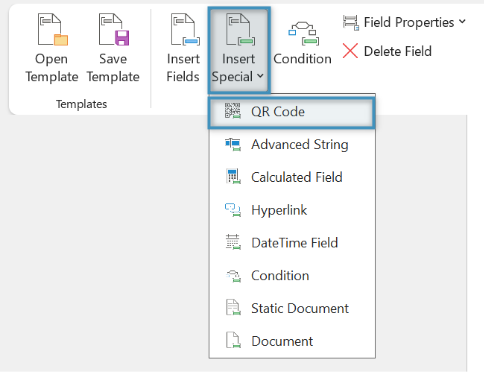
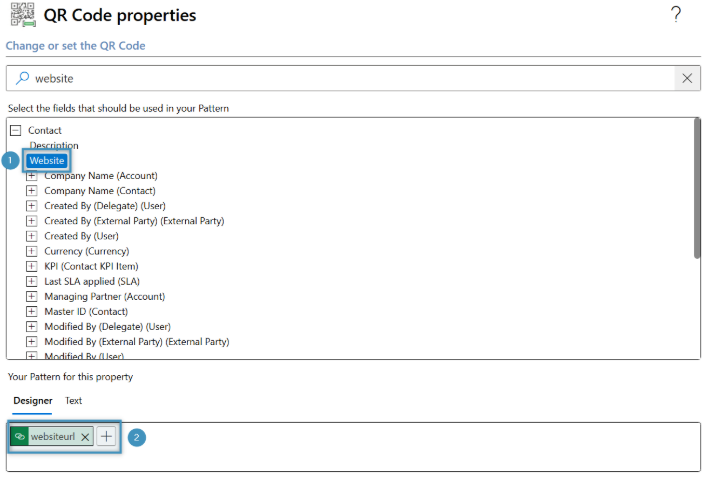
First, click the Insert Special button on the DCP ribbon and select QR Code. The QR Code Properties dialog opens, and allows users to configure the QR code to their liking. This is where users can ❶ search for fields and ❷ define the link pattern for the QR Code.
QR Code Options
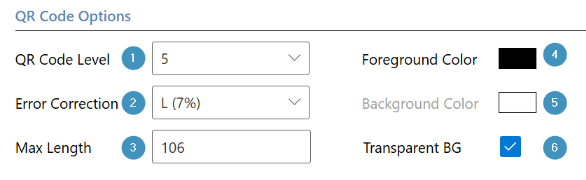
After selecting a field, it’s time to configure the QR Code Options. Here’s what each setting does:
- Level (Content Level): Controls how much of the string is included in the code before it wraps or truncates. By default, DCP calculates the smallest level needed based on data length. Manual levels allow you to set a specific length. Longer strings beyond the maximum allowed for that level are truncated.
- Error Correction: Determines how much of the QR code can be damaged and still be readable. Higher error correction increases the size and density of the QR code and reduces the amount of data that can be stored.
- L (Low) recovers about 7% of the data. Best for maximum capacity but lowest tolerance.
- M (Medium) recovers about 15% of the data. Balanced general use.
- Q (Quartile) recovers about 25% of the data. Good for printed materials.
- H (High) recovers about 30% of the data. Most resilient. Useful if the QR code includes a logo or will be exposed to wear.
- Max Length: Shows the maximum number of characters the QR code can store given the current settings. Calculated automatically based on the error correction and level. Not editable.
- Foreground Color: The color of the QR code modules (the squares). Choose a high-contrast color for best scanning.
- Background Color: The color behind the QR code. Light colors typically work best. Low contrast may make the code unscannable.
- Transparent Background: When enabled, the QR code background becomes transparent, which is useful for overlaying colored backgrounds or shapes.
Finally, once all selections have been made in the QR Code Options panel, select OK, and the QR Code will be added into your Template.

However, in a generated document, the QR Code appears as a normal QR code without the large “QR” text in the center.

Example QR Code Uses in Documents
- Contracts or proposals link to terms or eSignature portals.
- Customer communications can link to dashboards or surveys.
- Support letters can link to case details in Dynamics.
- Event tickets can encode unique IDs or check-in URLs.