E-Signing in DocumentsCorePack allows users to send generated documents for electronic signature directly from Microsoft Dynamics 365 / Dataverse. Instead of exporting documents and handling signatures manually, you can integrate document generation with trusted e-signature providers and manage the entire signing process within Dynamics 365.
Once a document is generated from a template, it can immediately be sent out for signature, saving time, reducing errors, and ensuring a smooth experience for both senders and recipients.
What can you do with E-Signing?
With E-Signing enabled, you can:
- Send generated documents for electronic signature directly from Dynamics 365
- Define one or multiple signers and control the signing order
- Track signing status (sent, viewed, signed, completed)
- Automatically retrieve and store signed documents back in Dynamics 365
- Include E-Signing as part of automated processes (e.g., approvals, contract creation, onboarding)
This creates a fully digital, end-to-end document process without leaving your CRM environment.
Typical Use Cases
Common scenarios where E-Signing is used include:
- Sales contracts and order confirmations
- Legal agreements and NDAs
- HR documents and onboarding forms
By combining document generation with E-Signing, these processes can be completed more efficiently.
Supported E-Signing Providers
DocumentsCorePack integrates with multiple popular e-signature providers. While the setup and configuration differ slightly, the overall experience and capabilities are very similar across providers.
Currently supported providers include:
Each linked article walks you through authentication, configuration, and usage within DocumentsCorePack.
How it works
After successfully installing and configuring the e-signature solution within Dynamics 365, you can proceed to create a document using the DocumentsCorePack Template Designer. By utilizing the Insert Field option, you can seamlessly embed signature fields directly into your templates.
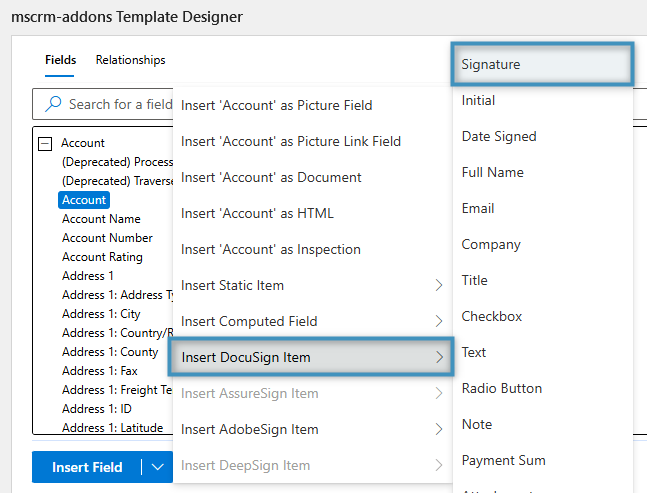
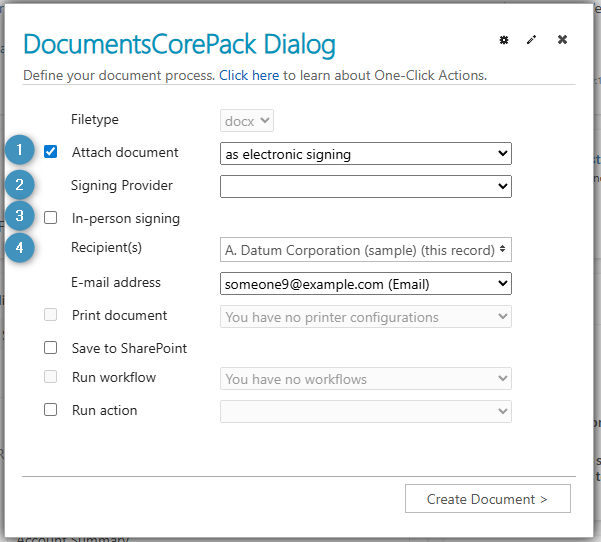
Afterwards, by navigating to your Dataverse environment, you can open a record and generate a document based upon your E-Sign-ready template via the Create Document button. In the DocumentsCorePack Dialog:
- Select ❶ Attach document and choose as electronic signing
- Choose a ❷ signing provider
- Decide if the signing should be done ❸ in-person
- Select a ❹ recipient
By clicking Create Document, the document will be generated and sent for E-Signing.
An example of this process can be viewed here.