DocumentsCorePack (DCP) seamlessly integrates with SharePoint, allowing you to store and manage generated documents within respective SharePoint folders. Through Dynamics 365’s SharePoint Integration, you can leverage the full range of SharePoint document management features—such as check-in/check-out, version history, advanced search, and more. Additionally, this integration helps reduce high storage costs.
Key Benefits of SharePoint Integration
- Data Consistency – Keep documents synchronized across systems, minimizing errors and duplication.
- Improved User Adoption – Provide a familiar, streamlined experience that encourages users to work within the integrated environment.
- Time Savings – Automate storage and simplify document handling to reduce manual effort and speed up processes.
Prerequisites:
Saving documents to SharePoint
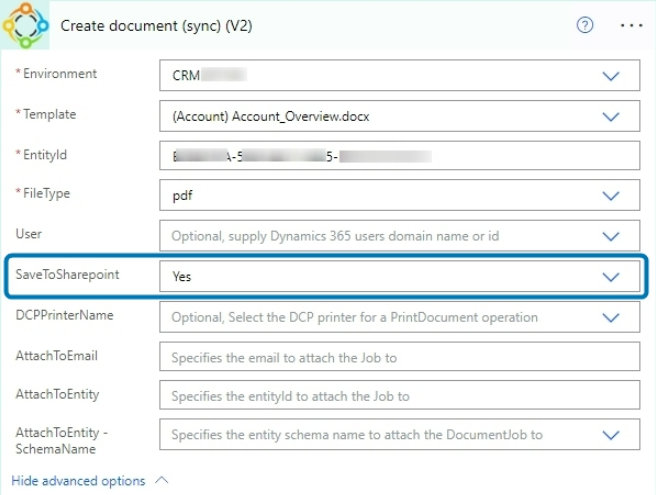
Generated documents can be saved to SharePoint via the DCP Dialog, via One-Click-Action, or via Power Automate. In each case, it is simply a matter of activating the setting. Once the process has finished, you can find your document(s) in your SharePoint site.
1. Via DCP Dialog
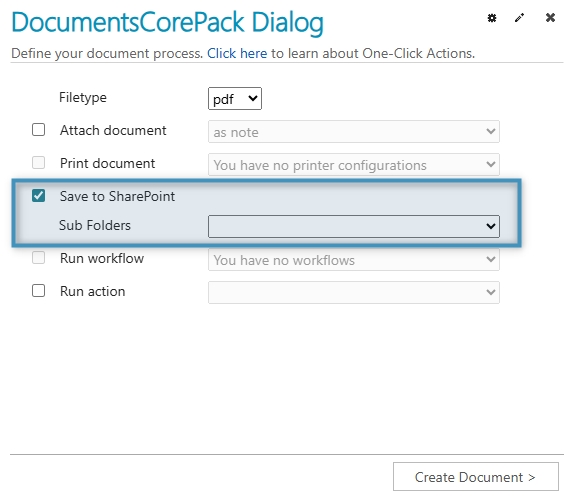
In Dynamics 365, open your starting record and click Create Document. The DCP dialog will appear. When you reach the processing settings, select the Save to SharePoint checkbox to store the file in the record’s associated SharePoint folder.
2. Via OCAs
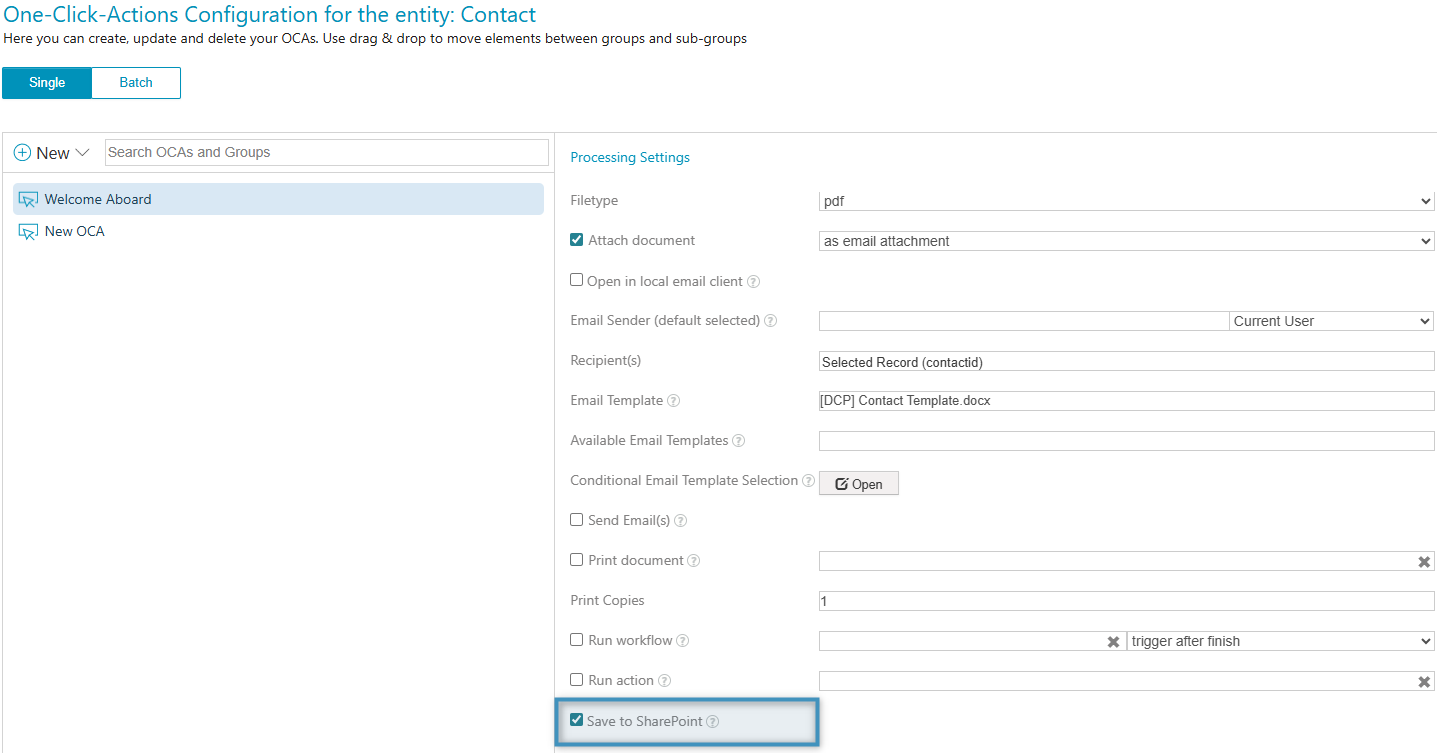
The Create Document button also gives you the option to select New OCA or OpenOneClickActions Configuration. In both cases, when you reach the processing settings page, you can select the Save to SharePoint checkbox to store the document in SharePoint.
3. Via Power Automate
Both Create a document (sync) and Create DocumentJob (async) actions include a parameter that lets you specify whether the generated document should be saved to SharePoint.