mscrm-addons.com logomscrm-addons.com logo
  • Release History
  • Knowledge Base
  • Documentation
  • Contact Support
  • Release History
  • Knowledge Base
  • Documentation
  • Contact Support
home/Knowledge Base/DocumentsCorePack(DCP)/How to enable debugging for DocumentsCorePack Client (CRM 2011)

How to enable debugging for DocumentsCorePack Client (CRM 2011)

337 views 0 Updated on July 27, 2022

++++++++++++++++++++++++++++++++++++++++++++++++++++
Please note:
This article applies to
DocumentsCorePack CLIENT for MS Dynamics CRM 2011 ONLY
++++++++++++++++++++++++++++++++++++++++++++++++++++

This article describes 2 different possibilities to activate debugging for DocumentsCorePack.

Solution 1: Activating debugging on your client via the DocumentsCorePack settings or in the registry.

Solution 2: Activating debugging on your server/manually via the webconfig.

Solution 1: CLIENT SOLUTION

Open MS Word and go to DocumentsCorePack for MS CRM (www.mscrm-addons.com-TAB) -> DocumentsCorePack settings

image

Figure 1: DocumentsCorePack Settings Icon

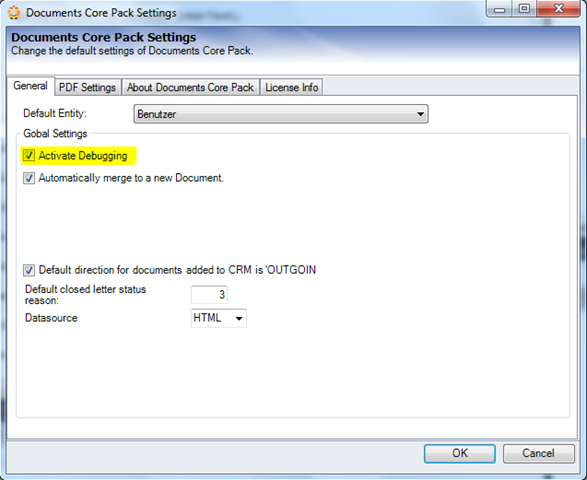
Now activate debugging by checking the corresponding checkbox.
image

Figure 2: DocumentsCorePack Settings

Please note: If it is not possible to open the DocumentsCorePack settings, you have to activate debugging
in the Client by following the below instructions. 

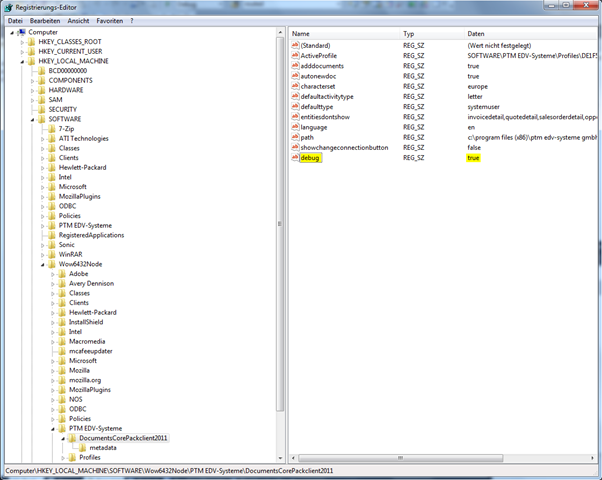
Open the registry and go to HKEY_LOCAL_MACHINE\SOFTWARE\PTM EDV-Systeme\Wordmailmergeclient\… (as shown in Figure 3)
image

Figure 3: Opened registry

Now click the right mouse button and create a new key called debug. Set its value to true.

image

Figure 4: Create new key


Please note: The DocumentsCorePack DataProvider must be restarted as well!

 
To do so, search for the DataProvider icon in the right corner of the start pane and close it with right-click on it.
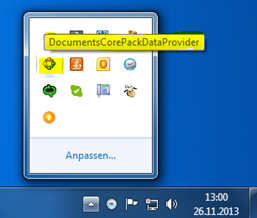
Figure 5: DataProvider Icon

Afterwards, you should restart the DataProvider again. To do so, search for it in the start pane and double click on
DataProvider – DocumentsCorePack Client for MS CRM 2011 in order to restart it.
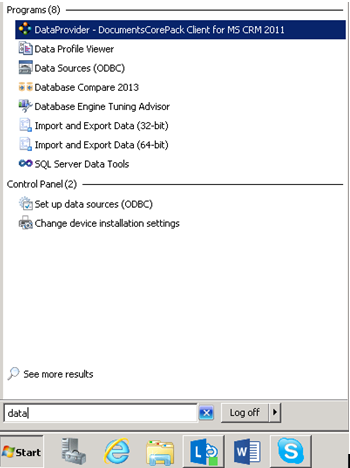
Figure 6: Search for DataProvider – DocumentsCorePack Client for MS CRM 2011

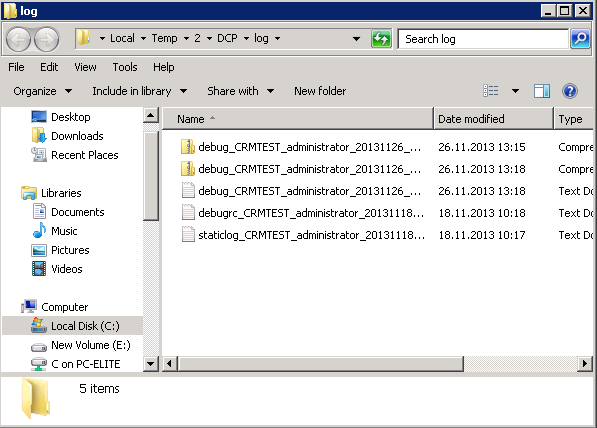
Now, the log-files can be found in the %TEMP%\DCP\log (OR C:\Users\[yourusername]\AppData\Local\Temp\DCP\log).
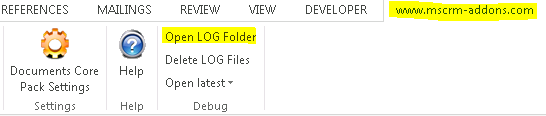
Figure 7: Log-file location

PLEASE NOTE: Before you send the log-files to our support, you have to repeat all the steps you have taken before the error occured the first time,
namely until the error occours again! This is necessary for us to reestablish the error.

Please send the so created log-files and a short decription of which steps you have taken to support@mscrm-addons.com.

Solution 2: SERVER SOLUTION!

First, open the CRM server. Then, open the web.config with notepad and search for the debug setting and set this value to true. Usually, you will find the web config in the installion folder here:

C:\Progam Files\PTM EDV-Systeme GmbH\Documents Core Pack…
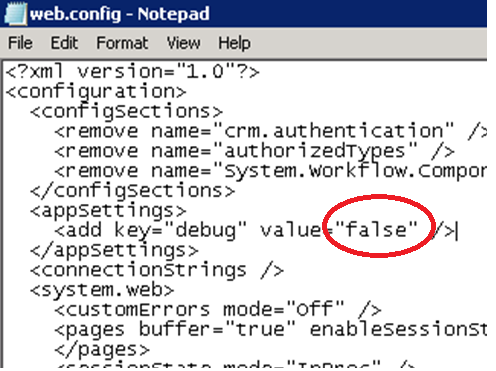
screenshot

Figure 8: web.config 

The log-files can be found in the log-subfolder (which is part of the installion folder).

That’s it! We appreciate your feedback! Please share your thoughts by sending us an email to support@mscrm-addons.com!

Was this helpful?

Yes  No
Related Articles
  • How do teams automate document and PDF generation directly inside Dynamics 365?
  • Enable logging for the AutoMergeAzure Plugin for Dynamics 365 Online
  • Can DocumentsCorePack automate documents directly inside Dynamics 365 at scale?
  • What are the safest and fastest ways to automate document creation in Dynamics 365?
  • Why do document errors and inconsistencies increase as teams scale in Dynamics 365?
  • “Recipients not found” warning when using One-Click-Action
Latest Articles
  • MFA Emails may be blocked by Spam Filters
  • Why partners standardize on mscrm-addons.com instead of mixing tools
  • How do teams automate document and PDF generation directly inside Dynamics 365?
  • Enable logging for the AutoMergeAzure Plugin for Dynamics 365 Online
  • Why Microsoft partners standardize on a single Dynamics 365 storage solution
Popular Articles
  • DocumentsCorePack Template Designer – Getting Started
  • Step-by-Step: How to configure a One-Click-Action
  • Application Access for Dynamics 365
  • How licenses are counted
  • How to find your environment’s unique name in Microsoft Dynamics 365
Top Rated Articles
  • “Undefined”-labels in Chrome and Edge 114 and higher
  • How to insert Condition Fields in DocumentsCorePack Templates designer
  • Important information for Dynamics 365 online customers using DocumentsCorePack and/or AttachmentExtractor
  • How to activate the DocumentsCorePack Connector for PowerApps & Microsoft Flow
  • How licenses are counted
Categories
  • *News and General Infos* 78
  • Webinars 48
  • Template Designer(DCP 197
  • DocumentsCorePack(DCP 272
  • TelephoneIntegration (TI 65
  • AttachmentExtractor (AE 80
  • PowerSearch (PS 50
  • ActivityTools (AT 61
  • SmartBar (SB 54
  • GroupCalendar (GC 47
Our Vision

“We see it as our purpose to provide products that simplify and speed up our customers’ Microsoft Dynamics 365 experience.”

Knowledgebase
LogIn
mscrm-addons.com
  • Products
  • Online Shop
  • Downloads
  • My Account
About Us
  • About Us
  • Case Studies
  • Newsletter
  • Partner Program
  • Contact
Support
  • Support
  • Terms & Conditions
  • Documentation
  • Webinars
  • Legal Documents
  • Impressum
  • Cookies
  • © 2025 www.mscrm-addons.com. All Rights Reserved.