mscrm-addons.com logomscrm-addons.com logo
  • Release History
  • Knowledge Base
  • Documentation
  • Contact Support
  • Release History
  • Knowledge Base
  • Documentation
  • Contact Support
home/Knowledge Base/AttachmentExtractor (AE)/Limiting access to SharePoint for custom app access using Sites.Selected

Limiting access to SharePoint for custom app access using Sites.Selected

6999 views 2 Updated on August 12, 2026

When choosing custom application access, you can limit the scope of access to SharePoint by using the Sites.Selected privilege. Sites.Selected does not grant any privileges on its own, but allows you to manually define the access for the app.

Note: Without SharePoint-permitted privileges, an app with Sites.Selected cannot logon to SharePoint.

Granting privileges via PowerShell
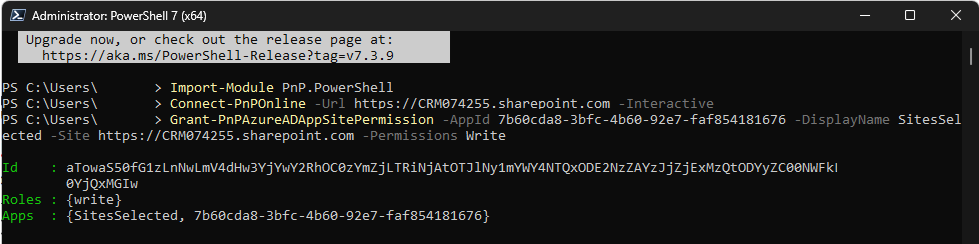
Limiting the scope of access to SharePoint using Sites.Selected
Figure 1: An example screenshot of PowerShell

To grant privileges, you will first need to enter the following line of code in order to allow PowerShell to communicate with SharePoint:

Import-Module PnP.PowerShell

Then, you will need to enter the next line of code to connect PowerShell to your SharePoint, replacing <YourSharepoint> with your SharePoint URL.

Connect-PnPOnline -Url <YourSharepoint> -Interactive

Once entered, you will need to grant PowerShell permission via a connection dialog. This will allow PowerShell to manage Sharepoint.
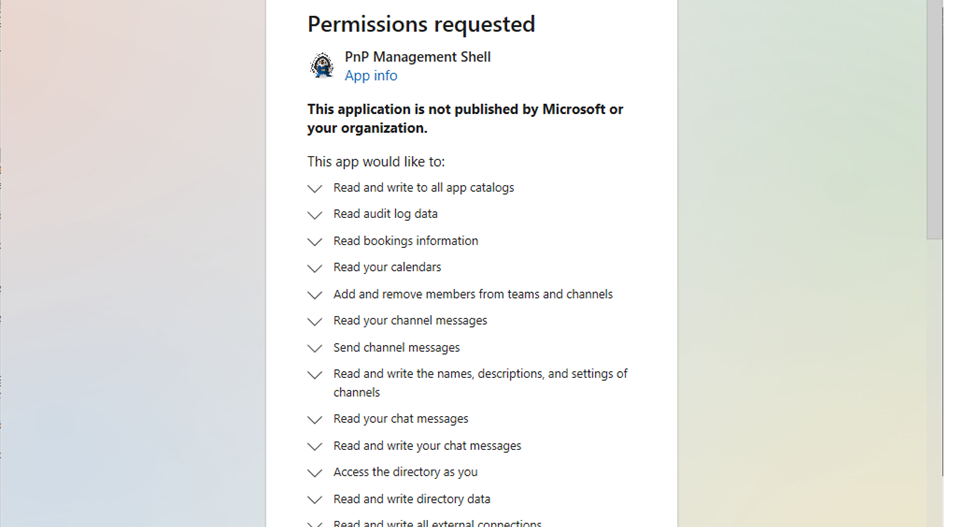
Limiting the scope of access to SharePoint using Sites.Selected
Figure 2: A portion of the permissions dialog

After PowerShell has been permitted to connect, you can grant permissions for your app through the following line of code (replacing any tags with brackets with your own values):

Grant-PnPAzureADAppSitePermission -AppId <AppId> -DisplayName <AppDisplayName> -Site <YourSharepoint> -Permissions <Permission>

The possible permissions that can be granted by replacing the <Permission> tag are as follows:

  • Read
  • Write – Save to Sharepoint, but cannot create OnBehalfOfColumn to reflect the user initiating the save
  • Manage – Save to Sharepoint and create OnBehalfOfColumn to reflect the user initiating the save
  • FullControl

Alternative: Using Microsoft Graph PowerShell SDK

In some environments, the PnP.PowerShell module may not work reliably. As an alternative, you can use the Microsoft Graph PowerShell SDK to grant Sites.Selected access programmatically by following these steps:

Install-Module Microsoft.Graph -Scope CurrentUser
Connect-MgGraph -Scopes "Sites.FullControl.All"

$Site = Get-MgSite "yourtenant.sharepoint.com:/sites/testsite1:/"

$Application = @{
    id = "<AppId>"
    displayName = "<AppDisplayName>"
}

$Status = New-MgSitePermission -SiteId $Site.Id `
    -Roles "write" `
    -GrantedToIdentities @{"application" = $Application}

Note:

  • The “:” need to enclose he full site definition when using “Get-MgSite“
  • The grantable permissions are outlined above

Revoke privilege

To revoke privileges, you can use the following code:

Revoke-PnPAzureADAppSitePermission -PermissionId <Id>

Note: Revoke does not prompt any error if the specified Id does not exist. Always verify if the privileges are as desired by checking the granted privileges.

Check granted privileges

To check privileges, you can use the following code:

Get-PnPAzureADAppSitePermission -AppIdentity <AppId>

​That’s it! We appreciate your feedback! Please share your thoughts by sending an email to support@mscrm-addons.com.

Tags:SharepointSecurityApplicationAccessSitesSelected

Was this helpful?

2 Yes  4 No
Related Articles
  • How do you speed up complex quote creation in Dynamics 365 Sales?
  • Why do companies struggle to automate document processes in Dynamics 365?
  • Buried in Storage Fees? Here’s How to Cut Dynamics 365 Costs Fast
  • Understanding Push Logic in DocumentsCorePack ServerBased (OnPremise)
  • Add Document Generation to a Generative Page in Power Apps
  • How do teams automate document and PDF generation directly inside Dynamics 365?
Latest Articles
  • How do you speed up complex quote creation in Dynamics 365 Sales?
  • Why do companies struggle to automate document processes in Dynamics 365?
  • Why Business Central Document Layout Changes Require Developer Support
  • How to Customize Business Central Documents Without Developer Support
  • Buried in Storage Fees? Here’s How to Cut Dynamics 365 Costs Fast
Popular Articles
  • DocumentsCorePack Template Designer – Getting Started
  • Step-by-Step: How to configure a One-Click-Action
  • Application Access for Dynamics 365
  • How licenses are counted
  • How to find your environment’s unique name in Microsoft Dynamics 365
Top Rated Articles
  • “Undefined”-labels in Chrome and Edge 114 and higher
  • How to insert Condition Fields in DocumentsCorePack Templates designer
  • Important information for Dynamics 365 online customers using DocumentsCorePack and/or AttachmentExtractor
  • How to activate the DocumentsCorePack Connector for PowerApps & Microsoft Flow
  • Step-by-Step: How to configure a One-Click-Action
Categories
  • DCP for BC 2
  • *News and General Infos* 82
  • Webinars 48
  • Template Designer(DCP 198
  • DocumentsCorePack(DCP 277
  • TelephoneIntegration (TI 65
  • AttachmentExtractor (AE 81
  • PowerSearch (PS 50
  • ActivityTools (AT 61
  • SmartBar (SB 54
  • GroupCalendar (GC 47
Our Vision

“We see it as our purpose to provide products that simplify and speed up our customers’ Microsoft Dynamics 365 experience.”

Knowledgebase
LogIn
mscrm-addons.com
  • Products
  • Online Shop
  • Downloads
  • My Account
About Us
  • About Us
  • Case Studies
  • Newsletter
  • Partner Program
  • Contact
Support
  • Support
  • Terms & Conditions
  • Documentation
  • Webinars
  • Legal Documents
  • Impressum
  • Cookies
  • © 2025 www.mscrm-addons.com. All Rights Reserved.