One-Click-Actions (OCAs) in DocumentsCorePack are predefined setups designed to streamline document creation. They are typically used within the DocumentsCorePack Dialog, but they can also be executed through flows.
When creating a flow, you may encounter situations where conditional logic is required but becomes cumbersome to implement. For instance, if you want a flow to generate and send a document to a contact based on their country, you would need to embed that logic directly in the flow, which increases its complexity.
By using a One-Click-Action to manage this instead, you can simplify the flow and make it easier to read.
Creating the One-Click-Action
Following the example mentioned above, we want to create a flow that sends a welcome letter to a contact. By default, the letter should be sent in English. However, if the contact is located in Germany, the flow should instead send the German version of the letter.
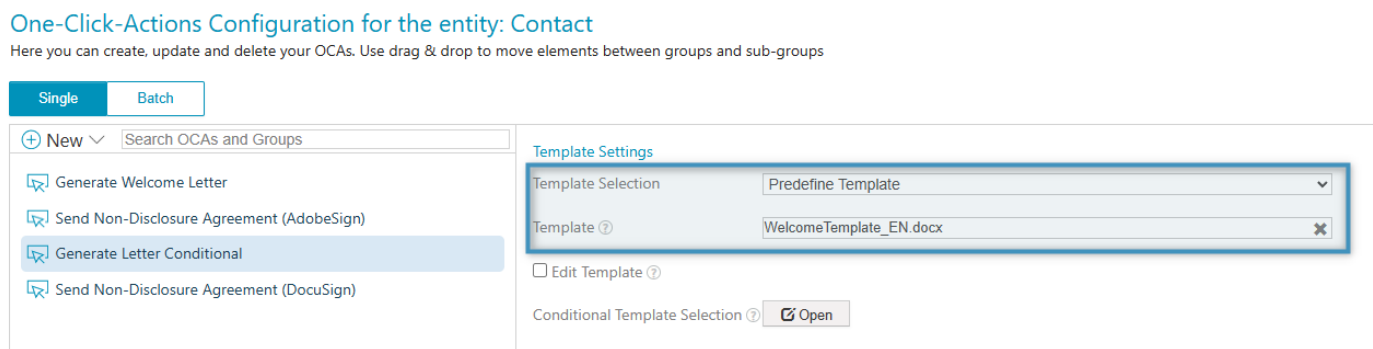
To set up this flow, we will begin by creating a contact-based One-Click Action (OCA). In the Template Settings, we will select Predefine Template. The template we will select will be the English language template.
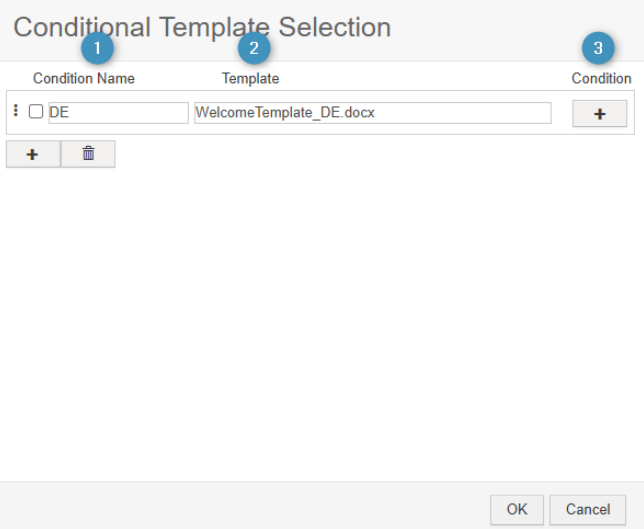
Next, click Open next to Conditional Template Selection. Enter the ❶ Condition Name and ❷ Template, then click the ❸ Condition button to configure it.
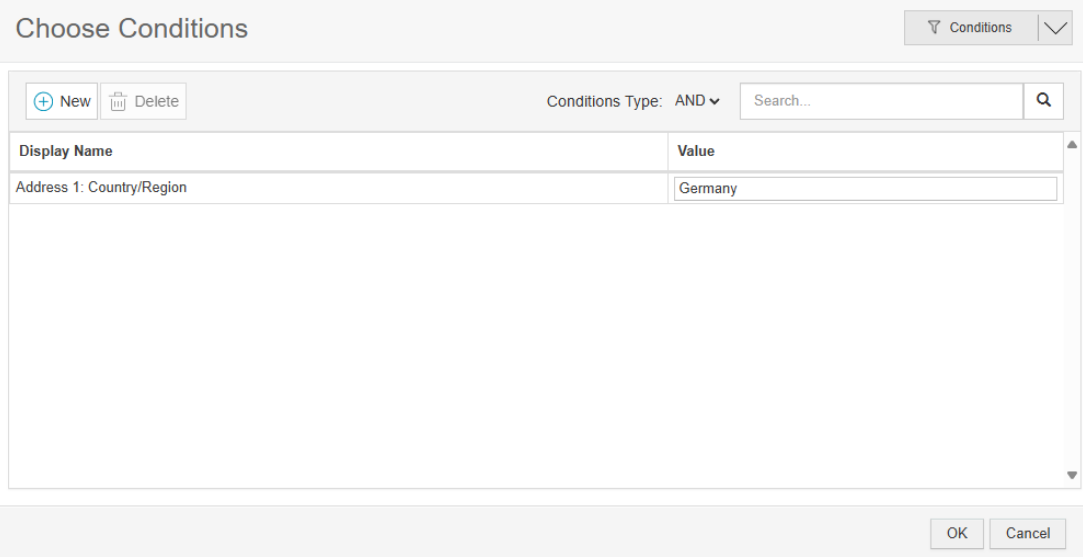
In the Choose Conditions window, select a field and specify a value to define your condition. In our example, since we want to check whether the contact is from Germany, we will select the Country/Region field and set the value to Germany. After configuring the condition, click OK and save your OCA.
Tip: In your OCA, you can configure additional processing options along with the template—for example, saving the document to SharePoint, saving it as a note, or sending it to a printer. These settings can help further simplify your flow. Do note, however, that you cannot create or send emails in this way. Creating and sending emails must still be done in the flow, as detailed below.
Creating the flow
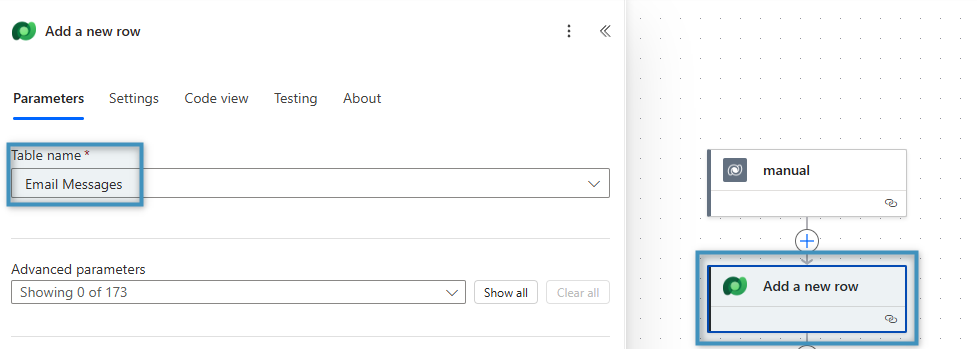
We first need to add the Add a new row action in order to create the email message to be sent later.
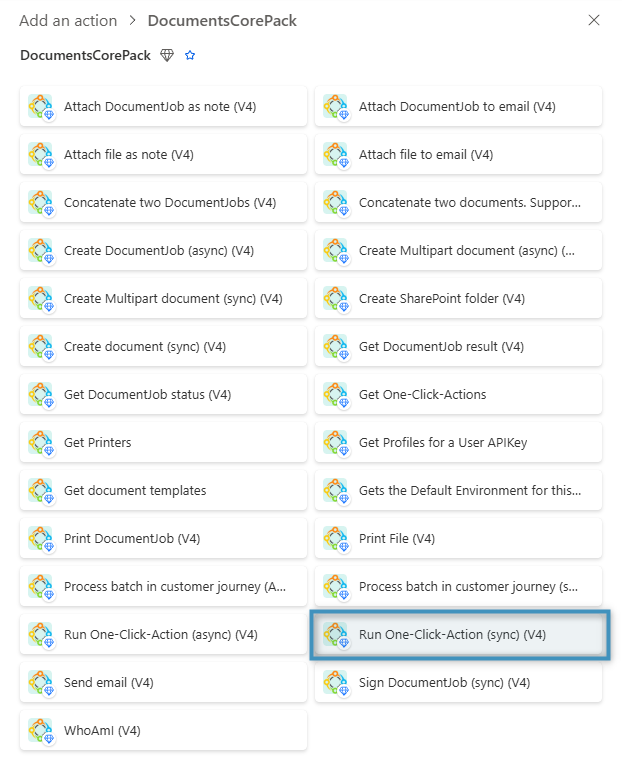
To run the OCA in a flow, search for the Run One-Click-Action (sync) action under the DocumentsCorePack Connector and select it.
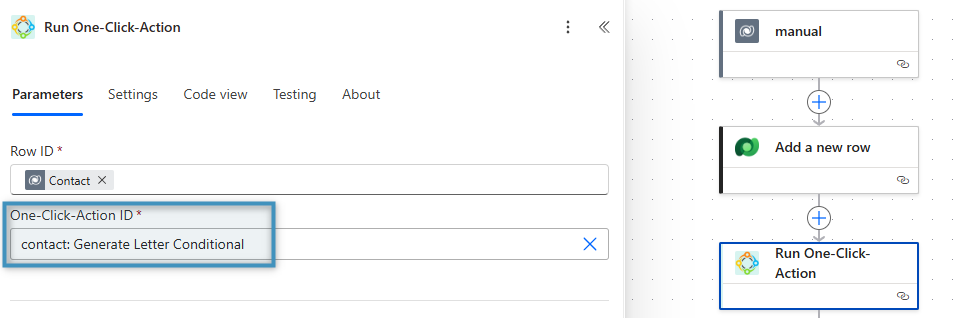
Then, under One-Click-Action ID, select the OCA you created. When the flow is run, the action will trigger this OCA.
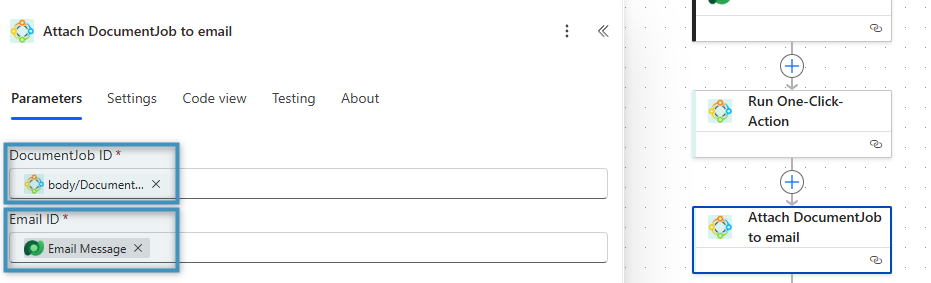
Next, add the Attach DocumentJob to email action, adding the Document content from the previous action and our email message as parameters to the DocumentJob ID and Email ID fields, respectively.
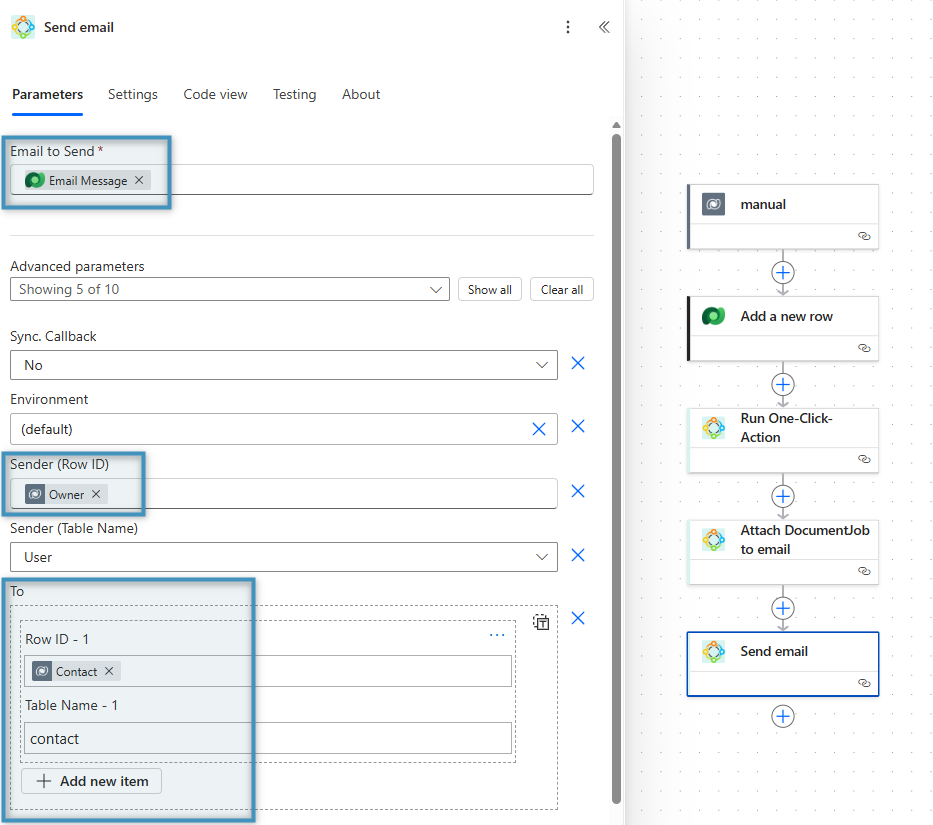
Lastly, add the Send email action to the flow. Provide the email message, sender, and recipient to action. Once you are done, save your flow.
Running the flow
After saving the flow, run it as you see fit. In our example, we will trigger the flow from a contact who is located in Germany.
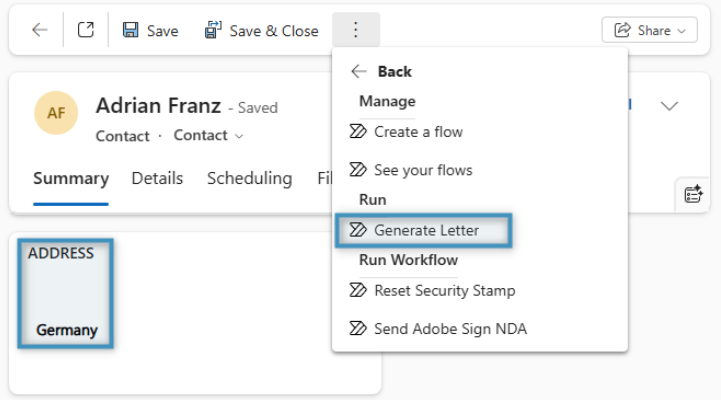
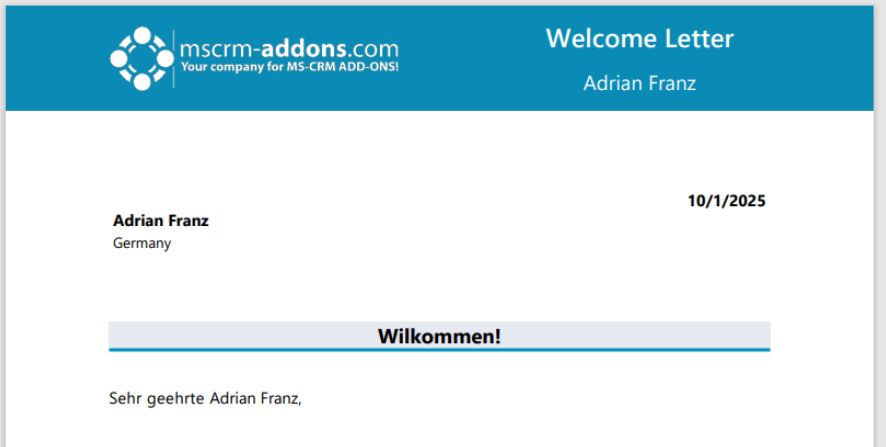
Once the flow has finished running, the document produced should be the German version, as specified by our OCA.