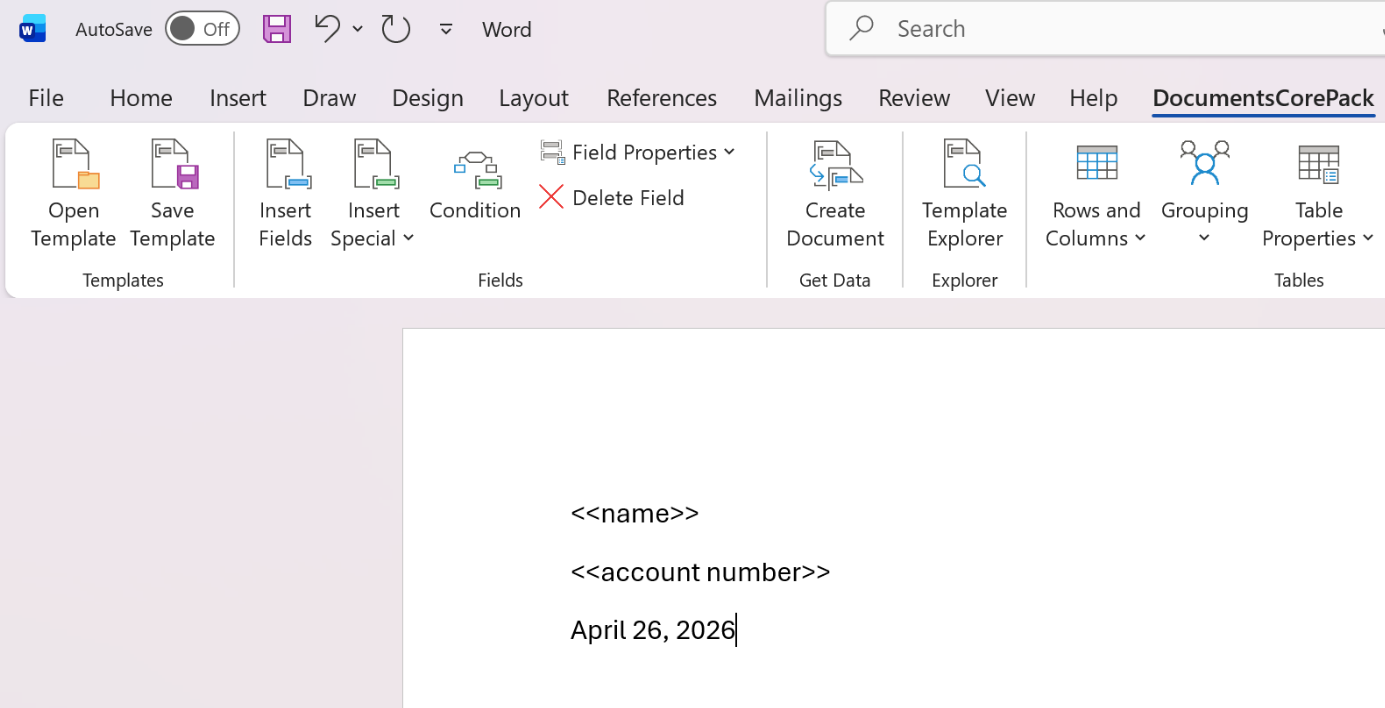
When a user makes changes to a template and saves those changes, a new version of the template is created, and the previous version is still retained in the system. This is called Template Versioning. This allows users to go back and view previous versions of a template.
This article explains how to enable Template Versioning and how to recover templates.
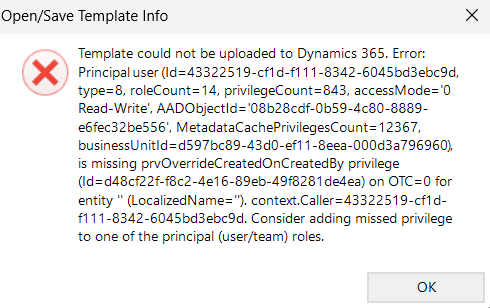
Note: The Override Created on or Created by for Records during Data Import option is required in your Dynamics 365 security settings to update the Template Version. Users who lack the needed permissions will encounter this error:
How to enable Template Versioning
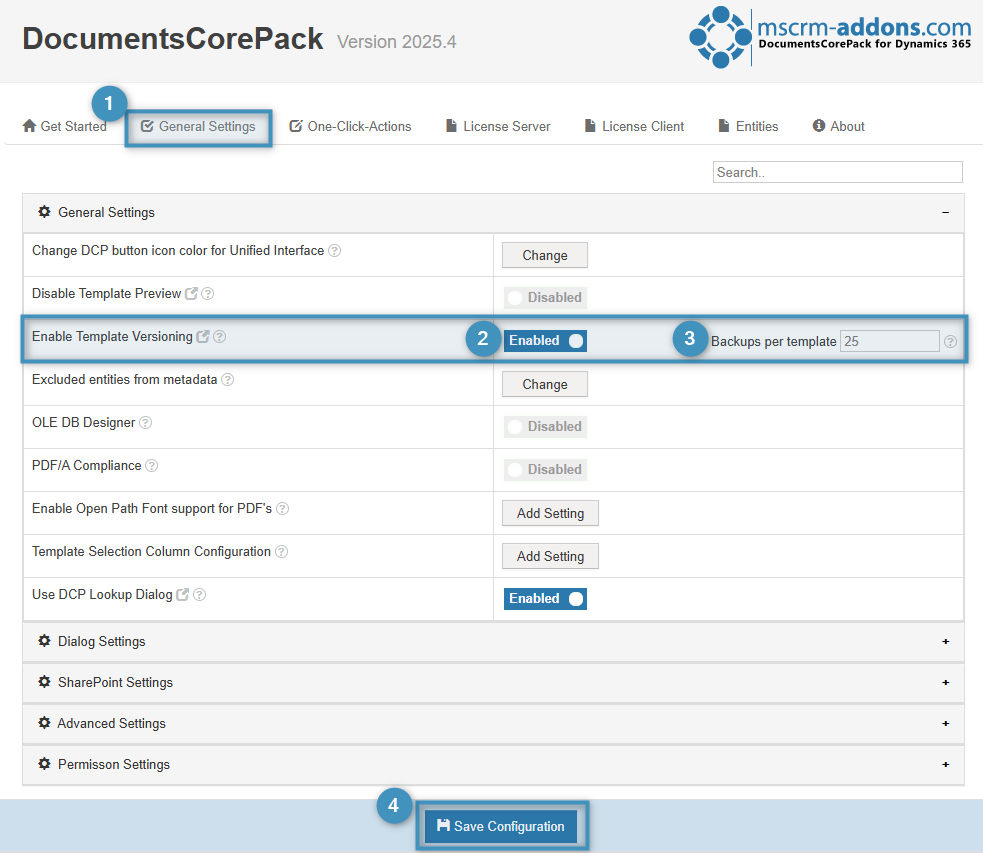
In your Dynamics 365 environment, navigate to the Power Platform Environment Settings. In the MSCRM-ADDONS column select DocumentsCorePack and open the ❶ General Settings tab. Under the ❷ Enable Template Versioning setting, select Enabled to activate it. Additionally, you can set the ❸ number of backups per template (“0” is for unlimited backups). When you are done, make sure to ❹ save the configuration.
Note: To activate the Template Versioning, restart Microsoft Word after enabling the setting.
How to recover templates
Open a Word template and click the Open Template button. A ❶ View template versions icon will be shown in the menu bar.
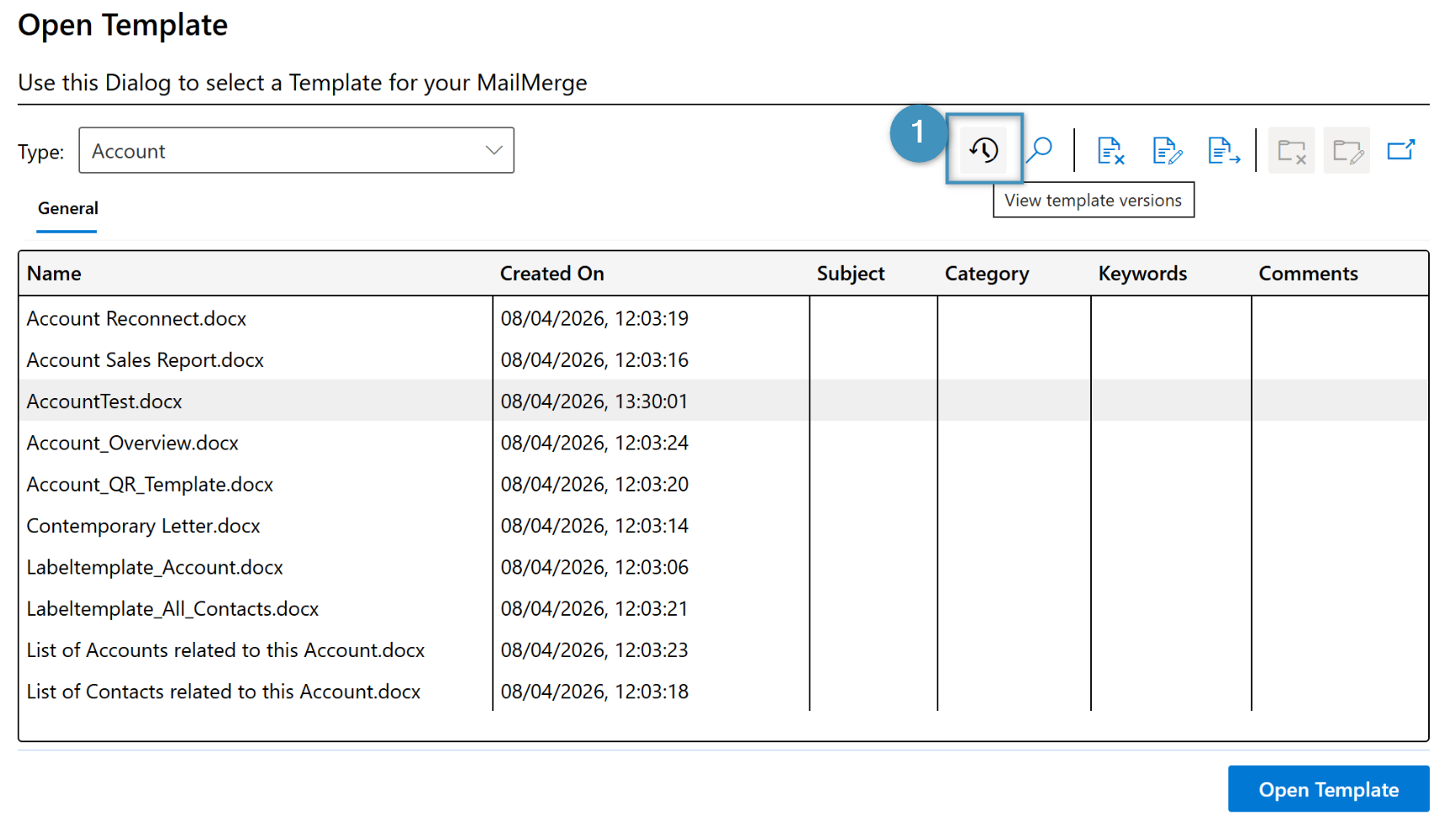
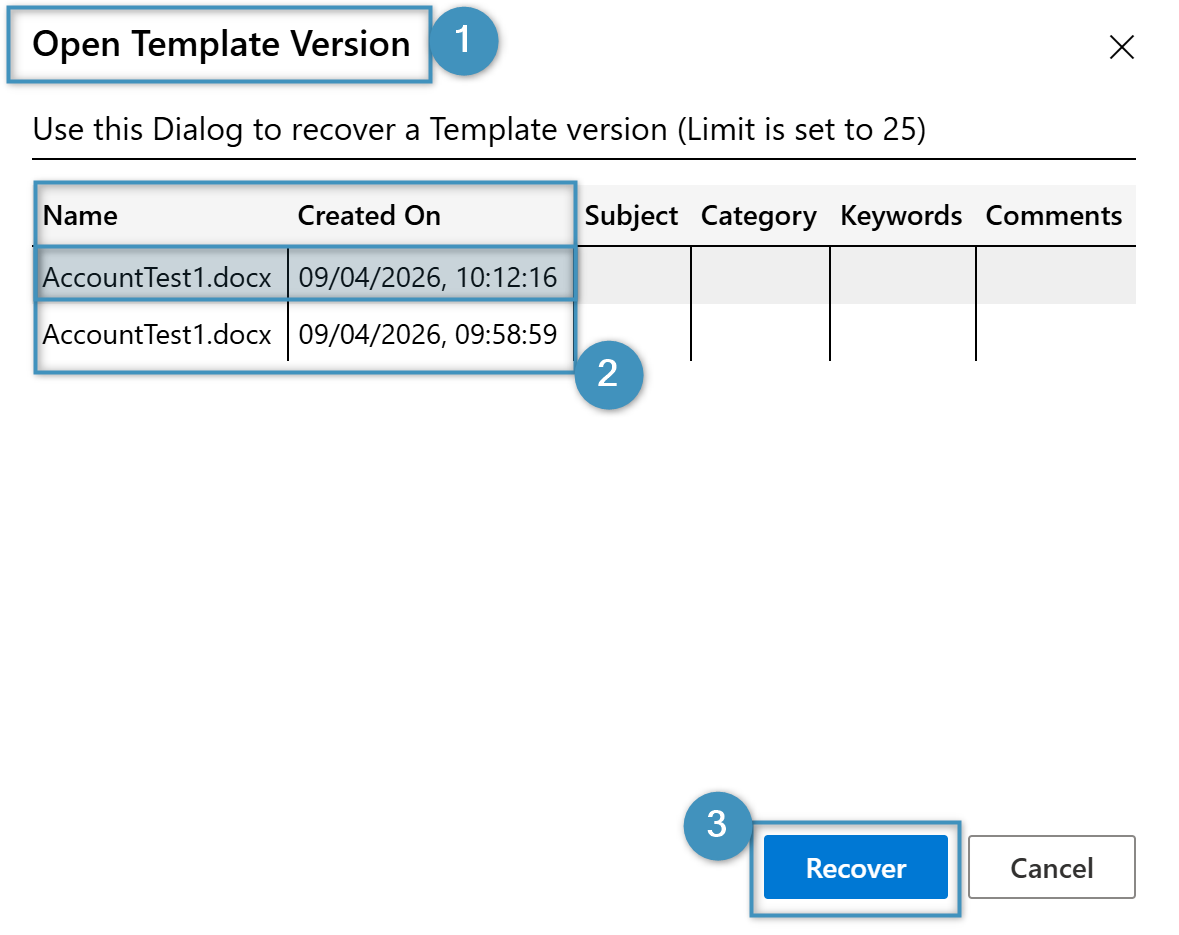
Select a template and then click on the icon. The ❶ Open Template Version window will appear with ❷ all available versions of this specific template sorted from new to old. Select the version you want to recover and press the ❸ Recover button.
You now have the choice of how to proceed with the recovered file. The live template has not been altered. If you wish to use the recovered template as your new live template, you must overwrite the existing one with it.