Fillable PDF forms allow recipients to enter or modify information directly within a PDF document without requiring PDF editing software. Generated forms can be opened in common PDF viewers such as Adobe Acrobat Reader, Chrome, and others.
DocumentsCorePack can preserve Word form controls during PDF generation, enabling you to combine data from Microsoft Dynamics 365 with fillable PDF fields in a single document.
Note: Due to several limitations, this functionality is recommended only for low-impact business scenarios and should be used with caution.
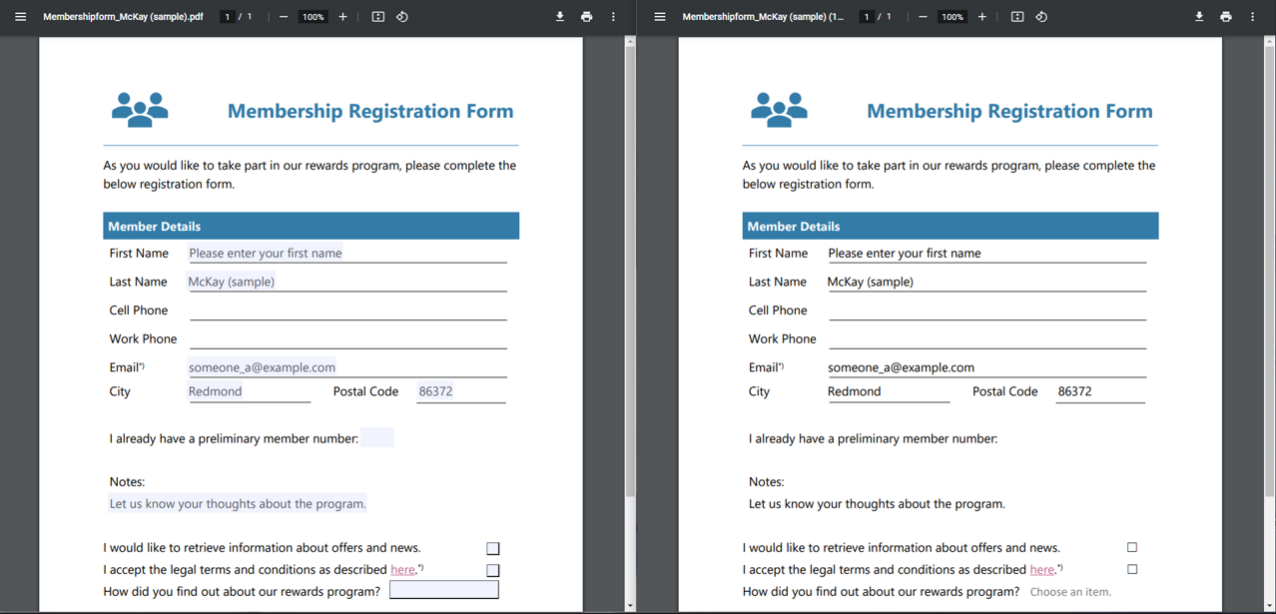
In Word, fillable fields are implemented using either content controls or legacy form controls. As DocumentsCorePack placeholders are based on content controls, they can be combined with fillable fields to create forms that include pre-filled data.
How to enable fillable fields in your template
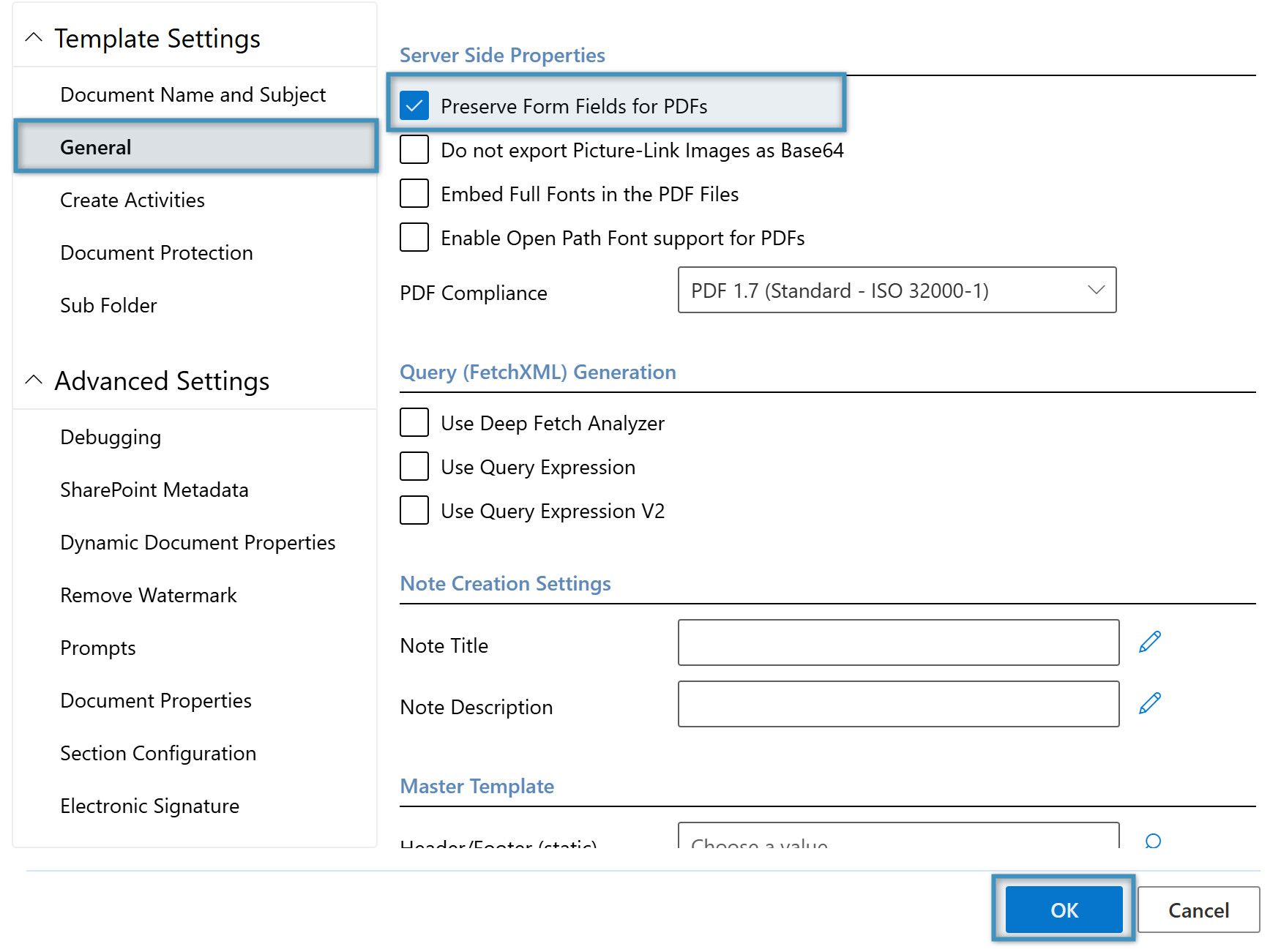
To use this functionality with DocumentsCorePack, enable the Preserve Form Fields for PDFs option in the General Template Settings, as shown below. If you are new to DocumentsCorePack and template design, we recommend reviewing Template Design before continuing.
While setting up fillable PDF forms is generally straightforward, there are a few important considerations to keep in mind. The following sections explain the key characteristics and limitations.
Supported field types
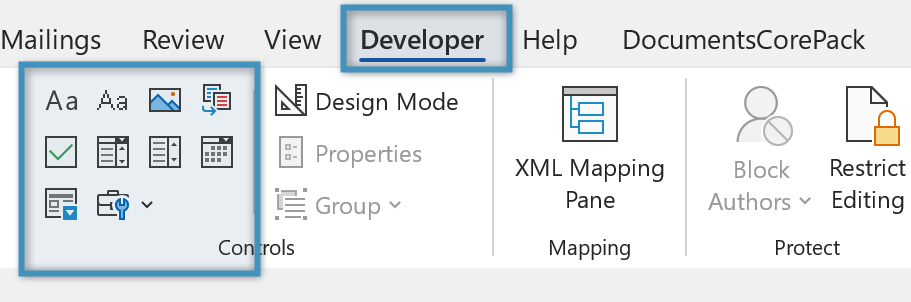
DocumentsCorePack template fields are based on Microsoft Word content controls and can be configured for use in fillable PDF forms. Supported field types include text fields, checkboxes, and drop-down lists. To add fillable fields that are not related to DocumentsCorePack, you can use Microsoft Word’s built-in content controls.
To view and configure content control properties, the Developer tab must be enabled in Microsoft Word.
Content controls are inline elements, meaning their size is determined by the content they contain. As a result, if a DocumentsCorePack field does not contain any data, no fillable field will be generated in the resulting PDF. To ensure that the field is generated, you can use Conditions.
When a field does not contain any data, you can control the size of the Word content control by using placeholder text. The sample template provided at the end of this article demonstrates this approach for the First Name and Last Name fields. To view and understand the field configuration more easily, use the Template Explorer.
The legacy textbox controls function somewhat differently from the standard controls. Content is not mandatory for these fields, but the maximum input length is limited to roughly five characters. A sample of this field type is available in the attached template next to “I already have a preliminary member number.”
Form fields do not function within textboxes or tables. The only exception is textboxes placed in basic table layouts that contain plain text only. If the content includes numbers, email addresses, hyperlinks or other data types, the fields will not work.
Additional options for content controls
If your document contains a mix of fillable and non-fillable fields, you must specify which content controls should be fillable and which should remain non-fillable.
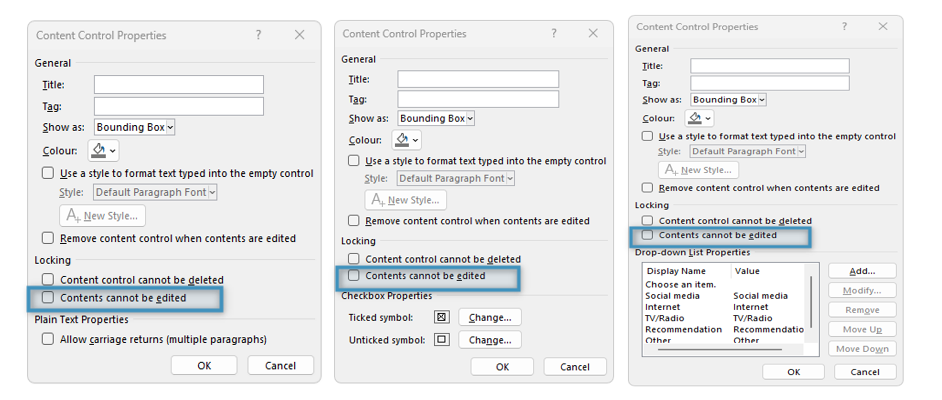
To access the properties of a content control, select a content control in your document ❶ and click Properties ❷. This opens the Content Control Properties ❸ dialog, where you can adjust the available settings.
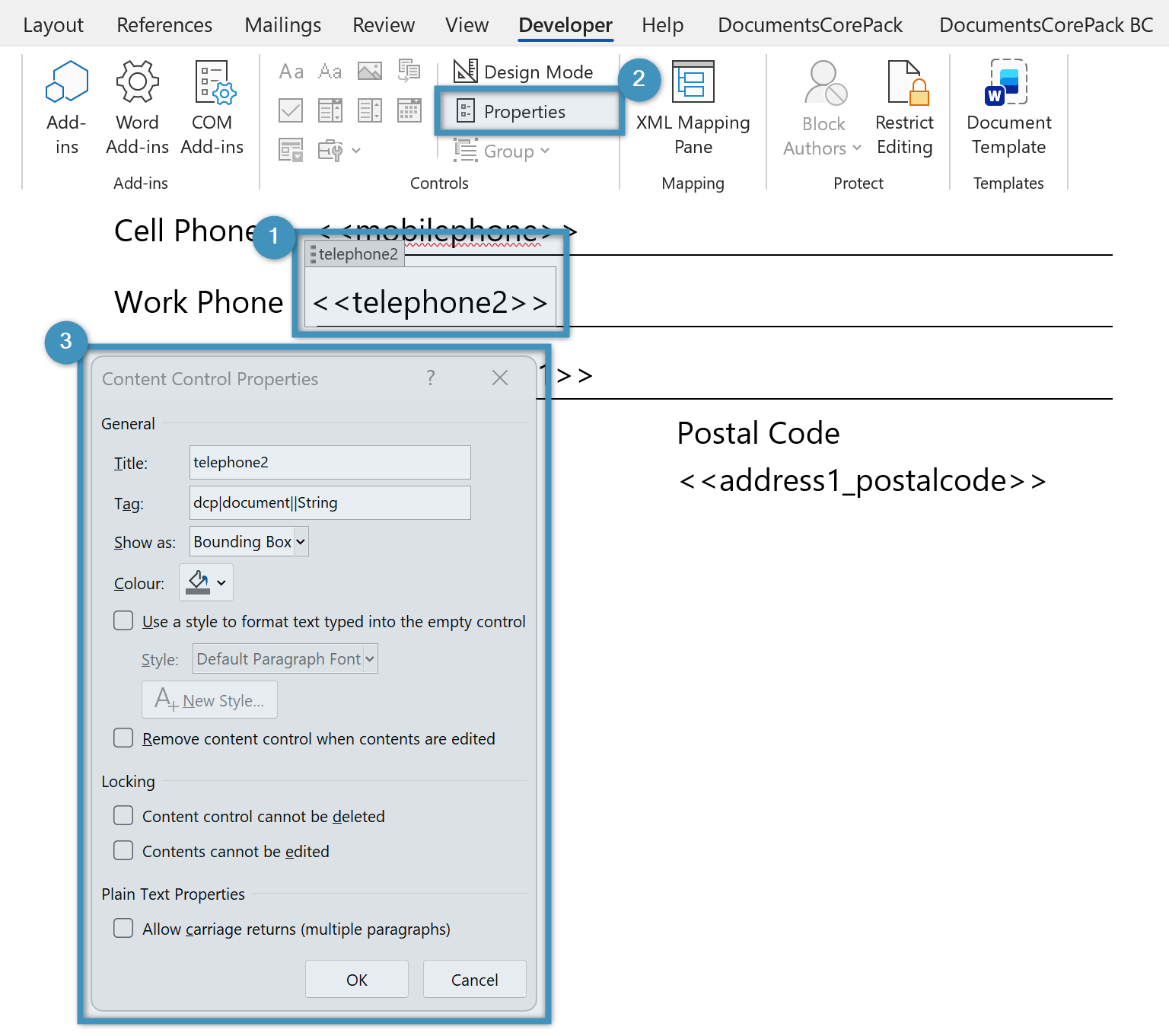
Note: For DocumentsCorePack fields, DO NOT change the tag or title fields. Changing these values can lead to errors or cause data to be missing during document generation.
Note: To prevent a field from being edited after document generation, enable the Contents cannot be edited option.
External Resources
External: Content Controls (Microsoft)