Virtual networks, or VNets, allow you to define a private network boundary in Azure. This can provide an extra layer of security for your DocumentsCorePack(DCP) and AttachmentExtractor(AE) blob storage.
In this setup, the VNet enables private connectivity between Dynamics 365 and Azure Blob Storage using Private Endpoints, while public access is restricted to approved sources such as backend servers or the DCP & AE online service.
Walkthrough
This walkthrough is split into three parts: creating and deploying resources, creating an enterprise policy, and applying the policy.
Creating the resources
To begin, we will need to first create and deploy the following resources:
- Azure Storage Account (Blob)
- Virtual Network (VNet)
- Subnets
- Power Platform delegated subnet
- Private Endpoint subnet
- Private Endpoint for Blob Storage
- Private DNS Zone for Blob Storage
- DNS link between VNet and Private DNS Zone
- Storage Firewall configuration
This will be done by deploying a custom template in Microsoft Azure Portal. The custom template we will be deploying can be found attached at the bottom of the article (“Resources_tmp.json” in the “CustomTemplates” ZIP).
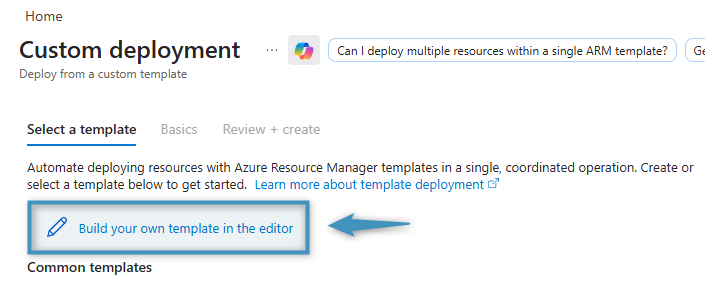
To deploy this template, search for Deploy a custom template in Microsoft Azure Portal and select the corresponding item in the dropdown.

Then, click Build your own template in the editor.
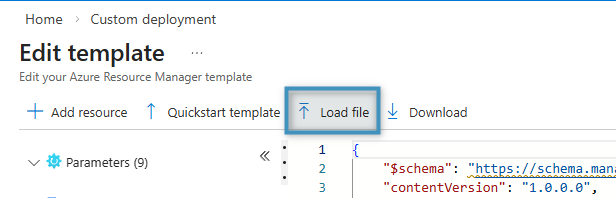
This will redirect you to a code editor. Here, click Load file and upload the custom template (“Resources_tmp.json”).
After uploading the file and clicking Save, please enter the following required parameters:
- Subscription
- Resource Group
- Region (must match Power Platform region)
- Storage Account name
- Storage Account location
- Private Endpoint name
- Private Endpoint location
- VNet name
- VNet Location
- Fallback VNet name
- Fallback VNet location
- Private DNS Zone Link
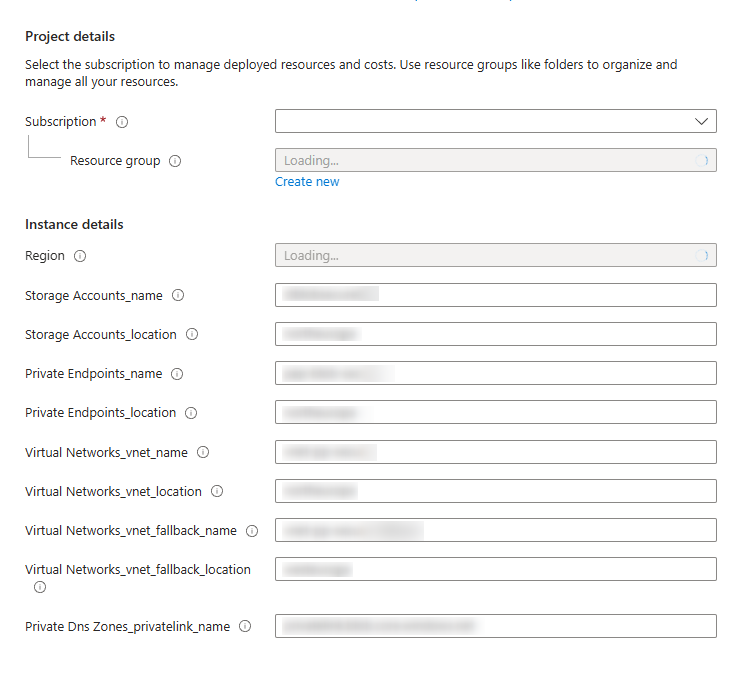
Once the parameters have been entered, click Review + Create and then Create.
Creating the enterprise policy
After creating the resources, you will next need to create an enterprise policy, which enables Power Platform Virtual Network support for the selected environment and defines which VNet and subnet Power Platform is allowed to use for outbound communication. This is required so Dataverse plug-ins and other server-side components can securely access private endpoints such as Azure Blob Storage.
Like above, the policy is deployed by using another custom template to ensure consistency and reusability, which can be found attached at the bottom of the article (“Enterprise_policy_tmp.json” in the “CustomTemplates” ZIP). Once again, search for Deploy a custom template and select Build your own template in the editor. Then, click Load file and upload the custom template.
After clicking Save, provide the following required parameters:
- Subscription
- Resource Group
- Region
- Policy Name
- Power Platform Environment Region
- VNet Subnet Name (delegated subnet)
- VNet Resource ID
- (Optional fallback VNet if used)
Once the parameters have been entered, click Review + Create and then Create.
Applying the policy
After the enterprise policy has been deployed, go to the Power Platform admin center and navigate to Security -> Data and privacy -> Azure Virtual Network policies.
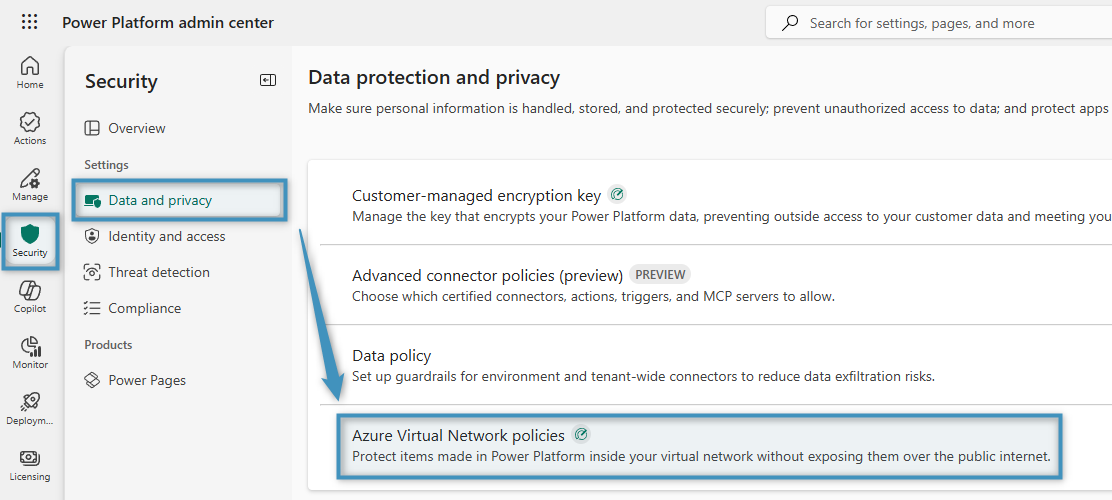
Then, select your environment and click Next.
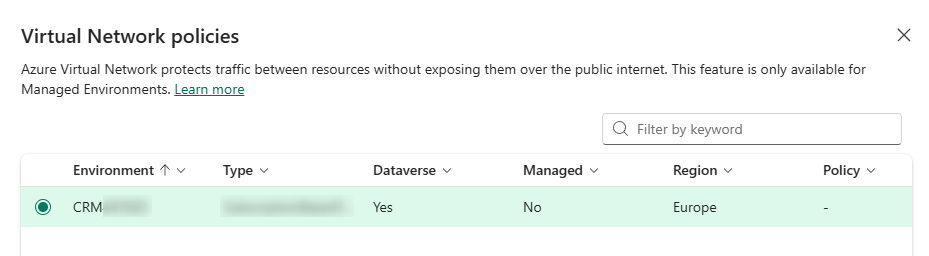
You will then be able to select the created enterprise policy. After selecting it, save your changes. Once enabled, server-side Dynamics components will route outbound traffic through the configured VNet.
The technical breakdown
The Azure Blob Storage account is now secured using a combination of network restrictions and private connectivity. Public network access to the storage account is limited through the Azure Storage Firewall, which is configured to allow access only from explicitly approved sources. The firewall is set to Selected networks, meaning all public traffic is denied by default unless it originates from a whitelisted public IP address (for example, the DCP and AE online services responsible for uploading documents).
Note: The IP address of our Online services server needs to be whitelisted depending on the used server.
See: mscrm-addons.com IP-range
For internal access, a private endpoint is configured within the Azure Virtual Network. This assigns a private IP address to the storage account inside the VNet and allows Dynamics 365/Dataverse to access Azure Blob Storage over the Azure backbone network instead of the public internet. The private endpoint is placed in a dedicated subnet, and a private DNS zone ensures that the standard Azure Blob Storage hostname resolves to this private IP when accessed from within the VNet.
As a result, Azure Blob Storage can only be accessed through two controlled paths:
- Internally via the VNet and private endpoint (e.g. access from Dynamics365/Power Platform)
- Externally via explicitly whitelisted public IP addresses (e.g. DCP and AE Online services)
All other public access attempts are blocked by the Storage firewall. This layered approach ensures that data remains protected from unauthorized internet access while still allowing required internal and backend connectivity.
Other links and resources:
- Power Platform VNet Support overview: https://learn.microsoft.com/power-platform/admin/vnet-support-overview
- Supported Regions: https://learn.microsoft.com/en-gb/power-platform/admin/vnet-support-overview#supported-regions
- Setup VNet Support: https://learn.microsoft.com/en-gb/power-platform/admin/vnet-support-setup-configure
- Azure Private Endpoint overview: https://learn.microsoft.com/azure/private-link/private-endpoint-overview
- Azure Storage networking: https://learn.microsoft.com/azure/storage/common/storage-network-security