mscrm-addons.com logomscrm-addons.com logo
  • Release History
  • Knowledge Base
  • Documentation
  • Contact Support
  • Release History
  • Knowledge Base
  • Documentation
  • Contact Support
home/Knowledge Base/Template Designer(DCP)/Field Search in DocumentsCorePack

Field Search in DocumentsCorePack

301 views 0 Updated on July 27, 2022

Because the call for a Field Search in our DocumentsCorePack Client grew louder and louder, we decided to implement one.

Please note: The Field Search is available in version 7.101 and later versions.

The Field Search can be run in the

– DCP Template Designer (in both tabs, the standard as well as the additional one)
– template settings
– relationship Manager
– look-up-fields (or additional entites), no matter if there is a Search Field or not    

How to use the Field Search  

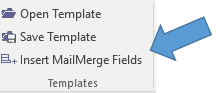
Open your DocumentsCorePack Template Designer (aka DocumentsCorePack Client) by clicking on Insert Mail Merge Fields on the left side of the command bar.
image


Figure 1: Open Insert MailMerge Fields

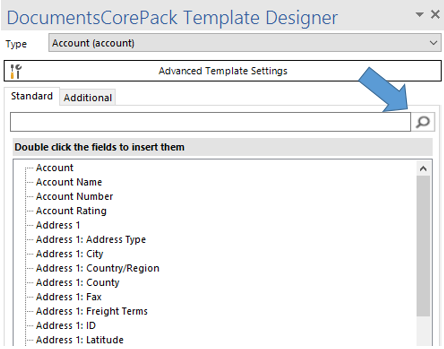
To search in the DocumentsCorePack Template Designer, insert a random term and click on the magnifying glass.
image

Figure 2: Search for term in the DocumentsCorePack Template Designer

In our example, we look for the term Name. After clicking on the magnifying glass, all the fields that are tied to the term Name appear. Additionally, you can see all the related entities.

Figure 3: Example search for the term name

With a click on + (Plus) next to the upbrought fields, you can open the related entities. No matter on which entity you click, the only fields that will be shown are the ones that contain the search term (here: Name):

Figure 4: Open related fields


How to set your Field-Search-preferences

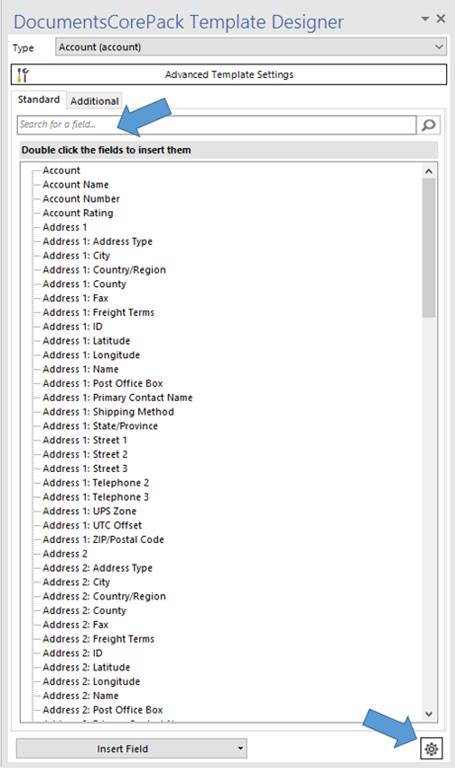
If you want to set or change your Field Search-preferences, click on Settings at the bottom of the DocumentsCorePack Template Designer.
image

Figure 5: Change field search preferences

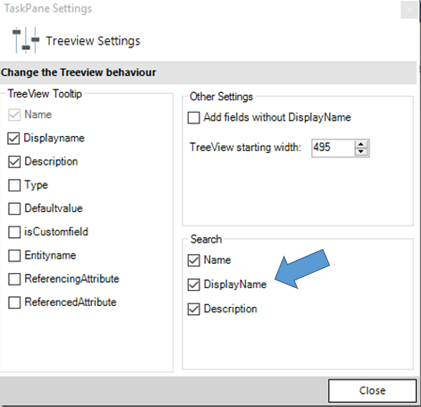
The Settings-window opens. Here you can set your Field Search-preferences by checking the corresponding fields (Name, Display Name and/or Description) in the Search-section:
image

Figure 6: Set field search preferences

As soon as you have refined your settings, click on the [Close]-button and proceed with your search.

That’s it! We appreciate your feedback! Please share your thoughts by sending an email to support@mscrm-addons.com.

reworkneeded .. reformat. check if it is still working.. remove versionno

Was this helpful?

Yes  3 No
Related Articles
  • Hiding Table Rows in Word Templates
  • Creating a Conditional Row in a Table 
  • Why do companies struggle to automate document processes in Dynamics 365?
  • Debugging the Template Designer Office Add-In 
  • Introducing the DocumentsCorePack Template Designer Office Add-In
  • Ensuring correct time zone display for DateTime fields
Latest Articles
  • Can You Customize Business Central Document Layouts Without RDLC or Developer Support? 
  • Introducing DocumentsCorePack for Business Central
  • Hiding Table Rows in Word Templates
  • Creating a Conditional Row in a Table 
  • Recap: Scottish Summit 2026
Popular Articles
  • DocumentsCorePack Template Designer – Getting Started
  • Step-by-Step: How to configure a One-Click-Action
  • Application Access for Dynamics 365
  • How licenses are counted
  • How to find your environment’s unique name in Microsoft Dynamics 365
Top Rated Articles
  • “Undefined”-labels in Chrome and Edge 114 and higher
  • How to insert Condition Fields in DocumentsCorePack Templates designer
  • Important information for Dynamics 365 online customers using DocumentsCorePack and/or AttachmentExtractor
  • How to activate the DocumentsCorePack Connector for PowerApps & Microsoft Flow
  • Step-by-Step: How to configure a One-Click-Action
Categories
  • DCP for BC 2
  • *News and General Infos* 85
  • Webinars 50
  • Template Designer(DCP 200
  • DocumentsCorePack(DCP 278
  • TelephoneIntegration (TI 65
  • AttachmentExtractor (AE 81
  • PowerSearch (PS 50
  • ActivityTools (AT 61
  • SmartBar (SB 54
  • GroupCalendar (GC 47
Our Vision

“We see it as our purpose to provide products that simplify and speed up our customers’ Microsoft Dynamics 365 experience.”

Knowledgebase
LogIn
mscrm-addons.com
  • Products
  • Online Shop
  • Downloads
  • My Account
About Us
  • About Us
  • Case Studies
  • Newsletter
  • Partner Program
  • Contact
Support
  • Support
  • Terms & Conditions
  • Documentation
  • Webinars
  • Legal Documents
  • Impressum
  • Cookies
  • © 2025 www.mscrm-addons.com. All Rights Reserved.