mscrm-addons.com logomscrm-addons.com logo
  • Release History
  • Knowledge Base
  • Documentation
  • Contact Support
  • Release History
  • Knowledge Base
  • Documentation
  • Contact Support
home/Knowledge Base/DocumentsCorePack(DCP)/Debugging the Template Designer Office Add-In 

Debugging the Template Designer Office Add-In 

476 views 0 Updated on April 2, 2026

In order to analyze problems that may arise when using the Office Add-In, our Team may asks you to send them log files from both the Office Add-In and your DocumentsCorePack service.  To retrieve the log files, please follow the steps below. 

Step 1: Activate debugging in your service

Activate debugging for your DocumentsCorePack service.  You can enable debugging by following the steps outlined in this article. 

Step 2: Activate debugging in the Add-In

To enable debugging in the DocumentsCorePack Office Add-In, begin by navigating to the Add-In’s Settings.
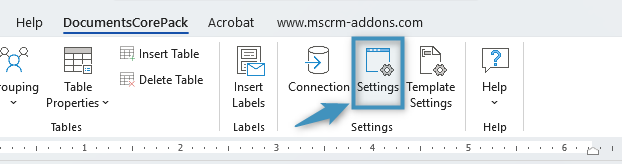
The Settings button can be found in the corresponding group
Figure 1: The Settings button can be found in the corresponding group

Navigate to the Application tab. The debug setting can be enabled by clicking the Activate Debugging checkbox.  Then, click OK. 
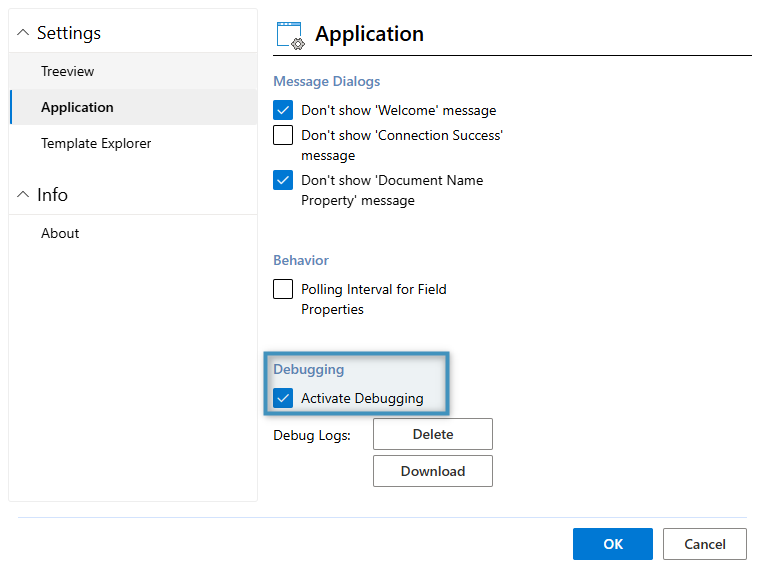
Activating debugging in the Application settings
Figure 2: Activating debugging in the Application settings

Step 3: Reproduce the issue and download the log files

Next, recreate the issue.  Once the issue has been reproduced, download the log files from both the Add-In and your DocumentsCorePack Service.  The log files from the Add-In can be downloaded from the same window as shown above, via Settings > Application > Debugging > Download. 
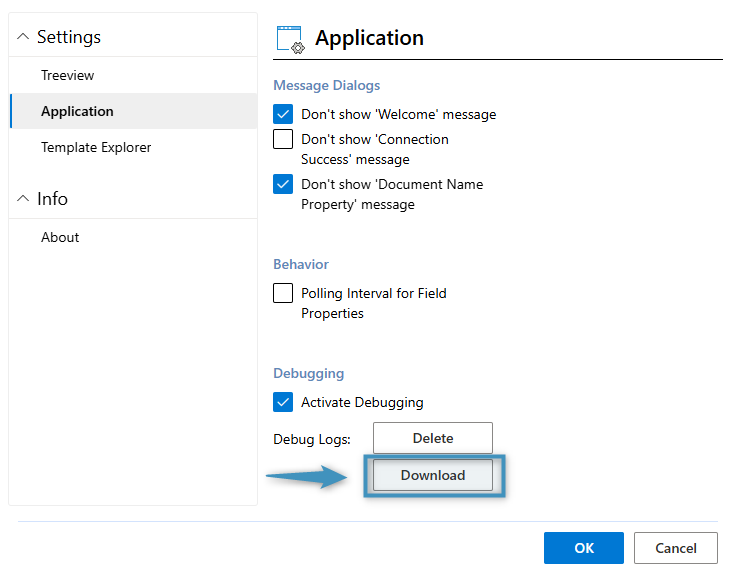
Downloading the debug logs from the Add-In
Figure 3: Downloading the debug logs from the Add-In

The log files from your DocumentsCorePack Service can be downloaded via Configuration > Download Logs.  Please be aware that this button only appears when debugging is enabled. 

Downloading the debug logs from the Online Service Configuration
Figure 4: Downloading the debug logs from the Online Service Configuration

Step 4: Send the log files

Send both sets of log files to support@mscrm-addons.com for analysis.  Our support team will assist you in determining the issue.

Note: Typically, debug logs are required from both the Office Add-In AND your DocumentsCorePack Service in order to assist our support team in determining any encountered issues. Please make sure logs from both are attached to your email before sending.

Step 5: Deactivate debugging

When you are finished, deactivate debugging for both the DocumentsCorePack Office Add-In and the DocumentsCorePack Service to resume normal operation. 

Was this helpful?

Yes  No
Related Articles
  • Can DocumentsCorePack automate documents directly inside Dynamics 365 at scale?
  • What are the safest and fastest ways to automate document creation in Dynamics 365?
  • Why do document errors and inconsistencies increase as teams scale in Dynamics 365?
  • “Recipients not found” warning when using One-Click-Action
  • What makes a Dynamics 365 add-on easy for partners to recommend in every deal 
  • Enhancing data security for DCP and AE using a virtual network
Latest Articles
  • Can DocumentsCorePack automate documents directly inside Dynamics 365 at scale?
  • Recap: Directions North America 2026
  • Why does Dynamics 365 storage usage grow so fast after go-live? 
  • Recap: ColorCloud 2026
  • Scaling Dynamics 365: What Partners Are Actually Seeing as Environments Grow 
Popular Articles
  • DocumentsCorePack Template Designer – Getting Started
  • Step-by-Step: How to configure a One-Click-Action
  • Application Access for Dynamics 365
  • How licenses are counted
  • How to find your environment’s unique name in Microsoft Dynamics 365
Top Rated Articles
  • “Undefined”-labels in Chrome and Edge 114 and higher
  • How to insert Condition Fields in DocumentsCorePack Templates designer
  • Important information for Dynamics 365 online customers using DocumentsCorePack and/or AttachmentExtractor
  • How to activate the DocumentsCorePack Connector for PowerApps & Microsoft Flow
  • How licenses are counted
Categories
  • *News and General Infos* 75
  • Webinars 48
  • Template Designer(DCP 197
  • DocumentsCorePack(DCP 270
  • TelephoneIntegration (TI 65
  • AttachmentExtractor (AE 80
  • PowerSearch (PS 50
  • ActivityTools (AT 61
  • SmartBar (SB 54
  • GroupCalendar (GC 47
Our Vision

“We see it as our purpose to provide products that simplify and speed up our customers’ Microsoft Dynamics 365 experience.”

Knowledgebase
LogIn
mscrm-addons.com
  • Products
  • Online Shop
  • Downloads
  • My Account
About Us
  • About Us
  • Case Studies
  • Newsletter
  • Partner Program
  • Contact
Support
  • Support
  • Terms & Conditions
  • Documentation
  • Webinars
  • Legal Documents
  • Impressum
  • Cookies
  • © 2025 www.mscrm-addons.com. All Rights Reserved.