mscrm-addons.com logomscrm-addons.com logo
  • Release History
  • Knowledge Base
  • Documentation
  • Contact Support
  • Release History
  • Knowledge Base
  • Documentation
  • Contact Support
home/Knowledge Base/PowerSearch (PS)/How to set up your language in PowerSearch

How to set up your language in PowerSearch

339 views 0 Updated on October 9, 2024

This article is about “How to set up your language” in PowerSearch.

Language Translation is possible for general elements like the “search” button and for operators like “equals”. The standard languages are English and German.

In this article, you will learn how to add translations for general elements in a new language.
With only a few steps, you will manage to do it.

First:

Dynamics 365 -> Advanced Settings -> Settings -> “MSCRM-ADDONS” area -> Products
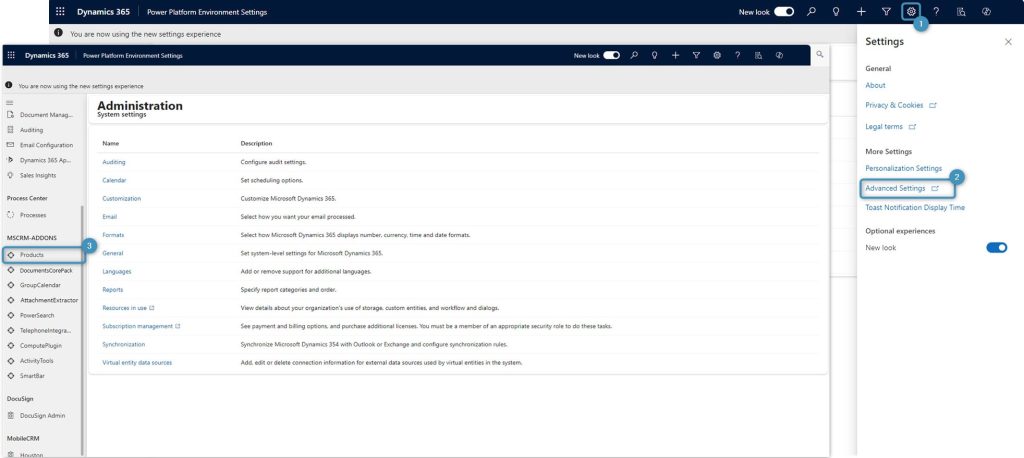
Figure 1A : Dynamics 365 (New Look)
Figure 1: Dynamics 365

Next open “PowerSearch”

Open PowerSearch

Figure 2: PowerSearch

Here please open the record named “PSCLanguages”
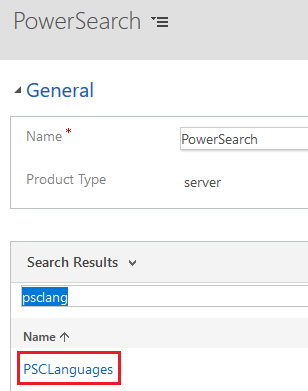
PSCLanguages

Figure 3: PSCLanguages

PSCLanguages setting record: 
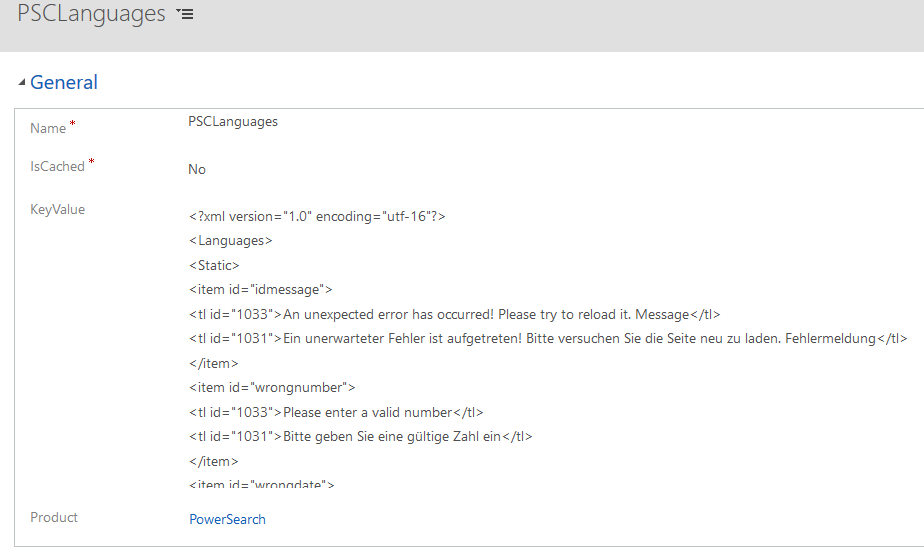
PSCLanguages setting record

Figure 4: PSCLanguages setting record

In the next step copy the content of the “KeyValue” field into an XML-editor (at least into a notepad).

It is recommended to create a copy!
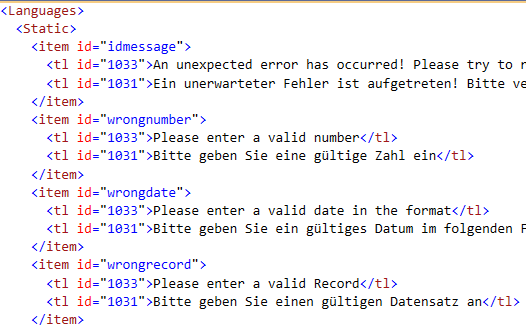
Content of the “KeyValue” field

Figure 5: Content of the KeyValue

The XML consists of two main areas “Static” and “Operators”. In “Static” you find translations for PowerSearch buttons, error messages and so on. In “Operators” you find translations of condition Operators.

XML main areas “Static” and “Operators”

Figure 6: XML main areas

Example 1: To add a Spanish translation for the “Search” button (the language code for Spanish is 3082):

Look for the id “btsearch” and add a new “tl” sub node with the Spanish translation to it.
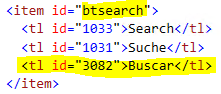
Adding a Spanish translation

Figure 7: Adding a Spanish translation

Example 2: To add a French translation for the “Equals” operator (the language code for French is 1036):

Look for the id “eq” and add a new “tl” sub node with the French translation to it:
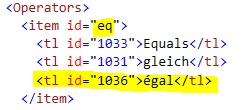
Adding a French translation

Figure 8: Adding a French translation

Note: As shown in the above examples you can add your translations to all elements.

Finally copy the changed XML back to the settings record in Dynamics 365 and save it. After reloading PowerSearch the new translations will be used.

Here you can find the link to all language codes all over the world.

That’s it! We appreciate your feedback! Please share your thoughts by sending an email to support@mscrm-addons.com

Tags:PowerSearchLanguage translation

Was this helpful?

Yes  No
Related Articles
  • How to activate per User Licensing in CRM 2011
  • Final PowerSearch installation steps after MS AppSource download
  • How to use Tolerance Control for number search fields in PowerSearch
  • PowerSearch – How to install license with subscription number/ID 
  • PowerSearch – How to install the license key for perpetual License
  • How to access mscrm-addons product settings in Dynamics 365
Latest Articles
  • The Hidden Inefficiencies Inside Dynamics 365 and How Smart Teams Are Solving Them
  • mscrm-addons.com: 2025 Year in Review
  • Security issues when installing DocumentsCorePack (Defender)
  • AttachmentExtractor: Bandwidth & Performance – FAQ 
  • Recap: Power Platform Community Conference 2025
Popular Articles
  • DocumentsCorePack Template Designer – Getting Started
  • Step-by-Step: How to configure a One-Click-Action
  • Application Access for Dynamics 365
  • How licenses are counted
  • How to find your environment’s unique name in Microsoft Dynamics 365
Top Rated Articles
  • “Undefined”-labels in Chrome and Edge 114 and higher
  • How to insert Condition Fields in DocumentsCorePack Templates designer
  • Important information for Dynamics 365 online customers using DocumentsCorePack and/or AttachmentExtractor
  • How to activate the DocumentsCorePack Connector for PowerApps & Microsoft Flow
  • How licenses are counted
Categories
  • *News and General Infos* 70
  • Webinars 47
  • Template Designer(DCP 197
  • DocumentsCorePack(DCP 264
  • TelephoneIntegration (TI 65
  • AttachmentExtractor (AE 76
  • PowerSearch (PS 50
  • ActivityTools (AT 61
  • SmartBar (SB 54
  • GroupCalendar (GC 47
Our Vision

“We see it as our purpose to provide products that simplify and speed up our customers’ Microsoft Dynamics 365 experience.”

Knowledgebase
LogIn
mscrm-addons.com
  • Products
  • Online Shop
  • Downloads
  • My Account
About Us
  • About Us
  • Case Studies
  • Newsletter
  • Partner Program
  • Contact
Support
  • Support
  • Terms & Conditions
  • Documentation
  • Webinars
  • Legal Documents
  • Impressum
  • © 2025 www.mscrm-addons.com. All Rights Reserved.