This article provides a step-by-step guide on how to generate a document, attach it as a note, and save it to SharePoint using Power Automate.
In the example below, we will build an automated cloud flow that generates a welcome letter, attaches it to a newly created contact, and saves it to SharePoint using Power Automate through the DocumentsCorePack Connector.
Prerequisites: To use the DocumentsCorePack Connector, you will need to obtain an API key from the service configuration. You can find more details on how to do this here.
Step 1: Creating the flow
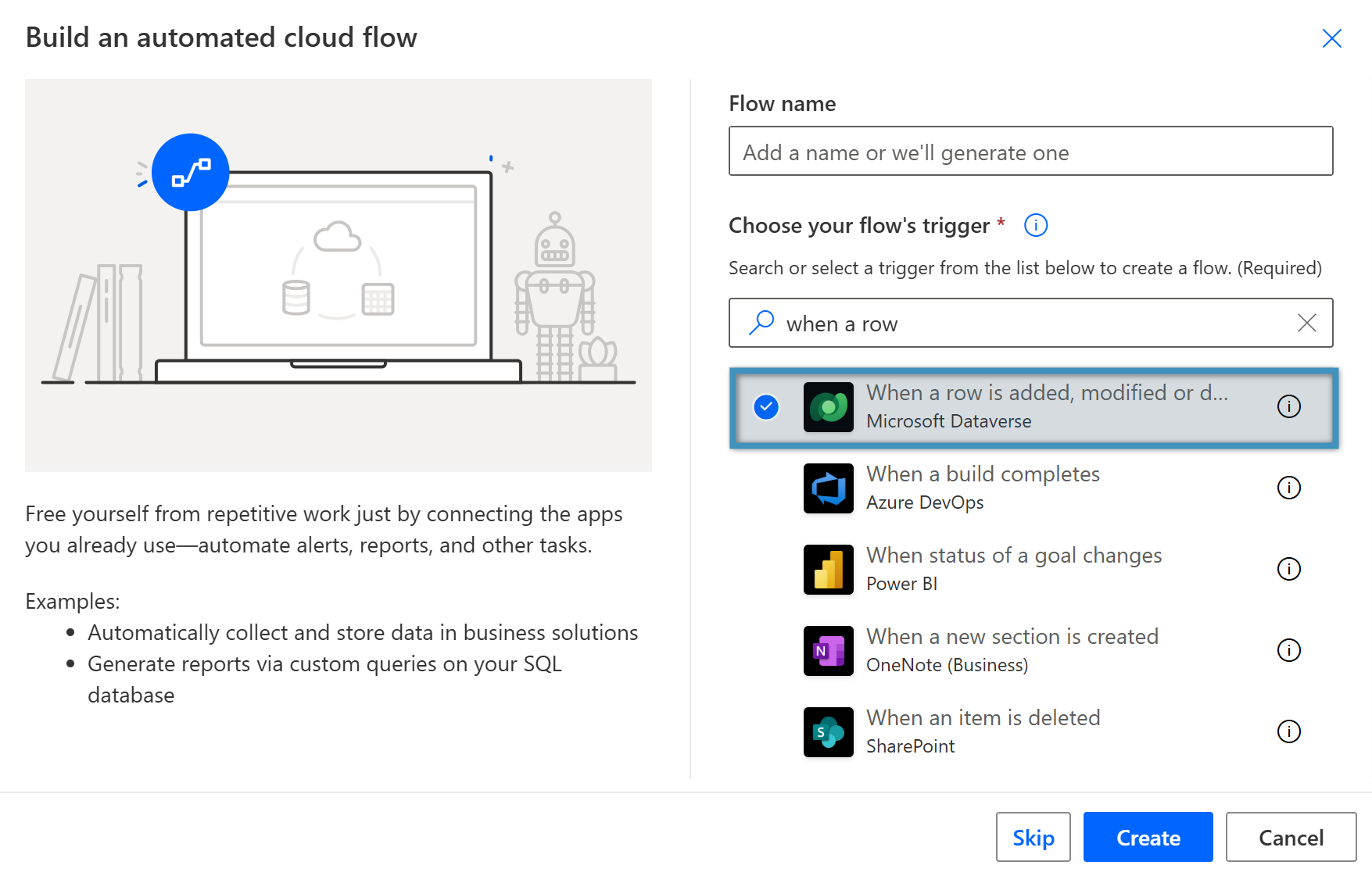
Start by creating a new flow and choosing a trigger. In our example, we will build an automated cloud flow and select When a row is added, modified, or deleted as the trigger.
Step 2: Setting our starting parameters
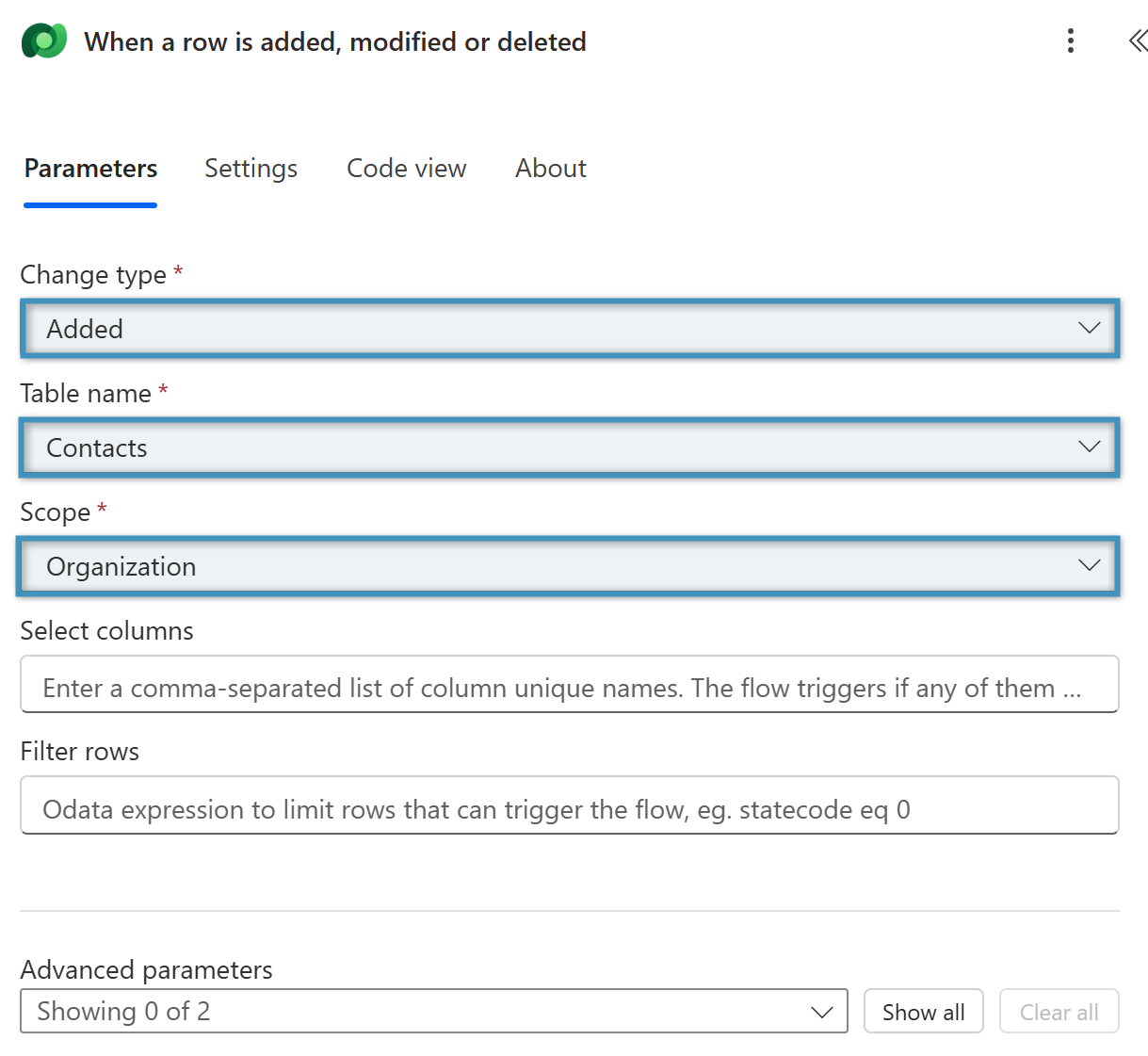
Fill in the parameters accordingly. In our example, we will set the Change Type to Added, select Contacts for the Table Name, and choose Organization for the Scope.
Step 3: Adding our action
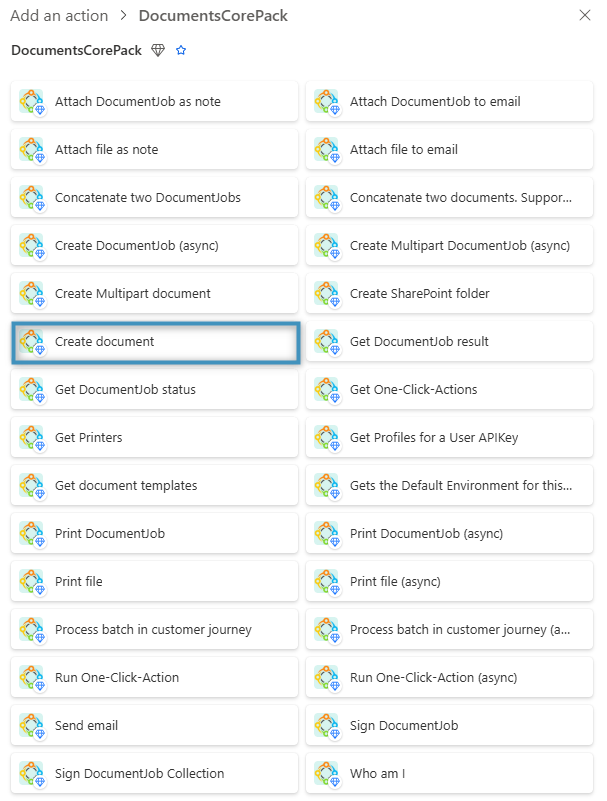
Next, we will add a new action to our flow. Search for the DocumentsCorePack Connector and select Create document from the list of actions.
Step 4: Configuring our action
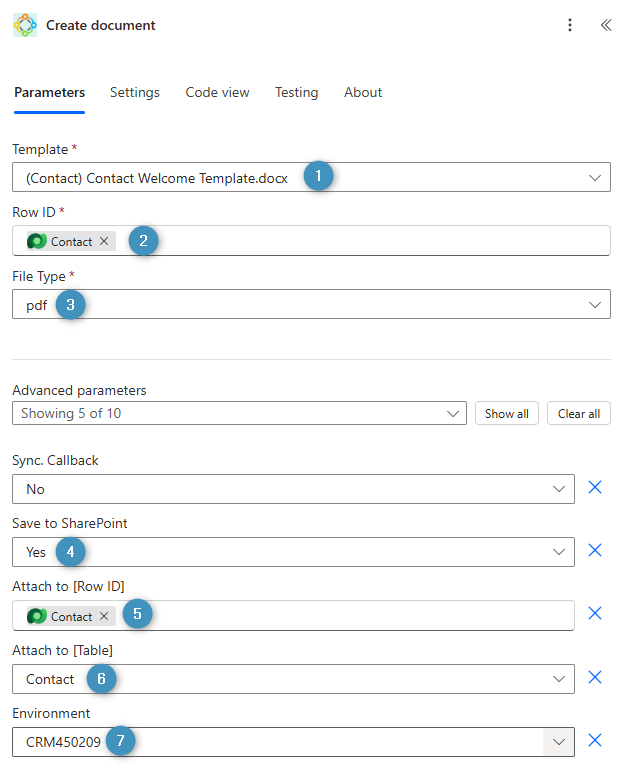
After selecting the action, the following window will appear. Please fill out the fields as indicated:
❶ Template: Choose a template
❷ Row ID: Select unique identifier of the record to run this template for
❸ File Type: Select a file type
❹ Save to SharePoint: Choose whether or not to save the generated document to SharePoint. The document will be stored in the document location of the record the document is created for.
❺ Attach to [Row ID]: The unique identifier of the record to attach this document to
❻ Attach to [Table]: The table the generated document should be attached to
❼ Environment: The environment this action should be used in
Note: Ensure that the base entity defined in your template corresponds to the entity associated with the selected trigger.
Optional Step: An alternative approach
Instead of using the Create document step to attach the generated document to the record, you can also add an additional step to the flow to perform the attachment.
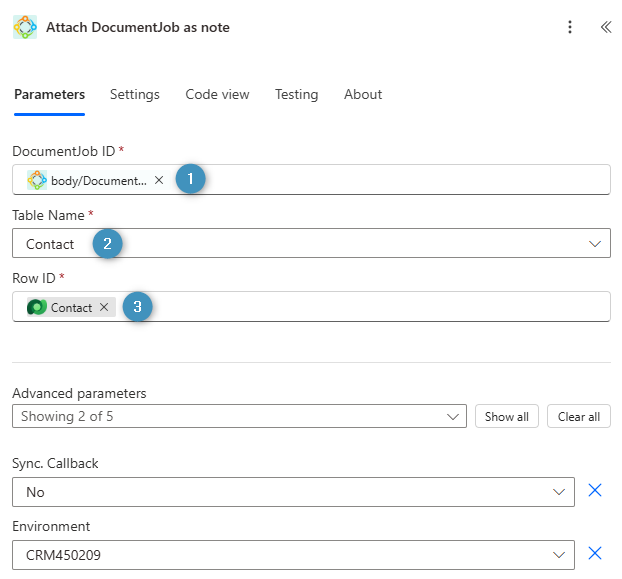
Add the Attach DocumentJob as note action after the Create document action. Configure the following parameters:
❶ DocumentJob ID: The DocumentJob ID of the generated document
❷ Table Name: Choose a table to attach the note to
❸ Row ID: ID of the record to attach the note to
Step 5: Testing the flow
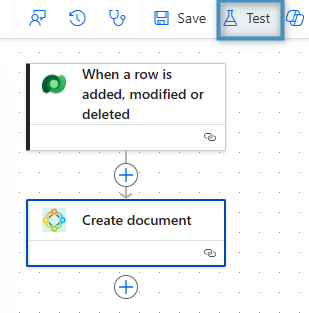
You can test your flow in Power Automate by selecting the Test button.
After your flow runs successfully, it attaches the generated document to the new contact as a note in Dynamics 365.
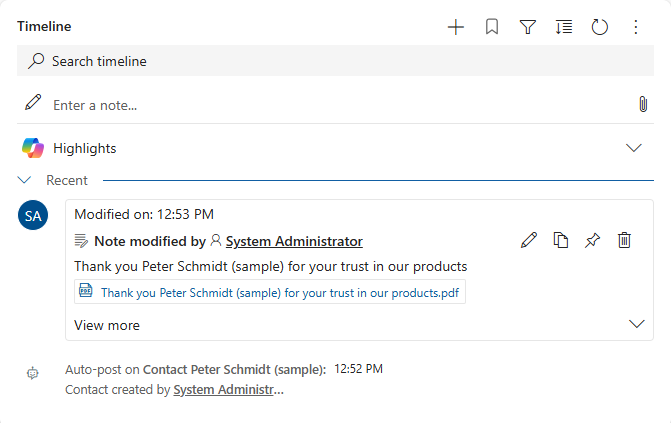
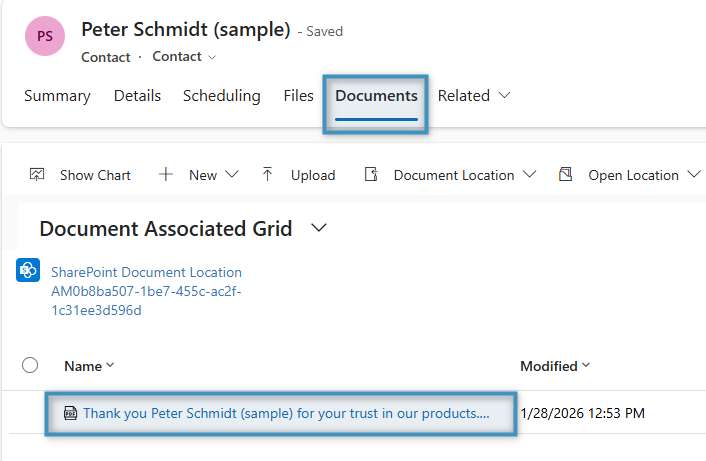
If the Create document action is configured to save the file to SharePoint, the document will appear under the Documents tab of the record as shown below.