In order to analyze problems that may arise when using the Office Add-In, our team may asks you to send them log files from both the Office Add-In and your DocumentsCorePack service. To retrieve the log files, please follow the steps below.
Step 1: Activate debugging in your service
Activate debugging for your DocumentsCorePack service. You can enable debugging by following the steps outlined in this article.
Step 2: Activate debugging in the Add-In
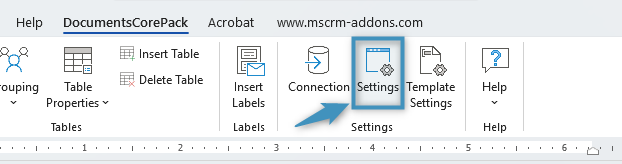
To enable debugging in the DocumentsCorePack Office Add-In, begin by navigating to the Add-In’s Settings.
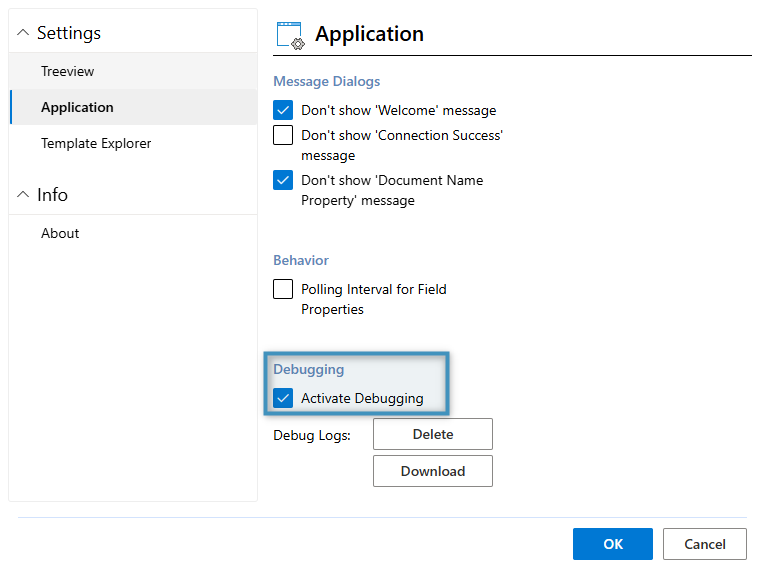
Navigate to the Application tab. The debug setting can be enabled by clicking the Activate Debugging checkbox. Then, click OK.
Step 3: Reproduce the issue and download the log files
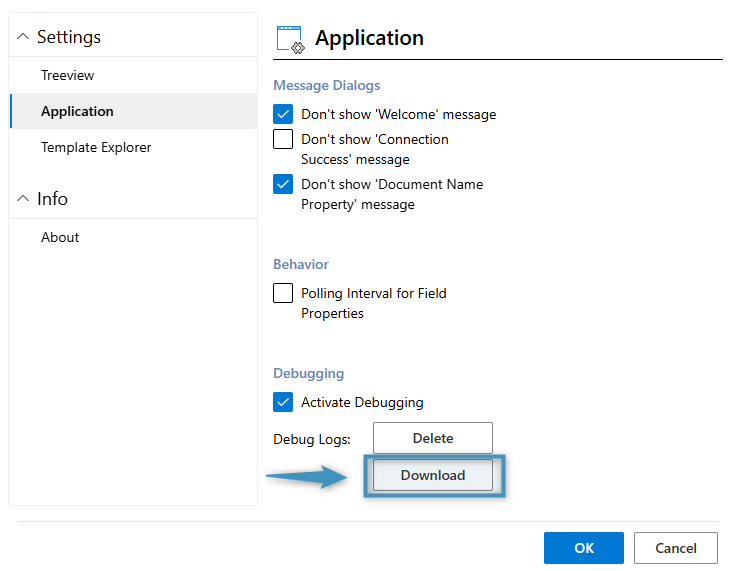
Next, recreate the issue. Once the issue has been reproduced, download the log files from both the Add-In and your DocumentsCorePack Service. The log files from the Add-In can be downloaded from the same window as shown above, via Settings > Application > Debugging > Download.
The log files from your DocumentsCorePack Service can be downloaded via Configuration > Download Logs. Please be aware that this button only appears when debugging is enabled.

Step 4: Send the log files
Send both sets of log files to support@mscrm-addons.com for analysis. Our support team will assist you in determining the issue.
Note: Typically, debug logs are required from both the Office Add-In AND your DocumentsCorePack Service in order to assist our support team in determining any encountered issues. Please make sure logs from both are attached to your email before sending.
Step 5: Deactivate debugging
When you are finished, deactivate debugging for both the DocumentsCorePack Office Add-In and the DocumentsCorePack Service to resume normal operation.