If the Word Add-In does not update correctly, or if the Template Settings displays the error “Minified React error #306,” clearing the local Word Add-in cache can resolve the issue.
Clearing the cache removes locally stored add-in data and forces Word to load a fresh version the next time it starts.
Before you Begin
- Save any open documents.
- Close Word completely, including all open Word windows.
How to Clear the Cache
- Press Windows + R to open the Run dialog.
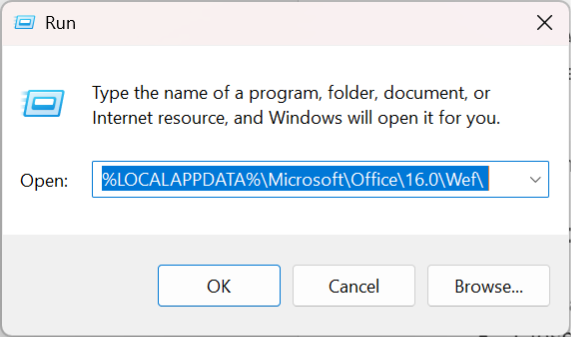
- Enter the following path and select OK:
%LOCALAPPDATA%\Microsoft\Office\16.0\Wef\
- In the folder that opens, select and delete all contents of the folder. Do not delete individual files only; the entire contents of the Wef folder should be removed.
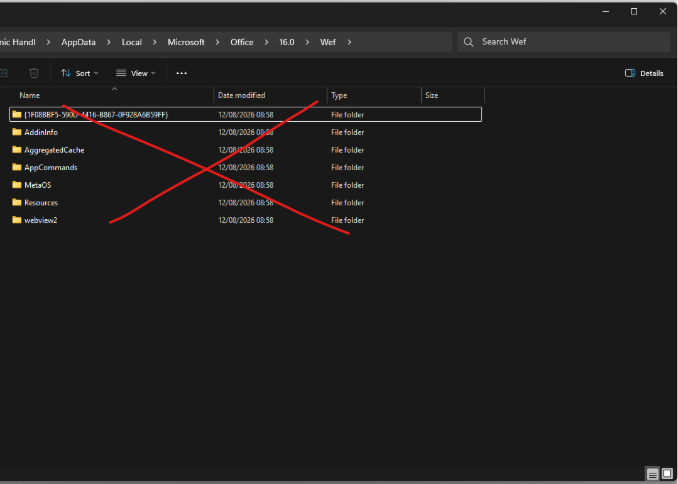
- After clearing the cache, start Word again.
- Reconnect to your environment if prompted.
- Open Template Settings once more. The error should no longer appear.
If you are still running into issues with the Office Add-In, please contact our support team.
Additional Information
This process clears Word’s local Office Add-In cache. Microsoft notes that clearing the cache can help resolve add-in errors and ensures Word loads the most current add-in resources. For Microsoft’s full instructions and additional cache-clearing options, see Clear the Office cache – Office Add-ins | Microsoft Learn.