This article outlines How to manage templates using the DocumentsCorePack Online Service Configuration. For further information on the DocumentsCorePack Online Service Configuration, including how to manage templates, please have a look at this video
Accessing the Templates tab
Step 1: Login to www.mscrm-addons.com, navigate to My Account and then Manage Services. The Administration Portal opens. Select the DCP Service Admin area.
Step 2: Select the ❶ service that you want to import/export your templates from.

Step 3: Click on the Templates tab. The Template Management window opens, which allows you to ❶ export, ❷ import, and ❸ backup your templates as shown in the following figure.
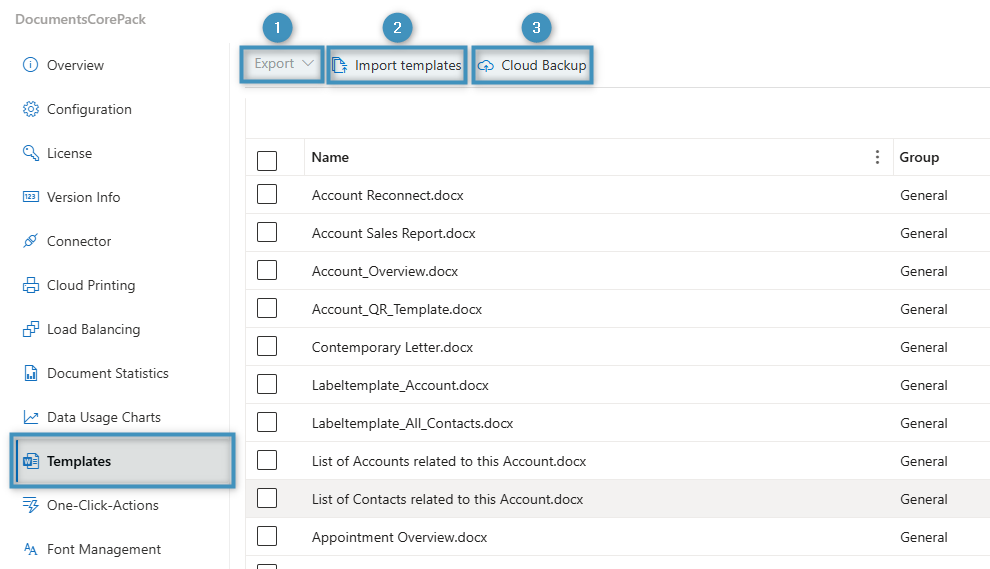
Template Manager Options for DocumentsCorePack Online Service Configuration
Import
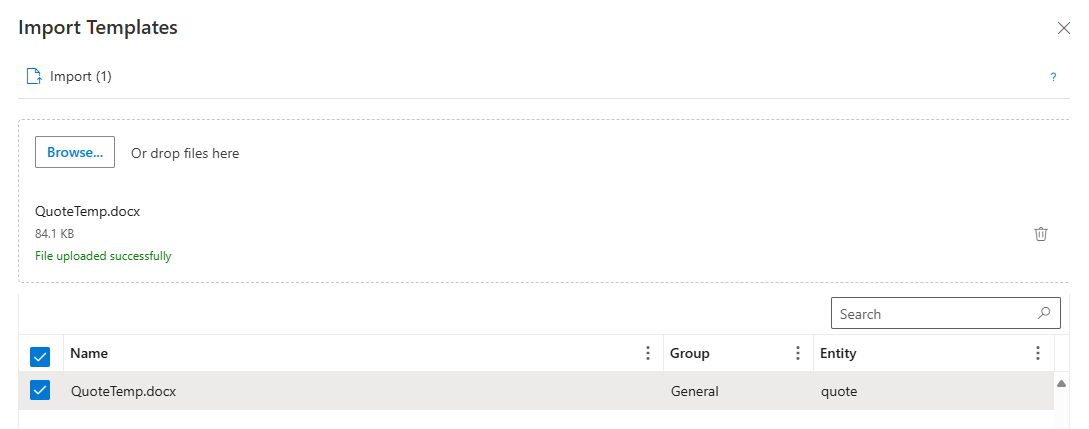
Click on the Import button to import DocumentsCorePack templates. You may select multiple *.docx/ *.docm/ *.dot templates or *.zip files containing multiple templates.
You can also drag and drop files from the explorer into this dialog.
If the templates you want to import already exist in the system, you will need to specify how to proceed. You can select from Overwrite, Create new, or Skip.
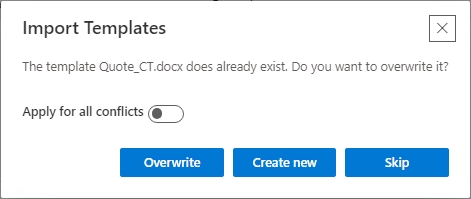
- Overwrite: The template GUID stays the same.
- Create new: The old version will be kept with the old template GUID and the new version of the template will be imported with a new template GUID.
- Skip: All existing templates will be ignored. Only new templates will be imported.
Export
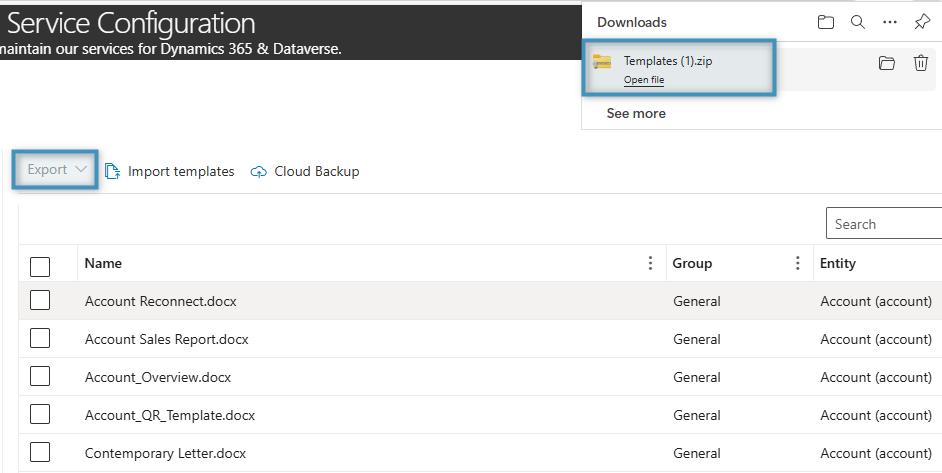
Once you have selected the templates you would like to export, you can choose one of two export options: Export as ZIP and Export to Dataverse.
Export as ZIP
Selecting Export as ZIP will download the selected templates as a .zip file.
Please note: During the export, the GUID of the template record is added to the document name. The GUID is a unique alphanumeric code that is assigned to each template. It is important to retain the GUID associated with a template during the export process because it acts as a unique identifier, preserving the template’s identity and connections. It’s essential not to modify the GUID during the export/import process to guarantee the seamless operation of templates within your system.
IMPORTANT: Avoid exporting to a folder with many subfolders to ensure the templates are extracted correctly. The maximum path length should not be over 260 characters.
- Examples:
- Proper path length for exporting:
- C:\temp\DCP_Templates
- Improper path length for exporting:
- C:\Users\MyUSerAccount\Documents\CRMData\DocumentsCorePackTemplates\28_11_2017\DCP_Templates
- Proper path length for exporting:
Export to Dataverse
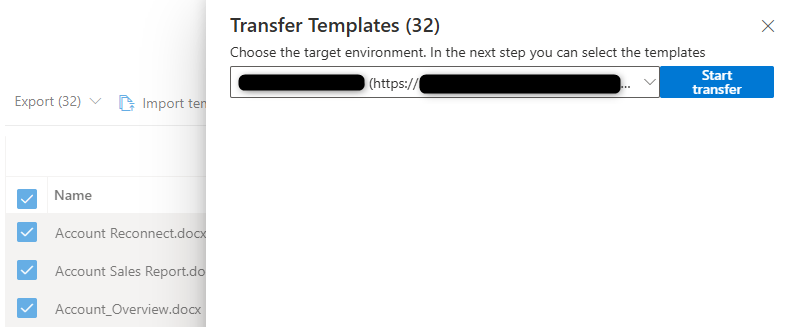
This option combines exporting and importing into one step. You can choose which other Dataverse environment you would like to export the DocumentsCorePack templates into. Use this option when you want, for example, to export your templates from your QA into production.
Cloud Backup
You can back up your templates on a scheduled interval to your Azure Blob Storage. We highly recommend setting up a cloud backup of your DocumentsCorePack templates.
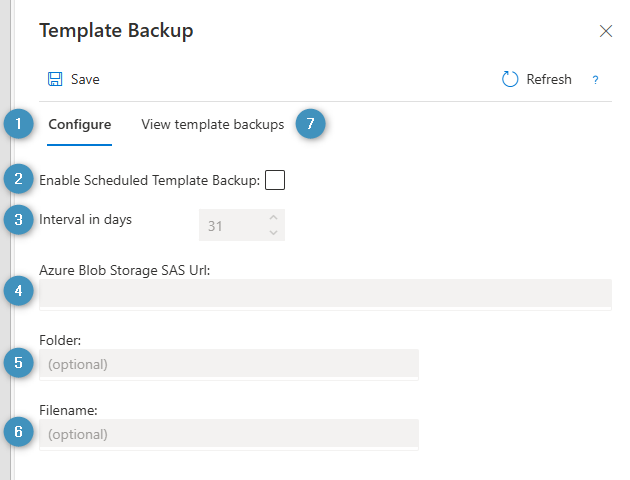
You can manage template backups in the system. ❶ Configure tab, as shown below. Here, you can ❷ enable scheduled template backups and decide on the ❸ interval in days. Make sure to set your ❹ Azure Blob Storage SAS Url. Optionally, you can set the ❺ folder and ❻ filename. You can view your backups in the ❼ View Template backups tab.
That’s it! We appreciate your feedback! Please share your thoughts by sending an email to support@mscrm-addons.com.