This article outlines where to find the version number for each mscrm-addons product.
Table of Contents
- DocumentsCorePack
- DocumentsCorePack Template Designer
- AttachmentExtractor
- ActivityTools, TelephoneIntegration Server, PowerSearch, SmartBar, and GroupCalendar
- TelephoneIntegration Client
DocumentsCorePack
Online
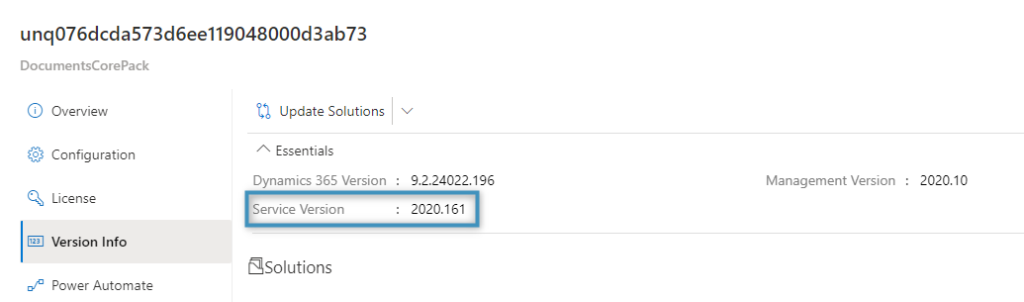
To view the version number for DocumentsCorePack Online, open the Service Configuration and select the Version Info tab. The version number is displayed next to Service Version.
On-Premise
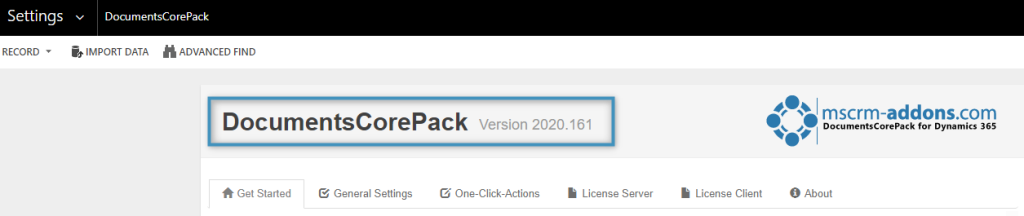
Open your Microsoft Dynamics 365 environment and access your Settings. Under the MSCRM-Addons section, select DocumentsCorePack. The version number is displayed at the top of the page.
How to Update
Your service can be updated via the Service Configuration. To learn how, please see here.
DocumentsCorePack Template Designer
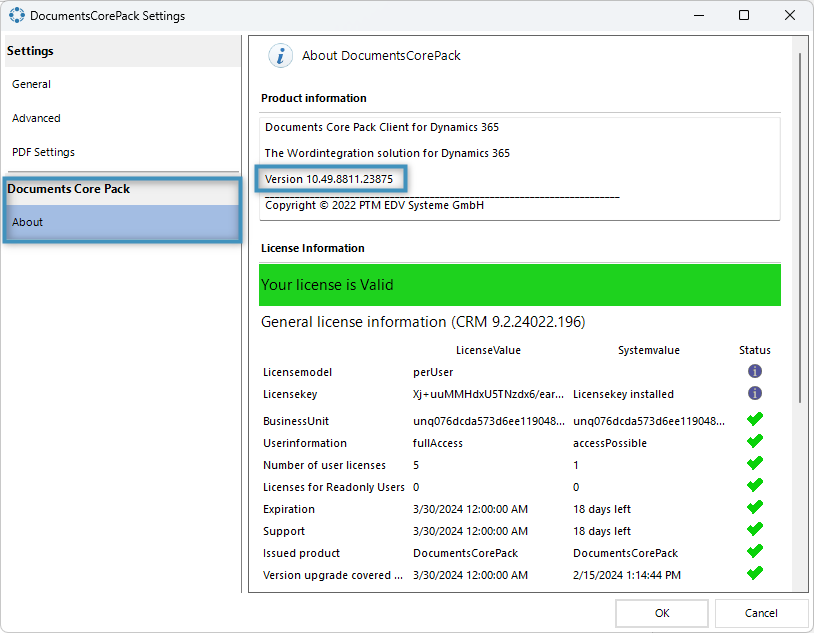
To locate the current DocumentsCorePack TemplateDesigner version number, open Microsoft Word, navigate to the www.mscrm-addon.com tab and click on the [DocumentsCorePack Settings] button.

In the following window, select the About tab. The version number is displayed on the right.
How to Update
To update the Template Designer, download and install the latest version from here.
AttachmentExtractor
Online
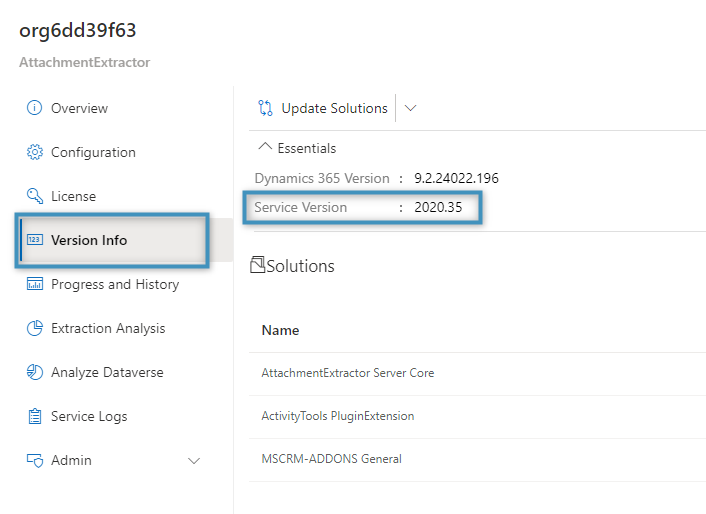
To view the version number for AttachmentExtractor Online, open the Service Configuration and select the Version Info tab. The version number is displayed next to Service Version.
On-Premise
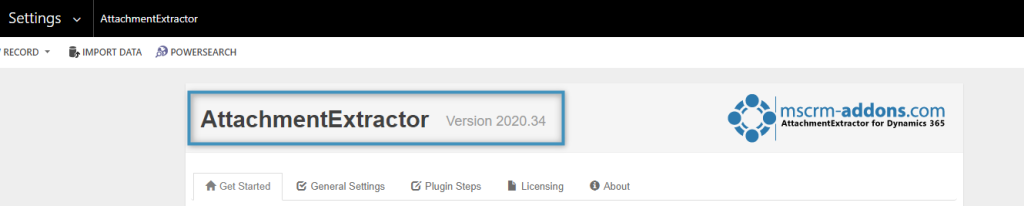
Open your Microsoft Dynamics 365 environment and access your Settings. Under the MSCRM-Addons section, select AttachmentExtractor. The version number is displayed at the top of the page.
How to Update
Your service can be updated via the Service Configuration. To learn how, please see here.
ActivityTools, TelephoneIntegration Server, PowerSearch, SmartBar, and GroupCalendar
Open your Microsoft Dynamics 365 environment and access your Settings. Under the MSCRM-Addons section, select the desired addon. The version number is displayed at the top of the page. The below example shows the ActivityTools version number.

Figure 1: mscrm-addons version number for MS Dyn 365
How to Update
To update any of the listed addons, please access our downloads page.
TelephoneIntegration Client
To locate the current TelephoneIntegration Client (TI Client) version number, click on the TelephoneIntegration icon in the taskbar:
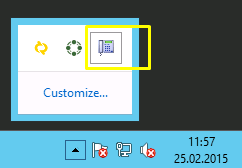
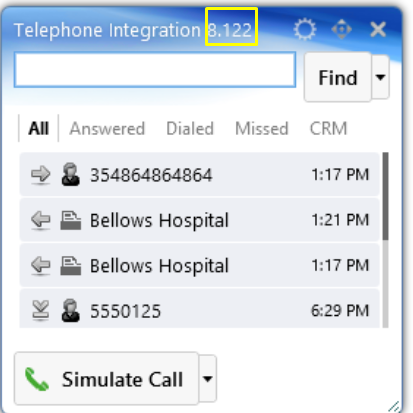
This action opens the TI Client balloon. The TelephoneIntegration Client version number can be found on the header of the balloon.
That’s it! We appreciate your feedback! Please share your thoughts by sending an email to support@mscrm-addons.co