mscrm-addons.com logomscrm-addons.com logo
  • Release History
  • Knowledge Base
  • Documentation
  • Contact Support
  • Release History
  • Knowledge Base
  • Documentation
  • Contact Support
home/Knowledge Base/DocumentsCorePack(DCP)/How to insert the current date with the DateTime function

How to insert the current date with the DateTime function

9117 views 4 Updated on January 28, 2025

This article describes how you can insert the current date with datetime function using Advanced String.  

Note: Do not use the DateTime Field option if you only want to insert the current date. The DateTime Field option is only for performing calculations with Dynamics 365 date fields (see this article). 

Step-by-Step Walkthrough: Insert dates and date operations in document templates for Dynamics 365

Step-by-Step description 

To insert the current date, first select the Advanced String option under the Insert Field menu as shown below. 

Inserting an Advanced String field
Figure 1: Inserting an Advanced String field
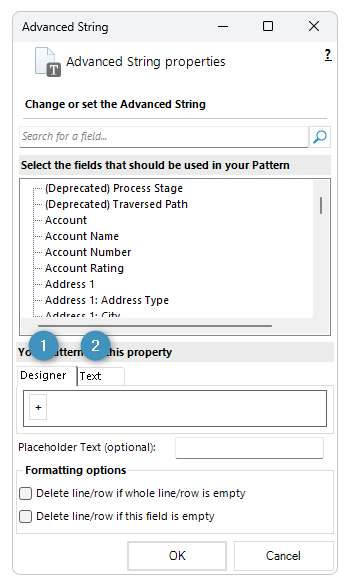
The Advanced String properties window will open. The current date can be added either through the ❶ Property Designer or through ❷ text.
The Advanced String properties window, with the Designer and Text options noted
Figure 2: The Advanced String properties window, with the Designer and Text options noted

To add it through the Property Designer, right-click within the field and select either DateTime() or DateTime(format, culture).  The latter is used to format the resulting date according to the specified format strings. 
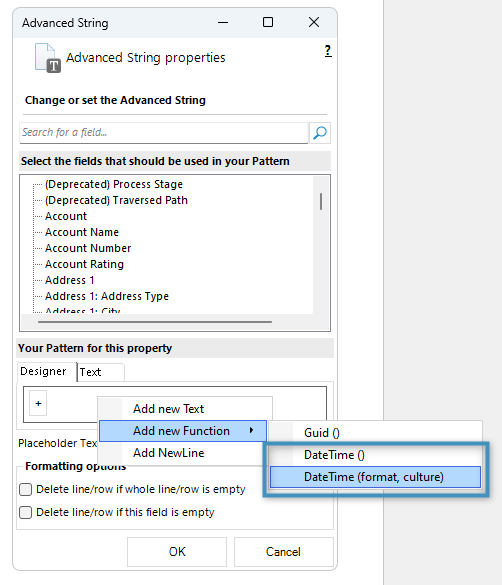
How to insert the current date with the DateTime function
Figure 3: The DateTime() options, highlighted
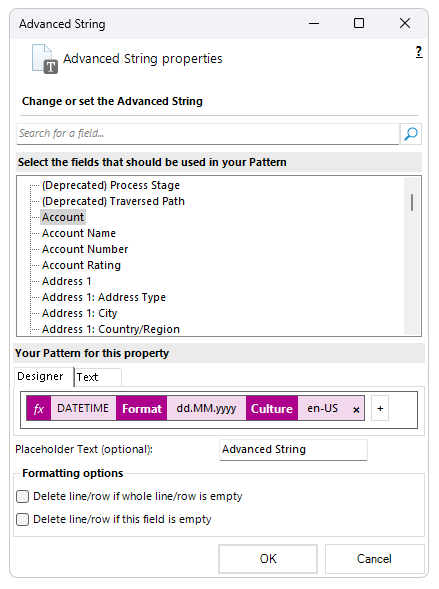
How to insert the current date with the DateTime function
Figure 4: An example DateTime() configuration

In the text property designer, you must manually enter the DATETIME() field and any desired formatting. 
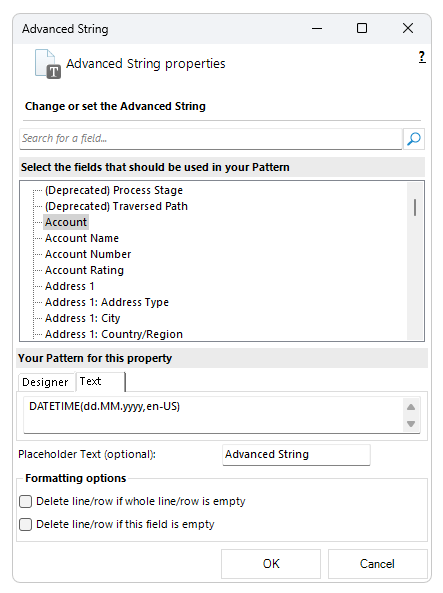
How to insert the current date with the DateTime function
Figure 5: The DateTime() configuration from Figure 4, in the Text tab

Note: When you add fields to the Property Designer, they display in text when you switch to the Text Property Designer.

Click OK, after entering the value.  The resulting document will show the current date, formatted as specified. 
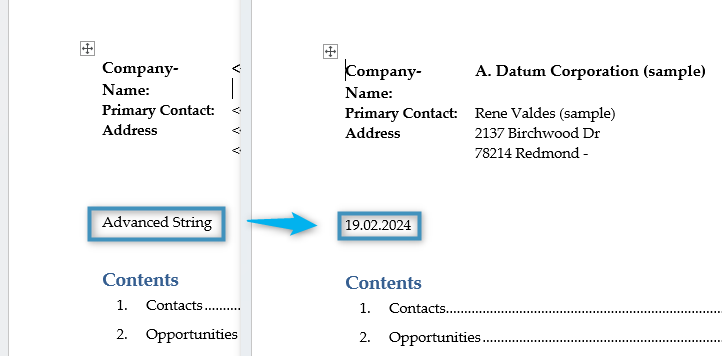
How to insert the current date with the DateTime function
Figure 6: Our resulting date

That’s it! We appreciate your feedback! Please share your thoughts by sending an email to support@mscrm-addons.com. 

Was this helpful?

4 Yes  14 No
Related Articles
  • What are the safest and fastest ways to automate document creation in Dynamics 365?
  • Why do document errors and inconsistencies increase as teams scale in Dynamics 365?
  • “Recipients not found” warning when using One-Click-Action
  • What makes a Dynamics 365 add-on easy for partners to recommend in every deal 
  • Enhancing data security for DCP and AE using a virtual network
  • Security issues when installing DocumentsCorePack (Defender)
Latest Articles
  • What are the safest and fastest ways to automate document creation in Dynamics 365?
  • Recap: Canadian Power Platform Summit 2026
  • What makes a partner tool defensible during budget pushback?
  • What are safe ways to reduce Dynamics 365 storage without deleting records? 
  • Why do document errors and inconsistencies increase as teams scale in Dynamics 365?
Popular Articles
  • DocumentsCorePack Template Designer – Getting Started
  • Step-by-Step: How to configure a One-Click-Action
  • Application Access for Dynamics 365
  • How licenses are counted
  • How to find your environment’s unique name in Microsoft Dynamics 365
Top Rated Articles
  • “Undefined”-labels in Chrome and Edge 114 and higher
  • How to insert Condition Fields in DocumentsCorePack Templates designer
  • Important information for Dynamics 365 online customers using DocumentsCorePack and/or AttachmentExtractor
  • How to activate the DocumentsCorePack Connector for PowerApps & Microsoft Flow
  • How licenses are counted
Categories
  • *News and General Infos* 73
  • Webinars 47
  • Template Designer(DCP 197
  • DocumentsCorePack(DCP 269
  • TelephoneIntegration (TI 65
  • AttachmentExtractor (AE 79
  • PowerSearch (PS 50
  • ActivityTools (AT 61
  • SmartBar (SB 54
  • GroupCalendar (GC 47
Our Vision

“We see it as our purpose to provide products that simplify and speed up our customers’ Microsoft Dynamics 365 experience.”

Knowledgebase
LogIn
mscrm-addons.com
  • Products
  • Online Shop
  • Downloads
  • My Account
About Us
  • About Us
  • Case Studies
  • Newsletter
  • Partner Program
  • Contact
Support
  • Support
  • Terms & Conditions
  • Documentation
  • Webinars
  • Legal Documents
  • Impressum
  • Cookies
  • © 2025 www.mscrm-addons.com. All Rights Reserved.