mscrm-addons.com logomscrm-addons.com logo
  • Release History
  • Knowledge Base
  • Documentation
  • Contact Support
  • Release History
  • Knowledge Base
  • Documentation
  • Contact Support
home/Knowledge Base/DocumentsCorePack(DCP)/How to create a DocumentsCorePack template for AssureSign (for 1 Signer)

How to create a DocumentsCorePack template for AssureSign (for 1 Signer)

400 views 0 Updated on April 11, 2023

AssureSign is another tool that simplifies the world of e-signatures. It empowers you to electronically sign documents. To create a DocumentsCorePack (DCP) template for AssureSign, open the www.mscrm-addons.com tab in Microsoft Word and follow the instructions below.

Step 1.
Open the Template Designer and then click the drop-down menu of the Insert Field button.
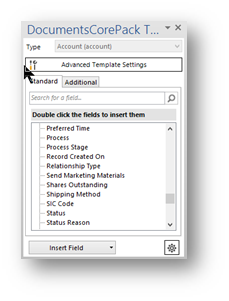
Open the DCP Template Designer.
Figure 1: DocumentsCorePack Template Designer

Step 2.
Select Insert AssureSign Item > Text or Signature (depending on what you want to work on).
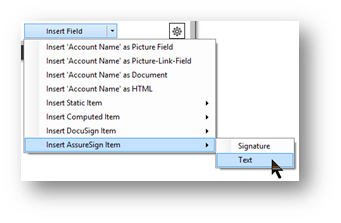
Select Insert AssureSign Item > Text or Signature.
Figure 2: Insert Field > Insert AssureSign Item > Text

For our example, we will start with the field Text. The following field appears at the position of your cursor.

Inserted text field.
Figure 3: Inserted text field

Step 3.
Click in the field and then select the Field properties in order to open the AssureSign Properties Window. In this window, you can set the properties for the type Text.

Step 4.
Set your Assure Sign Text properties accordingly.
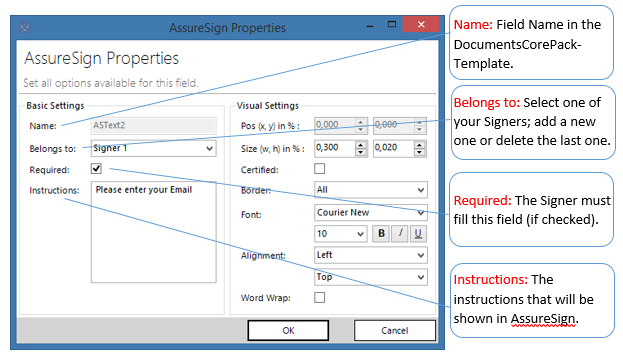
The Assure Sign Text properties.
Figure 4: AssureSign text properties – Basic settings

Usually, the predefined Visual Settings values from DCP should bring a good result, but they can also be customized.

When you are finished, click OK to proceed.
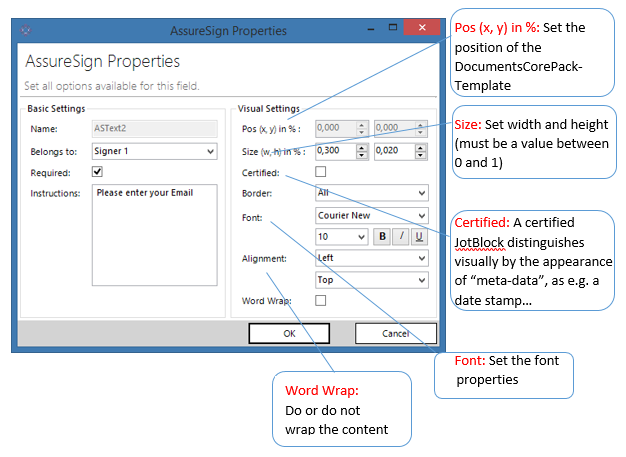
The predefined Visual Settings values from DCP.
Figure 5: AussureSign text properties – visual settings

Step 5.
If you are working on a signature, the following window appears once you have fulfilled Step 3.
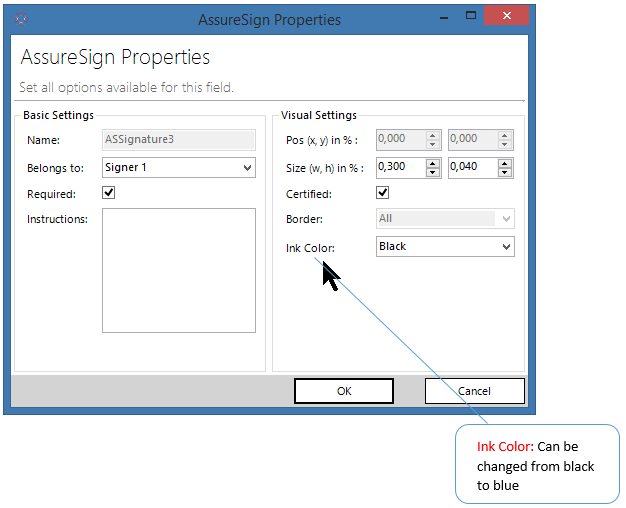
AssureSign Signature properties.
Figure 6: Assure Sign signature properties

In addition to the settings that have been explained in the screenshots from Step 4, you can also change the signature’s color from black to blue or vice versa.

Step 6.
You have now created your DCP template for AssureSign for 1 signer. Click here to learn how to create DocumentsCorePack Templates for AssureSign for 2 signers.

That’s it! We appreciate your feedback! Please share your thoughts by sending an email to support@mscrm-addons.com.

Was this helpful?

Yes  No
Related Articles
  • Security issues when installing DocumentsCorePack (Defender)
  • Locating Raw Inputs and Outputs in Power Automate
  • Step by Step: How to execute an OCA in a Power Automate flow 
  • Stop Losing Time & Money: How Manual Document Processes Hurt Your Business
  • Debugging the Template Design Office Add-In 
  • Updating Legacy SharePoint Connections 
Latest Articles
  • mscrm-addons.com: 2025 Year in Review
  • Security issues when installing DocumentsCorePack (Defender)
  • AttachmentExtractor: Bandwidth & Performance – FAQ 
  • Recap: Power Platform Community Conference 2025
  • Recap: Community Summit 2025
Popular Articles
  • DocumentsCorePack Template Designer – Getting Started
  • Step-by-Step: How to configure a One-Click-Action
  • Application Access for Dynamics 365
  • How licenses are counted
  • How to find your environment’s unique name in Microsoft Dynamics 365
Top Rated Articles
  • “Undefined”-labels in Chrome and Edge 114 and higher
  • How to insert Condition Fields in DocumentsCorePack Templates designer
  • Important information for Dynamics 365 online customers using DocumentsCorePack and/or AttachmentExtractor
  • How to activate the DocumentsCorePack Connector for PowerApps & Microsoft Flow
  • How licenses are counted
Categories
  • *News and General Infos* 70
  • Webinars 46
  • Template Designer(DCP 197
  • DocumentsCorePack(DCP 264
  • TelephoneIntegration (TI 65
  • AttachmentExtractor (AE 76
  • PowerSearch (PS 50
  • ActivityTools (AT 61
  • SmartBar (SB 54
  • GroupCalendar (GC 47
Our Vision

“We see it as our purpose to provide products that simplify and speed up our customers’ Microsoft Dynamics 365 experience.”

Knowledgebase
LogIn
mscrm-addons.com
  • Products
  • Online Shop
  • Downloads
  • My Account
About Us
  • About Us
  • Case Studies
  • Newsletter
  • Partner Program
  • Contact
Support
  • Support
  • Terms & Conditions
  • Documentation
  • Webinars
  • Legal Documents
  • Impressum
  • © 2025 www.mscrm-addons.com. All Rights Reserved.