mscrm-addons.com logomscrm-addons.com logo
  • Release History
  • Knowledge Base
  • Documentation
  • Contact Support
  • Release History
  • Knowledge Base
  • Documentation
  • Contact Support
home/Knowledge Base/AttachmentExtractor (AE)/How to control access to the DocumentsCorePack configuration

How to control access to the DocumentsCorePack configuration

1950 views 0 Updated on November 4, 2022

In this article, learn how and where you can define security roles that are allowed to access the DocumentsCorePack settings. This is necessary to control who can access and make changes to the base settings of the DocumentsCorePack configuration inside Dynamics 365. (Required version: DocumentsCorePack 2020.130)

Please Note:

  • When this setting is not configured, the default behavior for the DocumentsCorePack configuration is that every user has full access.
  • A user needs to have at least one of these roles to be allowed to perform changes to the configuration.
  • Users owning the “System Administrator” role are always allowed full access.


Step-by-step description

Step 1: Open the DocumentsCorePack configuration and access the Permission Settings. Then, to the right of Config Access Permissions, select Change to proceed.
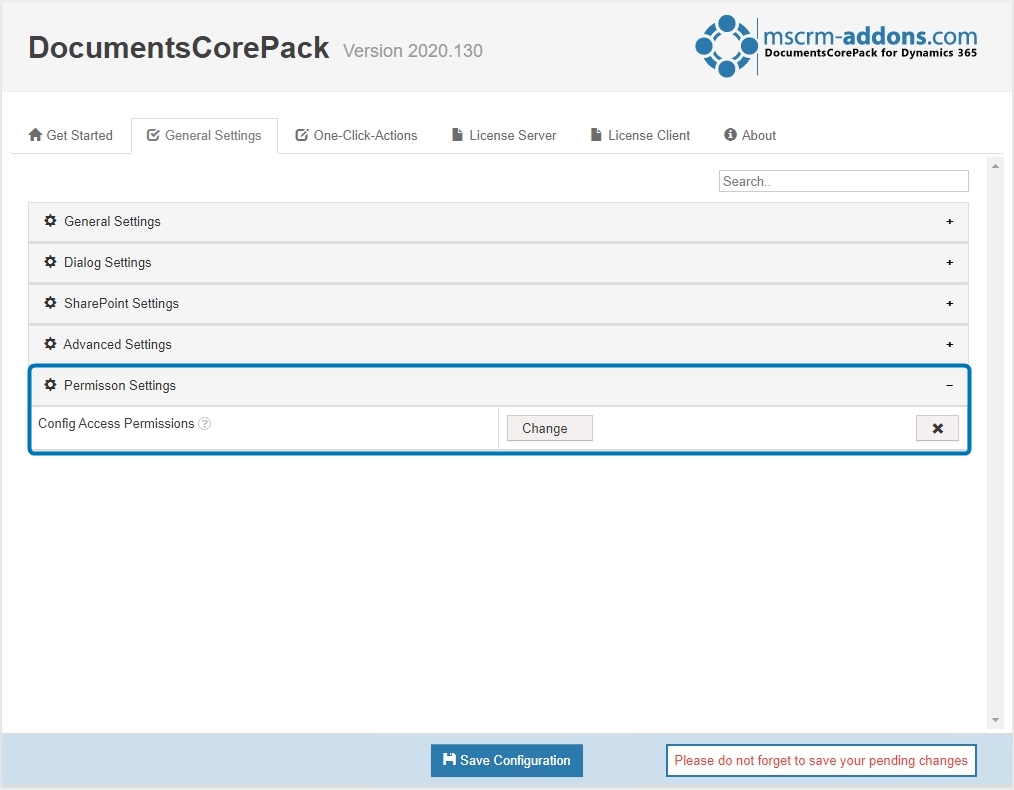

Figure 1: New Feature Permission Settings in DCP Config


Step 2: After the Config Access Permissions opens:

❶ Select New to create a security role. Select Delete to delete a security role. Please keep in mind, that after deletion of a security role, every user has full access as the default.
❷ Use the Search field for quick access to the users of security roles. Then, place your cursor in the Choose here section for the drop-down of roles in your organization. 
❸ Click on a role to select or edit it. In the example below, we selected Account Manager.
❹ With the Mode selection in the bottom left corner, you can decide what should happen if a user does not have the proper access permissions. Should relevant tabs be shown in read-only mode or should you completely hide them.
❺ Select OK to confirm or select Cancel. 

Please note: The permission check takes effect for the following tabs: “General Settings”, “License Server”, and “License Client”.
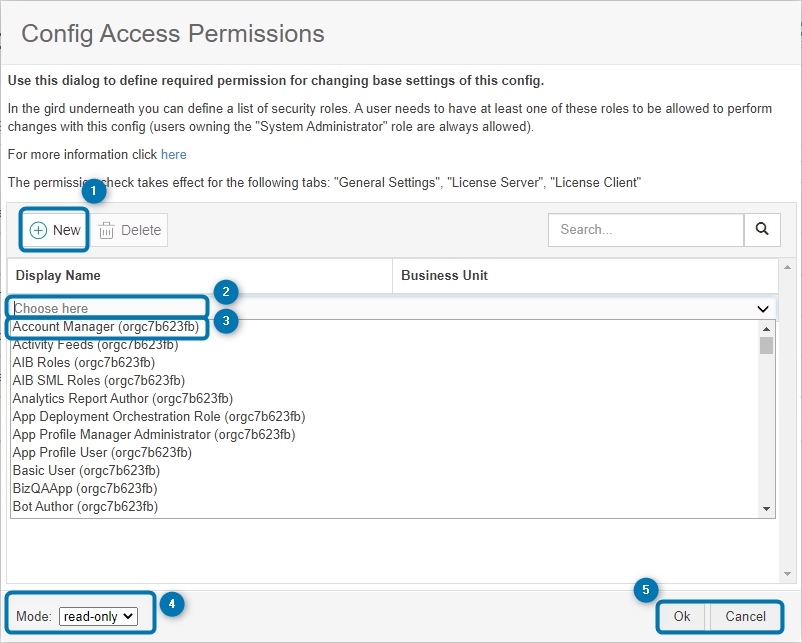

Figure 2: User Configuration

That´s it! We appreciate your feedback! Please share your thoughts by sending an e-Mail to support@mscrm-addons.com!

Tags:webconfigaccess permission

Was this helpful?

Yes  1 No
Related Articles
  • Security issues when installing DocumentsCorePack (Defender)
  • Locating Raw Inputs and Outputs in Power Automate
  • Step by Step: How to execute an OCA in a Power Automate flow 
  • Stop Losing Time & Money: How Manual Document Processes Hurt Your Business
  • The Hidden Cost of CRM Storage — And How to Eliminate It 
  • Debugging the Template Design Office Add-In 
Leave A Comment Cancel reply

You must be logged in to post a comment.

Latest Articles
  • The Hidden Inefficiencies Inside Dynamics 365 and How Smart Teams Are Solving Them
  • mscrm-addons.com: 2025 Year in Review
  • Security issues when installing DocumentsCorePack (Defender)
  • AttachmentExtractor: Bandwidth & Performance – FAQ 
  • Recap: Power Platform Community Conference 2025
Popular Articles
  • DocumentsCorePack Template Designer – Getting Started
  • Step-by-Step: How to configure a One-Click-Action
  • Application Access for Dynamics 365
  • How licenses are counted
  • How to find your environment’s unique name in Microsoft Dynamics 365
Top Rated Articles
  • “Undefined”-labels in Chrome and Edge 114 and higher
  • How to insert Condition Fields in DocumentsCorePack Templates designer
  • Important information for Dynamics 365 online customers using DocumentsCorePack and/or AttachmentExtractor
  • How to activate the DocumentsCorePack Connector for PowerApps & Microsoft Flow
  • How licenses are counted
Categories
  • *News and General Infos* 70
  • Webinars 47
  • Template Designer(DCP 197
  • DocumentsCorePack(DCP 264
  • TelephoneIntegration (TI 65
  • AttachmentExtractor (AE 76
  • PowerSearch (PS 50
  • ActivityTools (AT 61
  • SmartBar (SB 54
  • GroupCalendar (GC 47
Our Vision

“We see it as our purpose to provide products that simplify and speed up our customers’ Microsoft Dynamics 365 experience.”

Knowledgebase
LogIn
mscrm-addons.com
  • Products
  • Online Shop
  • Downloads
  • My Account
About Us
  • About Us
  • Case Studies
  • Newsletter
  • Partner Program
  • Contact
Support
  • Support
  • Terms & Conditions
  • Documentation
  • Webinars
  • Legal Documents
  • Impressum
  • © 2025 www.mscrm-addons.com. All Rights Reserved.