mscrm-addons.com logomscrm-addons.com logo
  • Release History
  • Knowledge Base
  • Documentation
  • Contact Support
  • Release History
  • Knowledge Base
  • Documentation
  • Contact Support
home/Knowledge Base/DocumentsCorePack(DCP)/How to create a document and sign it with AdobeSign in a Workflow

How to create a document and sign it with AdobeSign in a Workflow

877 views 0 Updated on October 9, 2024

This article shows how to create a Dynamics CRM workflow which creates and sends a document for e-Signing using the Adobe Sign integration of DocumentsCorePack.

Open your Microsoft Dynamics 365, navigate to Settings and select Processes.

Figure 1A: Dynamics 365 > Settings > Processes
Figure 1B : Dynamics 365 > Settings > Processes (New Look)

You are now on the surface below. Here you can generate a new process by clicking the [New]-button (highlighted).
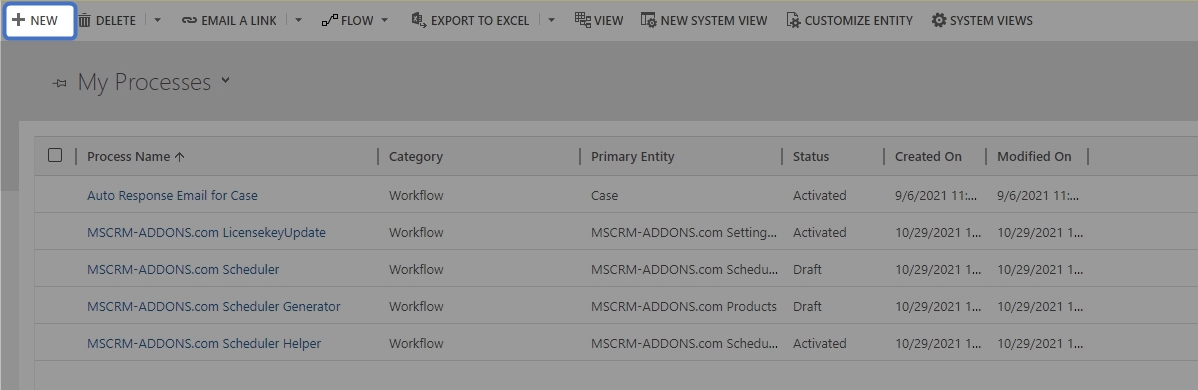

Figure 2: Add new process

You can create your process like you usually do in Dynamics 365. However, it is necessary to select Workflow as Category and proceed by clicking the [OK]-button. 


Figure 3: Create process

After customizing the properties of your Workflow, click on the [Add Step]-button and choose “Create Record“, like you can see below.
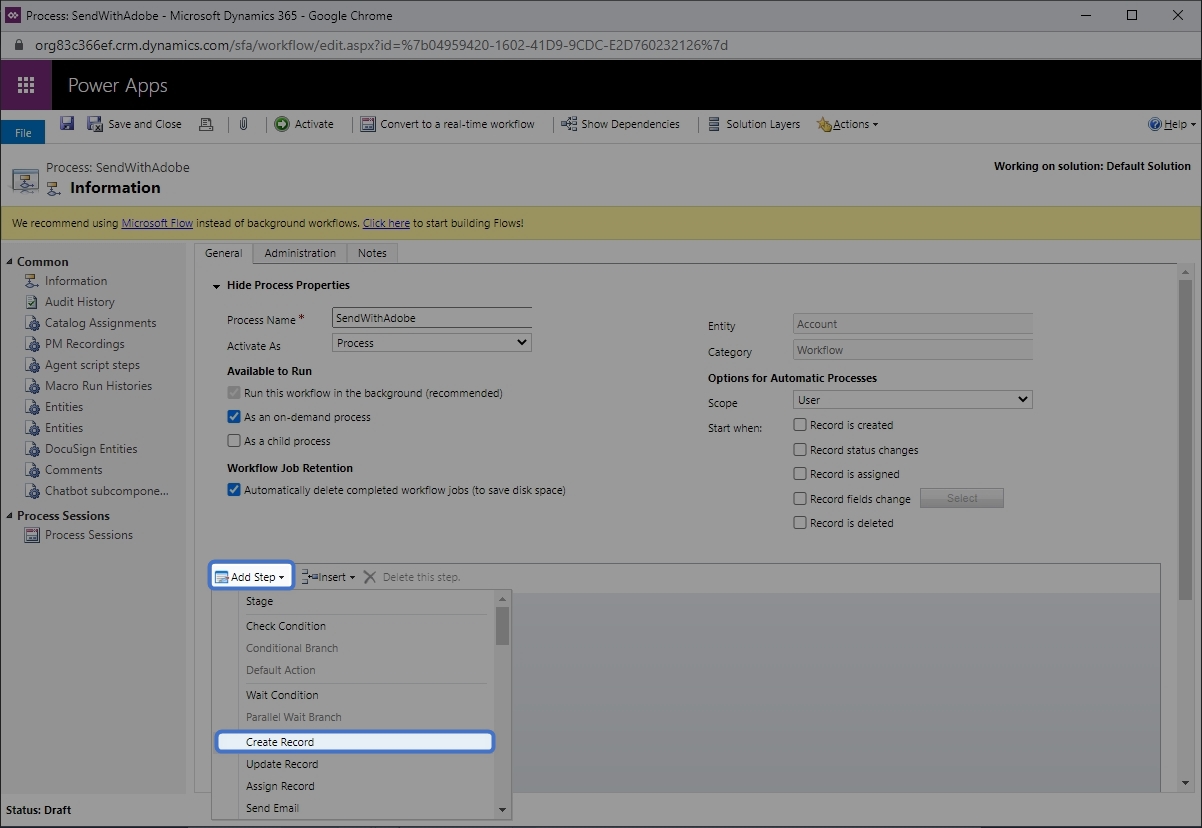

Figure 4: Add step

❶ Next, open the drop-down menu of the Create field and select MSCRM- ADDONS.com AutoMergeWorkingItems. You can also type a description of your step into the highlighted field.


Figure 5: MSCRM- ADDONS.com AutoMergeWorkingItems

A click on the ❷ [Set Properties]-button will provide you with the window below.
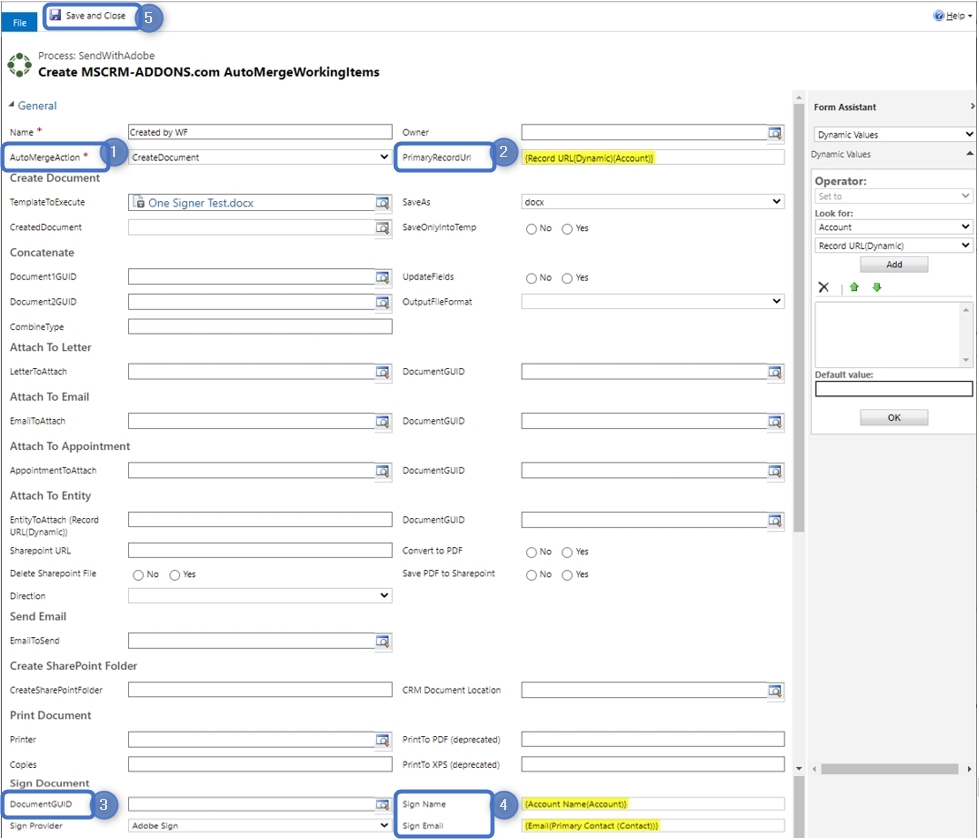

Figure 6: Set properties

❶ Type in the name of your step and select an AutoMergeAction, in this case Create Document.

❷ Next, you will have to define the PrimaryRecordUrl. You will first have to click into the field, which will be unfilled at first. Navigate to the “Form Assistant” on the right side and open the drop-down menu (below Look for) and select “Account“. Then open the drop-down menu below and select Record URL (Dynamic). Click on the [Add]-button and it will be added to the field below. You can also define a default value. Finally click the [OK]-button and your PrimaryRecordUrl will be automatically filled with the right URL, marked in yellow.

❸ Scroll down to the Sign document area and do the same as in step 2 to add the DocumentGUID. Select AdobeSign as Sign Provider.

❹ Then type in the Name and Email of the recipient.
Please note: You can add more than one recipient by using the vertical bar ( | ) between the Names and the Emails, for example Max Power|John Smith. It is important when your template provides more than one person to sign.

❺ This step starts the main signing workflow. “Save and Close” this window.

Finally, you must activate your workflow to use it, because this is just a draft, so, please click the [Activate]-button.
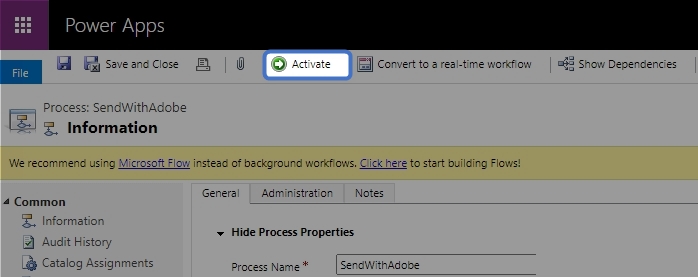

Figure 7: Activate Workflow

That’s it! We appreciate your feedback! Please share your thoughts by sending an email to support@mscrm-addons.com.

Was this helpful?

Yes  1 No
Related Articles
  • Security issues when installing DocumentsCorePack (Defender)
  • Locating Raw Inputs and Outputs in Power Automate
  • Step by Step: How to execute an OCA in a Power Automate flow 
  • Stop Losing Time & Money: How Manual Document Processes Hurt Your Business
  • Debugging the Template Design Office Add-In 
  • Updating Legacy SharePoint Connections 
Leave A Comment Cancel reply

You must be logged in to post a comment.

Latest Articles
  • The Hidden Inefficiencies Inside Dynamics 365 and How Smart Teams Are Solving Them
  • mscrm-addons.com: 2025 Year in Review
  • Security issues when installing DocumentsCorePack (Defender)
  • AttachmentExtractor: Bandwidth & Performance – FAQ 
  • Recap: Power Platform Community Conference 2025
Popular Articles
  • DocumentsCorePack Template Designer – Getting Started
  • Step-by-Step: How to configure a One-Click-Action
  • Application Access for Dynamics 365
  • How licenses are counted
  • How to find your environment’s unique name in Microsoft Dynamics 365
Top Rated Articles
  • “Undefined”-labels in Chrome and Edge 114 and higher
  • How to insert Condition Fields in DocumentsCorePack Templates designer
  • Important information for Dynamics 365 online customers using DocumentsCorePack and/or AttachmentExtractor
  • How to activate the DocumentsCorePack Connector for PowerApps & Microsoft Flow
  • How licenses are counted
Categories
  • *News and General Infos* 70
  • Webinars 47
  • Template Designer(DCP 197
  • DocumentsCorePack(DCP 264
  • TelephoneIntegration (TI 65
  • AttachmentExtractor (AE 76
  • PowerSearch (PS 50
  • ActivityTools (AT 61
  • SmartBar (SB 54
  • GroupCalendar (GC 47
Our Vision

“We see it as our purpose to provide products that simplify and speed up our customers’ Microsoft Dynamics 365 experience.”

Knowledgebase
LogIn
mscrm-addons.com
  • Products
  • Online Shop
  • Downloads
  • My Account
About Us
  • About Us
  • Case Studies
  • Newsletter
  • Partner Program
  • Contact
Support
  • Support
  • Terms & Conditions
  • Documentation
  • Webinars
  • Legal Documents
  • Impressum
  • © 2025 www.mscrm-addons.com. All Rights Reserved.