mscrm-addons.com logomscrm-addons.com logo
  • Release History
  • Knowledge Base
  • Documentation
  • Contact Support
  • Release History
  • Knowledge Base
  • Documentation
  • Contact Support
home/Knowledge Base/DocumentsCorePack(DCP)/Master Template

Master Template

2512 views 2 Updated on July 27, 2023

The Master Template feature allows you to manage the design of the documents header and footer in a separate template. So when the design changes you have to modify one template instead of each template. In your actual templates, you have to set the Master Template which should be applied when the document is merged.

Example:

The left example shows the document which is to edit and on the right side, the created document contains the company’s design and the Header and Footer.
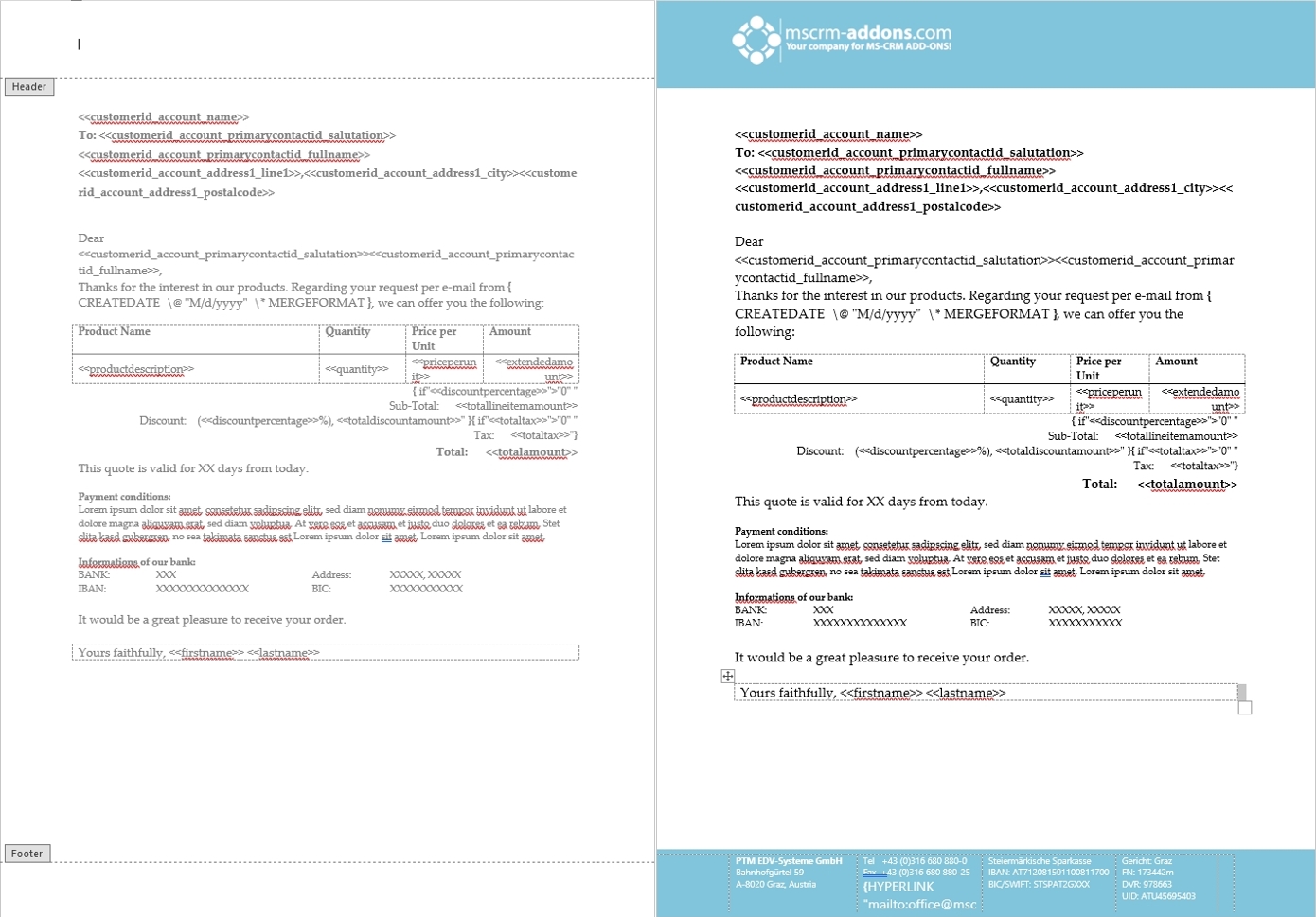
Example Master Template
Figure 1: Example Master Template

Step-by-step description: How to set up a Master Template for your company

Step 1: Open a document and edit the Header and the Footer according to the company´s design.
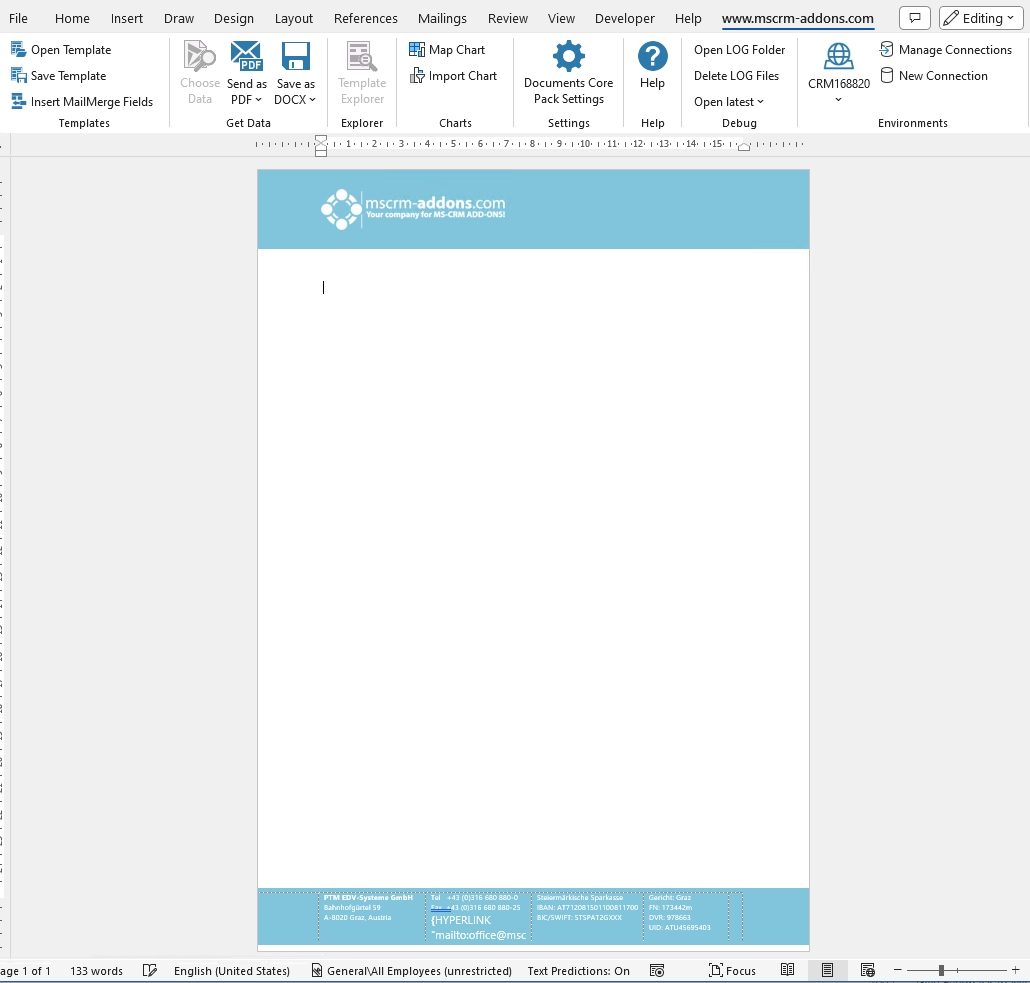
Header and Footer edited
Figure 2: Header and Footer edited

Step 2: Save the document by using the ❶ Save Template option as a static template in your Dynamics 365.

When the Documents Core Pack Question occurs, please confirm with Yes.
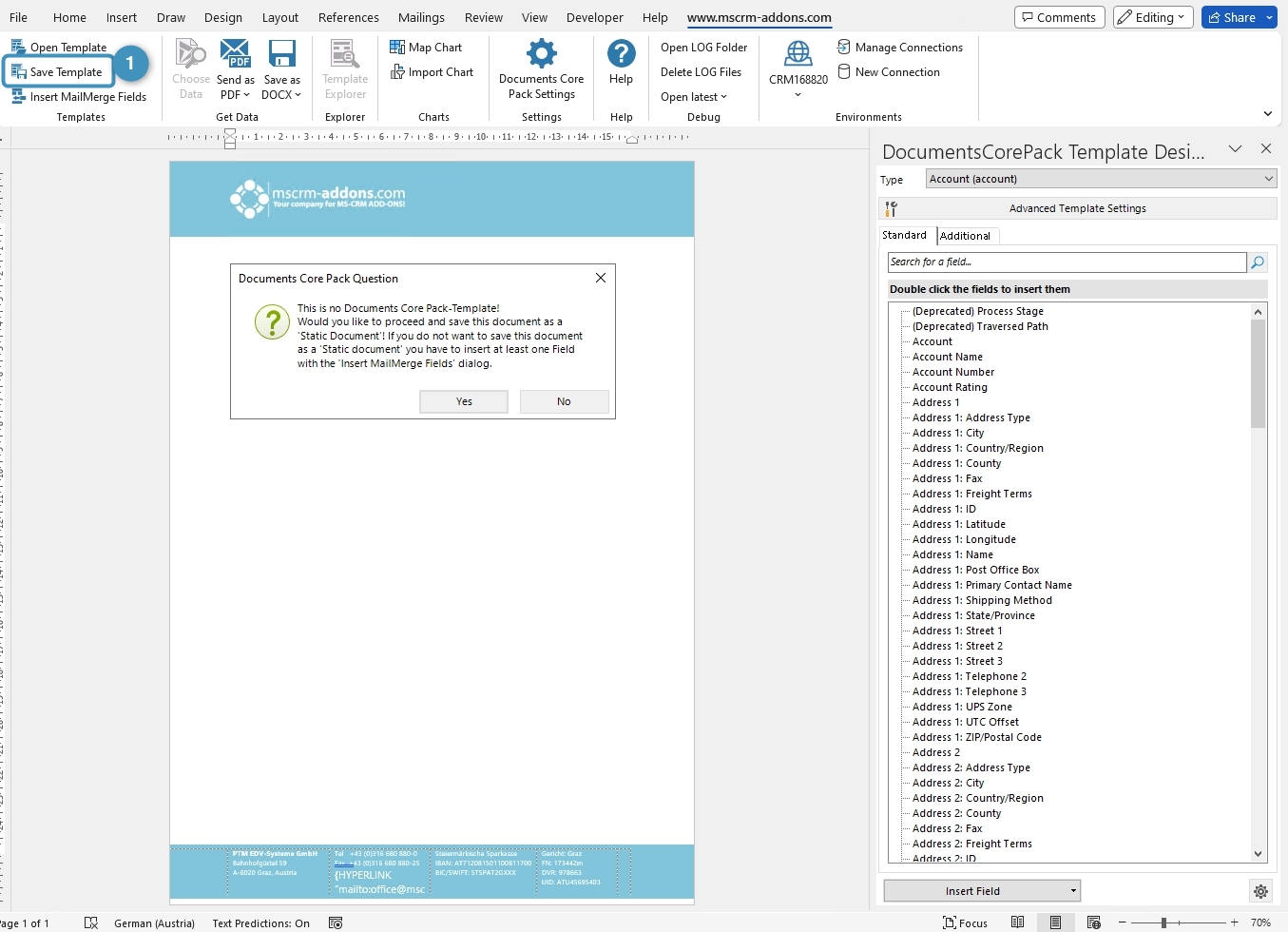
Save template option
Figure 3: Save template option

Step 3: Assign the Master Template to your regular templates. Open the ❶ Advanced Template Settings and go to the ❷ General tab and navigate to the ❸ Master Template settings.

Two settings:

❹ To define which Master Template should be applied for all Headers and Footers in the document. ❺ It is an optional setting for a Master Template for the Footer.
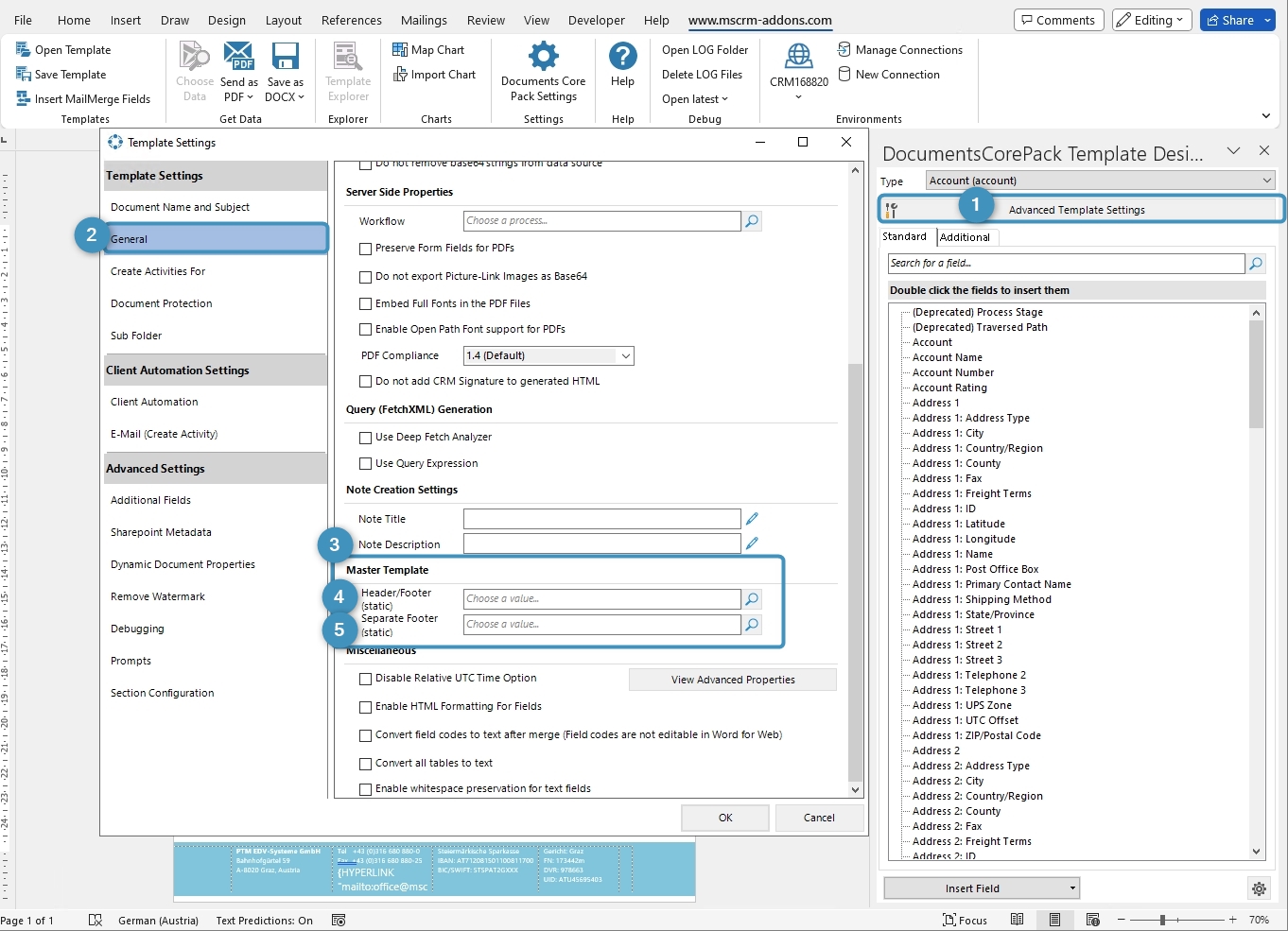
Open Advanced Template Settings, General tab, Master template settings
Figure 4: Open Advanced Template Settings, General tab, Master template settings

Step 4: To assign a Master Template type in the ❶ Header/Footer (static) search bar the name of the Master Template you prepared, or you can open it with the ❷ Look Up Record by clicking on the magnifier glass.
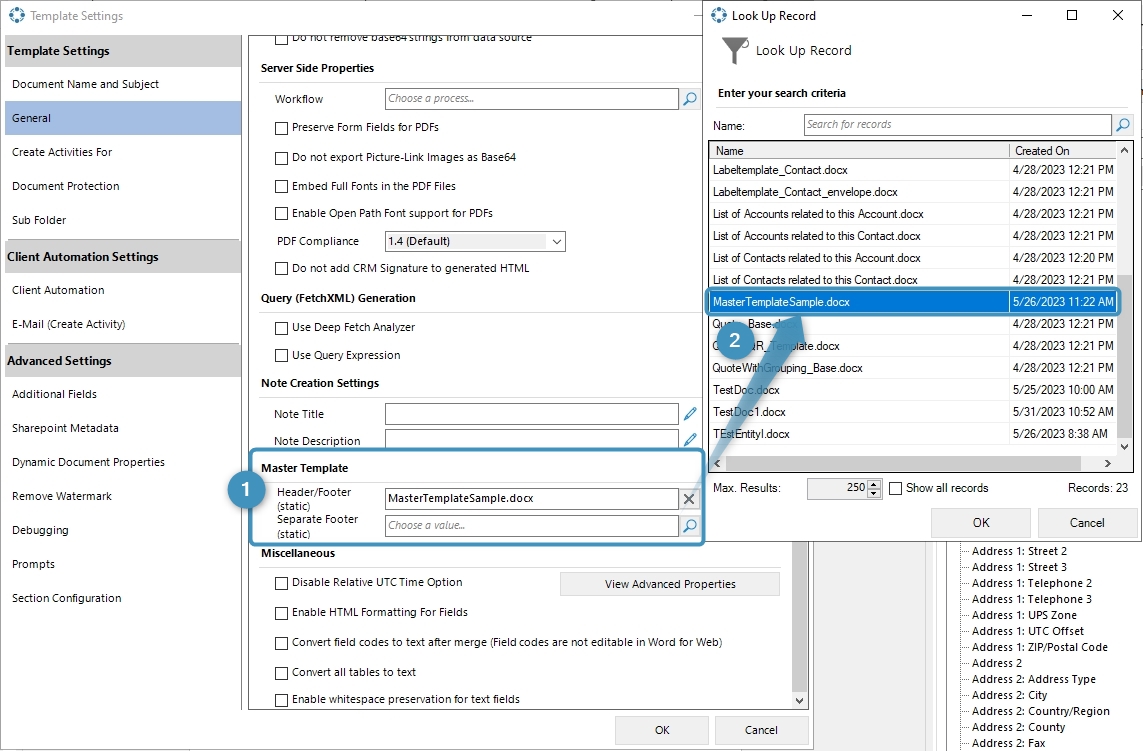
Assign a Master Template type in the Header/Footer (static) section
Figure 5: Assign a Master Template type in the Header/Footer (static) section

Step 5: Save the Master Template.

Before use or test the defined Master Template it is necessary to save it:

  • Locally with the standard Save.
  • Save as functionality of Microsoft Word.
  • Save Template option of the DocumentsCorePack Template Designer to publish the template to Dynamics 365.

Step 6: Test your template (optional). Find out if your changes on the template are working. A step-by-step description of how to test your template can be found here.

Please note:

  • If you want to use “Different First Page” or “Different Odd & Even Pages”, then you have to design also the second page in the Master Template otherwise those sections will be blank in the result document.
  • The size of the Header/Footer in the Master Template shouldn`t be bigger than the page margin of the main template. Otherwise, it will shrink the document body size in the output document. There is no setting to limit the size of the header/footer.
  • Format styles of the Master Template are not merged into the main template. Text formatting made in the Master Template without format styles will be displayed correctly. If you like to work with format styles in the Master Template, please make sure that they exist in each template.

That´s it! We appreciate your feedback! Please share your thoughts by sending an e-mail to support@mscrm-addons.com

Was this helpful?

2 Yes  1 No
Related Articles
  • Security issues when installing DocumentsCorePack (Defender)
  • Locating Raw Inputs and Outputs in Power Automate
  • Step by Step: How to execute an OCA in a Power Automate flow 
  • Stop Losing Time & Money: How Manual Document Processes Hurt Your Business
  • Debugging the Template Design Office Add-In 
  • Updating Legacy SharePoint Connections 
Leave A Comment Cancel reply

You must be logged in to post a comment.

Latest Articles
  • mscrm-addons.com: 2025 Year in Review
  • Security issues when installing DocumentsCorePack (Defender)
  • AttachmentExtractor: Bandwidth & Performance – FAQ 
  • Recap: Power Platform Community Conference 2025
  • Recap: Community Summit 2025
Popular Articles
  • DocumentsCorePack Template Designer – Getting Started
  • Step-by-Step: How to configure a One-Click-Action
  • Application Access for Dynamics 365
  • How licenses are counted
  • How to find your environment’s unique name in Microsoft Dynamics 365
Top Rated Articles
  • “Undefined”-labels in Chrome and Edge 114 and higher
  • How to insert Condition Fields in DocumentsCorePack Templates designer
  • Important information for Dynamics 365 online customers using DocumentsCorePack and/or AttachmentExtractor
  • How to activate the DocumentsCorePack Connector for PowerApps & Microsoft Flow
  • How licenses are counted
Categories
  • *News and General Infos* 70
  • Webinars 46
  • Template Designer(DCP 197
  • DocumentsCorePack(DCP 264
  • TelephoneIntegration (TI 65
  • AttachmentExtractor (AE 76
  • PowerSearch (PS 50
  • ActivityTools (AT 61
  • SmartBar (SB 54
  • GroupCalendar (GC 47
Our Vision

“We see it as our purpose to provide products that simplify and speed up our customers’ Microsoft Dynamics 365 experience.”

Knowledgebase
LogIn
mscrm-addons.com
  • Products
  • Online Shop
  • Downloads
  • My Account
About Us
  • About Us
  • Case Studies
  • Newsletter
  • Partner Program
  • Contact
Support
  • Support
  • Terms & Conditions
  • Documentation
  • Webinars
  • Legal Documents
  • Impressum
  • © 2025 www.mscrm-addons.com. All Rights Reserved.