For most customers, the number of users that must be licensed is the most important measure when it comes to determining your required license count and cost. Understanding how licenses are counted and how to reduce them helps control costs and avoid unnecessary licensing.
Understanding how licenses are counted
There are two ways to evaluate the number of required licenses:
1. Security role–based licensing (default)
A user is counted for licensing if they meet the following criteria:
- The user has a security role that provides write access to a table
- The user has Read-Write access mode in Dynamics 365. Please note that this does not include users with Administrative or Non-Interactive access modes
- The user is active
Additionally:
- Users can inherit roles through team membership, meaning they may still be counted even if roles are not directly assigned
- Only roles that are licensing-relevant contribute to the license count
2. Microsoft Entra ID-based licensing (formerly Azure Active Directory)
If enabled, licenses can also be read directly from Microsoft Entra ID as described here. If you are unsure how to enable Microsoft Entra ID licensing, please see this article.
Viewing counted licenses and related information
Information on counted licenses can be found in one of two places: Dynamics 365 or in the Online Service Configuration.
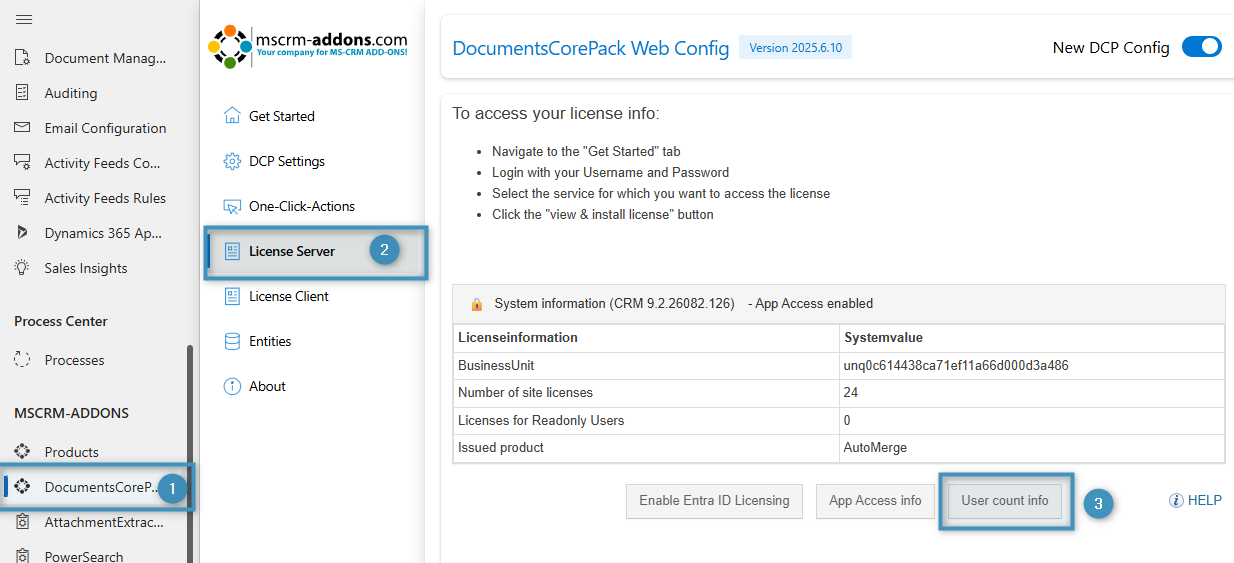
In Dynamics 365, it can be found in the Power Platform Environment Settings/Advanced Settings under DocumentsCorePack -> License Server -> User count info.
In the Online Service Configuration, it can be found in your service under License -> User roles.
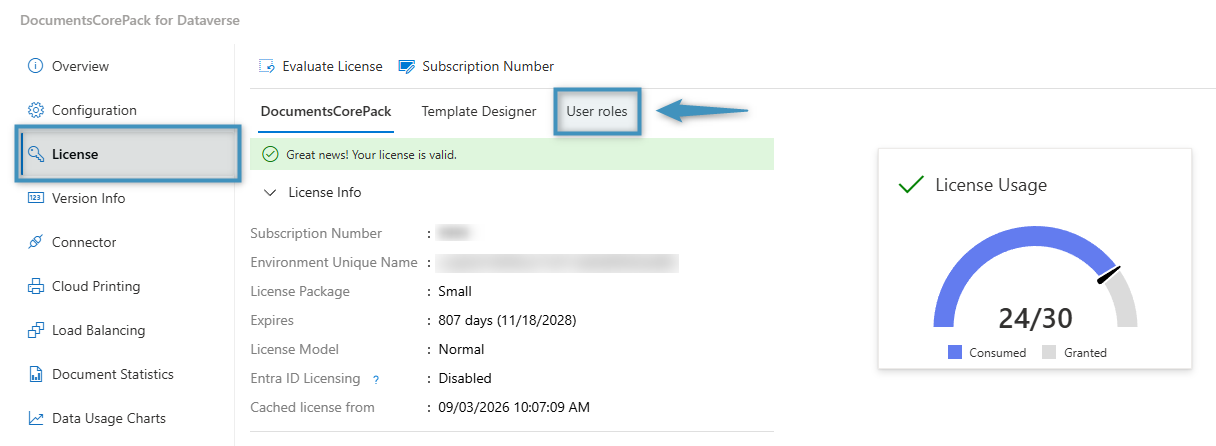
Both options will open the User Count Info dialog. This dialog lists all Dynamic 365 users which require a full mscrm-addons.com product license.
The user count information is broken down into the following sections:
- Summary
- Dynamics 365 Users – Full users
- PowerAppPerApp Users – Full users
- Team Member Users
- Licensing Relevant Roles
- Licensing Unrelevant Roles
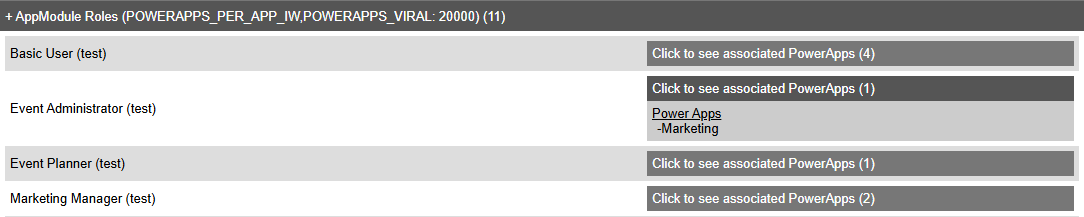
- AppModule Roles

Note: Some user-based sections may not appear if there are no users associated with a section.
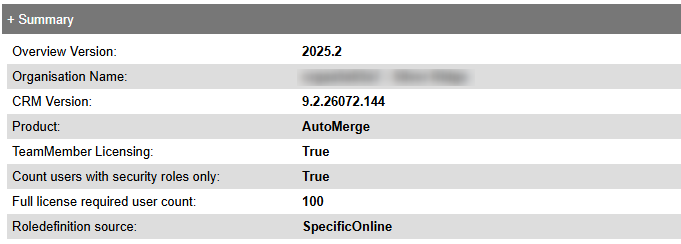
Summary
Displays basic environment and license-count information, including the product, CRM version, and total number of users requiring a full license.
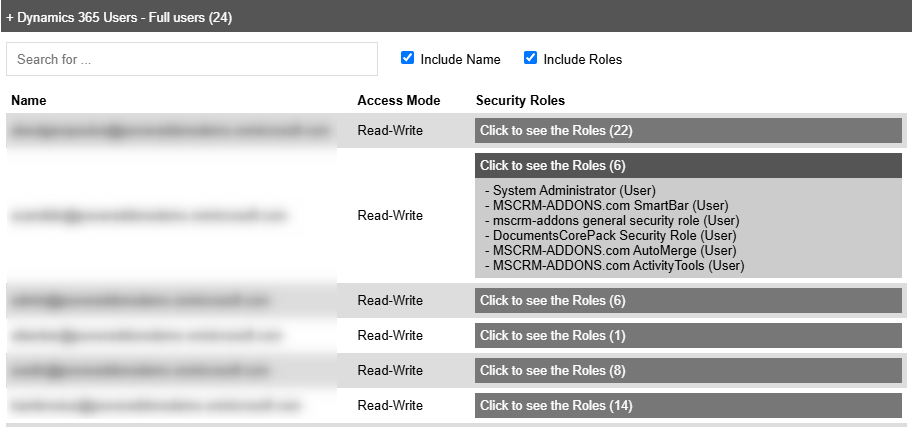
Dynamics 365 Users – Full users
Lists all Dynamics 365 users who require a full license, including their access mode and assigned security roles. Here, you can use the search box to look for specific users by their User Name. Select Click to see the Roles on the right side to view the relevant roles assigned to that user.
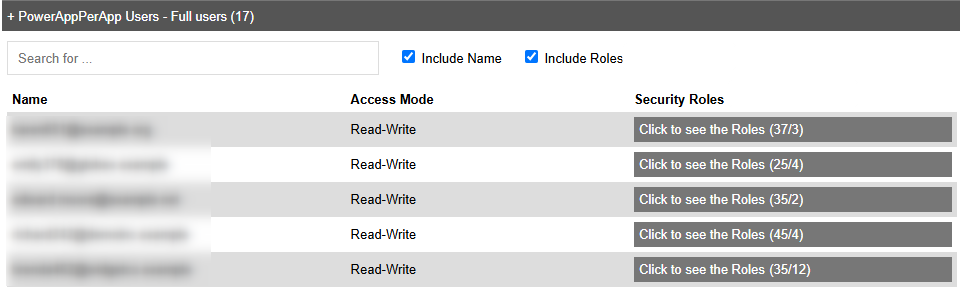
PowerAppPerApp Users – Full users
Displays all users who have access to the PowerApp, along with their Access Mode and associated Security Roles.
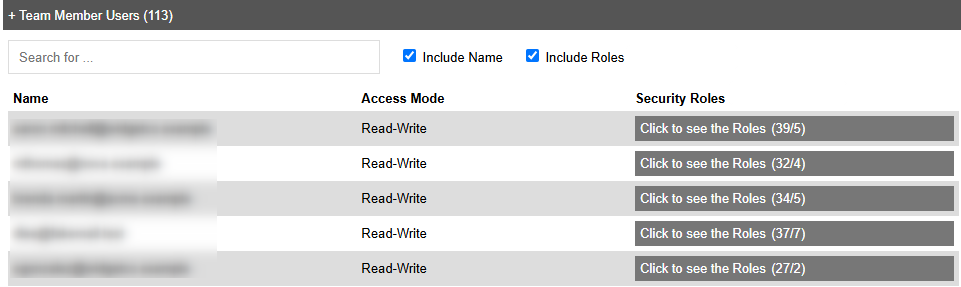
Team Member Users
Displays users who have Team Member access, along with their Access Mode and associated Security Roles.
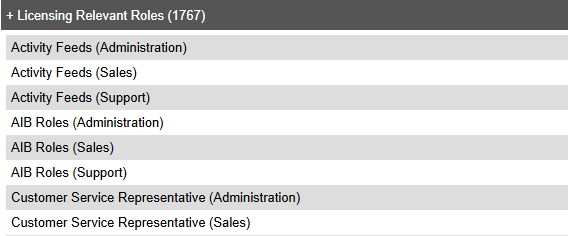
Licensing Relevant Roles
Shows security roles that count toward licensing when assigned to a user.
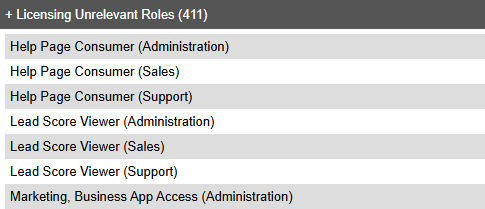
Licensing Unrelevant Roles
Lists automatically assigned app access roles that do not count toward licensing when assigned by themselves.
AppModule Roles
Lists all AppModule Roles. You can view which PowerApp each roles is associated with.
Reducing your license count
Since licensing is based on user activity, access, and roles, reducing your license count involves limiting which users meet the counting criteria.
Control access using security groups
You can manage user access through Office 365 / Entra ID security groups.
- Users outside the group can be automatically disabled
- Disabled users are not counted for licensing
Change access mode for non-active users
If users do not need full system access, you can set their access mode to Administrative or Non-Interactive. Users with either access mode will not be included in the license count.
Disable unnecessary users
If a user no longer needs access, you can always disable the user in Dynamics 365.
Review and optimize security roles
Since licensing depends heavily on roles:
- Remove unnecessary roles that grant write access
- Ensure users only have roles required for their job
- Be aware that team-assigned roles also count