This article provides an in-depth understanding of the DocumentsCorePack (DCP) online service structure, deployed on Microsoft Azure. We will cover the various elements of DCP and explain which data is transferred during the document generation process from within Dynamics 365, when using the DCP connector, and when using the template designer.
The elements of DocumentsCorePack
DocumentsCorePack consists of the following elements:
- Our cloud service: Responsible for the actual generation and processing of documents
- Our solutions: Components needed to run DocumentsCorePack (such as the UI elements for our Dialog and the tables needed to store DCP Settings)
- The DCP Connector: Connector to use DCP features within PowerApps and PowerAutomate
- The Template Designer: Create and Edit document templates and save them to their Dataverse.
Please refer to Figure 1 for a schematic representation of the DocumentsCorePack Online Scheme:
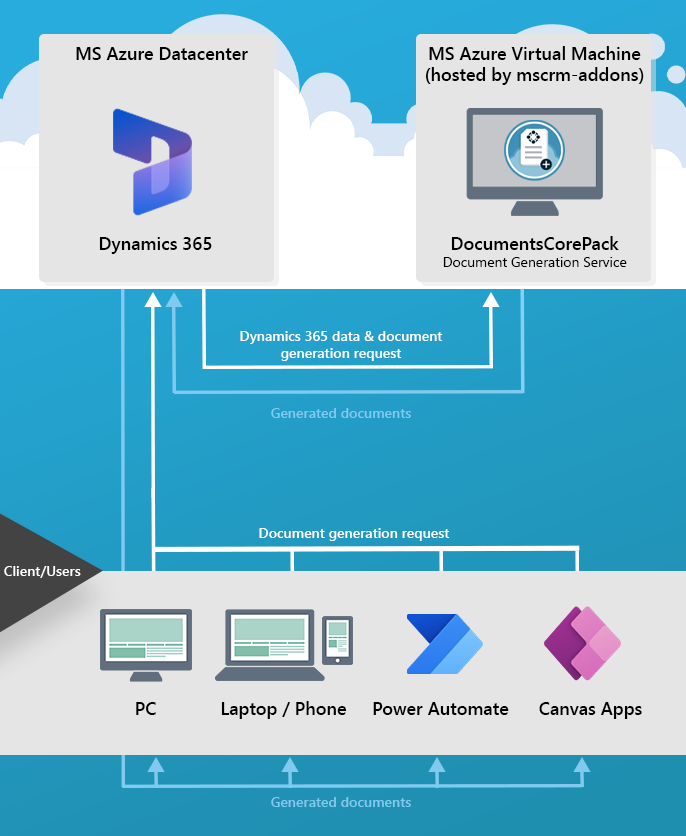
The document generation process
The following is the step-by-step process that describes how document generation is handled when triggered from within D365 via the DCP Dialog, through classic workflows, or though the DCP Connector via Power Automate/Power Apps.
- Initiating a document generation request
You can manually dispatch document generation requests through our user-driven document generation dialog. You can also trigger them from within Power Automate (Flows) or Dynamics 365 Processes using our Process integration. Every document generation request creates a record of the so-called AutoMergeWorkingItem table.
- Push Request to Document generation service in the Cloud
When you save the AutoMergeWorkingItem, this calls a specific web URL, signaling the cloud service about the new document generation request in the Dynamics 365 environment. Notably, there is no data transfer at this point.
- Document Generation
The cloud service, securely communicating with Dynamics 365 web services using methods provided by the Dynamics 365 SDK (TLS 1.2, OAuth authentication), loads the template and the necessary data from Dynamics 365 to create the requested document.
The cloud service does not store any information in default configuration. Exceptions are as follows:
- Active Debugging: If debugging is activated, the Dynamics 365 data merged into the documents appears in debug files (Access is restricted to customers and our support team, log files are automatically deleted after 7 days).
- Optional Temporary Storage Locations: Optionally, you can choose to store temporarily generated files on our Blob Storage (see Temporary document storage locations )
- Multipart-documents: When using the Multipart capability of DocumentsCorePack, the individual elements are stored by mscrm-addons.com (accessible by mscrm-addons.com Team only, automatically deleted after 7 days).
- Document Return to Dynamics 365
The generated document is securely transmitted back to Dynamics 365 via web services using methods provided by the Dynamics 365 SDK (TLS 1.2, OAuth authentication). There is no communication with our online service or MSCRM-Addons during this process. This is a direct connection from the client to the specified Dynamics 365 environment. Additionally, the document is not stored on the VM at any point.
The DCP Connector
When generating documents through the DCP Connector, the connector communicates with the user’s DCP service via an API key. The requests are routed through our API to the online service. Our API acts only as an intermediary.
Users may opt to use the Dataverse connector for generating documents through Power Apps and Power Automate instead. In this case, user data will not be routed through our API. However, it is still generally recommended to use the DCP Connector.
The Template Designer
Our locally deployed Word-Addin is required to create and maintain templates. During this process, only metadata is retrieved from the user’s Dataverse environment. Templates can be created and saved without any exchange of real data. However, actual data will be retrieved from the user’s Dataverse if a document is generated through the client. Documents generated this way will be stored on the user’s local machine. There is NO outbound communication to our cloud service or mscrm-addons.com.
Please note:
- We employ Server-to-Server authentication or App-Access for communication between the cloud service and Dynamics 365, thereby eliminating the need for login credentials storage.
- We provide global hosting options four our services. Customers are able to limit access to specific regions by configuring conditional access.
- Our Azure account hosts the document generation service. To guarantee high performance, the service will be located in the same data center as the Dynamics 365 instance.
IMPORTANT: For clients with specific security considerations, DCP offers the flexibility of installation on their own Azure VM or local hardware. This eliminates the need to transfer any data to mscrm-addons.com. However, to ensure optimal performance, we recommend installation on the VM.
The installation can be done directly from our website.
That’s it! We appreciate your feedback! Please share your thoughts by sending an email to support@mscrm-addons.com.