mscrm-addons.com logomscrm-addons.com logo
  • Release History
  • Knowledge Base
  • Documentation
  • Contact Support
  • Release History
  • Knowledge Base
  • Documentation
  • Contact Support
home/Knowledge Base/SmartBar (SB)/How do I configure navigation buttons to system views with SmartBar?

How do I configure navigation buttons to system views with SmartBar?

238 views 0 Updated on July 27, 2022

SmartBar facilitates navigation between related Dynamics 365 records and with the latest features, it allows you easier handling of multiple views and smoother handling of count/color based buttons. For further information on how to add a range to color-coded buttons, have a look at this article.

Add Multiple Views button

It is possible to move the same entity button more than once to the ‘current on-site’-section in the SmartBar settings. This allows you to rename the button and to add a specific view to it. This makes it possible for you to, e.g. create an [Activities-ALL]-button next to an [Activities-Closed]-button.

To add a specific view to your button, you can simply edit an Entity Button (with a click on the [Gear icon]-button) and select a view from the Specific View-field, as highlighted on the below screenshot. This feature is available on both – metro and standard styling.
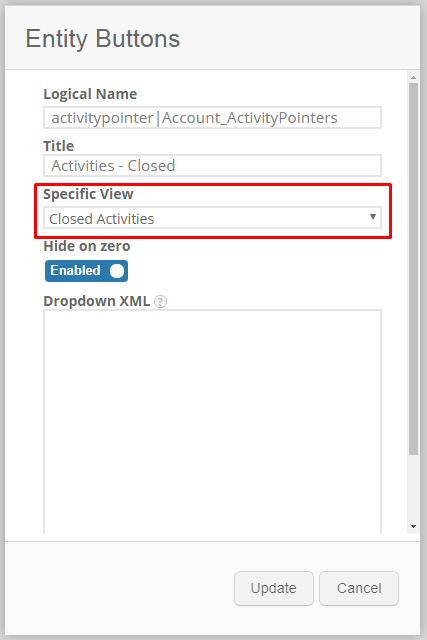


Figure 1: Add Multiple Views button

This example will result in a button that only counts and shows your Closed Activities.


Figure 2: The [Activities Closed]-button

​

That’s it! We appreciate your feedback! Please share your thoughts by sending an email to support@mscrm-addons.com.

Was this helpful?

Yes  No
Related Articles
  • How to migrate a SmartBar configuration
  • How to activate per User Licensing in CRM 2011
  • How to access mscrm-addons product settings in Dynamics 365
  • Microsoft Entra ID licensing counts explained
  • When ActivityTools or SmartBar are showing no or wrong related activities in Dynamics 365
  • How to enable debugging for SmartBar in MS Dynamics 365?
Latest Articles
  • What are the safest and fastest ways to automate document creation in Dynamics 365?
  • Recap: Canadian Power Platform Summit 2026
  • What makes a partner tool defensible during budget pushback?
  • What are safe ways to reduce Dynamics 365 storage without deleting records? 
  • Why do document errors and inconsistencies increase as teams scale in Dynamics 365?
Popular Articles
  • DocumentsCorePack Template Designer – Getting Started
  • Step-by-Step: How to configure a One-Click-Action
  • Application Access for Dynamics 365
  • How licenses are counted
  • How to find your environment’s unique name in Microsoft Dynamics 365
Top Rated Articles
  • “Undefined”-labels in Chrome and Edge 114 and higher
  • How to insert Condition Fields in DocumentsCorePack Templates designer
  • Important information for Dynamics 365 online customers using DocumentsCorePack and/or AttachmentExtractor
  • How to activate the DocumentsCorePack Connector for PowerApps & Microsoft Flow
  • How licenses are counted
Categories
  • *News and General Infos* 73
  • Webinars 47
  • Template Designer(DCP 197
  • DocumentsCorePack(DCP 269
  • TelephoneIntegration (TI 65
  • AttachmentExtractor (AE 79
  • PowerSearch (PS 50
  • ActivityTools (AT 61
  • SmartBar (SB 54
  • GroupCalendar (GC 47
Our Vision

“We see it as our purpose to provide products that simplify and speed up our customers’ Microsoft Dynamics 365 experience.”

Knowledgebase
LogIn
mscrm-addons.com
  • Products
  • Online Shop
  • Downloads
  • My Account
About Us
  • About Us
  • Case Studies
  • Newsletter
  • Partner Program
  • Contact
Support
  • Support
  • Terms & Conditions
  • Documentation
  • Webinars
  • Legal Documents
  • Impressum
  • Cookies
  • © 2025 www.mscrm-addons.com. All Rights Reserved.