To analyze problems that may arise when using the Layout Designer for Business Central, our team may ask you to send them log files from both the Layout Designer and your DocumentsCorePack service. To retrieve the log files, please follow the steps below.
Step 1: Activate debugging in your service
Activate debugging for your DocumentsCorePack service. You can enable debugging by following the steps outlined in this article.
Step 2: Activate debugging in the Layout Designer
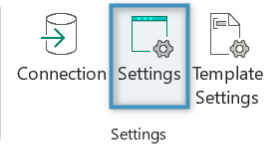
To enable debugging in the DocumentsCorePack Layout Designer, begin by navigating to the Settings group of the DocumentsCorePack BC Ribbon.
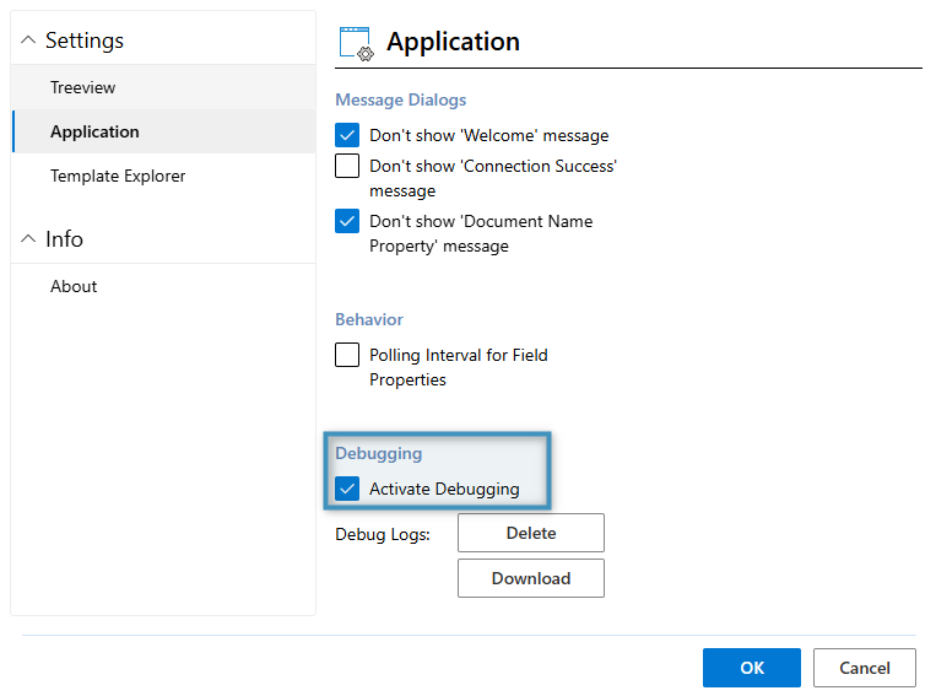
Navigate to the Application tab. The debugging setting can be enabled by clicking the checkbox next to Activate Debugging. Then, click OK.
Step 3: Reproduce the issue and download the log files
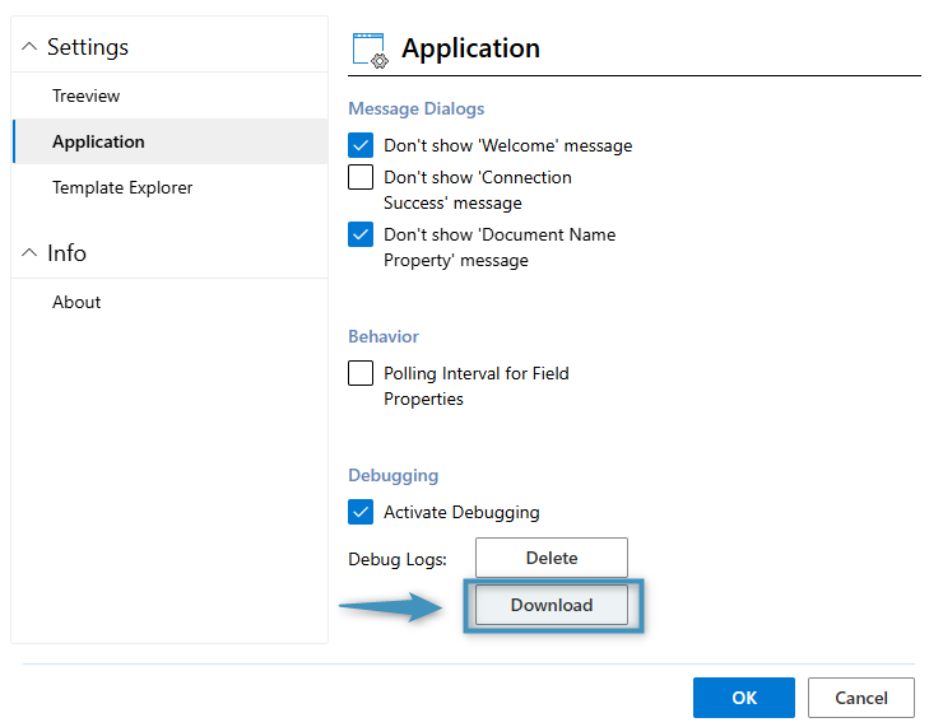
Next, recreate the issue. Once the issue has been reproduced, download the log files from both the Layout Designer and your DocumentsCorePack Service. The log files from the Layout Designer can be downloaded from the same window as shown above, via Settings > Application > Debugging > Download.
The log files from your DocumentsCorePackBusiness Central service can be downloaded via Configuration > Download Logs. Please be aware that this button only appears when debugging is enabled.

Step 4: Send the log files
Send both sets of log files to support@mscrm-addons.com for analysis. Our support team will assist you in determining the issue.
Note: Typically, debug logs are required from both the Layout Designer AND your DocumentsCorePack Business Central service to assist our support team in determining any encountered issues. Please make sure logs from both are attached to your email before sending.
Step 5: Deactivate debugging
When you are finished, deactivate debugging for both the DocumentsCorePack Layout Designer and the DocumentsCorePack Business Central service to resume normal operation.