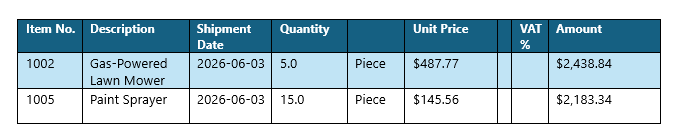
Working with related data is a key part of designing DocumentsCorePack templates in Dynamics 365 Business Central. By leveraging defined table relationships, you can include related information in a structured and readable way—such as presenting line items or linked data in organized tables for quotes, orders, or invoices.
This article explains the basics of working with related data in Business Central templates, walks through the process of creating repeating table structures, and highlights some more advanced considerations along the way. For demonstration purposes, the examples in this article are based on Posted Sales Invoices, using the Sales Invoice Header table as the starting point.
Adding related data
Before you can insert data from related records into a Word template, you must first select the base table for the template. In our example, the base table is Sales Invoice Header, which represents the posted sales invoice document.
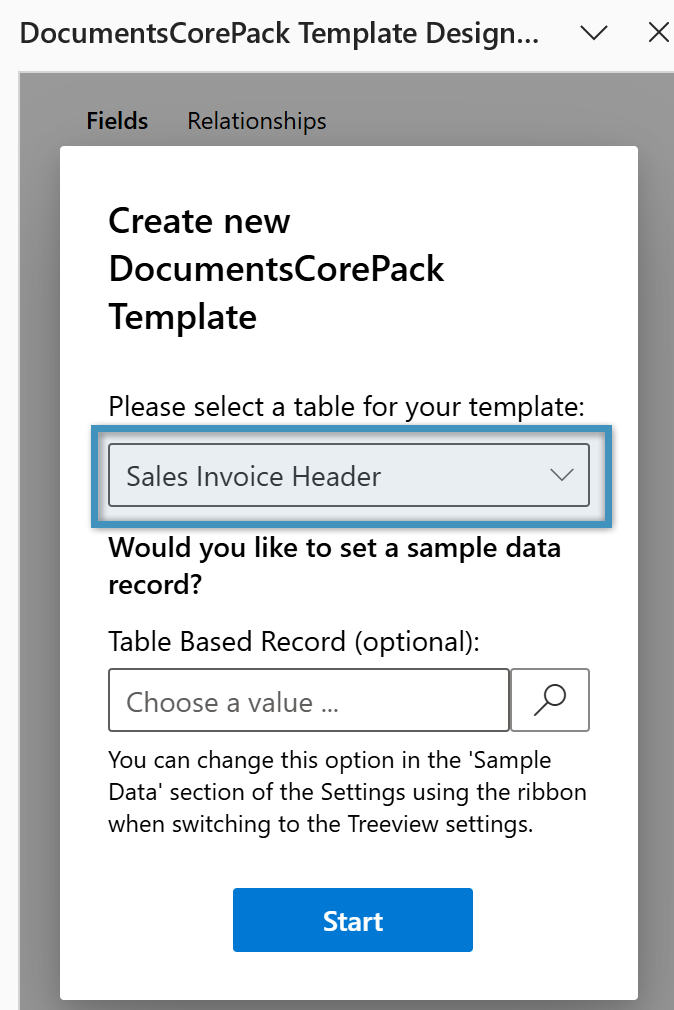
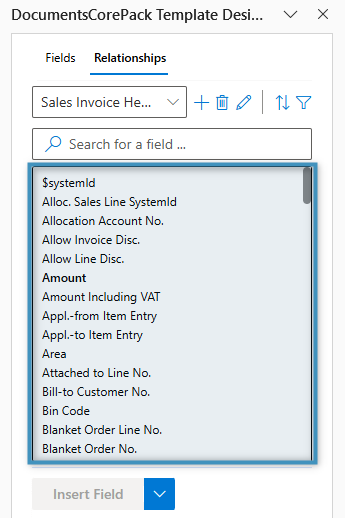
To access data from related records, begin by opening the Relationship Designer, which is located through the Relationships tab of the Template Designer within the Insert Fields task bar.
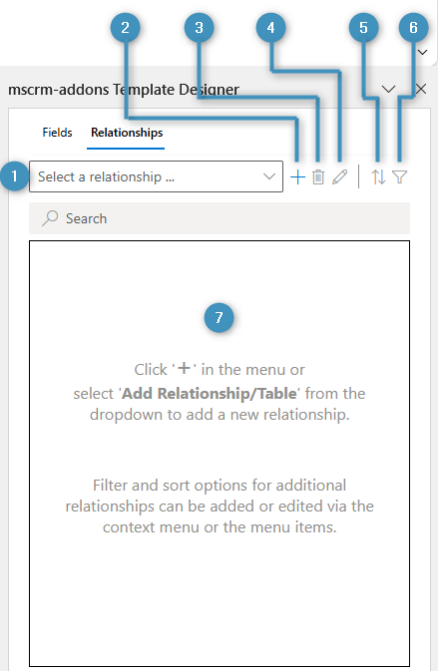
The tab includes the following elements:
- ❶ Relationship dropdown: Displays all configured relationships. Select one to view or manage it.
- ❷ Add relationship/entity: Opens the Relationship Designer, allowing you to add relationships to the template.
- ❸ Delete relationship: Deletes the selected relationship and any tables associated with it.
- ❹ Edit relationship: Opens the Relationship Designer to modify the selected relationship.
- ❺ Sort: Allows you to edit or add sorting fields (e.g. sorting quote line items by amount).
- ❻ Filter: Allows you to edit or add filters (e.g. filtering by product group).
- ❼ Field list: Displays the fields available for the selected relationship.
Select the “+” button to open the Relationship Designer. The following window will appear.
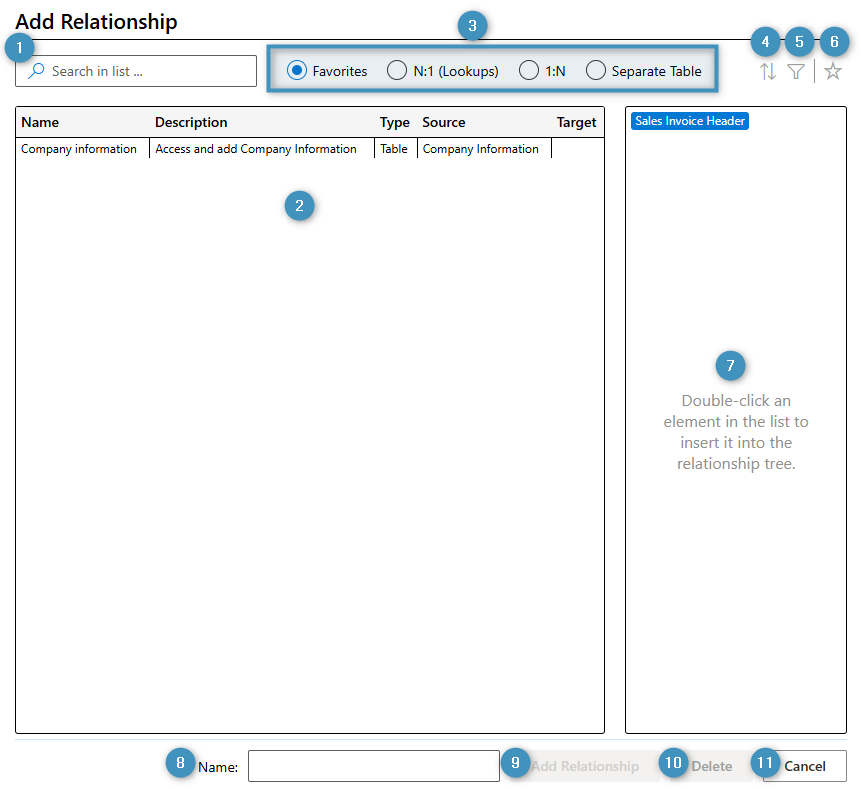
The window includes the following controls:
- ❶ Search bar: Searches the currently selected relationship list (❷) and displays relationships that match the entered term.
- ❷ Relationship list: Displays all relationships for the base entity based on the selected relationship type. Double-click a relationship to add it to the tree view.
- ❸ Relationship type selection: Controls which relationships are shown based on the selected option. Favorites is selected by default.
- ❹ Edit sort order: Allows the user to adjust the display order of the relationship.
- ❺ Edit filters: Allows the user to define how the relationship is filtered.
- ❻ Save relationship as favorite: Saves the currently configured relationship to the Favorites tab.
- ❼ Tree view: Displays the relationship hierarchy.
- ❽ Name: Shows the name of the relationship.
- ❾ Add Relationship: Adds the relationship and saves all changes.
- ❿ Delete: Deletes the selected relationship from the tree view.
- ⓫ Cancel: Closes the Relationship Designer without saving.
To add a relationship, double-click a relationship from the ❷ relationship list to add it to the tree view. When you’re finished, click Add Relationship to save your changes and close the window. The relationship is then added to the dropdown, and the field list is populated with related fields. If a sample data record was set earlier, any fields containing data will display their values.
Tables
A table represents a list of records from a related table and it allows data to be displayed dynamically in a structured format. Tables are commonly used to show repeating data, such as related products on a quote.
A table can be automatically created from a (1:N and M:N) relationship. Double-clicking a field in the relationship’s fields list opens the table configuration window as shown below.
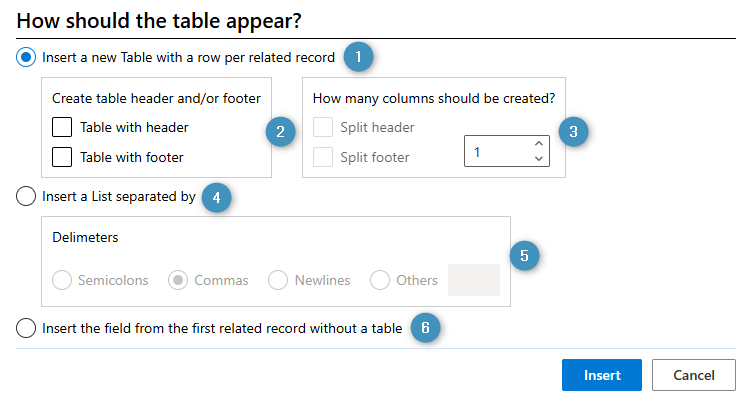
This window defines how the table appears in the template. The following controls are available:
- ❶ Insert a new table with a row per related record: Inserts a placeholder table into the template. When the document is generated, the table displays one row for each related record. You can choose whether to include a ❷ header and/or footer, ❸ split the header or footer, and define the number of columns to create.
- ❹ Insert a list separated by: Inserts a placeholder list instead of a table. In the generated document, each related record is separated by a configurable ❺ delimiter.
- ❻ Insert the field from the first related record without a table: No table is added when this option is selected. The generated document displays only the first related record.
When we double-click the No. field from our Sales Invoice Header relationship, each option appears as shown by default, without changing any of the settings above.
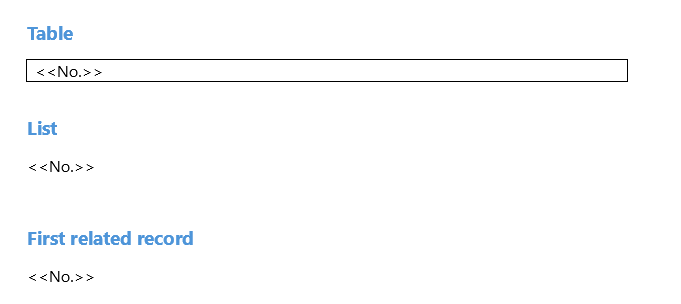
Merging our template with data produces the following result:
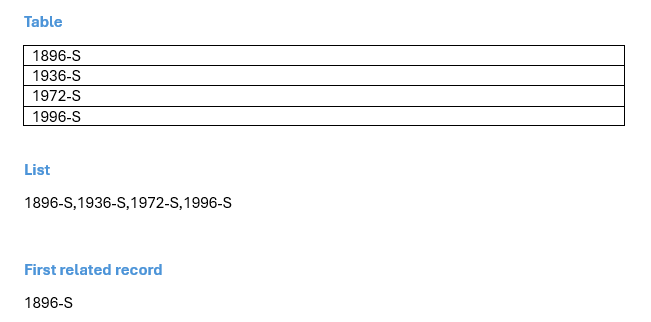
Since tables can be displayed in many different ways within a template, we will focus on them for the rest of this article.
Adding fields and table formatting
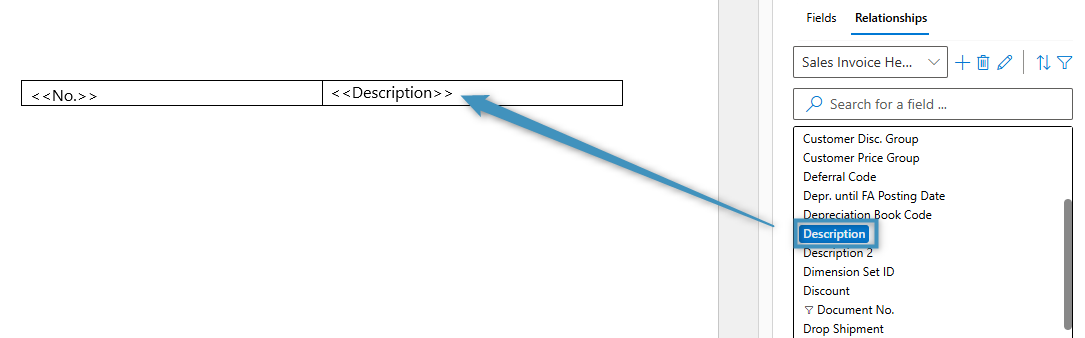
Tables can show additional information by including fields from related records. When a table contains multiple columns, you can add a field by placing the cursor in another cell and double-clicking the desired field from the field list.
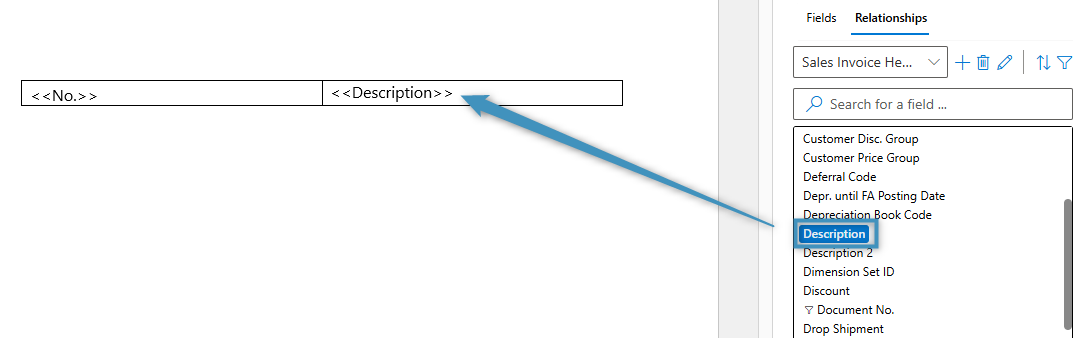
As mentioned above, tables can include headers, footers, and multiple columns, making it easier to build complex layouts. For example, this Sales Invoice Item No. table contains a split header and includes additional fields from our relationship.


We can further customize and format this table using the controls available in the Tables group controls on the DocumentsCorePack tab.
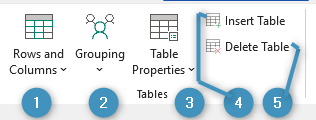
The controls are outlined below:
- ❶ Rows and Columns: Enables the user to modify the structure of the selected table, including adding or removing header or footer rows, merging columns, and splitting columns.
- ❷ Grouping: Applies grouping to the selected field (additional details are provided later in this article).
- ❸ Table Properties: Opens the Table Properties window, allowing you to choose between a task pane or a dialog view.
- ❹ Insert Table: Opens a window that provides general information about inserting a table.
- ❺ Delete Table: Deletes the selected table. This does not delete the corresponding relationship in the Template Designer.
Note: To use any of the controls above (except ❹) your cursor must be positioned within a table. Tables can also be formatted using Word’s built-in formatting options.
Advanced topics
Beyond creating simple relationships and tables, the Relationship Designer offers additional features to enhance how your data is presented.
Sorting
In DocumentsCorePack for Business Central, sorting depends on the type of data you are working with. Header data, such as the Sales Invoice Header, cannot be sorted because it represents a single record, whereas sorting is available for collections of records such as Sales Invoice Lines or other related tables, where multiple entries are retrieved and merged.
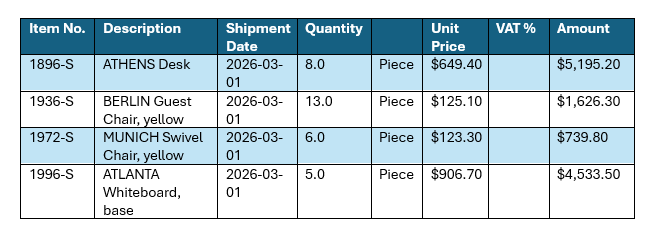
If we were to generate a document based on Figure 8, we would get the following result:
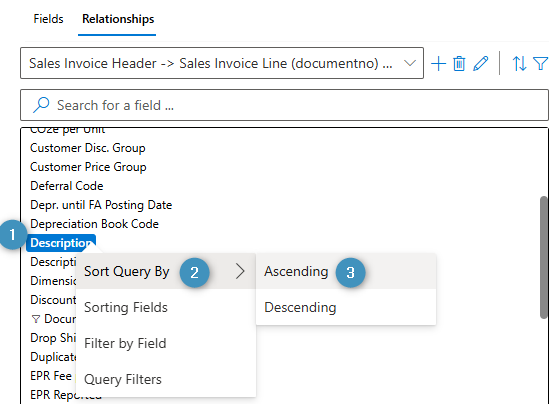
In this example, we want to sort the Sales Invoice Lines table by Description alphabetically. To do so, we need to locate the corresponding field in the fields list. Right-click on the ❶ Description field, select ❷ Sort Query By, and then select ❸ Ascending.
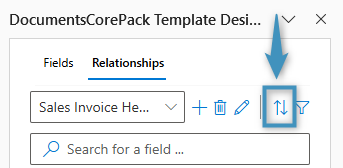
Alternatively, you can select the Edit sort order button in the Relationship Designer and choose the desired field there as shown in the two figures below.
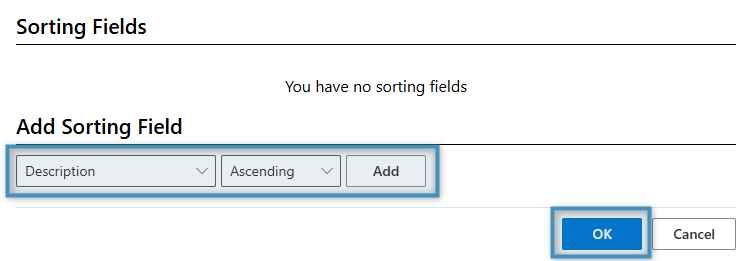
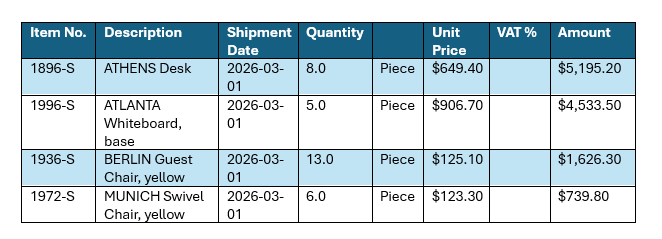
This applies sorting to the table by the selected field. When the document is generated, the items appear in the correct order.
To remove sorting from a field, right-click the same field and select Sorting Fields or click on the Edit sort order button. Select Delete to remove the sorting.

Nested relationships
Nested relationships allow you to access data from related Business Central tables across multiple relationship levels. Once a relationship has been resolved, you can continue resolving additional relationships from the related table to retrieve more detailed data.
For example, after resolving a relationship from the Sales Invoice table to Sales Invoice Lines, you can resolve another relationship from Sales Invoice Line to a related table such as Item. This enables you to include item-specific details, such as item descriptions or attributes, directly in your document.
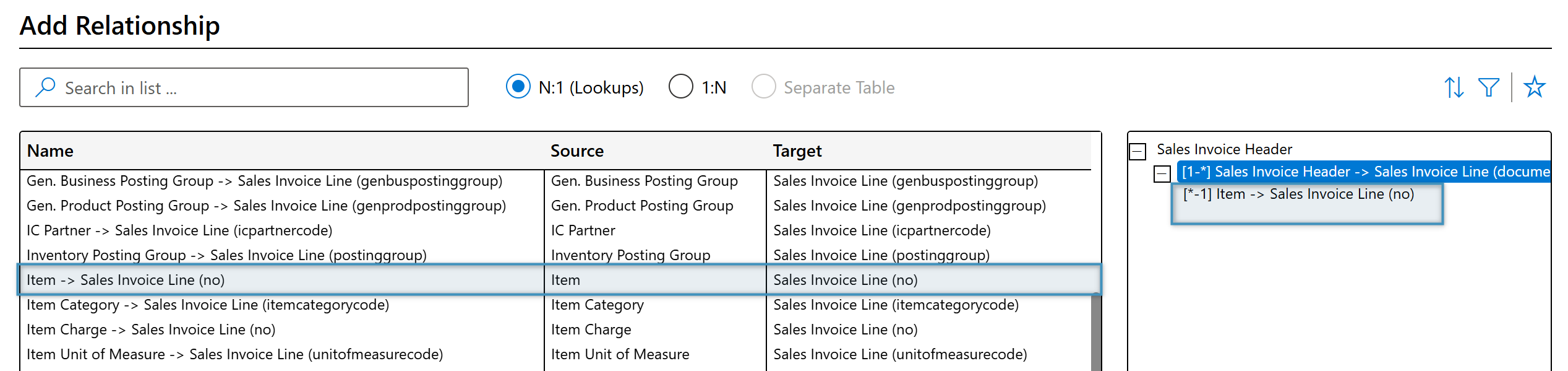
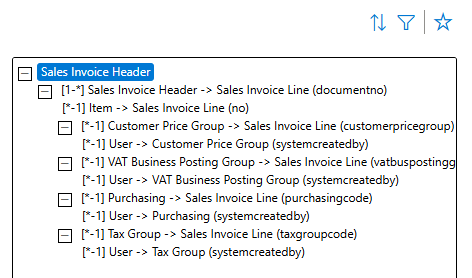
You can continue nesting relationships across multiple levels, creating more complex structures such as the one shown below.
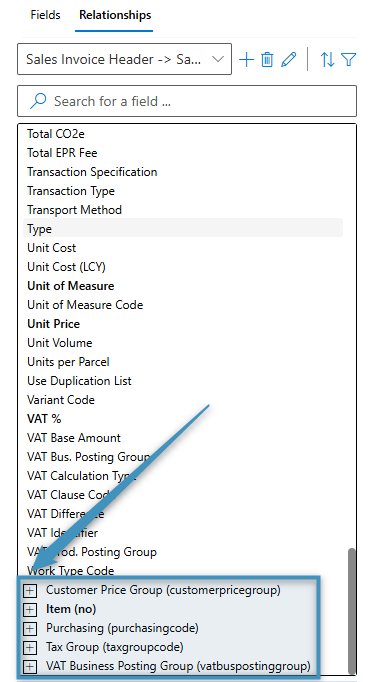
To insert fields from a nested relationship into your document, scroll to the bottom of the fields list and expand the relationship. Any nested relationships appear beneath their parent relationship and can be expanded to access their available fields.
Filtering
Filtering allows you to limit which records are included in a related table. This is useful for excluding irrelevant data from a document or displaying only records that meet specific criteria, such as removing items from a table based on price.
In the following example, we have a Sales Invoice Lines table. Note the total price for each item.
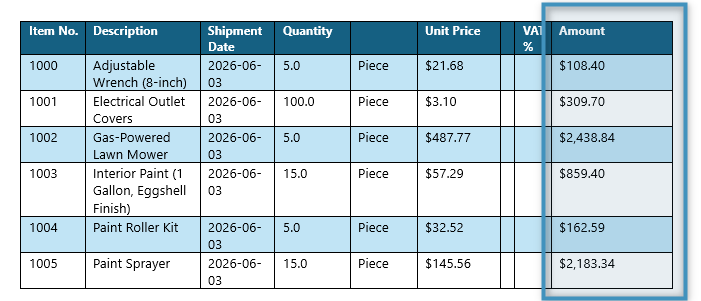
Suppose we want to exclude all sales invoice lines where the line amount is less than $2,000. To do this, first locate the field we want to filter by. Since we are filtering by the Amount field, find the appropriate field in the fields list, right-click on it, and select Filter by field.
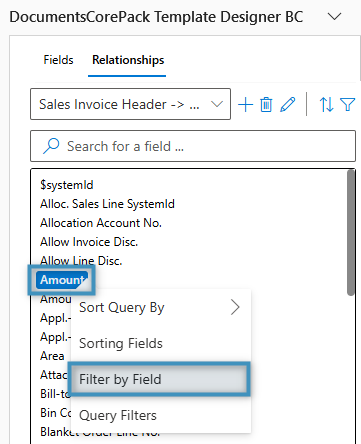
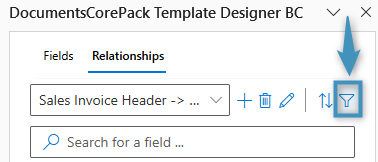
Alternatively, open the filter editor by clicking on the Edit filters button.
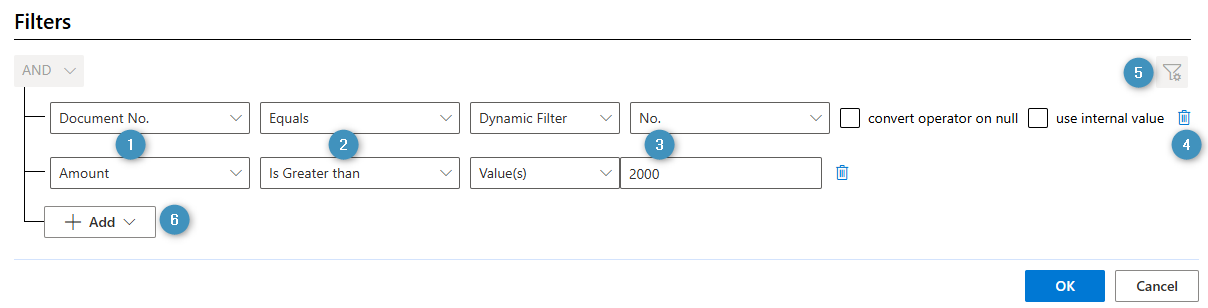
Opening either option displays the Filters window, where you can define and manage your filtering rules.
The controls include:
- ❶ Field: Specifies the field the relationship is filtered by. This is automatically populated based on the selected field.
- ❷ Operator: Determines which operator the filter should use.
- ❸ Value: Defines the value the filter is based on.
- ❹ Delete: Removes the selected filter.
- ❺ Display filters for Column Compare and Dynamic Filters: Enables Column Compare and/or Dynamic Filters to be used.
- ❻ Add: Allows you to add additional filter rows, groups, or related tables.
In the example above, the relationship is configured with a filter on the Amount field, which represents the Sales Invoice Lines total amount. This filter ensures that only sales invoice lines items with a line amount greater than $2,000 appear in the table.
After saving the changes, generating a new document shows the adjusted result.