Templates are at the heart of DocumentsCorePack (DCP), playing a crucial role in creating and processing documents in Dynamics 365. Understanding how to manage these templates is key to gaining the best results when using our product.
In this article, Template Management in DocumentsCorePack we will cover a variety of topics related to Template Management in DocumentsCorePack. Like how templates are saved, how security roles affect templates, template versioning, importing/exporting templates from other environments, and how template management works in DocumentsCorePack.
- What are DocumentsCorePack templates?
- Where are templates saved?
- How to delete templates
- How to restore deleted templates
- Security
- Template Versioning
- Customizing Columns in the Dialog
- Importing, Exporting, and Transferring Templates
What are DocumentsCorePack templates?
DocumentsCorePack templates are Microsoft Word-based documents created via our Template Designer. They contain fields and tables that serve as placeholders for data. Since DCP templates are used to generate new documents, you can create templates for a multitude of business purposes, such as displaying a list of quotes from an account, a contract for a customer, or an order summary.
To learn more about DocumentsCorePack templates, please read the article here.
Where are templates saved?
Whenever a new template is created and saved, the template is saved as an attachment to an MSCRM-ADDONS.com DocumentsCorePack Template record in Dynamics 365. The record’s name will match that of the template. The template itself can be found under the Notes tab.
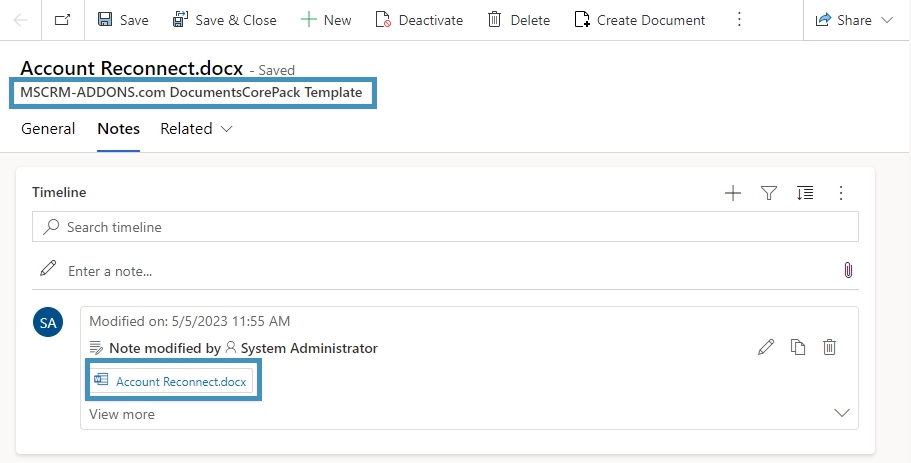
Template Groups: You can store templates in different groups (e.g., sales templates, customer service templates, etc.). You define groups when saving templates via the Template Designer in Microsoft Word. This approach stores templates in a structured manner, easing access for end users via the DocumentsCorePack dialog.
This grouping becomes especially valuable in organizations managing a large number of templates across various teams, departments, or languages. For instance, you can create separate groups for German-language templates, onboarding documents, or marketing content. It improves accessibility and reduces time spent searching for the right file.

When saving a new template in the Template Designer, you can select a group from the Group dropdown. If the desired group does not yet exist, you can create a new one directly during the save process.
You can also move existing templates between groups later using the context menu.
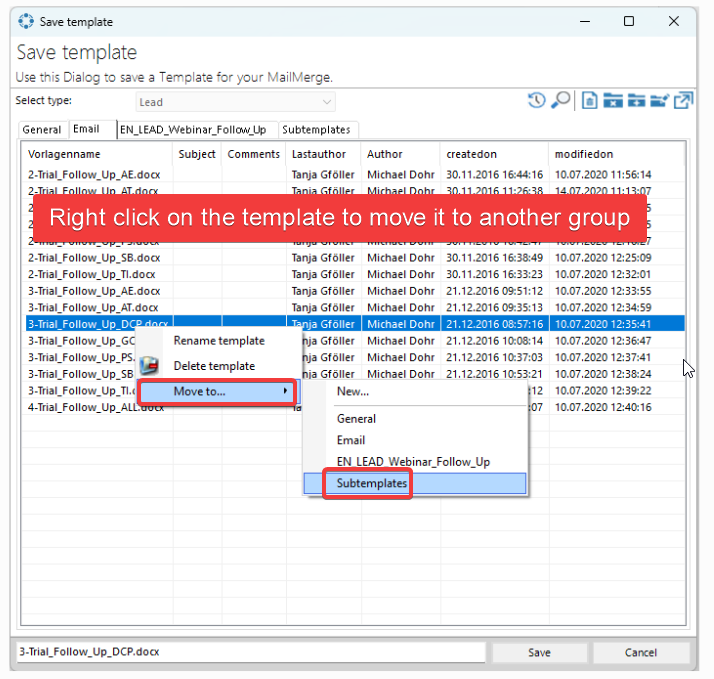
To move a template to a different group:
- Right-click on the template name in the “Save template” dialog.
- Hover over “Move to…”
- Choose the desired group from the dropdown menu.
- The template will be reassigned and will now appear under that group in the DocumentsCorePack dialog.
This feature is useful if you’ve initially saved templates into a general group and want to better organize them later.
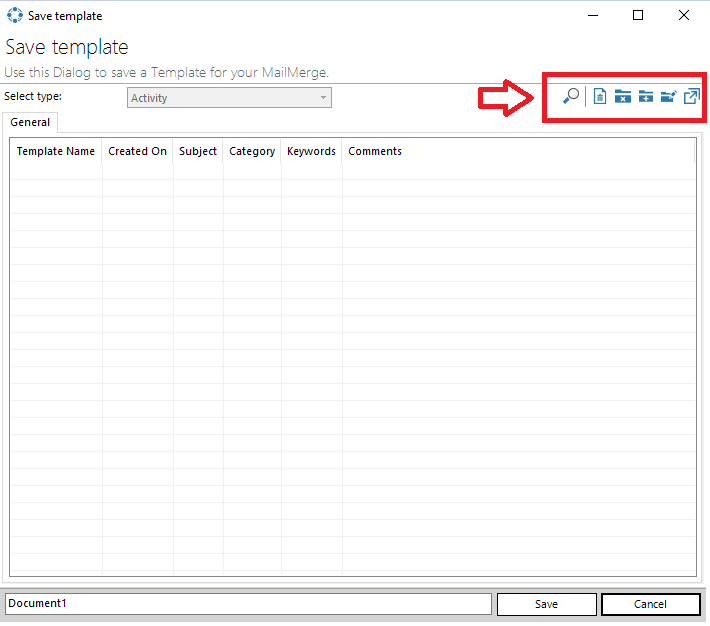
Additional Template Management Tools
In the upper right corner of the Save Template dialog, you’ll find several management tools:
- Search: Quickly locate templates using keywords.
- New Folder: Create a new group/folder directly.
- Refresh: Reloads the template list.
- View Toggle: Switch between detailed or list view.
- Export/Import: Manage template backup or migration.
These features help keep templates up to date and organized, especially in environments where templates are frequently modified or updated.
How to delete templates
You have the option to delete templates via the DocumentsCorePack Template designer using the delete option in the Open/Save dialog located in the upper right corner.
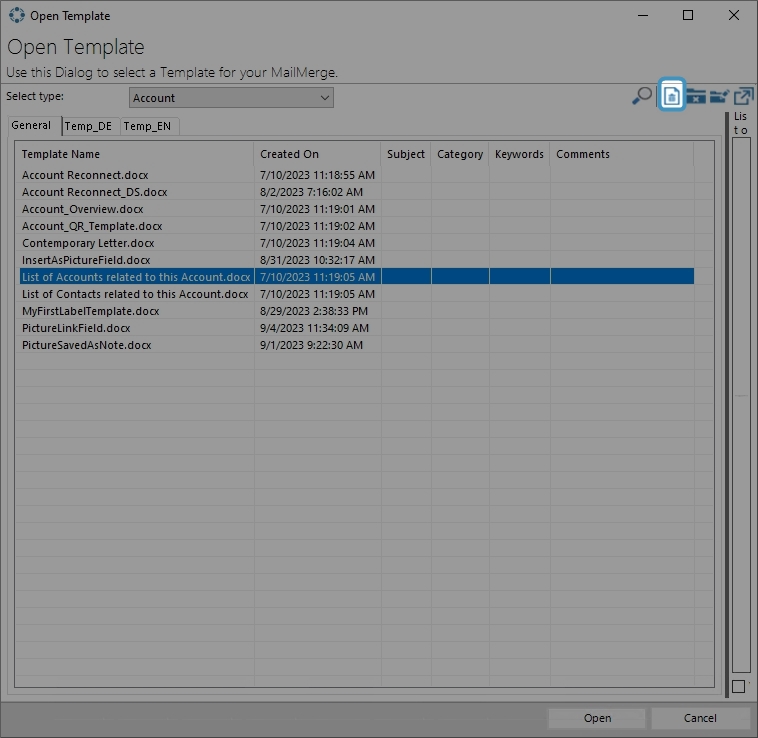
How to restore deleted templates
Templates deleted from the Open/Save dialog are only “soft” deleted. They can be restored by accessing the template’s corresponding record in Dynamics 365 (Table: MSCRM-ADDONS.com DocumentsCorePack Template) . By reactivating the record, the template will be available again.
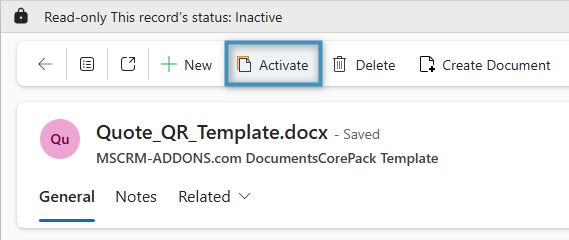
Note: To “hard” delete templates, you will have to delete the corresponding records in the mscrm-addons.com DocumentsCorepack Templates table in your Dynamics 365 environment.
Security
Security roles play a vital part in allowing users access to templates. Since you store templates as records of a custom table (see above), the Dynamics 365 security model applies. When you install it, the system distributes a custom security role to all users, providing everyone within the Dynamics 365 environment access to DocumentsCorePack templates. You can also handle template access via a separate security role, as long as you grant the proper permissions to users who need to generate documents.
This document covers the information in more detail here.
Template Versioning
Template versioning allows users to view older versions of their templates. Once you enable it, the system will record backups of saved templates, making them available for recovery. This can be very helpful in situations where your template gets corrupted during the design process, or if an older version of a template is needed due to important information being absent in a newer version.
You can find more information about the feature here.
Customizing Columns in the Dialog
You can customize the Open and Save dialogs for the Server and Client to display columns other than the default ones. You can also hide the default columns in this way. This can be useful in situations where a different column setup for your dialog would give more relevant information to those saving and opening templates. It can also give users more pertinent information when creating documents through DocumentsCorePack Server.
You can find an article on this feature here.
Importing, Exporting, and Transferring Templates
You can import, export, or transfer templates using the DocumentsCorePack Online Service Configuration. This tool can allow users to:
- import template files from their local machine,
- export their templates into a .zip file as a local backup with dedicated timestamps, and
- transfer templates to a separate organization. Transferring templates is particularly helpful when you need to design templates in one environment before sending them to another.
Details on this feature are available here.
That’s it! We appreciate your feedback! Please share your thoughts by sending an email to support@mscrm-addons.com.