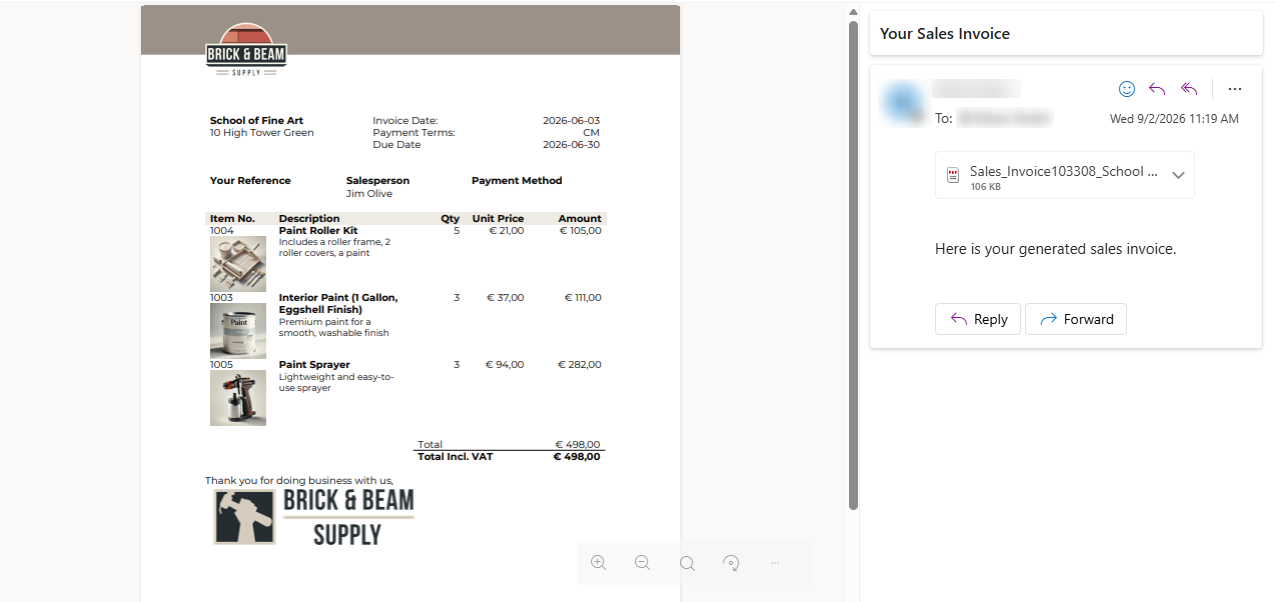
In this article, we will demonstrate how to configure a flow that generates and sends a document after posting a sales invoice.
Our use case
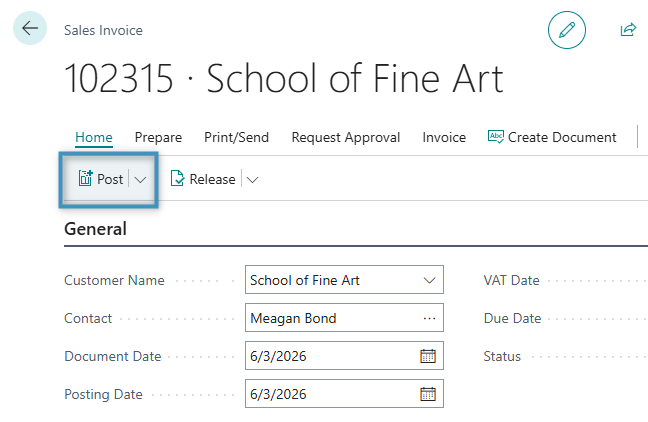
In our environment, we have the following sales invoice:
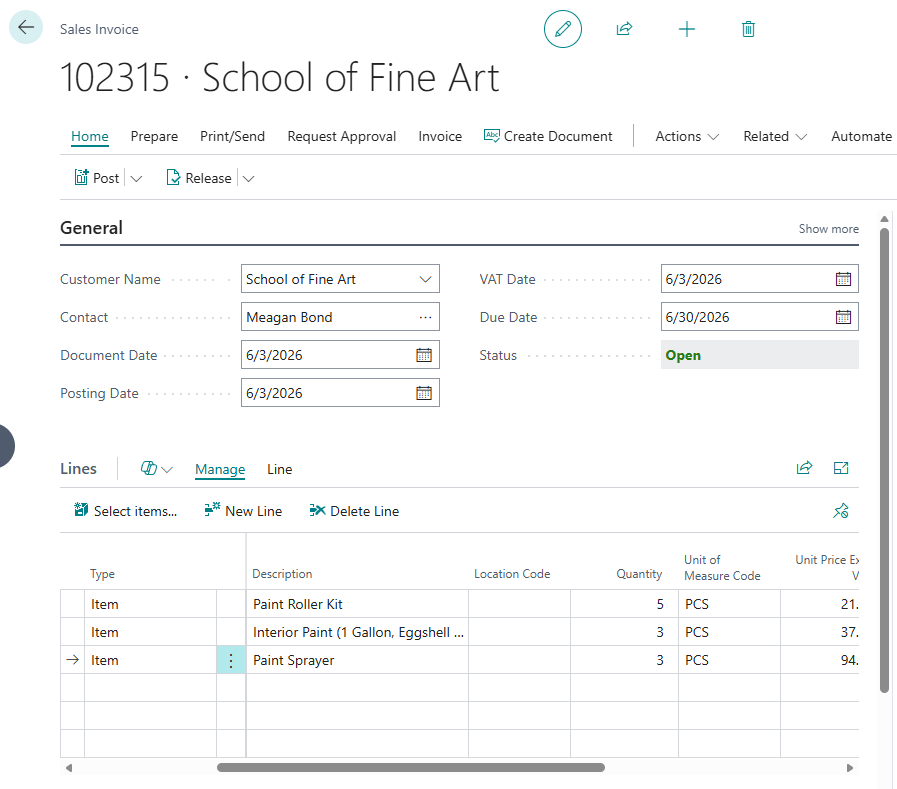
This sales invoice has not been posted. When the invoice is posted, we would like to generate a document based upon it and then email the document as an attachment.
To generate and send this document automatically, we will need to create a flow in Power Automate.
Creating the flow
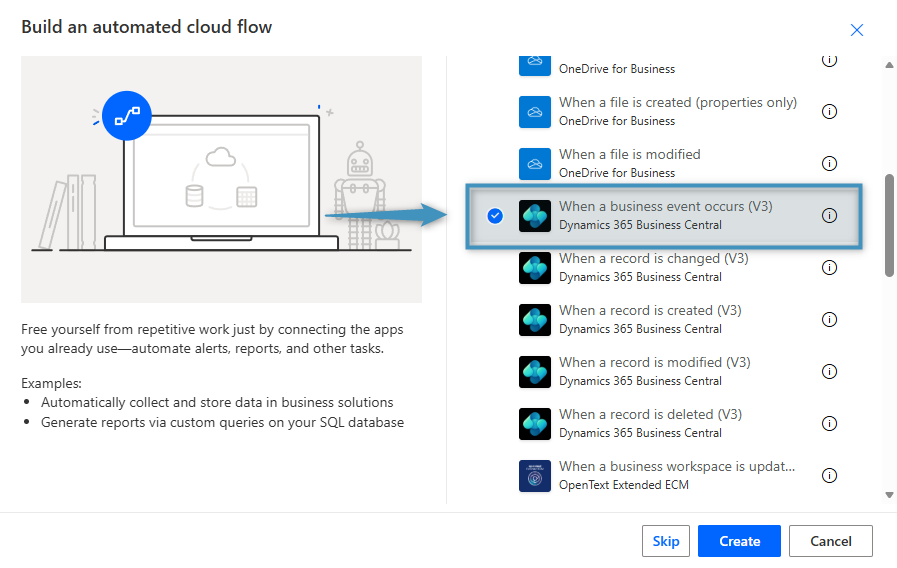
Begin by creating a new flow and choosing a trigger. In this example, we will build an automated cloud flow and we will select When a business event occurs as the trigger.
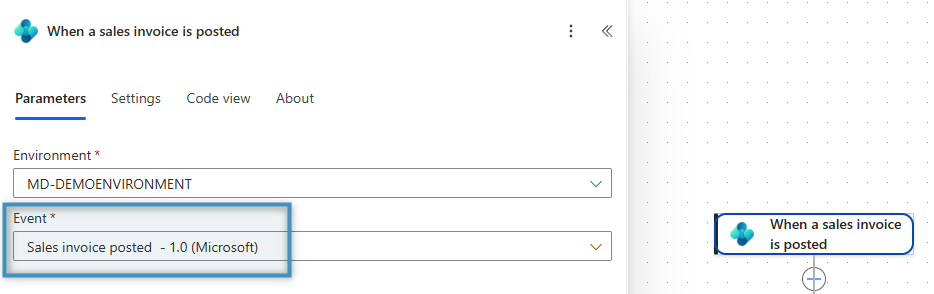
Our trigger should be configured to work in the environment of our choosing. For the Event, we will set it to Sales invoice posted.
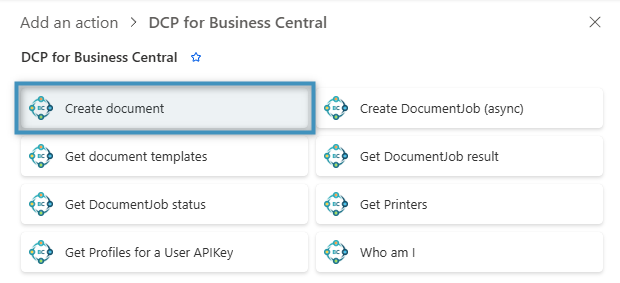
For our next step, we will add a Create Document action from the DocumentsCorePack Connector for Business Central.
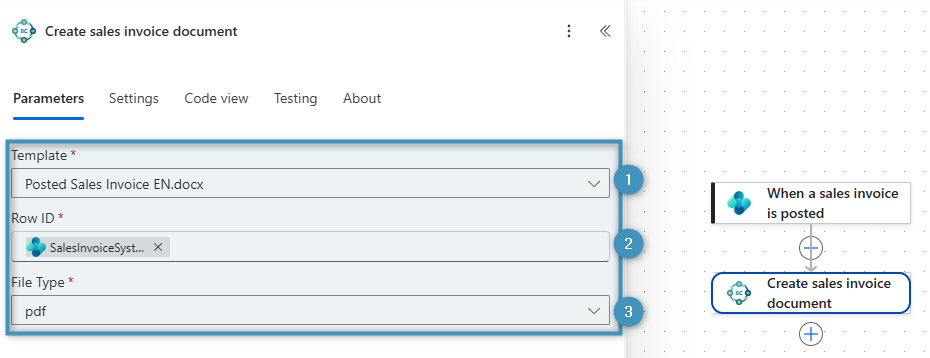
Once the action has been added, we will set our ❶ template, add the ❷ SalesInvoiceSystemID from the trigger to our row ID field, and set the ❸ file type to PDF.
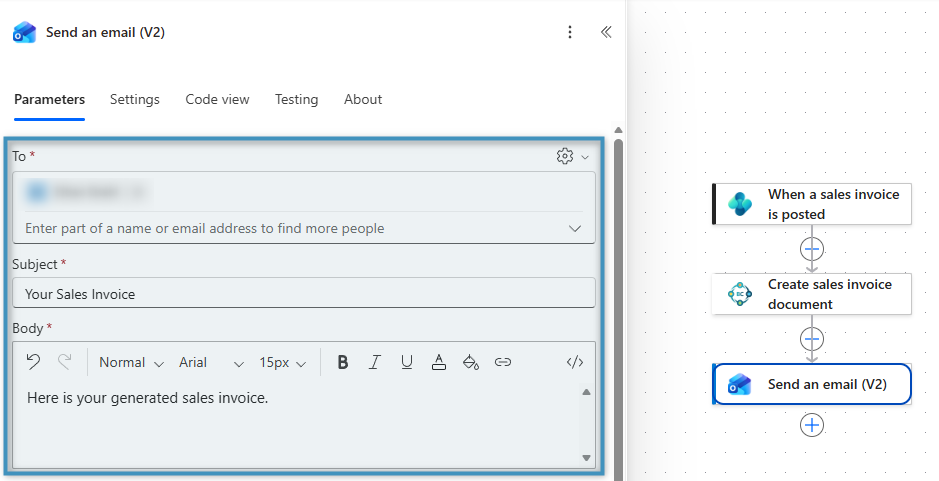
Next, we will add a Send an email action to our flow, configuring the To, Subject, and Body fields as required.
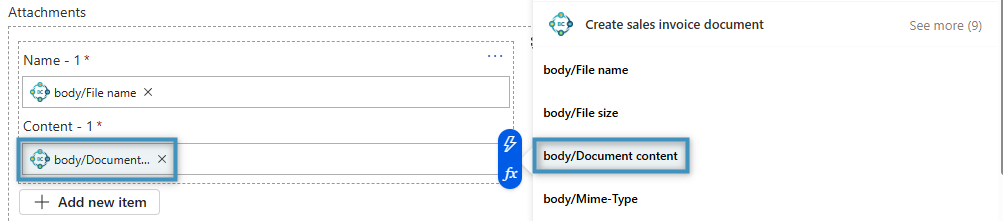
To add our generated document as an attachment, we will need to configure the Attachments parameter. For the Name part of the parameter, we will set the name to be the body/File name value from the Create document action.
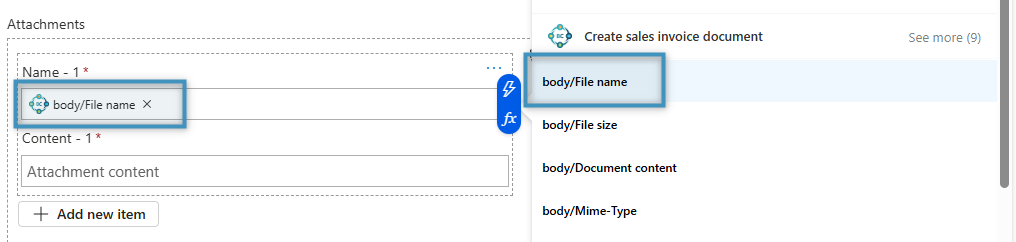
For the Content field, we will set it to be the body/Document content value, also from the Create document action.
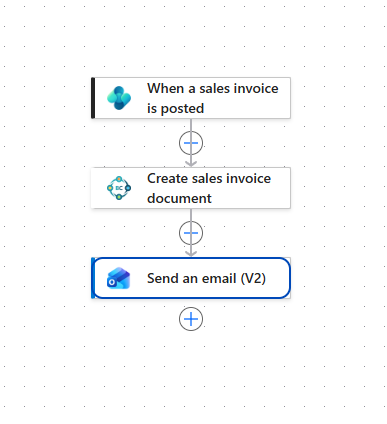
With the attachment configured, our flow is now complete. Your flow should look similar to the following:
Executing the flow
Returning to our sales invoice, we can now click Post to post our sales invoice. In doing so, this will automatically trigger our newly created flow.
Once the flow has finished running, the generated document will be emailed.