When using DocumentsCorePack (DCP) for Business Central, administrators can open the DocumentsCorePack Admin Menu. This menu allows admins to access various options, including the ability to view all saved templates, open and review previously generated documents, and modify DCP settings.
Overview
The DocumentsCorePack Admin Menu can be found on the top level of any Business Central environment in the navigation bar.

There are five items listed under the admin menu. They are as follows:
- Templates
- Reports
- Documents
- Configuration
- Getting Started
Templates
In Templates, you will find a list of your environment’s templates. From here, you can search for specific templates or choose to delete them.
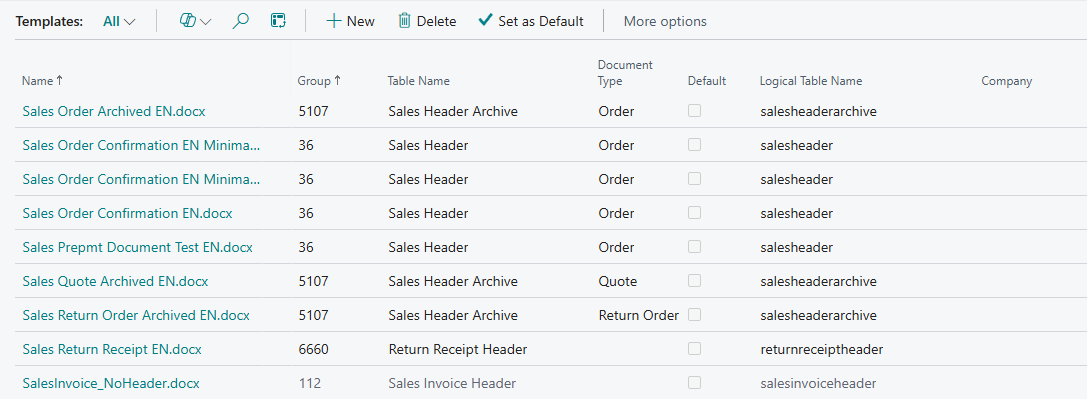
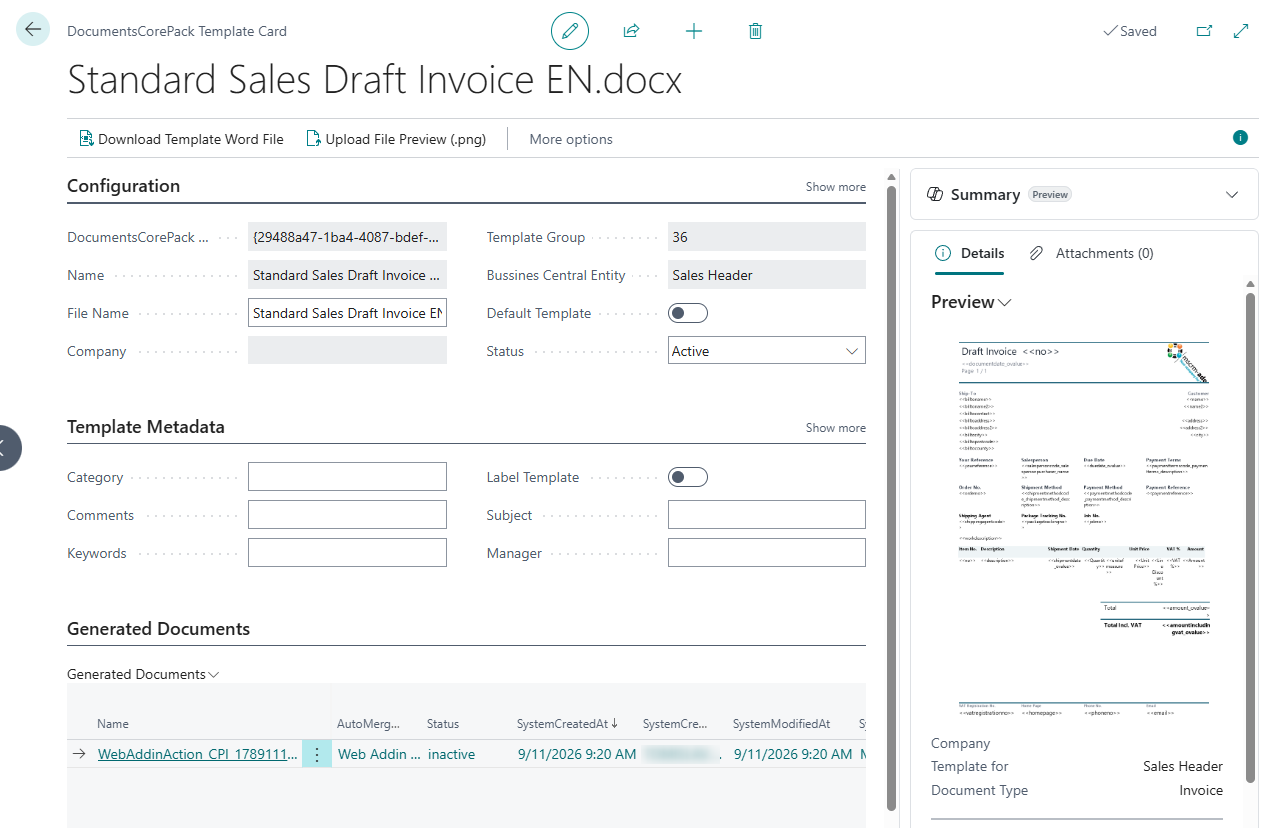
Selecting a template will allow you view it as an image preview. Additionally, opening the template’s record will let you view more details, such as its ID, name, group, and generated documents.
Reports
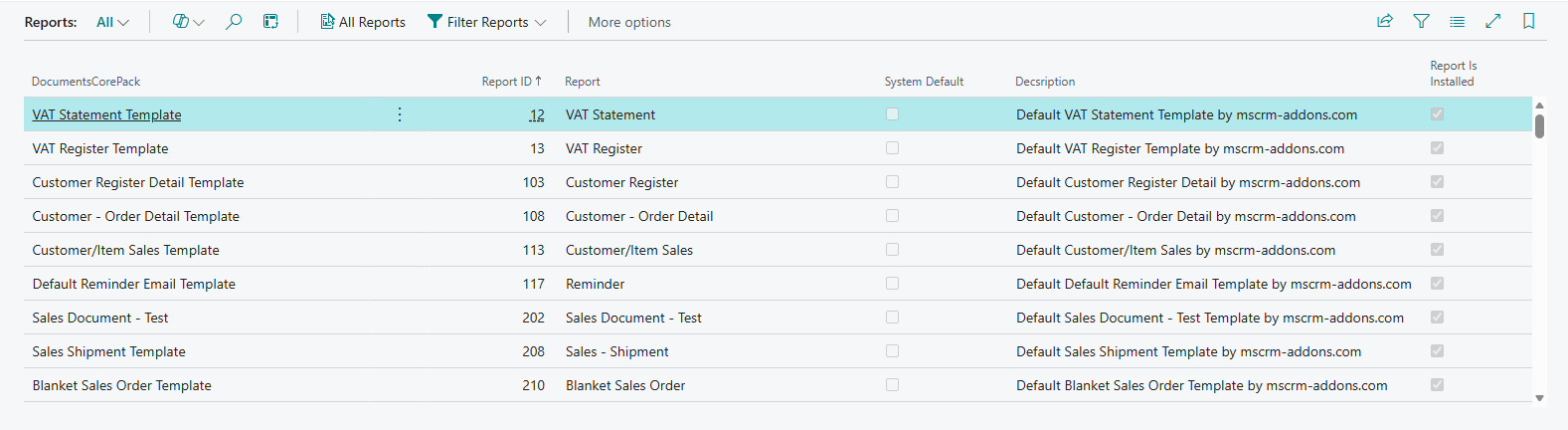
Reports lists all of your environment’s DocumentsCorePack reports. You can search this list for specific reports, or you can check which reports have been set as the system default.
More information on managing reports can be found here.
Documents
The Documents sub-menu lists the documents generated from your DocumentsCorePack templates, beginning with the most recently created documents.
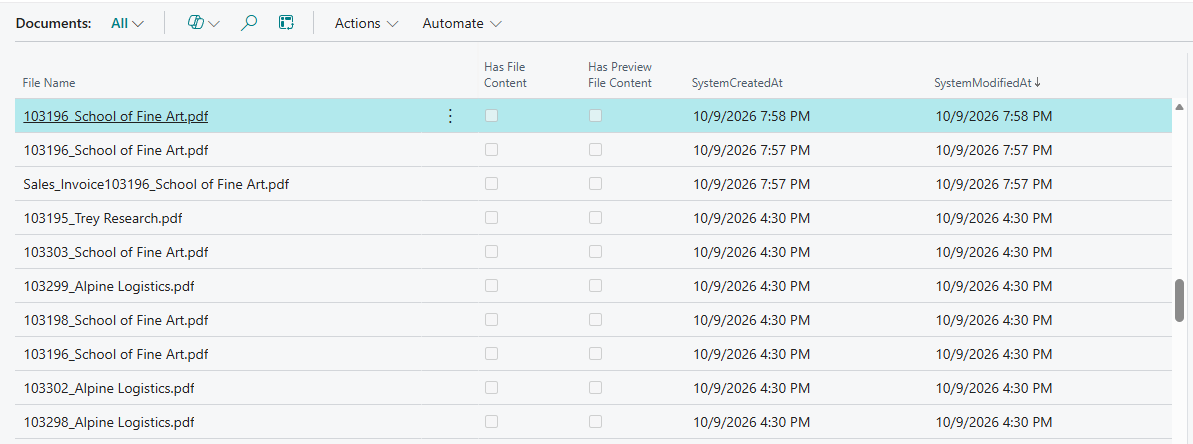
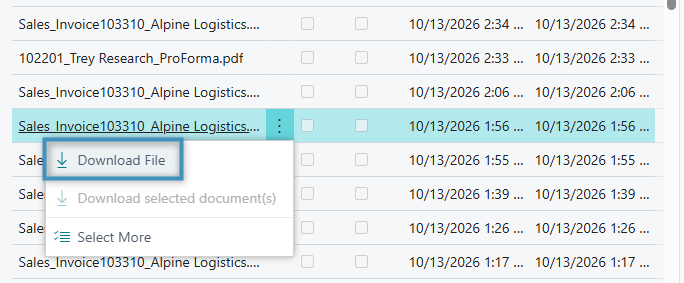
Clicking on a document will display its properties and an image preview on the right-hand side. You can also choose to download the document as shown below.
Configuration
The Configuration sub-menu contains the following options:
Processing Queue
The Processing Queue lists all instances where a document generation process occurred. Each item is listed with its name, the date and time when the process began, the template that was executed, and other relevant information.
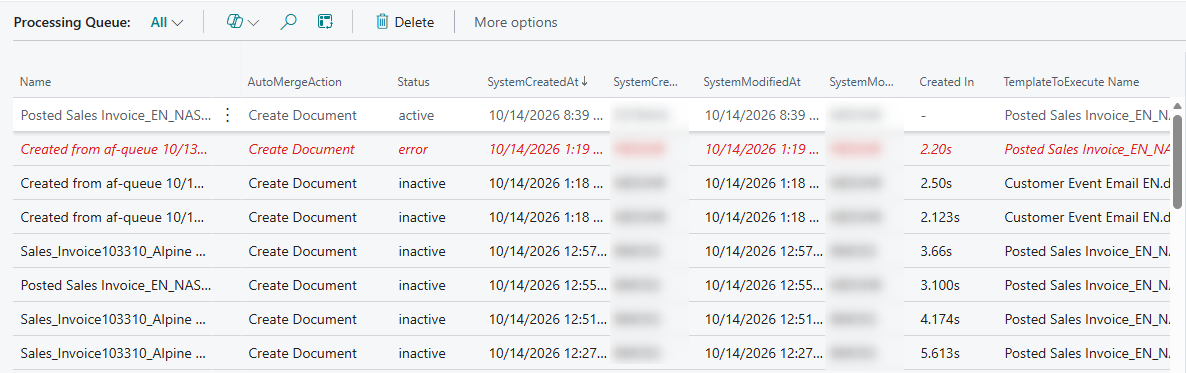
The status of each item is shown as well. There are three possible statuses:
- Active: The document generation process for this item is still active.
- Inactive: The document generation process for this item has finished.
- Error: An error occurred during the document generation process.
For items in which a document was successfully generated, the generated file may be downloaded.
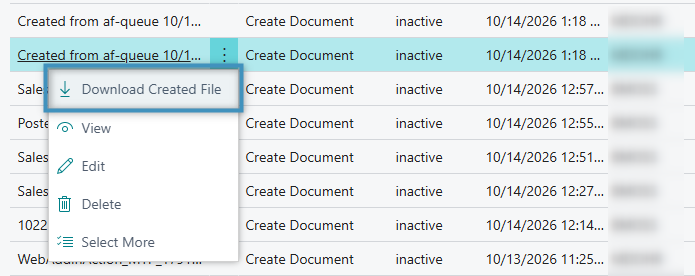
Viewing the Processing Queue is helpful for troubleshooting, as you can check if a recently triggered document generation action resulted in a generated document or an error.
Products
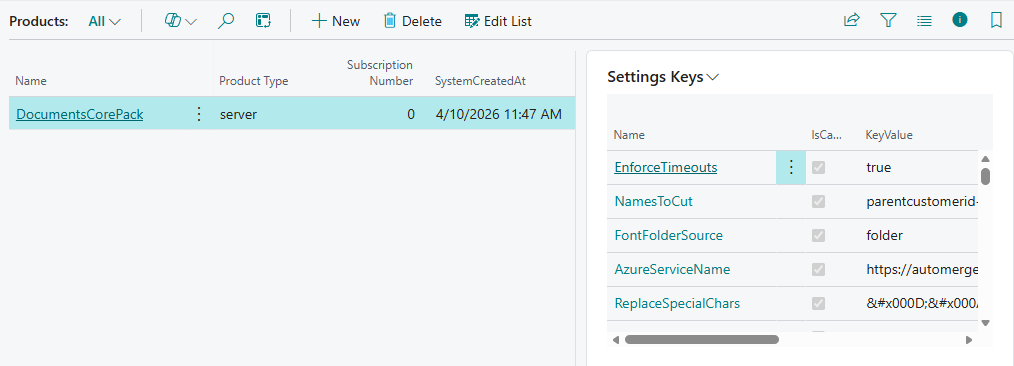
Products lists all DocumentsCorePack products currently installed in your environment. Each product is listed with its name, product type, and creation date. The product’s Settings Keys are also listed.
One Click Actions
This feature is currently unavailable.
Metadata
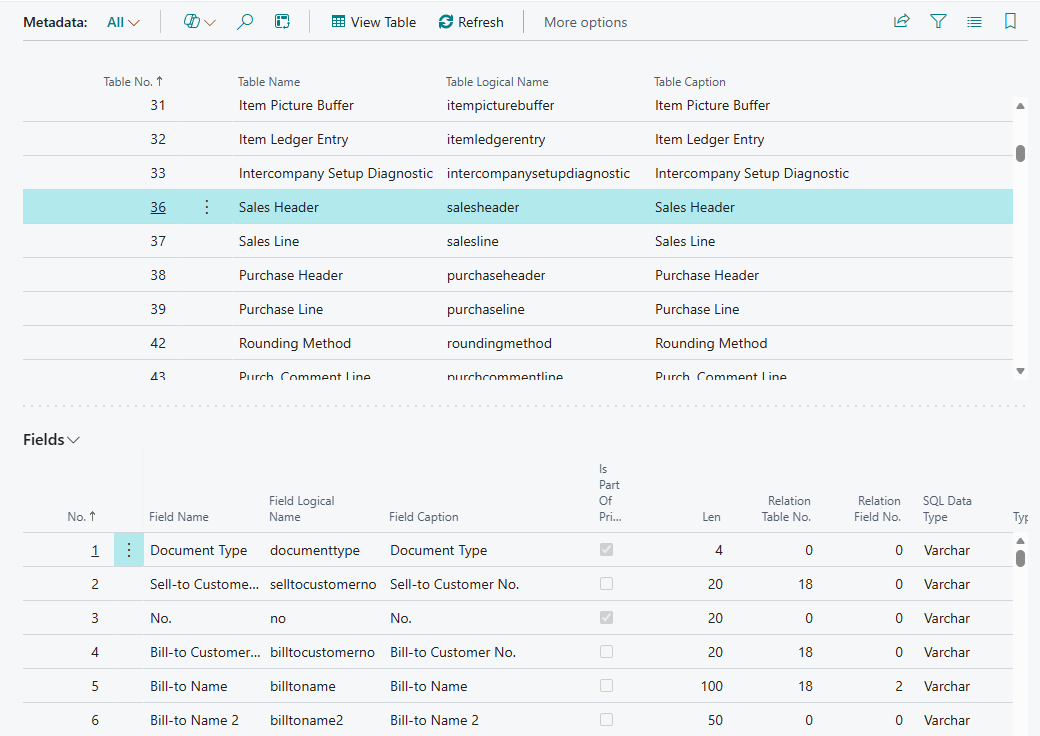
Metadata contains a list of all tables in Business Central and their associated fields. Each table is listed with their name, number, logical name, and caption. Each field is listed with similar and additional information.
Extension Settings
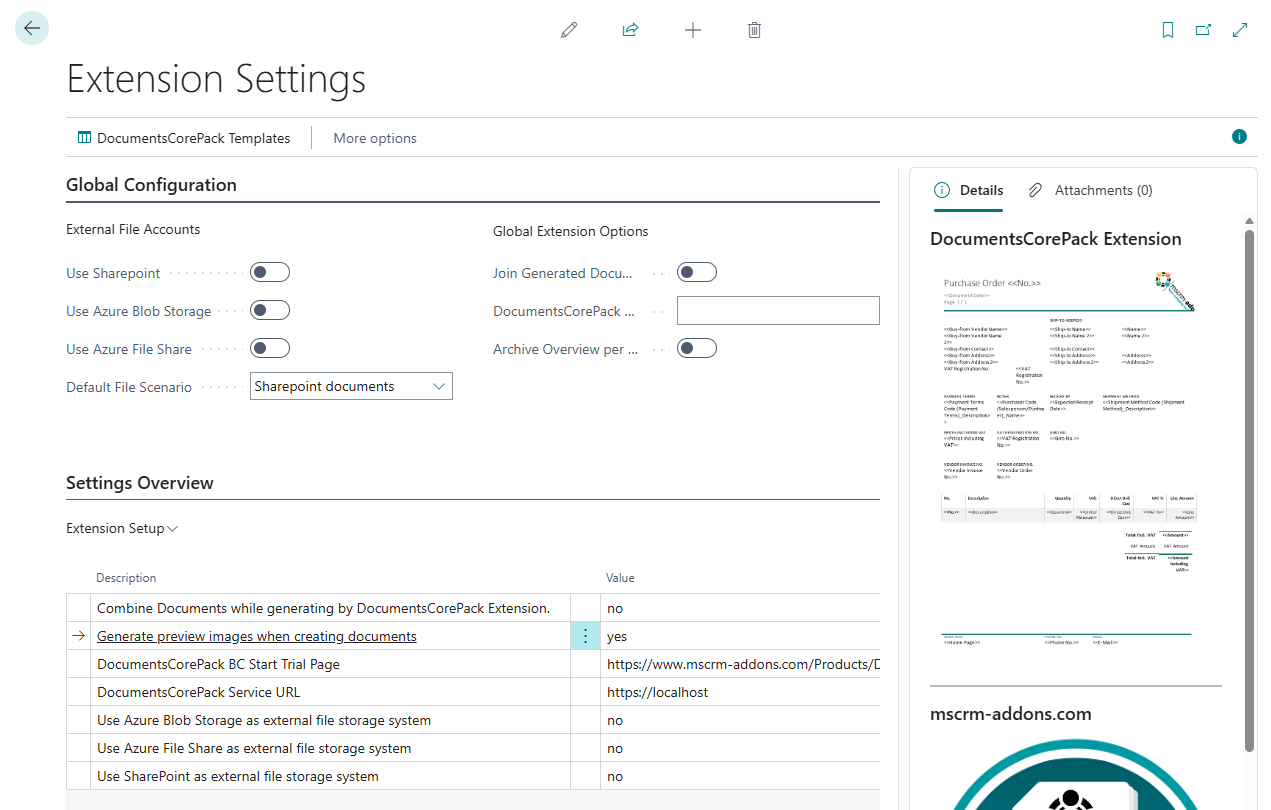
Under Extension Settings, you can adjust and/or modify various DocumentsCorePack settings.
Error Log
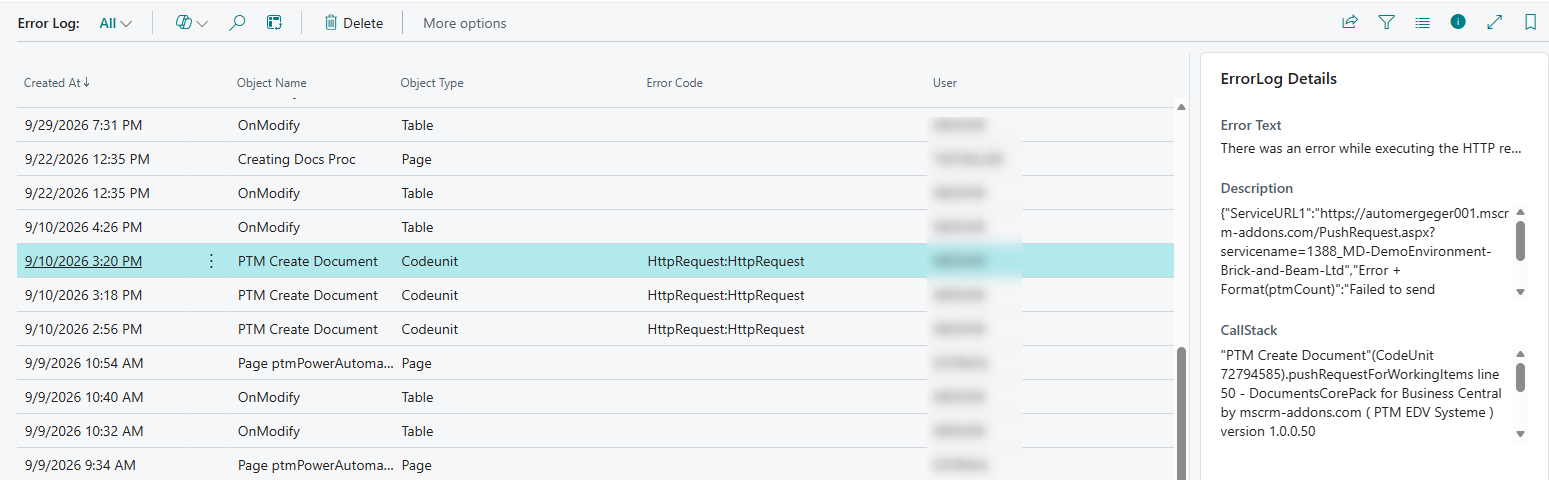
The Error Log tracks errors that occur during document generation or processing operations. Each logged error is recorded with a date of occurrence, an object name, an error code, and a description, alongside other information. Clicking on an item will bring up the error’s details.
Getting Started
The Getting Started dialog displays the status of three settings: the DCP Job Queue Enabled setting, the DCP Allow HttpClient Requests setting, and the DCP Service Installed setting.
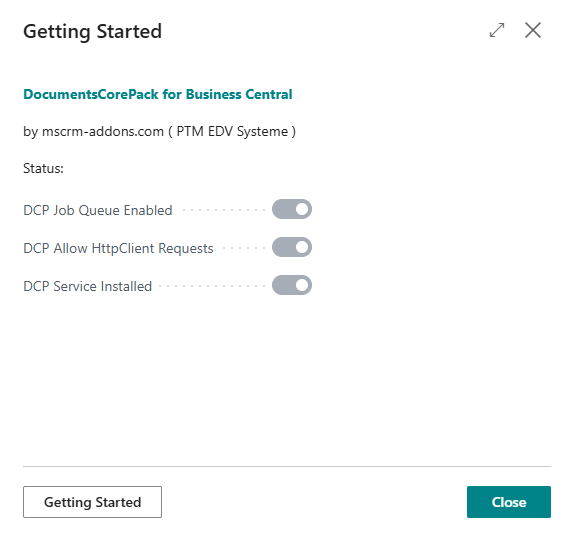
Each setting is detailed as follows:
- DCP Job Queue Enabled: Ensures that the metadata is up-to-date and that old generated documents and processing queue items are routinely deleted to save space and maintain performance. If disabled, document generation will fail.
- DCP Allow HttpClient Requests: Ensures best performance for document generation. If disabled, document generate will still be possible, but performance will be hindered.
- DCP Service Installed: Indicates if the service has been installed.
When checking the Getting Started dialog, please ensure all three settings are enabled. If any setting is disabled, the service will either behave unexpectedly or fail to operate at all.
Note: If you are having problems with the above settings, please contact our support team.