This article provides a step-by-step guide on how to create a manually triggered Power Automate flow that generates a document and attaches it to a record in Business Central.
In our use case, we will demonstrate how to generate a document based on an Item record and save the resulting file as an attachment to that record. Attaching generated documents directly to items helps centralize product information and ensures that important files remain available to all users working with them.
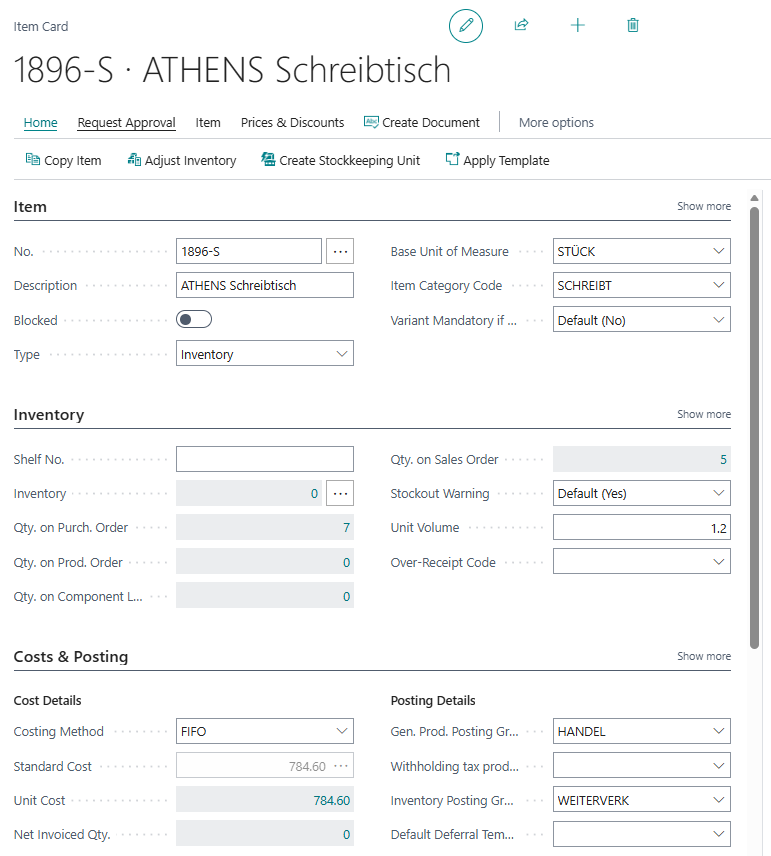
The record shown below will be used for this walkthrough:
Step 1: Creating the flow by choosing a trigger
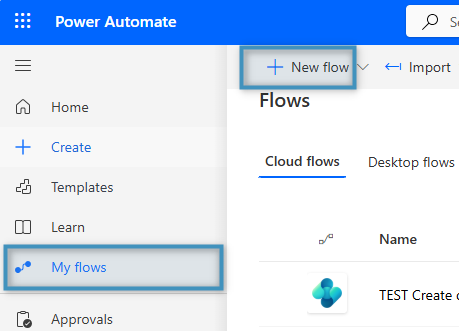
Start by visiting make.powerautomate.com, navigate to My flows, and then select New flow to create a new flow.
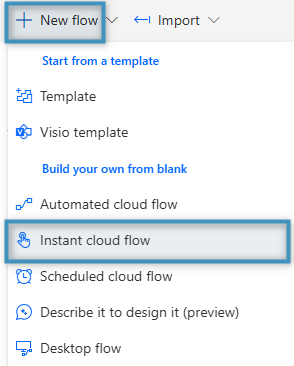
Form the New flow dropdown, select Instant cloud flow.
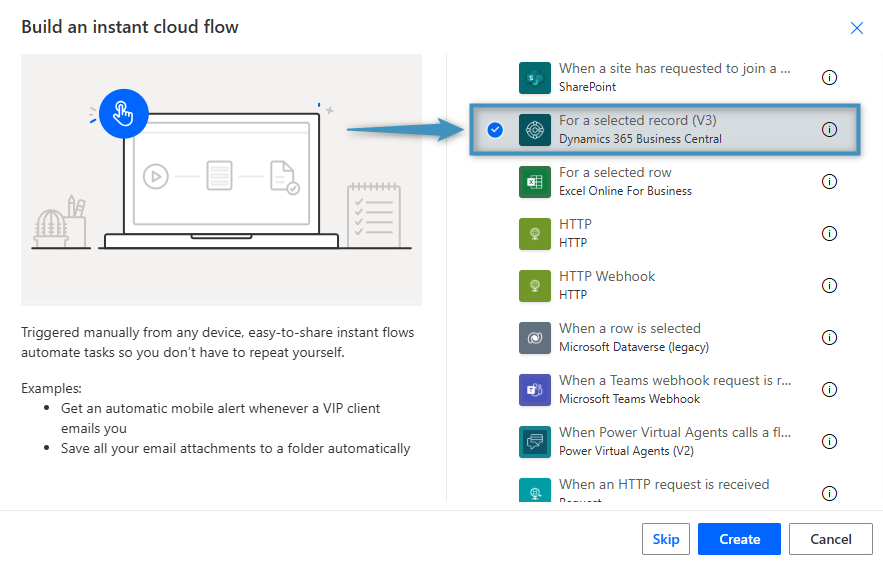
In this example, we are going to select For a selected record (Business Central) as the trigger.
Step 2: Configuring the flow parameters
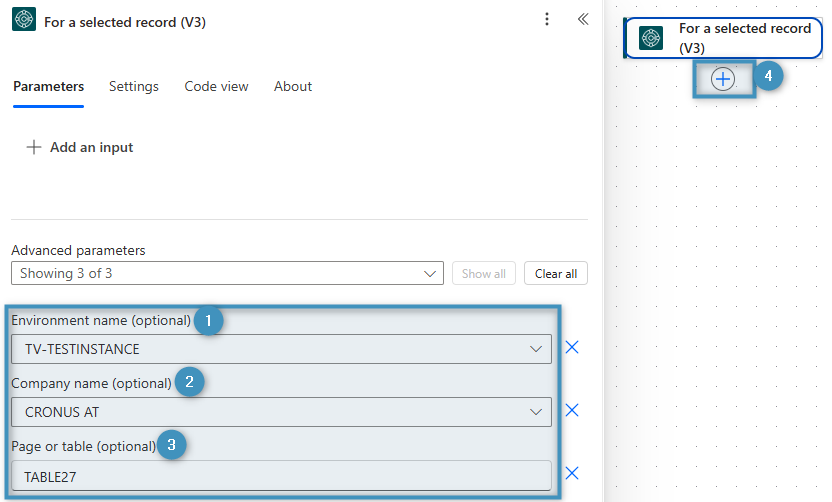
Fill in the flow parameters, including the ❶ Environment name, ❷ Company name, and ❸Page or table. Since we are working on an Item table, our table number is 27.
Then, click on the ❹ (+) on the right and add a new action.
Step 3: Adding the “Create document” action from the DCP for Business Central connector
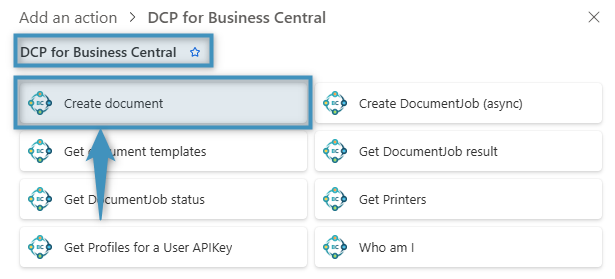
Search for the DCP for Business Central connector and select the Create document action from the list of available actions.
Step 4: Filling out the fields
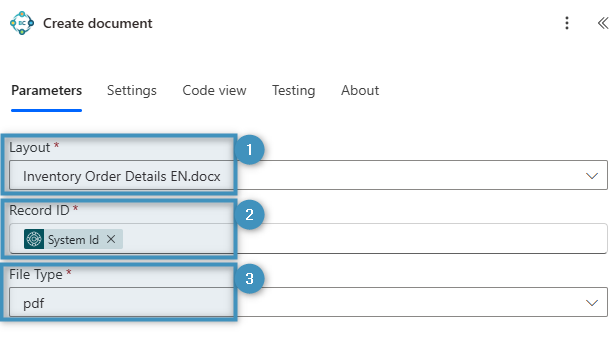
Selecting the action opens the window shown below. We will use this action to generate an inventory document. Configure the following parameters:
❶ Layout: Select the layout that should be used to generate the inventory document.
❷ Record ID: Select System Id from the dynamic content. The System Id uniquely identifies the Business Central record and ensures that the document is generated for the correct record.
❸ File Type: Select the output format for the generated document. In this example, the inventory document is a PDF file.
Step 5: Adding the “Run action” from the Dynamics 365 Business Central connector
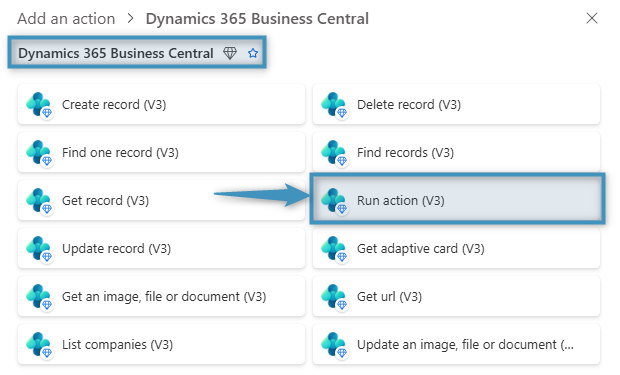
Search for the Dynamics 365 Business Central connector and select the Run action from the list of available actions. This action attaches the generated document to the Item record, making it available in the item’s attachments in Business Central.
Step 6: Filling out the fields
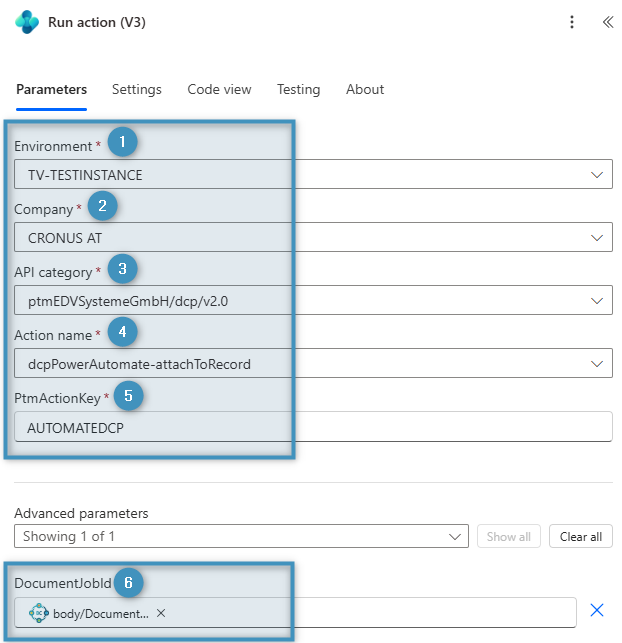
In the Run action step, fill in all five required parameters (*), setting the ❶ environment and ❷ company parameters to correspond to your own environment and company. For the ❸ API category, set it to “ptmEDVSystemeGmbH/dcp/v2.0”. This will allow you to set the ❹ action name to “dcpPowerAutomate-attachToRecord”, which is required to attach the document to the record. Then, set the ❺ PtmActionKey to “AUTOMATEDCP”.
Under Advanced parameters, set ❻ DocumentJobId by selecting the body/Document JobID dynamic value from the Create document action.
Step 7: Naming and saving your flow
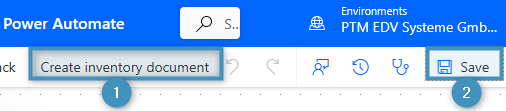
Enter a ❶ flow name, then ❷ Save to save your configuration and make the flow available for testing and future editing.
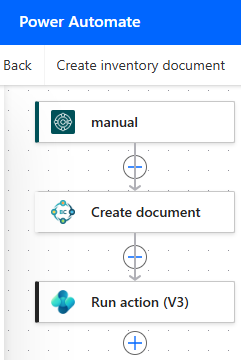
After completing all steps, your flow should look similar to the example below.
Step 8: Running the flow
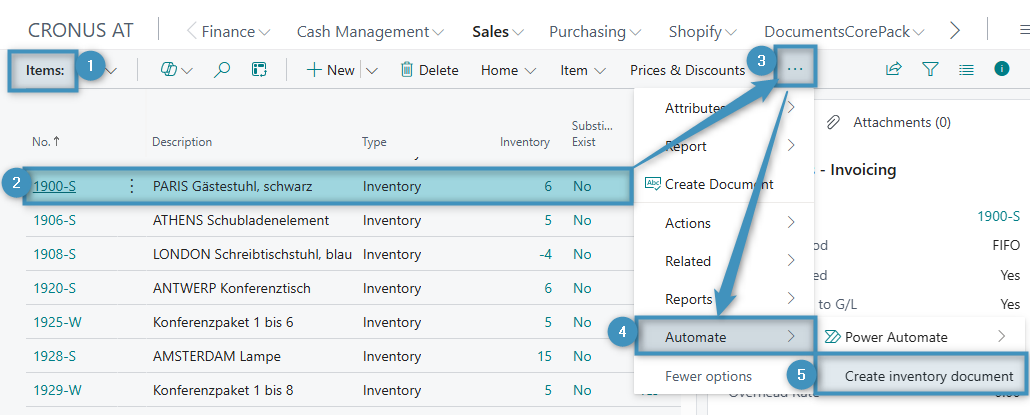
After saving the flow, go to Sales > ❶ Items in Business Central and open the ❷ item record for which you want to generate a document. Click the ❸ (…) button in the upper-right corner, select ❹ Automate, and then choose your ❺ flow.
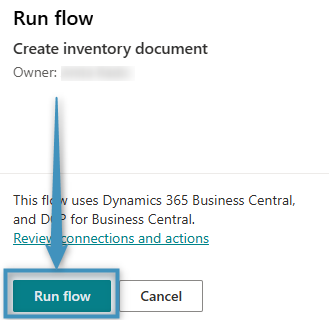
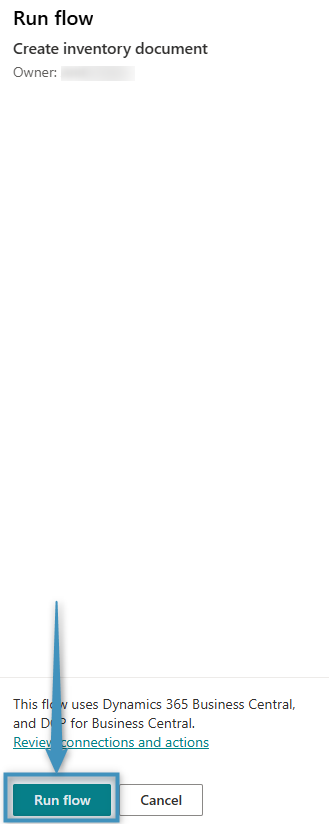
Follow the prompts in the Run flow windows until the flow has completed successfully.
The Result
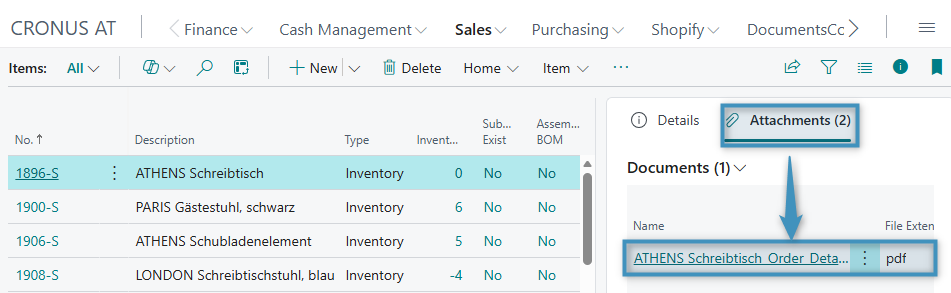
To verify the result, open the Item record for which the flow was run and go to Attachments. The generated document is available there as an attachment to the item record.
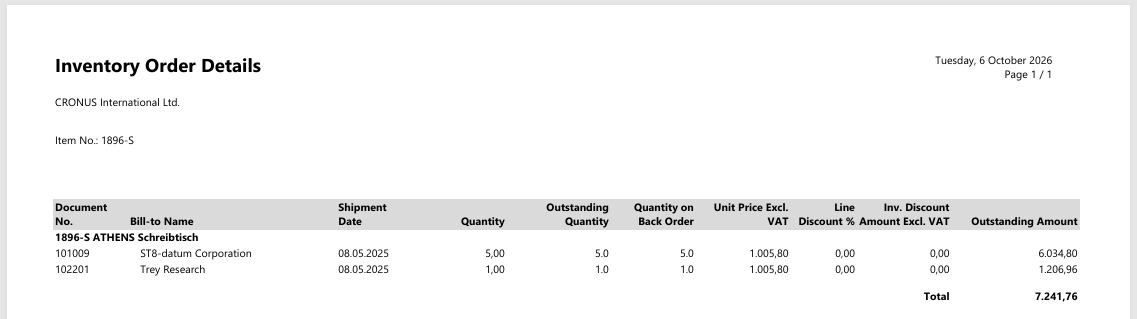
Our generated inventory document is shown below.