In DocumentsCorePack (DCP) for Business Central, calculated fields allow users to perform calculations using data from fields available in their Business Central environment. This is particularly useful when a template requires a value that is not stored directly in the system, such as a discount percentage or total amount.
This article explains how to configure a calculated field and use it within your template.
Step 1: Open the “Calculated Field” editor
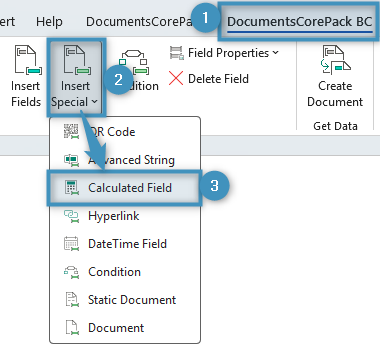
Open a Word template and navigate to ❶ DocumentsCorePack Layout Designer for Business Central. Then, open the ❷ Insert Special dropdown and select ❸ Calculated Field.
Step 2: Build the formula
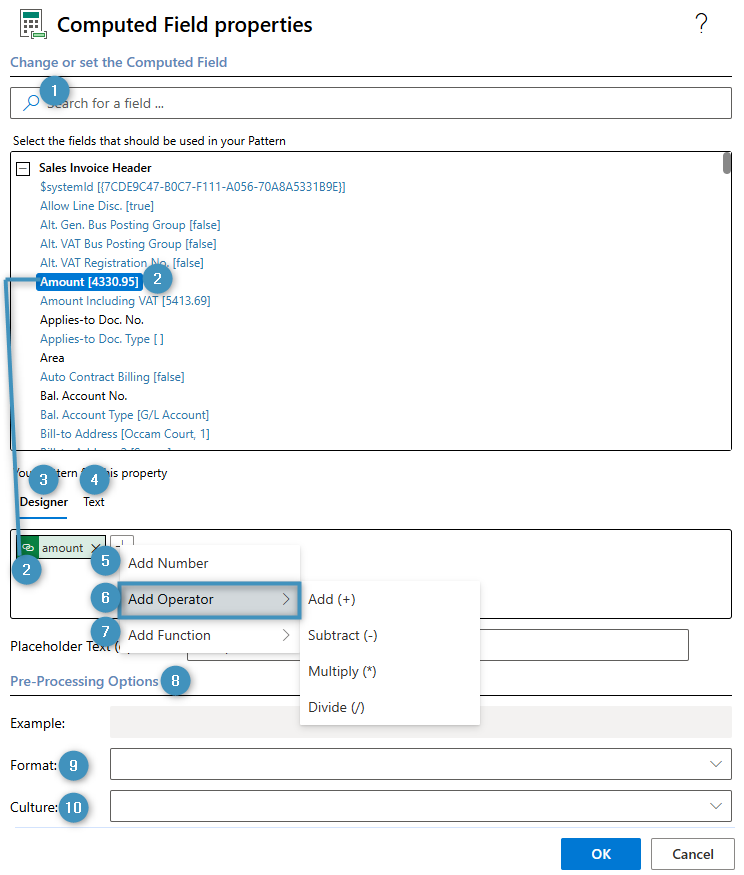
The controls in the Computed Field properties window are as follows:
- ❶ Search Field: Allows you to quickly search for available fields that can be used in the computed field.
- ❷ Field List: Displays all available fields from the selected data source. These fields can be inserted into the calculation pattern.
- ❸ Property Designer: Opens the visual formula builder, where calculations can be created using fields, operators, numbers, and functions.
- ❹ Text Property Designer: Switches to the text editor, where formulas can be entered and edited manually.
- ❺ Add number: Inserts a fixed numeric value into the calculation.
- ❻ Add Operator: Inserts mathematical operators, including addition (+), subtraction (-), multiplication (*), and division (/).
- ❼ Add Function: Inserts predefined functions that can be used to perform more advanced calculations.
- ❽ Pre-Processing Options: Provides settings for formatting and processing the calculated result before it is inserted into the document.
- ❾ Format: Defines how the output format of the calculated value should be displayed.
- ❿ Culture: Specifies the regional formatting rules to apply to the calculated result.
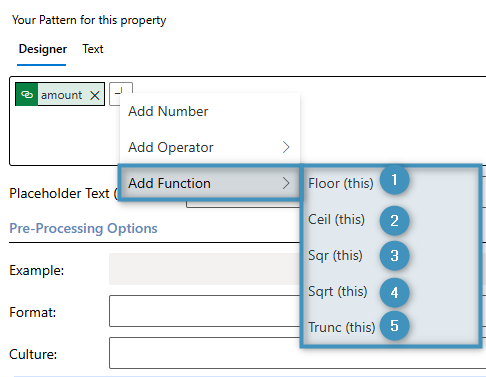
The Add Function menu provides the following five functions:
- ❶ Floor: Rounds a number down to the nearest integer. For positive numbers, the value is rounded toward zero, while for negative numbers, it is rounded away from zero. For example, applying this function to 5.25 returns 5, whereas applying it to -5.25 returns -6.
- ❷ Ceil: Rounds a number up to the nearest integer. This function behaves opposite to the Floor function. For example, applying the function to 5.25 returns 6, whereas applying it to -5.25 returns -5.
- ❸ Sqr: Returns the square of the specified number. For example, applying the function to 4 returns 16.
- ❹ Sqrt: Returns the square root of the specified number. The input value must not be negative. For example, applying the function to 4 returns 2.
- ❺ Trunc: Removes all digits after the decimal point without rounding. For example, applying the function to 5.25 returns 5.
The Text property designer enables manual formula entry using standard mathematical syntax, providing greater flexibility for advanced calculations, as shown in the example below.
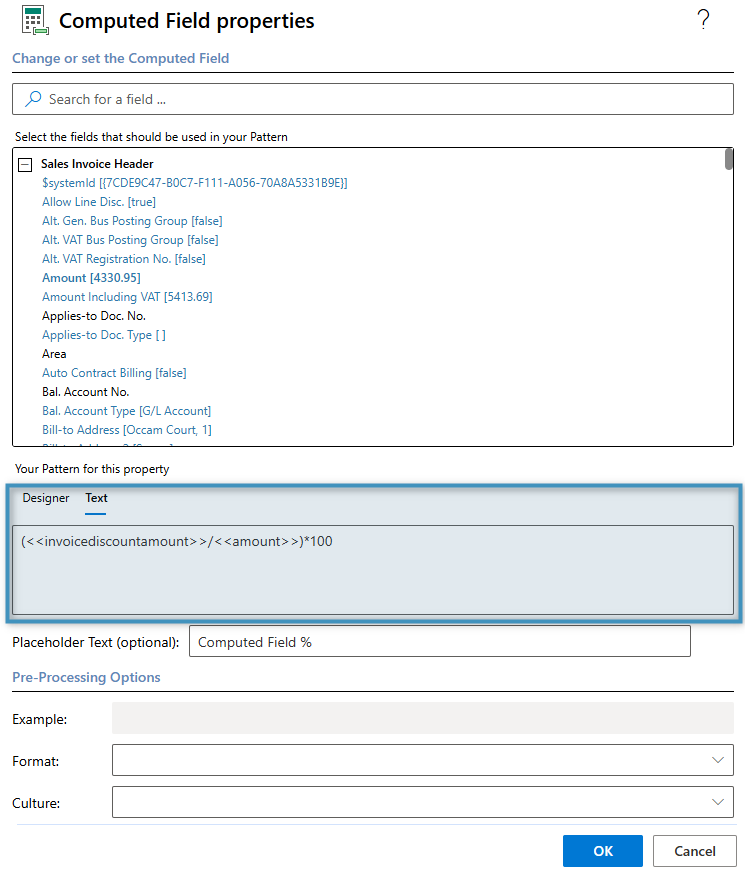
Use case: Calculating the invoice discount percentage
In this example, the discount percentage is not stored directly in the sales invoice. Instead, it is derived from the existing document values using a calculated field and then displayed in the document. The following formula is used to calculate the discount percentage:
(Invoice Discount Amount / Amount) *100
To build the formula, we add the invoice discount amount and amount fields from the field list into the corresponding positions.
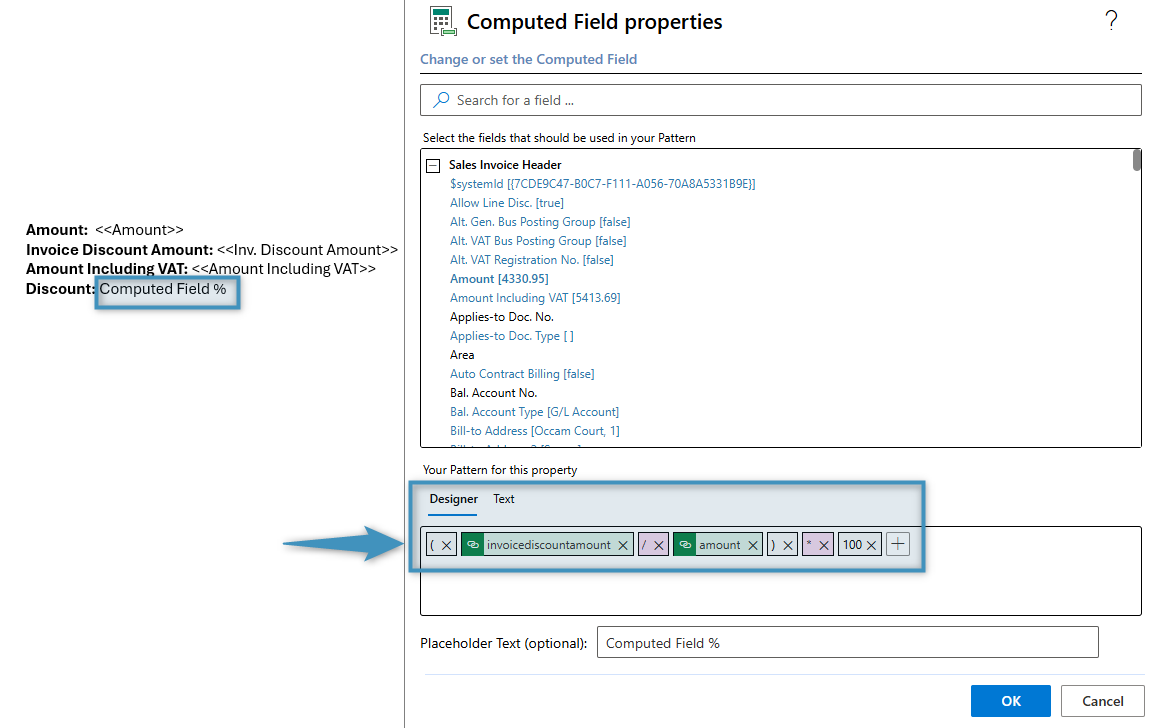
Note: Please keep proper mathematical syntax in mind. Otherwise, your calculated field may return the incorrect result.
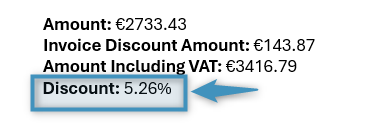
The resulting invoice discount percentage is shown below.