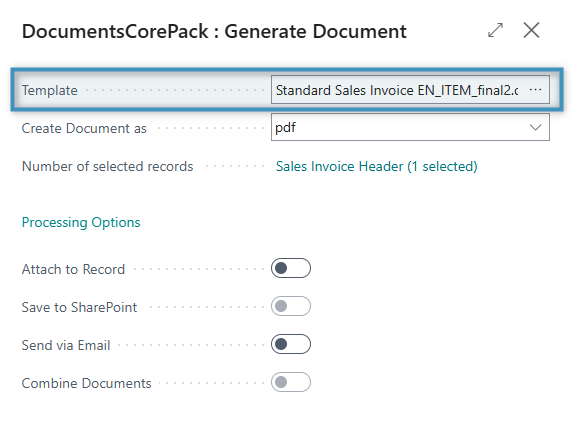
By default, Business Central uses its built-in report layouts for its native processes. With DocumentsCorePack (DCP) for Business Central, the user can instead choose a DCP template for report layouts. This flexibility allows users to switch between standard layouts and DCP templates as needed. In doing so, this enables users to further streamline their document generation processes.
Managing DCP Report Layouts
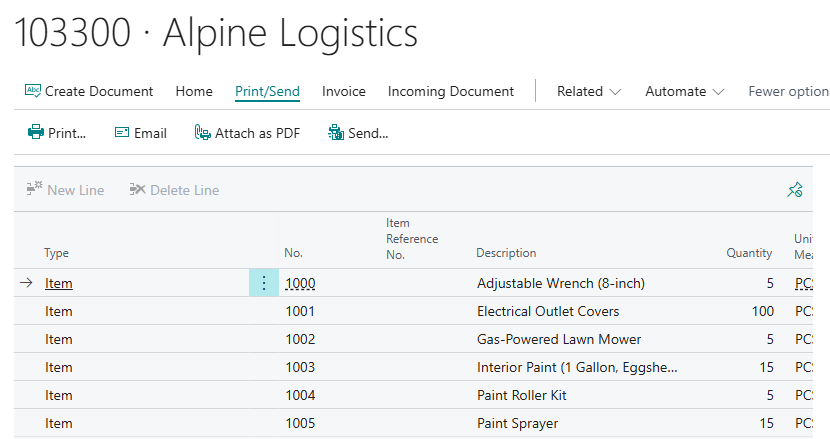
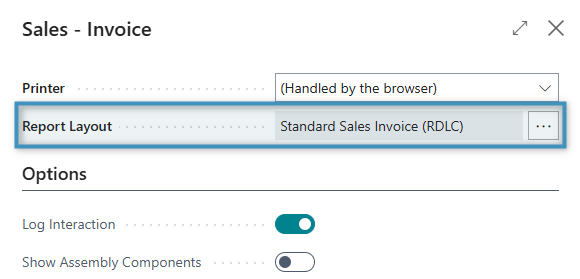
Printing, attaching documents as PDFs, and the “Send…” functionality all take advantage of Business Central’s report layouts. When any of these processes are finished, a document is created based on the defined report. For example, in the following Posted Sales Invoice record, a document is set to be printed based on the Standard Sales Invoice (RDLC) report layout.
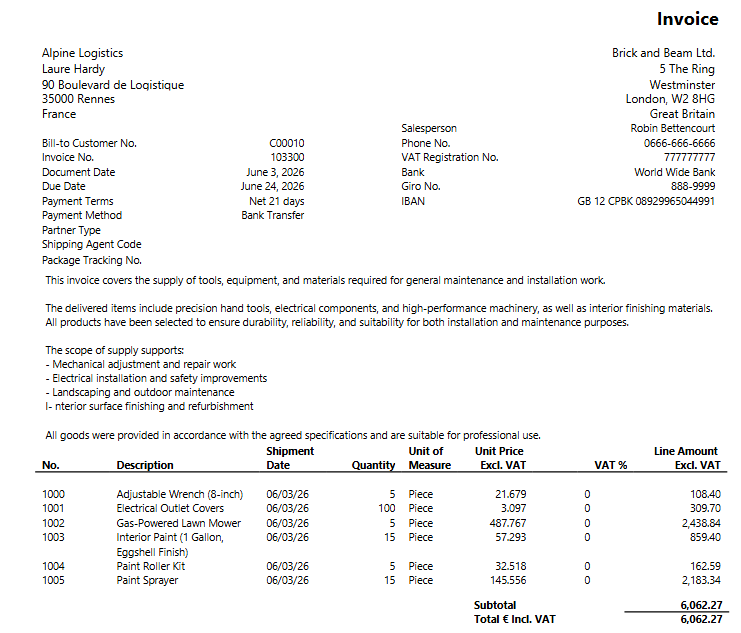
The result would be as follows:
This defined report can be changed to a DCP Report by accessing the DocumentsCorePack Reports Configuration. It can be found by searching for it in the search bar.
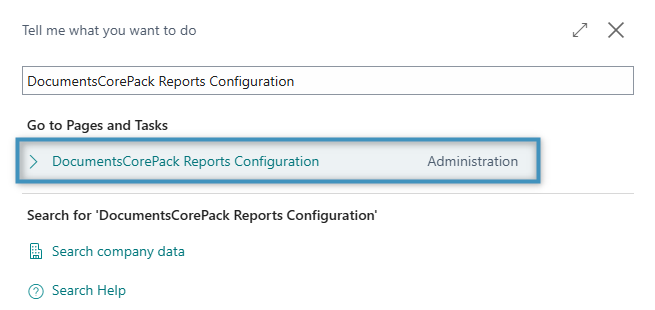
Selecting it will redirect you to a list of ❶ DocumentsCorePack reports. Clicking any listed report will bring up a ❷ list of available DocumentsCorePack templates for that report.

If we want to change the report used by Business Central for the Posted Sales Invoice to a DocumentsCorePack report, then we will need to set it as the system default. We can do that by locating the report associated with sales invoices and clicking Use as System Default under the report’s options.

Once selected, a notification will appear and the corresponding checkbox will be marked.

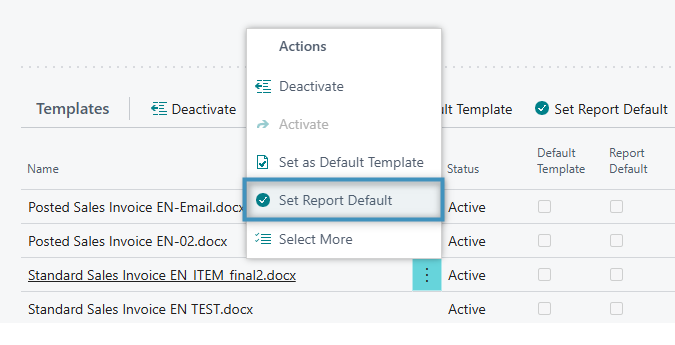
With the report selected, we can now set the template to be used. This can be done by bringing up a template’s Actions and selecting Set Report Default.
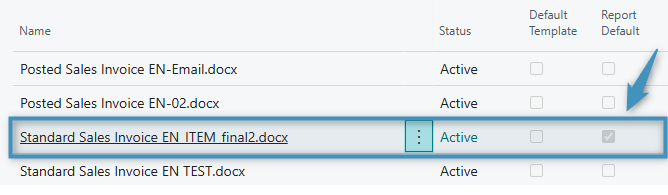
This will mark the template as such:
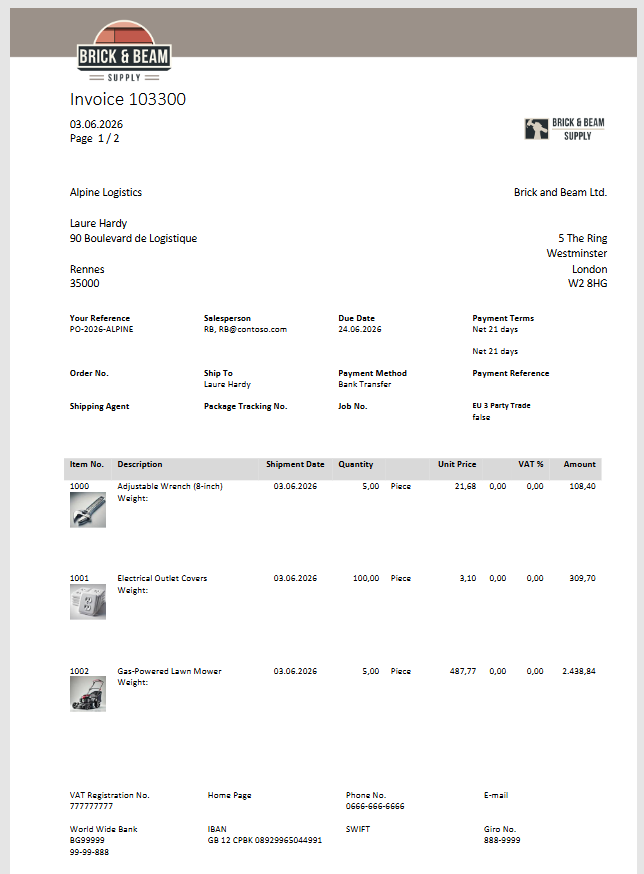
The Result Document
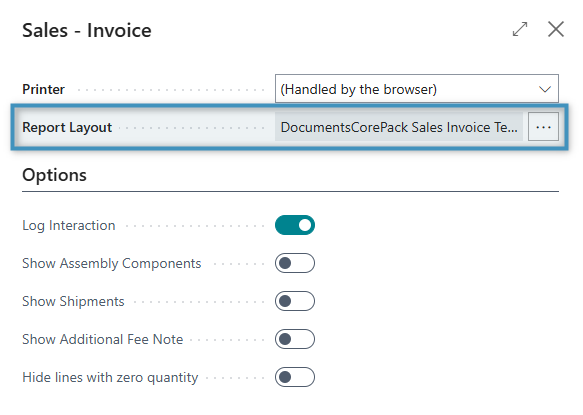
Now, the next time a report layout is used, the DocumentsCorePack Sales Invoice Template will be used instead, and the generated document will be based on the chosen template.
Changing the Report Layout Back
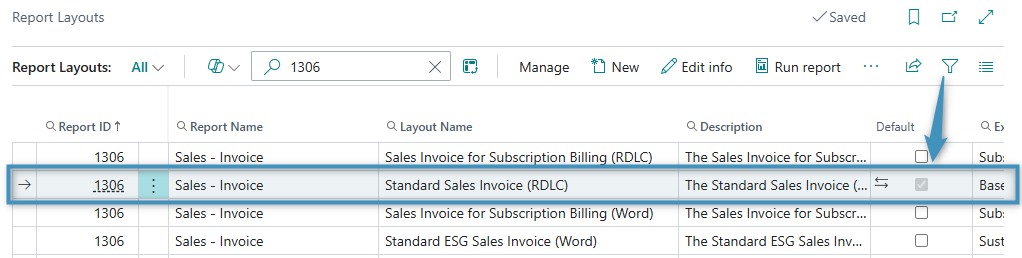
To change the report layout back to one of Business Central’s existing layouts, access the Report Layouts page.
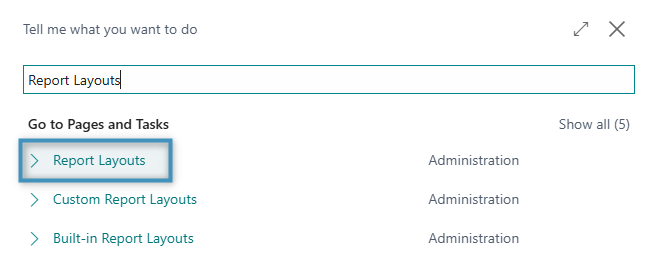
From here, you can select a layout from the listed options. Marking one as default will set the layout to be used in Business Central processes once again.
Adjusting the DCP Dialog’s Default Template
Additionally, the DocumentsCorePack Dialog’s default template can be changed by setting the template to be the Default Template in the DocumentsCorePack Reports Configuration.
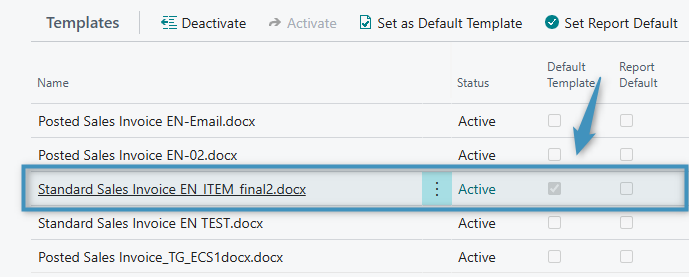
This change will be reflected in the DCP Dialog.