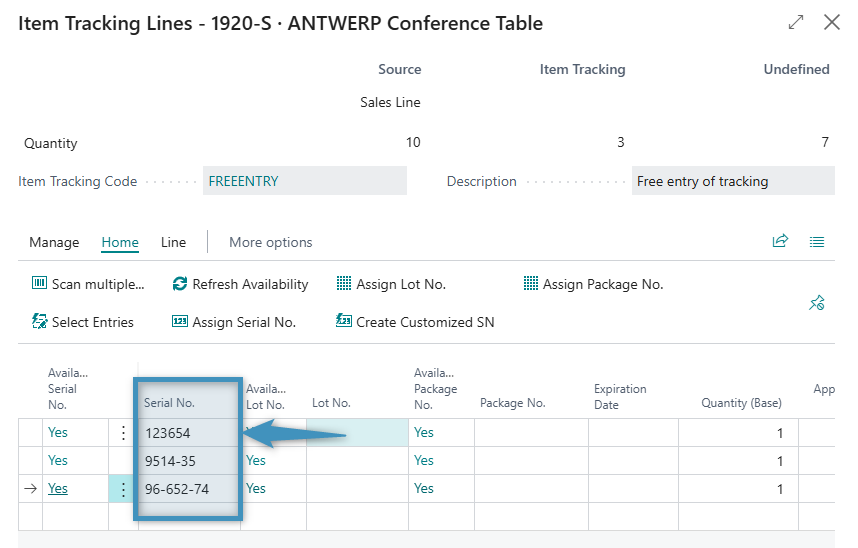
Certain document requirements involve data that is not easily accessible through standard table relationships. A common example is displaying item tracking information in a sales invoice. Because this information is stored in separate tables, retrieving it directly from the invoice template can be challenging. The Static Document feature in DocumentsCorePack for Business Central provides a simple solution by allowing you to generate the item tracking information in a separate template that acts as a sub-template and insert it into the sales invoice during document generation.
Our use case
In this guide, we will show how to add item tracking information, specifically serial numbers, to an existing sales invoice template.
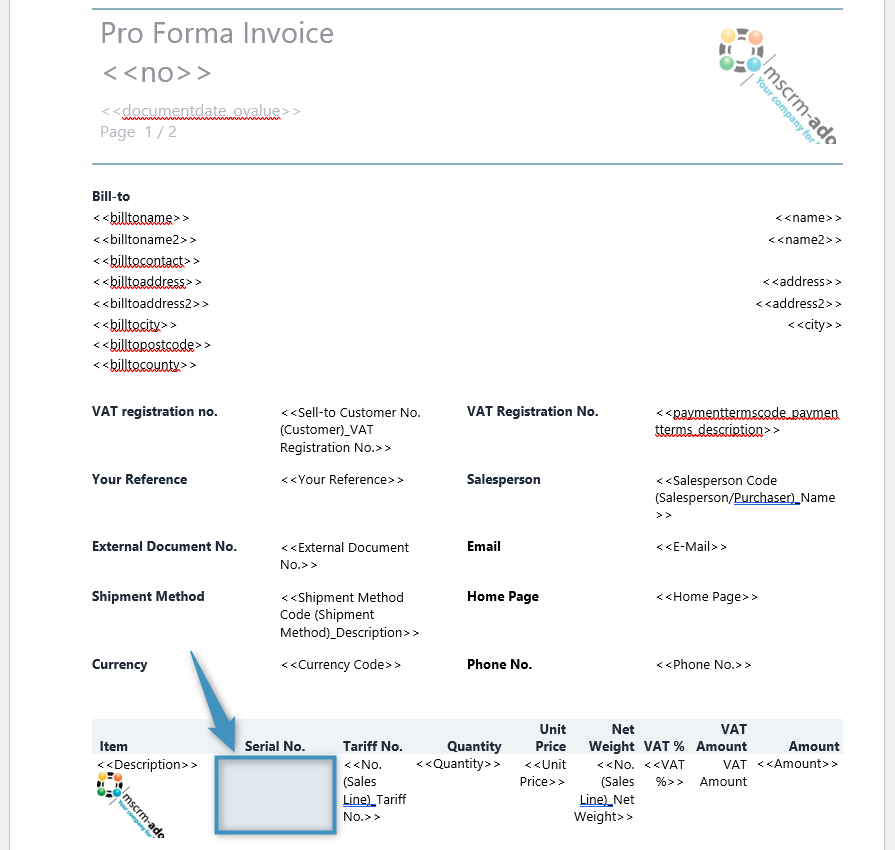
Our main sales invoice template already contains the following table. The highlighted location indicates where the item tracking Static Document field will be inserted in the table to display the serial numbers.
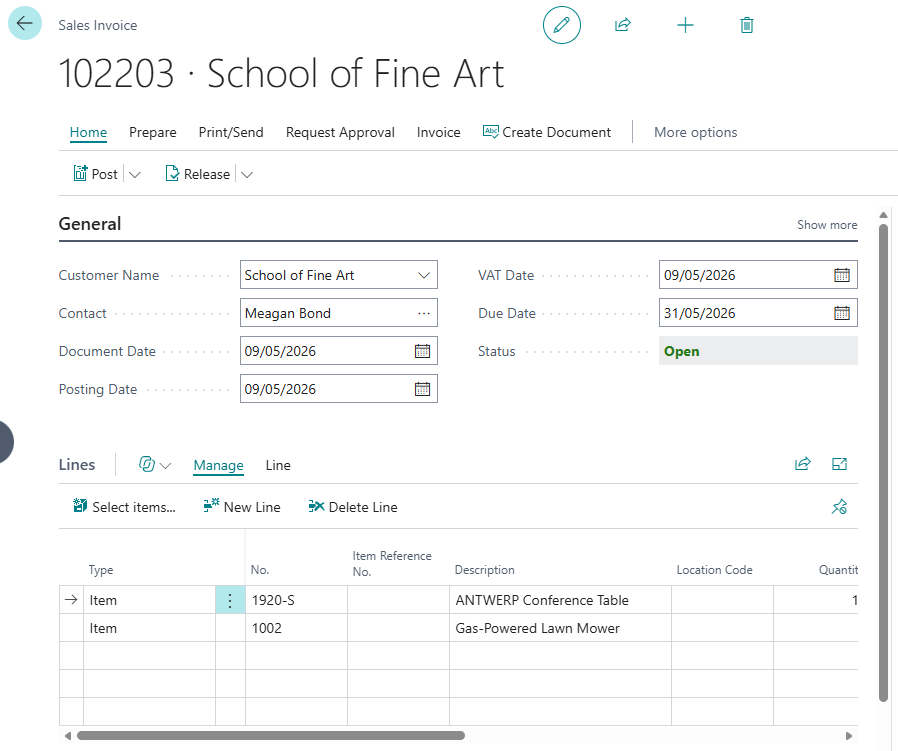
The sales invoice record shown below will serve as the basis for retrieving the related item tracking entries and making them available in the template.
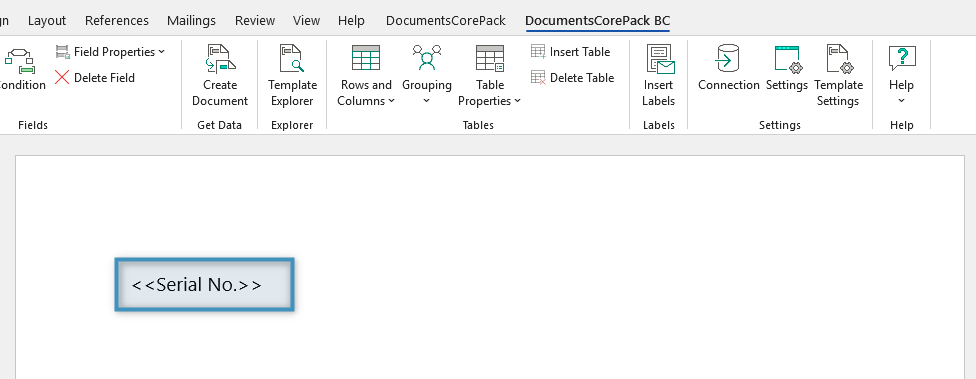
The following item tracking sub-template will be used to display the serial numbers:
Step 1: Insert a Static Document field
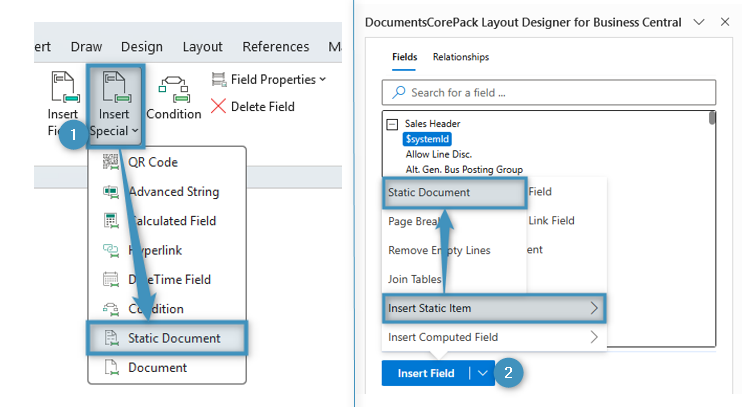
Open your sales invoice template in the DocumentsCorePack Layout Designer. Insert the Static Document field into the desired location in your template; in this case, it should be inserted at the position shown in figure 1. Once inserted, the field acts as a placeholder that will display the static document content when the sales invoice is generated. You can add the field in one of two ways:
- ❶ From the Fields group in the DocumentsCorePack tab by selecting Static Document
- ❷ Select the Insert Field button, and then Static Document from the available field types.
Step 2: Select a parameter
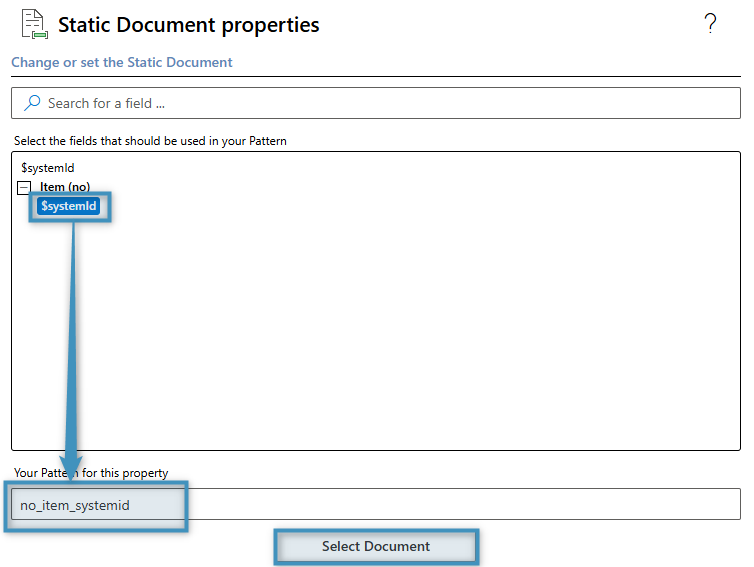
The selected static document is based on a different table than the parent template. To determine which record should be used when generating the sub-template, you can define a pattern field.When the field is selected as the pattern, it is automatically recognized as a parameter and used to retrieve the corresponding record.In our example below, the systemId field is used to identify the corresponding record in the Item table.
After inserting the pattern, click Select Document to choose the static document that should be generated using this parameter.
Step 3: Select the item tracking sub-template
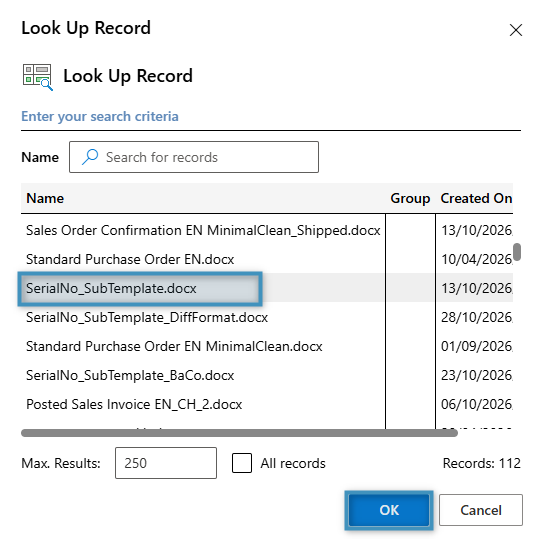
The window below displays all available static document templates that can be assigned as sub-templates. Select the item tracking sub-template to be generated for the record identified by the parameter configured in Step 2, and then click OK.
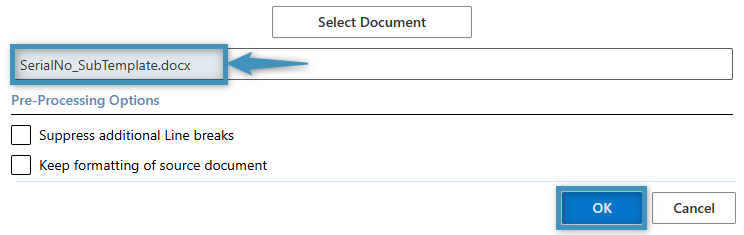
After a template has been selected, its name is displayed in the dialog below. Click OK to insert the field.
Step 4: Save the template
Our sales invoice template now contains the Static Document field. In the example below, the serial number field has been inserted as the sub-template. Save your template to apply the changes.

Step 5: Generate the document
After document generation, the serial numbers retrieved by the item tracking sub-template are displayed directly within the sales invoice, as shown below.
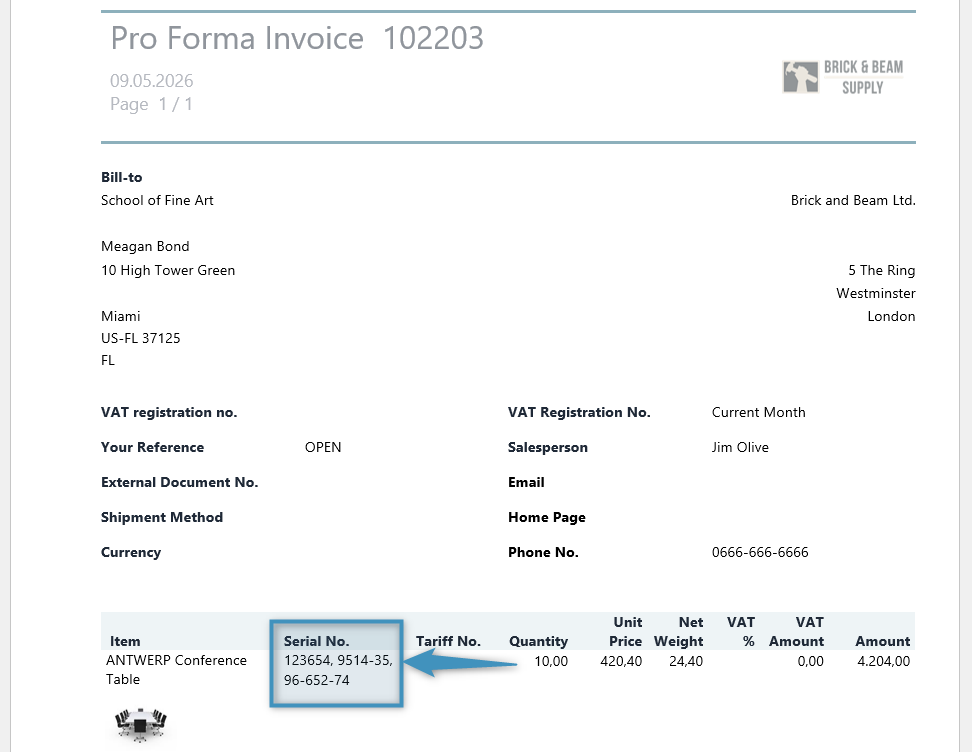
You can verify the generated serial numbers by comparing them with the corresponding item tracking records in Business Central. To open the Item Tracking Lines window, go to the relevant sales invoice, select the invoice line, and then choose Line -> Related Information -> Item Tracking Lines. The serial numbers displayed in this window should match those displayed in the generated document.