The Static Document feature in DocumentsCorePack for Business Central allows you to insert a sub-template into the current template. This is especially useful when you need to include content from tables that do not have a direct or easily configurable relationship with the primary template’s table.
Inserting a Static Document Field
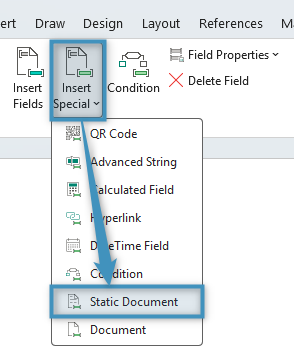
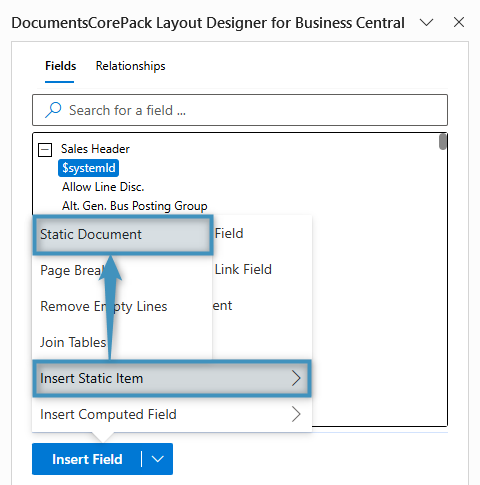
The Insert Static Document field can be accessed in one of two ways:
- Via the Fields group in the DocumentsCorePack tab
- Via the Insert Field button in the Layout Designer, and then selecting Insert Static Item.
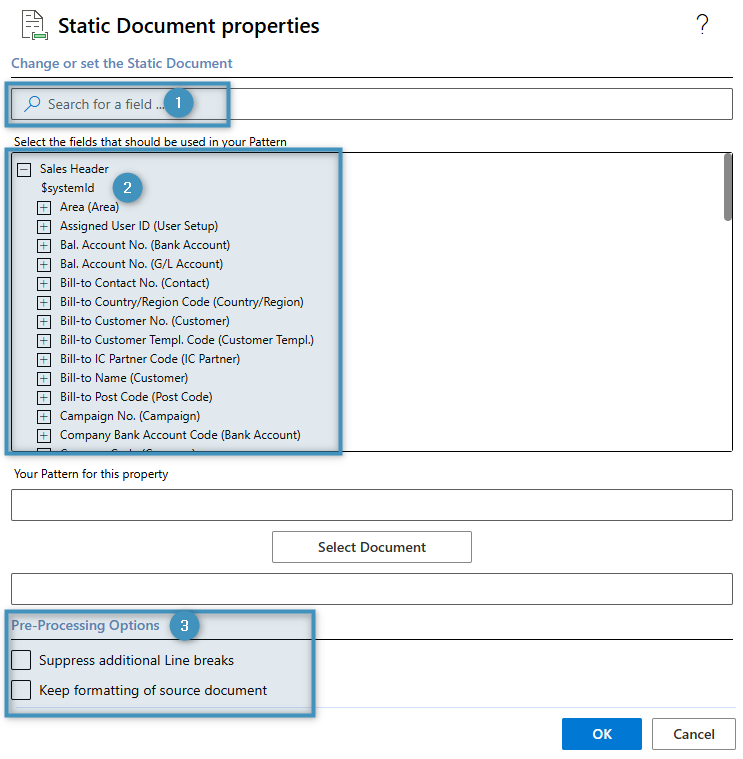
Selecting either option opens the Static Document dialog window below:
Field Properties
The following properties are available when configuring a Static Document field:
- ❶ Search Bar: Use the search bar to quickly locate a field by name.
- ❷ Field List: Displays the available fields that can be inserted as a Static Document.
- ❸ Pre-Processing Options: Allow you to define how the selected field is processed before it is inserted into the template.
- Suppress additional Line breaks: By default, when a Static Document control is placed on its own paragraph, an additional empty line is inserted after the inserted content. If the control is placed within a line of text or inside a condition, enabling or disabling this option has no effect.
- Keep formatting of source document: Preserves the formatting defined in the Static Document. For example, if the parent template uses Courier 14 and the Static Document uses Calibri 11, the inserted content will retain the Calibri 11 when this option is enabled. If disabled, the content adopts the formatting of the parent template.
Selecting a Parameter and Template
If the selected Static Document is based on a different table than the parent template, you can specify a pattern field to identify the record that should be used when generating the subdocument. When the field is selected as the pattern, it is automatically recognized as a parameter and used to retrieve the corresponding record.
In our example below, the systemId field is used to identify the corresponding record in the Item table.
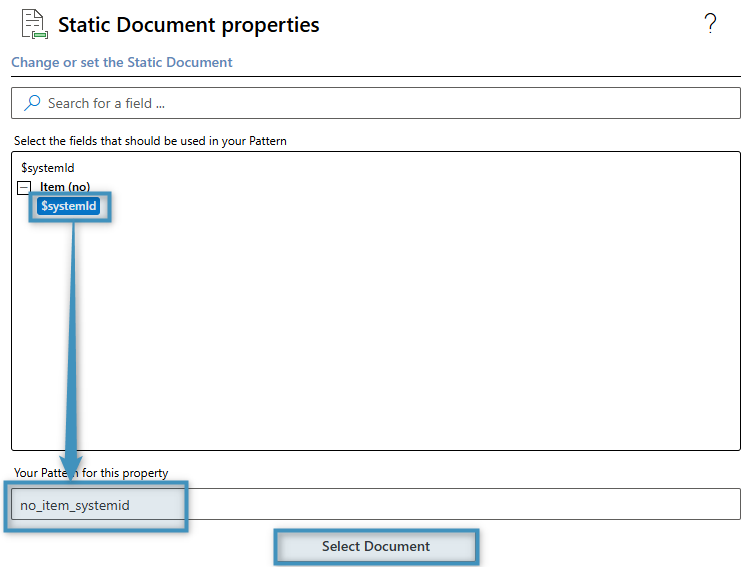
To open the list of available DocumentsCorePack templates click on Select Document.
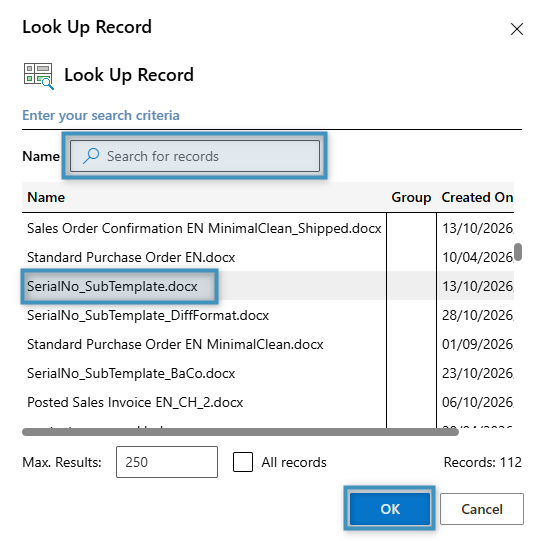
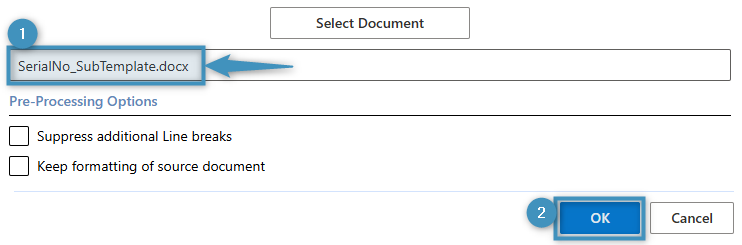
After selecting a template, its name is displayed in the ❶ Static Document dialog. To insert the field, click ❷ OK, and then save your template.
Example: Item Tracking Information in a Sales Invoice
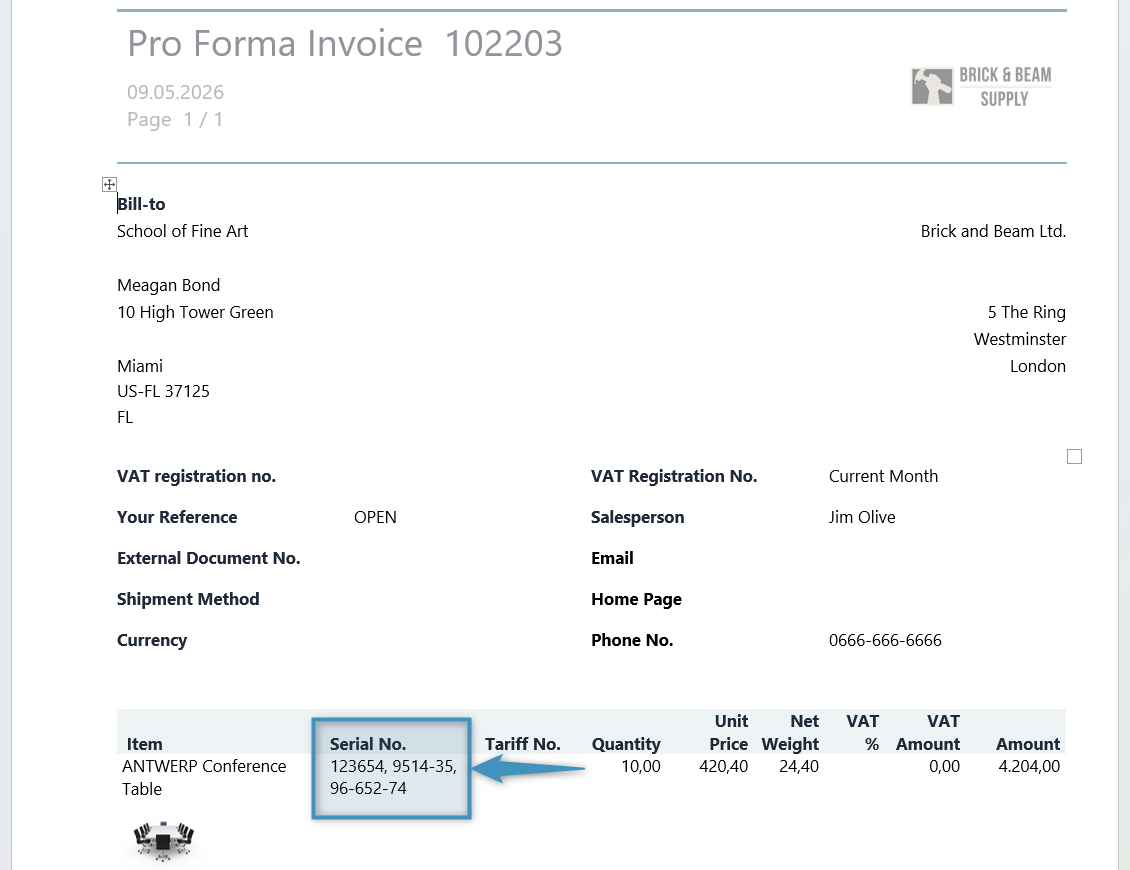
A common use case for Static Documents is displaying item tracking information on a sales invoice. While the primary sales invoice template is based on sales document data, item tracking details such as serial numbers are stored in separate tables that are not easily accessible from the invoice template. By placing the item tracking details in a separate Item Tracking template, you can easily include them in the sales invoice template through a Static Document field.

When the invoice is generated, DocumentsCorePack uses the specified parameters to generate the item tracking sub-template and automatically inserts the resulting content into the invoice as shown below.
For a step-by-step guide on adding item tracking information as a sub-template to a sales invoice template, see here.