Field properties in DocumentsCorePack for Business Central allow you to control how individual field values are displayed in generated Word documents. Depending on the field type, different configuration options are available to customize formatting and appearance while ensuring consistent document output.
This article explains how to access field properties and outlines the options available for commonly used field types, including text, numbers, dates, and images.
Opening Field Properties
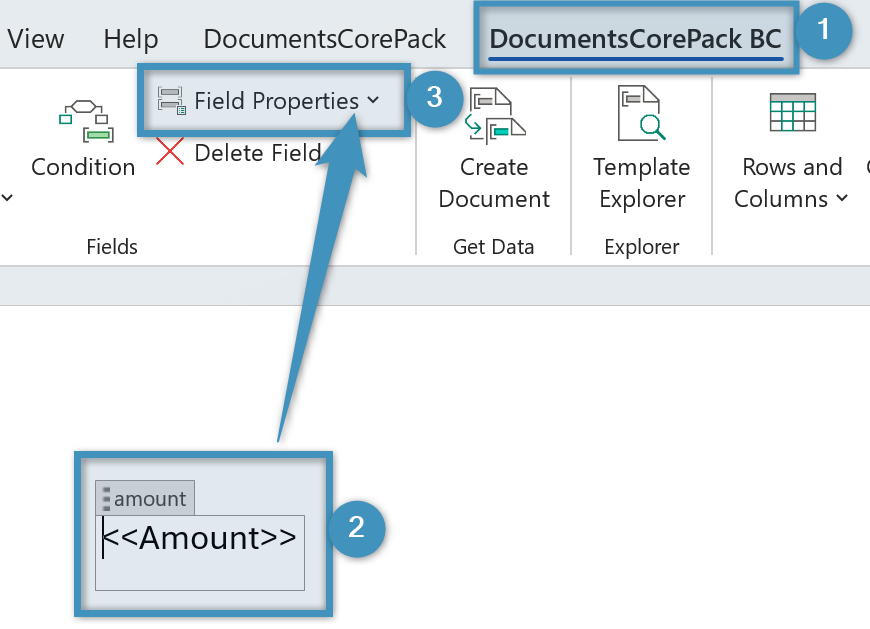
In the ❶ DocumentsCorePack Layout Designer for Business Central, ❷ insert a field into your template. Then, select the field and click ❸ Field Properties to open the formatting and display options for the selected field.
Field Type Options
The available field property options depend on the field type in Business Central. Each data type provides its own set of formatting and display options within the Field Properties dialog:
- Numeric fields – Provides formatting options such as thousand separators, decimal precision, and culture-specific number or currency formatting.
- DateTime fields – Offers formatting options for displaying dates and times according to regional settings.
- Picture fields – Provides options that control how images are retrieved, resized, and rendered in the generated document.
- Picture Link fields – Provides options for configuring image URLs and hyperlinks
- Text fields – Provides options for handling empty values, such as removing rows or lines when field content is empty.
Note: The Name and Relation fields in the Field Properties section are the same for all field types and are therefore described only once. Only the type-specific properties differ and are described in the sections below.
Field Type Examples
Numeric Fields
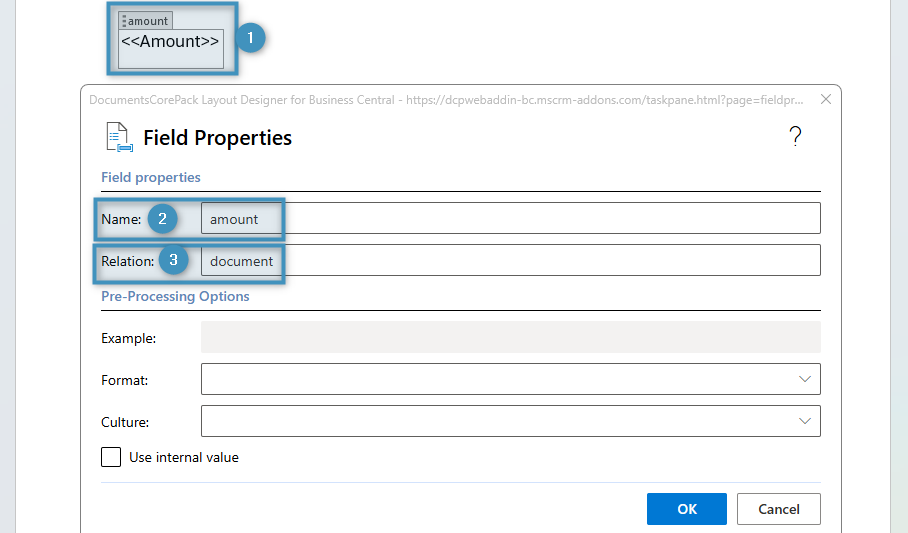
After inserting the desired ❶ field, place the cursor inside the field and select Field Properties (as dialog) from the DCP ribbon. In the dialog, you can review the ❷ Field Name and ❸ Relation, which identifies the source of the field data.
Pre-Processing Options
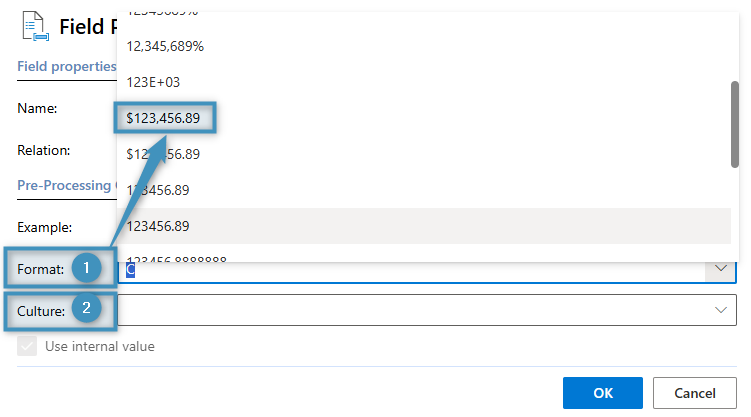
The pre-processing options determine how the field value is formatted before it is inserted into the document. There are two options available:
- ❶ Format: Determines the format of the numeric value.
- ❷ Culture: Determines what culture the value is based in. This setting is typically used when changing the currency of a value.
Click OK to save the settings. The selected format and culture will be applied when the document is generated.
DateTime Fields
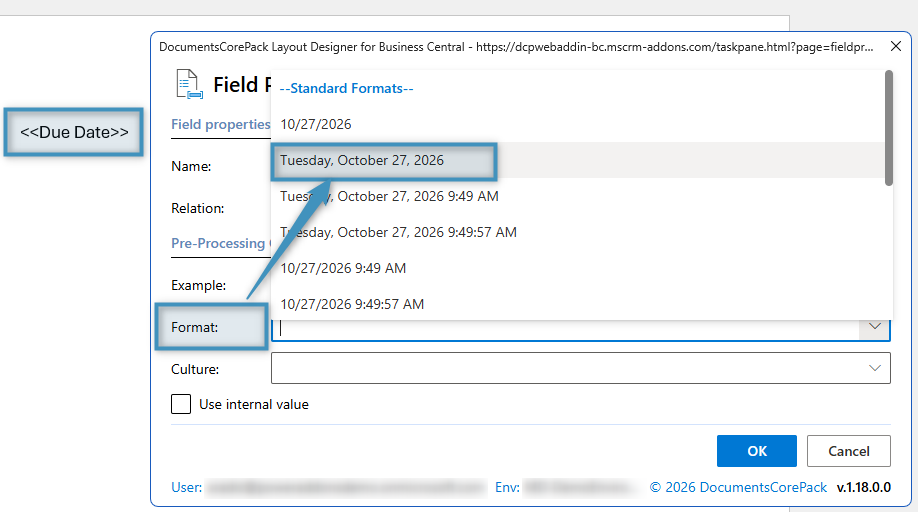
For DateTime fields, you can use the Format property to control how date and time values are displayed in the generated document.
For example, you can choose to have the full date displayed in written form.
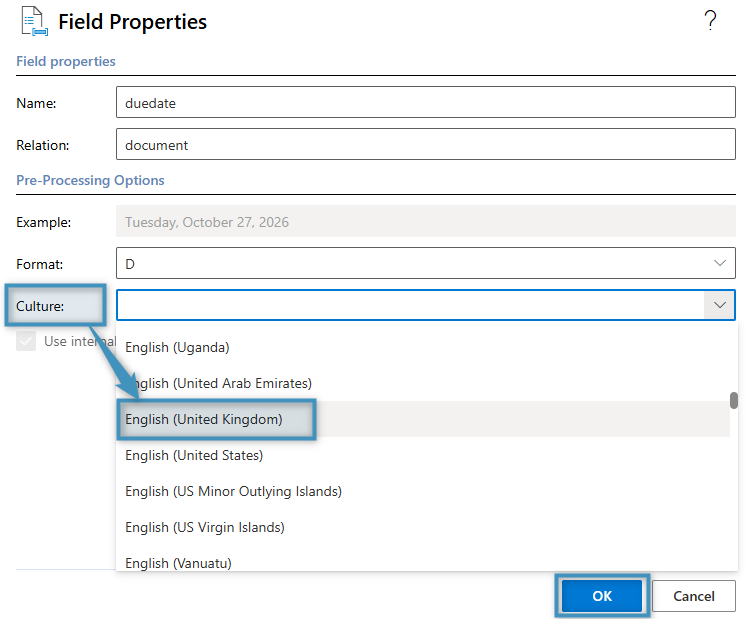
Additionally, you can choose the culture the date is based in. This can be used for changing the date to an appropriate regional format.
Picture Fields
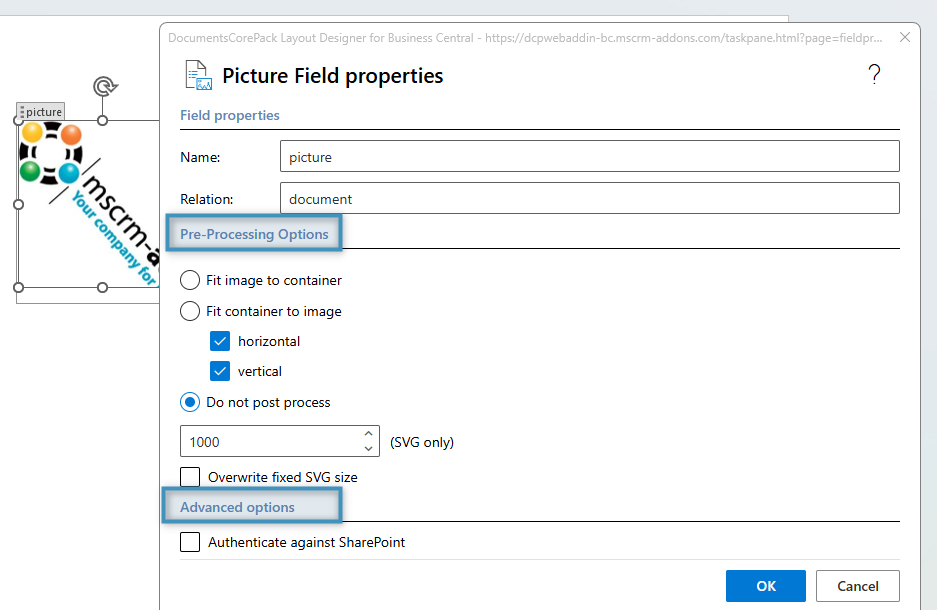
When handling picture fields, you can manage the field’s pre-processing options in addition to the field’s advanced options.
Pre-Processing Options
These options determine how the image is sized before it is inserted into the template:
- Fit image to container – Scales the image to fit within the image placeholder in the document.
- Fit container to image – Adjusts the size of the image placeholder to match the original dimensions of the image. You can configure the fitting behavior separately for horizontal and vertical dimensions.
- Do not post process – Inserts the image without applying any resizing.
- SVG Size (SVG only) – Specifies a fixed output size for SVG images (e.g., 1000px).
- The Overwrite fixed SVG size option ignores the size settings defined within the SVG file and applies the size specified in the field properties instead.
Advanced Options
- Authenticate against SharePoint– Enable this option to retrieve images from SharePoint using the configured SharePoint connection in the Business Central service.
Picture Link Fields
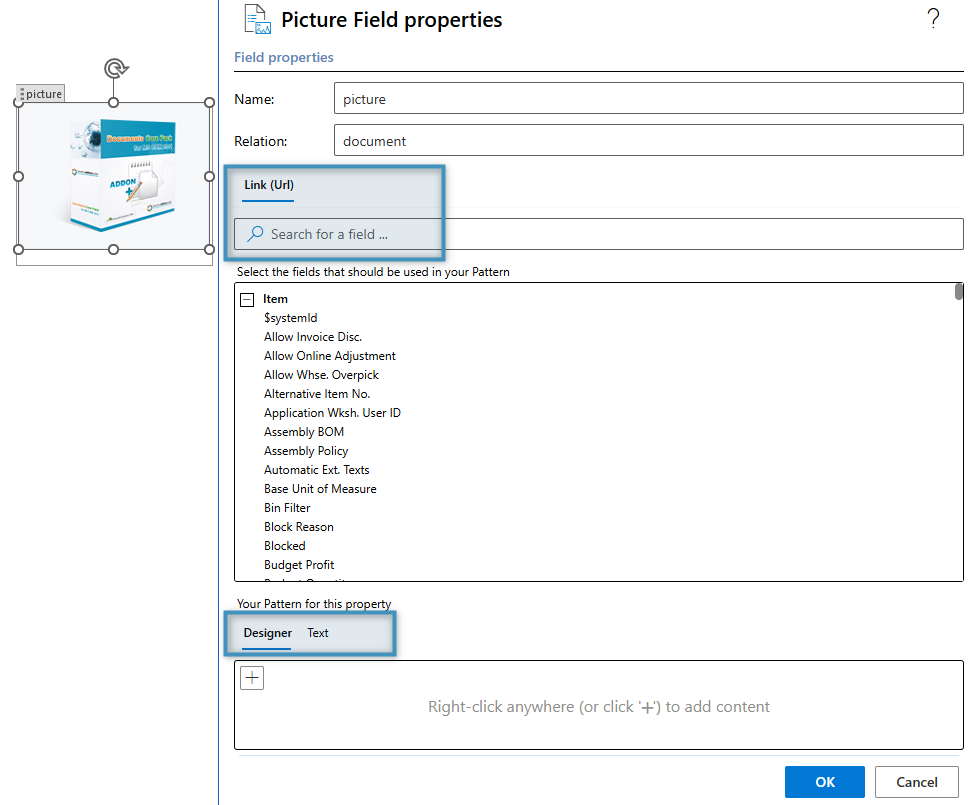
When a field is inserted as a Picture Link Field using the Insert Field button, the Link (URL) and URL Pattern Builder properties can be utilized.
Link (URL)
The Link (URL) section is available for Picture Link Fields and allows you to search and select a field that contains an image URL or file path to be used for the Picture Link Field.
URL Pattern Builder
The ULR Pattern builder is the bottom panel, consisting of the Designer and Text tabs. It allows you to build image URLs by combining static text with values from Business Central fields. Common use cases include:
- SharePoint URLs
- Multi-part URLs (e.g., Item No. + file name)
- External image URLs
Text Fields
For text fields, the following two options are available:
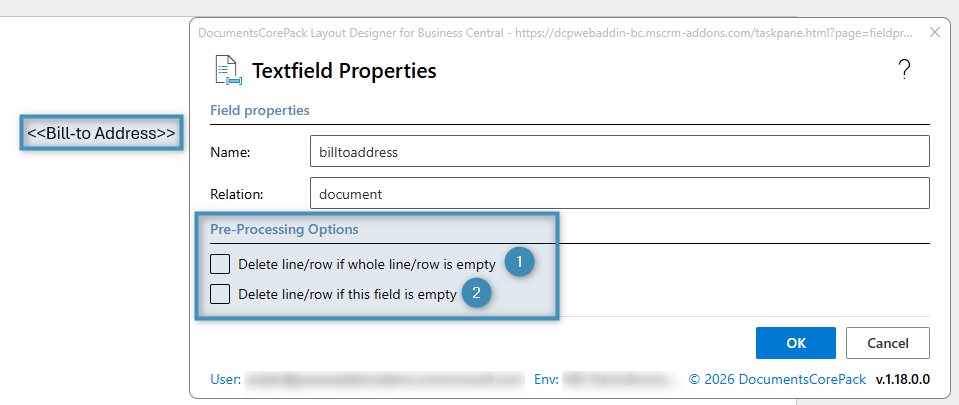
- ❶ Delete line/row if whole line/row is empty: Removes the line or table row only when the selected field and all other fields in the same line or row are empty.
- ❷ Delete line/row if this field is empty: Removes the entire line or table row when the selected field is empty, regardless of any other content in the same line or row.
Select OK to save the setting.